

In this article we will see how to perform CRUD operation on an XML database in WPF.
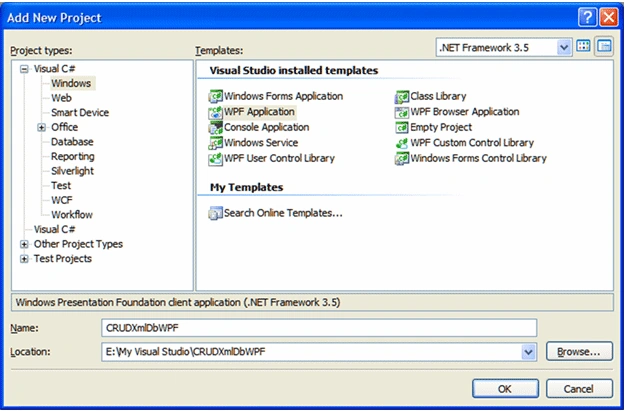
Creating WPF Application
Fire up Visual Studio and create a WPF Application, name it as CRUDXmlDbWPF.
We need to design for CRUD operation. I preferred Blend 3 and used Tab Control.
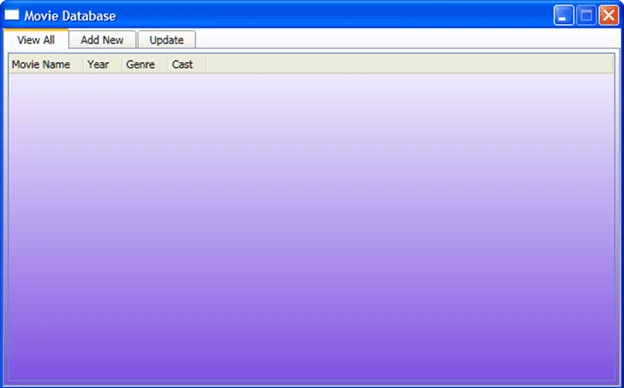
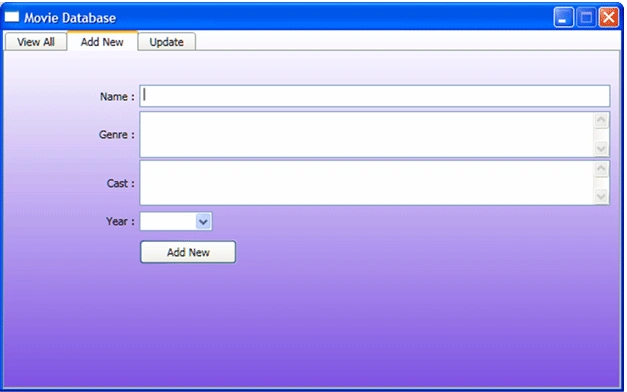
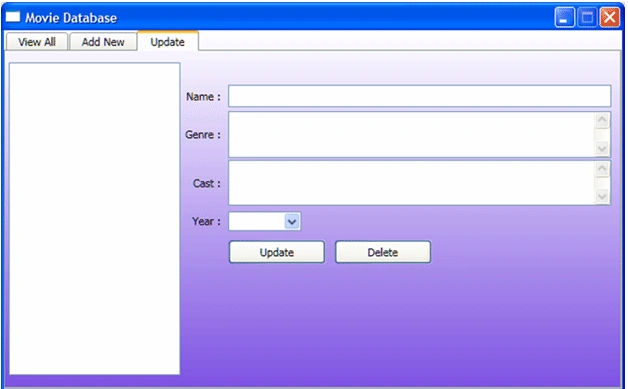
XML Schema in C# Class
Create a class of your xml schema.
class Movies
{
public string Name { get; set; }
public string Genre { get; set; }
public string Cast { get; set; }
public string Year { get; set; } }
Global Variables
The following are the Global variables I have used.
ObservableCollection<Movies> selectedList = new ObservableCollection<Movies>();
List<Movies> movieList;
List<string> yearList;
Movies moviesDel;
public Window1()
{
InitializeComponent();
btnUpdate.IsEnabled = false;
btnDelete.IsEnabled = false;
yearList = new List<string> { "2010", "2009", "2008", "2007", "2006", "2005", "2004", "2003" };
cmbYear.ItemsSource = yearList;
cmbYearUpdate.ItemsSource = yearList;
LoadData(); }
Read Operation
We have an xml file named MovieDB.xml in the root directory. I have created a method to load data from the file.
#region Load Data
void LoadData()
{
XDocument doc = XDocument.Load(@"E:\MovieDB.xml");
movieList = (from movie in doc.Descendants("Movie")
orderby movie.Element("Name").Value
select new Movies
{
Name = movie.Element("Name").Value,
Genre = movie.Element("Genre").Value,
Year = movie.Element("Year").Value,
Cast = movie.Element("Cast").Value,
}).ToList();
lbMovies.ItemsSource = movieList;
ViewDataGrid.ItemsSource = movieList;
} #endregion
Call the method whenever and wherever it is required to Load data.
Create and Update Operation
Create and Update operations are same except that we update an existing data in Update Operation.
So I have created a method called WriteToXml where I am writing to XML file depending on the Create or Update Operation.
#region WriteToXmlFile
void WriteToXmlFile(Movies movies, bool isUpdate)
{
#region Add New
if (!isUpdate)
{
FileStream fs = new FileStream(@"E:\MovieDB.xml", FileMode.Open, FileAccess.Read, FileShare.ReadWrite);
XmlDocument xmlDoc = new XmlDocument();
xmlDoc.Load(fs);
fs.Close();
XmlElement newMovie = xmlDoc.CreateElement("Movie");
XmlElement name = xmlDoc.CreateElement("Name");
name.InnerText = movies.Name;
newMovie.AppendChild(name);
XmlElement genre = xmlDoc.CreateElement("Genre");
genre.InnerText = movies.Genre;
newMovie.AppendChild(genre);
XmlElement year = xmlDoc.CreateElement("Year");
year.InnerText = movies.Year;
newMovie.AppendChild(year);
XmlElement cast = xmlDoc.CreateElement("Cast");
cast.InnerText = movies.Cast;
newMovie.AppendChild(cast);
xmlDoc.DocumentElement.InsertAfter(newMovie,
xmlDoc.DocumentElement.LastChild);
FileStream fsxml = new FileStream(@"E:\MovieDB.xml", FileMode.Truncate,
FileAccess.Write,
FileShare.ReadWrite);
xmlDoc.Save(fsxml);
fsxml.Close();
}
#endregion
#region Update
else
{
XDocument doc = XDocument.Load(@"E:\MovieDB.xml");
foreach (var item in doc.Descendants("Movie"))
{
if (item.Element("Name").Value == moviesDel.Name)
{
item.Element("Name").SetValue(movies.Name);
item.Element("Genre").SetValue(movies.Genre);
item.Element("Year").SetValue(movies.Year);
item.Element("Cast").SetValue(movies.Cast);
doc.Save(@"E:\MovieDB.xml");
break;
}
}
}
#endregion
} #endregion
On Button Click events of Either Create or Update Operation you can call the above method.
#region Add Operation
private void btnAdd_Click(object sender, RoutedEventArgs e)
{
string name = txtName.Text.Trim();
string year;
if (cmbYear.SelectedIndex != -1)
{
year = cmbYear.SelectedValue.ToString();
}
else
{
year = "2009";
}
string genre = txtGenre.Text.Trim();
string cast = txtCast.Text.Trim();
bool isUpdate = false;
if (name.Equals(string.Empty))
name = "Un Named Movie";
if (year.Equals(string.Empty))
year = "2009";
if (genre.Equals(string.Empty))
genre = "No Genre";
if (cast.Equals(string.Empty))
cast = "No Cast";
Movies newMovie = new Movies
{
Name = name,
Year = year,
Genre = genre,
Cast = cast,
};
WriteToXmlFile(newMovie, isUpdate);
txtName.Text = string.Empty;
txtGenre.Text = string.Empty;
txtCast.Text = string.Empty;
cmbYear.SelectedIndex = -1;
LoadData();
}
#endregion
#region Update Operation
private void btnUpdate_Click(object sender, RoutedEventArgs e)
{
if (lbMovies.SelectedIndex != -1)
{
string name = txtNameUpdate.Text;
string year = cmbYearUpdate.SelectedValue.ToString();
string genre = txtGenreUpdate.Text;
string cast = txtCastUpdate.Text;
bool isUpdate = true;
if (name.Equals(string.Empty))
name = "Un Named Movie";
if (year.Equals(string.Empty))
year = "2009";
if (genre.Equals(string.Empty))
genre = "No Genre";
if (cast.Equals(string.Empty))
cast = "No Cast";
Movies updateMovie = new Movies
{
Name = name,
Year = year,
Genre = genre,
Cast = cast,
};
WriteToXmlFile(updateMovie, isUpdate);
lbMovies.SelectedIndex = -1;
btnUpdate.IsEnabled = false;
btnDelete.IsEnabled = false;
LoadData();
}
} #endregion
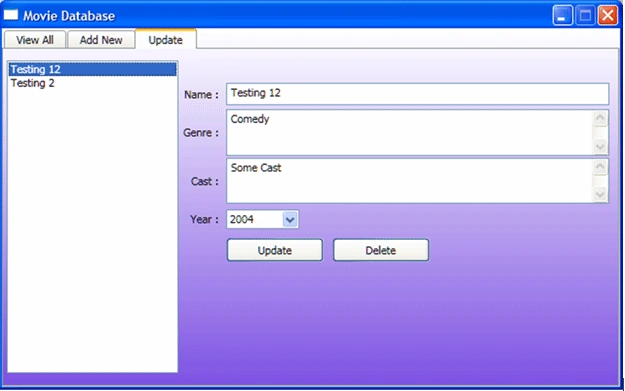
On selection changed of the ListBox perform as below to bind data to the respective fields.
#region ListBox Selection Changed
private void lbMovies_SelectionChanged(object sender, SelectionChangedEventArgs e)
{
selectedList.Clear();
if (this.lbMovies.SelectedItem is Movies)
{
selectedList.Add(((Movies)this.lbMovies.SelectedItem));
moviesDel = (Movies)this.lbMovies.SelectedItem;
}
foreach (var item in selectedList)
{
txtNameUpdate.Text = item.Name;
cmbYearUpdate.SelectedValue = item.Year;
txtGenreUpdate.Text = item.Genre;
txtCastUpdate.Text = item.Cast;
}
btnUpdate.IsEnabled = true;
btnDelete.IsEnabled = true;
} #endregion
Delete Operation
On Delete button click event you can add the following code to perform the Delete Operation.
#region Delete Operation
private void btnDelete_Click(object sender, RoutedEventArgs e)
{
if (moviesDel != null)
{
if (System.Windows.MessageBox.Show("Do you Really Want To Delete This Movie ?", "Delete Confirmation", MessageBoxButton.YesNo) == MessageBoxResult.Yes)
{
XDocument doc = XDocument.Load(@"E:\MovieDB.xml");
foreach (var item in doc.Descendants("Movie"))
{
if (item.Element("Name").Value == moviesDel.Name)
{
((XElement)item.Element("Name")).Parent.Remove();
doc.Save(@"E:\MovieDB.xml");
break;
}
}
LoadData();
moviesDel = null;
lbMovies.SelectedIndex = -1;
btnDelete.IsEnabled = false;
}
else
{
moviesDel = null;
lbMovies.SelectedIndex = -1;
btnDelete.IsEnabled = false;
}
}
}
#endregion
XAML Binding
The following code refers to XAML data binding and control's properties.
<TabControl Background="{x:Null}">
<TabItem Header="View All">
<Grid>
<Custom:DataGrid x:Name="ViewDataGrid" IsReadOnly="True" GridLinesVisibility="Horizontal"
AutoGenerateColumns="False" d:LayoutOverrides="Width, Height" Background="{x:Null}">
<Custom:DataGrid.Columns>
<Custom:DataGridTextColumn Header="Movie Name" Binding="{Binding Path=Name}"/>
<Custom:DataGridTextColumn Header="Year" Binding="{Binding Path=Year}"/>
<Custom:DataGridTextColumn Header="Genre" Binding="{Binding Path=Genre}"/>
<Custom:DataGridTextColumn Header="Cast" Binding="{Binding Path=Cast}"/>
</Custom:DataGrid.Columns>
</Custom:DataGrid>
</Grid>
</TabItem>
<TabItem Header="Add New">
<Grid>
<Grid.ColumnDefinitions>
<ColumnDefinition Width="0.217*"/>
<ColumnDefinition Width="0.783*"/>
</Grid.ColumnDefinitions>
<Grid.RowDefinitions>
<RowDefinition Height="0.083*"/>
<RowDefinition Height="0.086*"/>
<RowDefinition Height="0.147*"/>
<RowDefinition Height="0.146*"/>
<RowDefinition Height="0.09*"/>
<RowDefinition Height="0.095*"/>
<RowDefinition Height="0.353*"/>
</Grid.RowDefinitions>
<TextBlock HorizontalAlignment="Right" VerticalAlignment="Center" Text="Name :" TextWrapping="Wrap" Margin="0,0,5,0" Grid.Row="1"/>
<TextBlock HorizontalAlignment="Right" Margin="0,0,5,0" VerticalAlignment="Center" Text="Genre :" TextWrapping="Wrap" Grid.Row="2"/>
<TextBlock HorizontalAlignment="Right" Margin="0,0,5,0" VerticalAlignment="Center" Grid.Row="3" Text="Cast :" TextWrapping="Wrap"/>
<TextBlock HorizontalAlignment="Right" Margin="0,0,5,0" VerticalAlignment="Center" Text="Year :" TextWrapping="Wrap" Grid.Row="4"/>
<TextBox x:Name="txtName" Margin="0,0,5,0" Grid.Row="1" Grid.Column="1" VerticalAlignment="Center" Height="23"/>
<TextBox x:Name="txtGenre" Margin="0,1,5,1" Grid.Column="1" Grid.Row="2" TextWrapping="Wrap" VerticalScrollBarVisibility="Visible"/>
<TextBox x:Name="txtCast" Margin="0,1,5,1" Grid.Column="1" Grid.Row="3" TextWrapping="Wrap" VerticalScrollBarVisibility="Visible"/>
<ComboBox x:Name="cmbYear" Margin="0" HorizontalAlignment="Left" Width="75" Grid.Column="1" Grid.Row="4" Height="20"
VerticalAlignment="Center"/>
<Button x:Name="btnAdd" Click="btnAdd_Click"
HorizontalAlignment="Left" Margin="0" VerticalAlignment="Center" Width="100" Height="25" Content="Add New" Grid.Column="1"
Grid.Row="5"/>
</Grid>
</TabItem>
<TabItem Header="Update">
<Grid>
<Grid.ColumnDefinitions>
<ColumnDefinition Width="0.283*"/>
<ColumnDefinition Width="0.078*"/>
<ColumnDefinition Width="0.639*"/>
</Grid.ColumnDefinitions>
<Grid.RowDefinitions>
<RowDefinition Height="0.083*"/>
<RowDefinition Height="0.086*"/>
<RowDefinition Height="0.147*"/>
<RowDefinition Height="0.146*"/>
<RowDefinition Height="0.09*"/>
<RowDefinition Height="0.095*"/>
<RowDefinition Height="0.353*"/>
</Grid.RowDefinitions>
<TextBlock Margin="5.711,0,5,0" VerticalAlignment="Center" Grid.Row="1" Text="Name :" TextWrapping="Wrap" Grid.Column="1" d:LayoutOverrides="Width"/>
<TextBlock Margin="4.834,0,5,0" VerticalAlignment="Center" Text="Genre :" TextWrapping="Wrap" Grid.Row="2" Grid.Column="1" d:LayoutOverrides="Width"/>
<TextBlock Margin="12.884,0,5,0" VerticalAlignment="Center" Grid.Row="3" Text="Cast :" TextWrapping="Wrap" Grid.Column="1" d:LayoutOverrides="Width"/>
<TextBlock Margin="11.991,0,5,0" VerticalAlignment="Center" Text="Year :" TextWrapping="Wrap" Grid.Row="4" Grid.Column="1" d:LayoutOverrides="Width"/>
<TextBox x:Name="txtNameUpdate" Margin="0,0,5,0" VerticalAlignment="Center" Height="23" Grid.Column="2" Grid.Row="1"/>
<TextBox x:Name="txtGenreUpdate" Margin="0,1,5,1" Grid.Column="2" Grid.Row="2" TextWrapping="Wrap" VerticalScrollBarVisibility="Visible"/>
<TextBox x:Name="txtCastUpdate" Margin="0,1,5,1" Grid.Column="2" Grid.Row="3" TextWrapping="Wrap" VerticalScrollBarVisibility="Visible"/>
<ComboBox x:Name="cmbYearUpdate" HorizontalAlignment="Left" Margin="0" VerticalAlignment="Center" Width="75" Height="20" Grid.Column="2"
Grid.Row="4"/>
<Button x:Name="btnUpdate" Click="btnUpdate_Click"
HorizontalAlignment="Left" Margin="0" VerticalAlignment="Center" Width="100" Height="25" Content="Update" Grid.Column="2"
Grid.Row="5"/>
<Button x:Name="btnDelete" Click="btnDelete_Click"
Margin="108,0,188.819,0" VerticalAlignment="Center" Height="25" Content="Delete" Grid.Column="2" Grid.Row="5"
Width="100"/>
<ListBox x:Name="lbMovies" SelectionChanged="lbMovies_SelectionChanged"
Margin="0,8" Grid.RowSpan="7">
<ListBox.ItemTemplate>
<DataTemplate>
<TextBlock Text="{Binding Name}"/>
</DataTemplate>
</ListBox.ItemTemplate>
</ListBox>
</Grid>
</TabItem></TabControl>
That's it. Run your application and you would achieve the CRUD operation for XML data.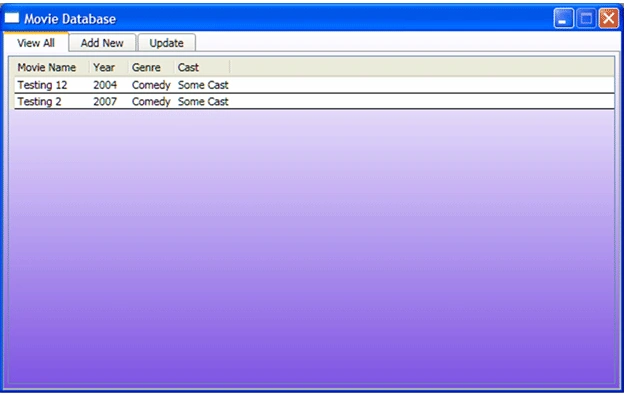
Saeed AlbarhamiPosted Jan 9, 2013, 12:49 AM
Thanks lotss
Abhishek ShuklaPosted Jun 17, 2010, 4:59 PM
Thanks a lot dude :)
Raj KumarPosted Jan 14, 2010, 2:16 AM
hey can you upload xml file?? that wud be more help.
WilsonPosted Jan 13, 2010, 5:00 PM
Hi Diptimaya, Could you please post your MovieDB.xml file? Thanks.