

We have already seen how to validate input data using DataAnnotations and DataInput controls. In this article we will see how it can be implemented to a DataGrid. That means validating user input in DataGrid.
Creating Silverlight Project
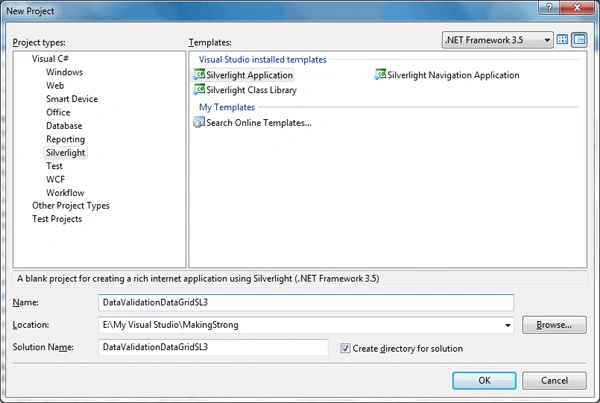
Fire up Visual Studio 2008 and create a Silverlight Application. Name it as DataValidationDataGridSL3.
Now we need a DataGrid to display sample data.
Go ahead and add it and name it as MyDataGrid.

Now we need to add a class which contains the properties of the sample data.
public class Users
{
public string Name { get; set; }
public int Age { get; set; }
public string Gender { get; set; }
public string Country { get; set; }
}
DataAnnotation provides a developer friendly DataValidation techniques. So we need to add the assembly.

The ValidationException (belonging to System.ComponentModel.DataAnnotations ) thrown is displayed as Cell Validation Error.
Now that you have added the above assembly, use it in the Users.cs class and define the properties as required. As follows:
public class Users: INotifyPropertyChanged
{
#region INotifyPropertyChanged Members
public event PropertyChangedEventHandler PropertyChanged;
#endregion
#region UserName
private string _UserName;
public string UserName
{
get { return _UserName; }
set
{
if (value.Length < 4)
{
throw new ValidationException("User Name should contain atleast 4 chars");
}
_UserName = value;
RaisePropertyChanged("UserName");
}
}
#endregion
#region Age
private int _Age;
public int Age
{
get { return _Age; }
set
{
_Age = value;
}
}
#endregion
#region Gender
private string _Gender;
public string Gender
{
get { return _Gender; }
set
{
_Gender = value;
}
}
#endregion
#region Country
private string _Country;
public string Country
{
get { return _Country; }
set
{
_Country = value;
}
}
#endregion
private void RaisePropertyChanged(string propertyName)
{
if (this.PropertyChanged != null)
{
this.PropertyChanged(this, new PropertyChangedEventArgs(propertyName));
}
}
}
Now add some sample data in the MainPage constructor and bind the DataGrid's ItemSource to the sample data.
public MainPage()
{
InitializeComponent();
List<Users> myList = new List<Users>
{
new Users{ UserName="Hiro Nakamura", Age=24, Gender="M", Country="Japan"},
new Users{ UserName="Mohinder Suresh", Age=26, Gender="M", Country="India"},
new Users{ UserName="Claire Bennette", Age=20, Gender="F", Country="USA"},
new Users{ UserName="Matt Parkman", Age=30, Gender="M", Country="USA"},
new Users{ UserName="Nathan Patrelli", Age=30, Gender="M", Country="USA"},
new Users{ UserName="Peter Patrelli", Age=26, Gender="M", Country="USA"},
new Users{ UserName="Mica Sanders", Age=19, Gender="M", Country="USA"},
new Users{ UserName="Linderman", Age=56, Gender="M", Country="USA"},
new Users{ UserName="Ando", Age=24, Gender="M", Country="Japan"},
new Users{ UserName="Maya", Age=24, Gender="F", Country="Mexico"},
new Users{ UserName="Angela Patrelli", Age=26, Gender="F", Country="USA"},
new Users{ UserName="Niki Sanders", Age=26, Gender="F", Country="USA"},
};
MyDataGrid.ItemsSource = myList;
}
That's it run your application and try to change the first name and keep it empty or enter less than 4 characters. It will throw you a ValidationException. As follows: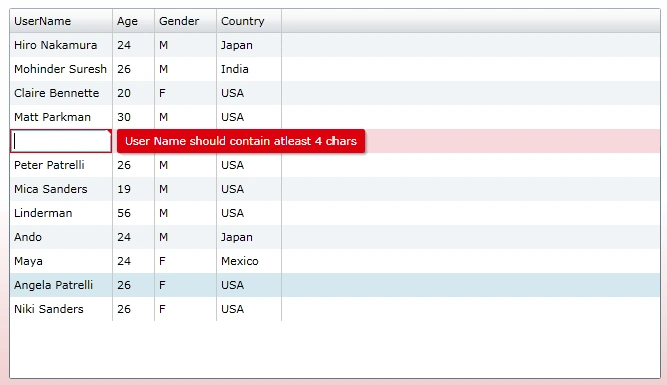
Try for other columns as required.
Enjoy Coding.
Santosh YadavPosted Feb 19, 2013, 11:24 PM
sir please upload a progarm which is created in silverlight 4. I have tried this code to perform the same task but it is not working. I hope you will reply me... Thanks.....
howard DavisPosted Jul 15, 2010, 12:14 PM
What do i missing for app to catch the ValidationException. My current app just crashed with unhandled error Thanks in Advanced
Dhanan jayanPosted Jul 12, 2010, 3:49 AM
Hi, I am getting runtime error.
tian jianjunPosted Sep 1, 2009, 11:18 PM
implement validation in wcf , if this class 'users' is wcf end , have no way to do. help me ,thanks in advance.
praval singhPosted Aug 21, 2009, 3:20 AM
Hi , Can u plz help how do i incorporate my Existing silverlight application i.e i am created a simple Textblock on my silverlight project i want to include this TextBlock on my New webform