

Introduction
In this article we will see how can we implement Drag and Drop in Silverlight 3 Application.
Crating Silverlight Project
Fire up Visual Studio 2008 and create a Silverlight Application. Name it as DragAndDropInSL3.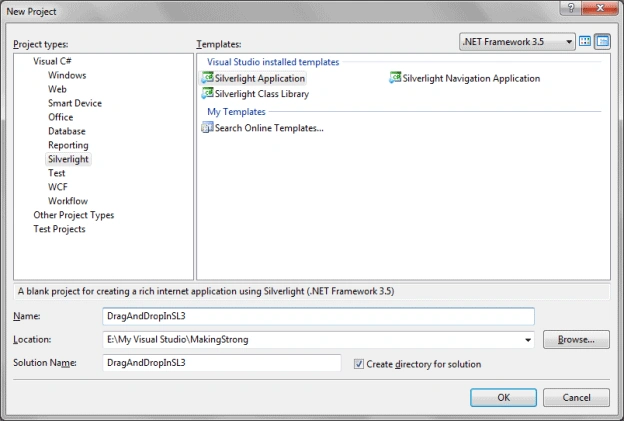
Open the solution in Blend 3 to design. Actually there is nothing to design but I wanted a good Panel to Drag and Drop. J
I have just designed the Drag Panel.
As you see in the Object and Timeline Pane I have added a Border and named it as "MyPanel" and added a Grid with a Text Block saying "Information Bar".
On the property side I have filled the Border with Linear Gradient and made the Opacity to 50%.
Here is the Xaml code for your reference.
<Grid x:Name="LayoutRoot">
<Border x:Name="MyPanel" Height="175" HorizontalAlignment="Left" Cursor="Hand" VerticalAlignment="Top" Width="150" BorderBrush="Black" BorderThickness="1" Margin="47,48,0,0" CornerRadius="10" Opacity="0.5">
<Border.Background>
<LinearGradientBrush EndPoint="0.5,1" StartPoint="0.5,0">
<GradientStop Color="Black" Offset="1"/>
<GradientStop Color="White"/>
</LinearGradientBrush>
</Border.Background>
<Grid>
<TextBlock HorizontalAlignment="Center" VerticalAlignment="Top" Text="Information Bar" TextWrapping="Wrap"/>
</Grid>
</Border>
</Grid>
Dragging and Dropping is nothing but a Translate Transform from one position to another. So we will add a Render
Transform for the Border.
<Border.RenderTransform>
<TranslateTransform x:Name="BorderTransform" X="0" Y="0" />
</Border.RenderTransform>
As you see from above xaml code, I have added the Translate Transform, gave it a name "BorderTransform" and values 0 to X and Y.
Now come to C# code behind, open the file MainPage.xaml.cs
Here is the idea how we will achieve drag and drop for an object.
We will have a Boolean value isMouseCapture which will make us true or false during dragging and dropping.
And, we will take a Point variable clickPosition which will describe the position we clicked.
private Boolean isMouseCapture = false;
private Point clickPosition;
Now we will have three important events of the Border as follows:
MouseMove="MyPanel_MouseMove"
MouseLeftButtonDown="MyPanel_MouseLeftButtonDown"
MouseLeftButtonUp="MyPanel_MouseLeftButtonUp"
This is very basic, when we drag an object we do Mouse Down, and move the object by Mouse Move and dropping the object by Mouse Up. So we are taking the above events to be fired respectively.
In Mouse Down event write the following code:
private void MyPanel_MouseLeftButtonDown(object sender, MouseButtonEventArgs e)
{
clickPosition = e.GetPosition(sender as UIElement);
this.MyPanel.CaptureMouse();
isMouseCapture = true;
}
In Mouse Move event write the following code:
private void MyPanel_MouseMove(object sender, MouseEventArgs e)
{
if (isMouseCapture)
{
this.BorderTransform.X = e.GetPosition(this).X - clickPosition.X;
this.BorderTransform.Y = e.GetPosition(this).Y - clickPosition.Y;
}
}
And finally add the following code to Mouse Up event.
private void MyPanel_MouseLeftButtonUp(object sender, MouseButtonEventArgs e)
{
this.MyPanel.ReleaseMouseCapture();
isMouseCapture = false;
}
Now that we are ready to test our application, press F5 to run the application and Drag and Drop anywhere.
Enjoy Coding.
Prashant JainPosted Sep 19, 2010, 5:50 AM
Hi Can you provide some help, how to implement dag and drop between Treeview and Listbox, using SL3 Regards Prashant
testere testerePosted Aug 19, 2010, 5:14 PM
when the text is in Grid you cannot move it. do you have any solution for it? thanks
avinash ranjanPosted May 5, 2010, 8:15 AM
hey can you help me to don drag an drop horizontally with auto scrolling feature.. if yes then send me a code or suggestion in my email id [email protected]