

Introduction
In this article we will see how we can convert a filename to Icon.
Creating WPF Project
Fire up Visual Studio 2008 and create a new WPF Project. Name it as GetIconSample.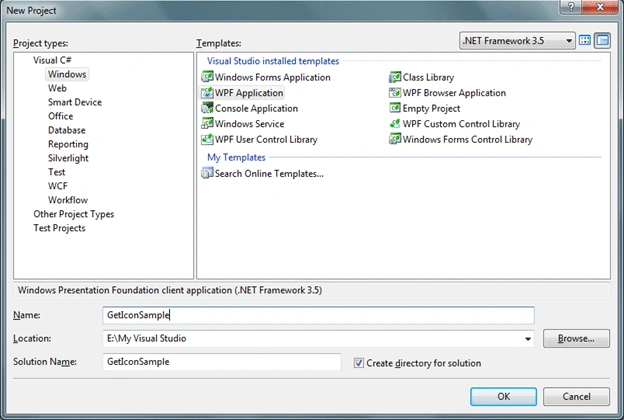
Here is the idea what we are going to do for our application; we would browse for adding files to our ListBox. ListBox would display the File Icon and File Name.
The following image what we discussed above.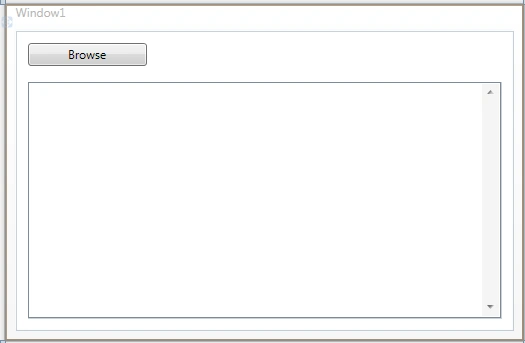
First of all we would write a class that would convert FileName to Icon. To achieve this we need to refer the System.Drawing Namespace.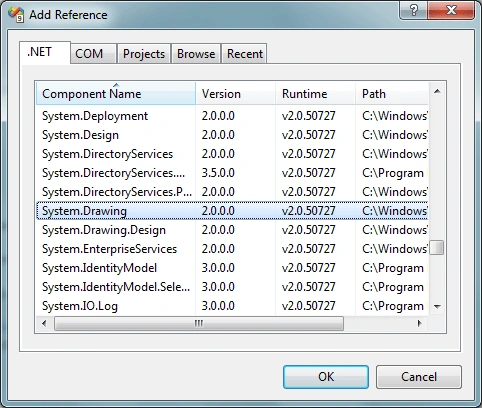
The following code is the FileToImageIconConverter
#region FileToImageIconConverter
public class FileToImageIconConverter
{
private string filePath;
private System.Windows.Media.ImageSource icon;
public string FilePath { get { return filePath; } }
public System.Windows.Media.ImageSource Icon
{
get
{
if (icon == null && System.IO.File.Exists(FilePath))
{
using (System.Drawing.Icon sysicon = System.Drawing.Icon.ExtractAssociatedIcon(FilePath))
{
icon = System.Windows.Interop.Imaging.CreateBitmapSourceFromHIcon(
sysicon.Handle,
System.Windows.Int32Rect.Empty,
System.Windows.Media.Imaging.BitmapSizeOptions.FromEmptyOptions());
}
}
return icon;
}
}
public FileToImageIconConverter(string filePath)
{
this.filePath = filePath;
}
}
#endregion
Now we will create a simple class that would contain the Properties as FileName, FileIcon.
#region FileToImageIconConverter
public class FileToImageIconConverter
{
private string filePath;
private System.Windows.Media.ImageSource icon;
public string FilePath { get { return filePath; } }
public System.Windows.Media.ImageSource Icon
{
get
{
if (icon == null && System.IO.File.Exists(FilePath))
{
using (System.Drawing.Icon sysicon = System.Drawing.Icon.ExtractAssociatedIcon(FilePath))
{
icon = System.Windows.Interop.Imaging.CreateBitmapSourceFromHIcon(
sysicon.Handle,
System.Windows.Int32Rect.Empty,
System.Windows.Media.Imaging.BitmapSizeOptions.FromEmptyOptions());
}
}
return icon;
}
}
public FileToImageIconConverter(string filePath)
{
this.filePath = filePath;
}
}
#endregion
The following XAML describes our overall design for ListBox and other controls.
<Window x:Class="GetIconSample.Window1"
xmlns="http://schemas.microsoft.com/winfx/2006/xaml/presentation"
xmlns:x="http://schemas.microsoft.com/winfx/2006/xaml"
Title="Window1" Height="337" Width="519">
<Window.Resources>
<ItemsPanelTemplate x:Key="ItemsPanelTemplate1">
<WrapPanel IsItemsHost="True"/>
</ItemsPanelTemplate>
<Style x:Key="ListBoxItemStyle" TargetType="{x:Type ListBoxItem}">
<Setter Property="Background" Value="Transparent"/>
<Setter Property="Padding" Value="2,0,0,0"/>
<Setter Property="Template">
<Setter.Value>
<ControlTemplate TargetType="{x:Type ListBoxItem}">
<Border HorizontalAlignment="Center" VerticalAlignment="Center">
<StackPanel Orientation="Vertical">
<Image x:Name="img" Source="{Binding FileIcon}" Height="32" Width="32"/>
<TextBlock VerticalAlignment="Center" Width="75" TextWrapping="Wrap" Text="{Binding FileName}"/>
</StackPanel>
</Border>
</ControlTemplate>
</Setter.Value>
</Setter>
</Style>
</Window.Resources>
<Grid>
<Button x:Name="btnBrowse" Click="btnBrowse_Click"
Content="Browse" Height="23" HorizontalAlignment="Left" Margin="12,12,0,0" VerticalAlignment="Top" Width="119"/>
<ListBox x:Name="lbFiles"
ItemContainerStyle="{DynamicResource ListBoxItemStyle}"
ItemsPanel="{DynamicResource ItemsPanelTemplate1}"
Margin="12,51,12,12" ScrollViewer.VerticalScrollBarVisibility="Visible" />
</Grid>
</Window>
Now we would add code under Button Click of our Browse button.
public partial class Window1 : Window
{
ObservableCollection<MyFiles> myFilesList = new ObservableCollection<MyFiles>();
public Window1()
{
InitializeComponent();
}
#region Button-Click-btnBrowse
private void btnBrowse_Click(object sender, RoutedEventArgs e)
{
System.Windows.Forms.OpenFileDialog ofd = new System.Windows.Forms.OpenFileDialog();
ofd.Filter = "All files (*.*)|*.*";
if (ofd.ShowDialog() == System.Windows.Forms.DialogResult.OK)
{
string filePath = ofd.FileName;
FileToImageIconConverter some = new FileToImageIconConverter(filePath);
ImageSource imgSource = some.Icon;
myFilesList.Add(new MyFiles { FileName = ofd.SafeFileName, FileIcon = imgSource });
}
lbFiles.ItemsSource = myFilesList;
}
#endregion
}
That's it. Run the application to see what we have achieved!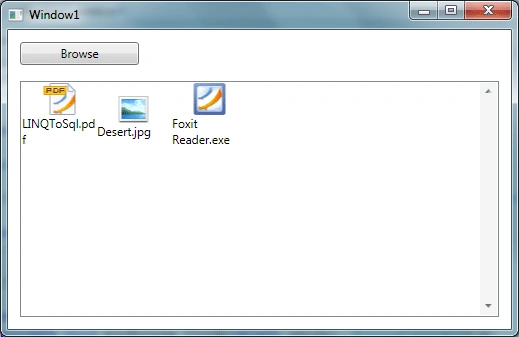
Hope this article helps.
Sunil MauryaPosted Jun 29, 2022, 5:11 AM
Thank you, it helps a lot. the only concern here is we are able to list the files in the list box but those files are not selectable. I want to select the file and open the file in the respective application(Ex. If a .pdf file then it should open in pdf application) with a double click. could you please help me here .. Thanks
Anoop MishraPosted Feb 9, 2018, 5:51 AM
Saves a lot of time..
Tuan NguyenPosted Jul 18, 2015, 12:54 PM
Diptimaya Patra, thank you for sharing great paragraph.
Ariel PacayPosted Nov 13, 2014, 8:02 AM
What if you don't have the file on hd, since it's still on the db and you want to give the user a preview on a list of an [icon filename (size)] list
Animesh DattaPosted Dec 31, 2013, 4:26 AM
thanks a lot... it helps me very must ...
SumanPosted Jan 25, 2010, 4:25 PM
The below section is missing in the above screen shots & code. This is found in the Download Zip. #region MyFiles public class MyFiles { public string FileName { get; set; } public ImageSource FileIcon { get; set; } } #endregion