

Introduction
In this article, we will see how to use Media Element in WPF and we will explore some of the basic functionalities such as Play, Pause, Stop, Back and Forward.
Creating WPF Application Project
Fire up Visual Studio 2008 and Create a WPF Application and name the project as MediaSampleWPF.

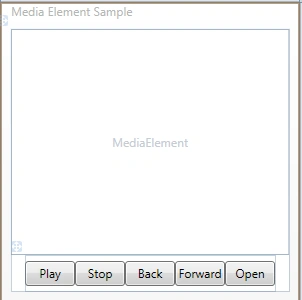
Now, we will first design the application so that all the functionalities will be clear to us. Add a Media Element, and several Buttons for the functions to be achieved.
The following figure is the simple design of the application.
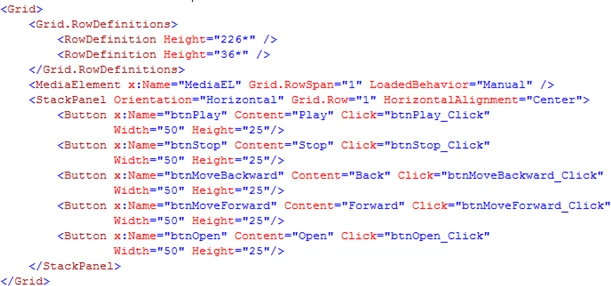
XAML Reference
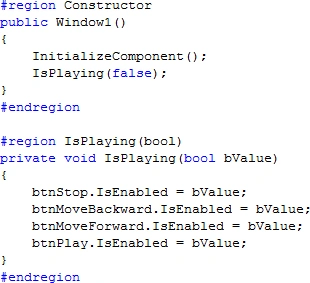
Now, to start with, in the beginning of the application, all the Buttons except Open should not be enabled. So let's do that.
Now, we will achieve the functionalities one by one.
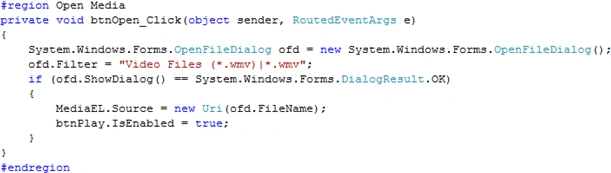
Open Media
Add a reference to the System.Windows.Forms DLL to use the OpenFileDialog.

Add the below code in the respective Button Click event.
Play and Pause Function
Add the below code in Play Button Click event to achieve the Play and Pause functions.

Stop Function
Add the below code in Stop Button Click event.

Move Back and Forward Function
Add the below code in respective Back and Forward Button Click events to achieve Back and Forward.

That's it -- run the application. As we mentioned in the code for opening only WMV files, you can open only WMV files.
You can add other extensions like AVI, MPG, and MPEG to the Open function.
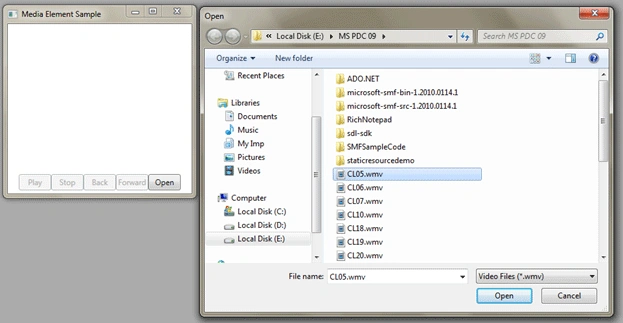

Hope you guys like this article. It's for the beginner level.
Serkan SerkanPosted May 9, 2013, 2:59 AM
hi, is this player free? Can i use this player in my project? Would you answer a hurry?
geetha sPosted May 5, 2013, 4:00 AM
Nice and Simple Example o understand very Well
samar samyPosted Feb 7, 2011, 4:38 PM
this my first to attempt to work in WPF application please can i ask you .. what is dialogfiles and Dialog result..........thx.
Aly IrshadPosted Jan 9, 2011, 11:14 PM
thnx for the tutorial.. but i am not able to play avi files in the media element .. when i select one it shows nothing.. although all the buttons get enabled.. any suggestions from your side..
Gabriel IssahPosted Oct 5, 2010, 9:58 AM
My goal is to play files on my blog or website I use window player 12
Gabriel IssahPosted Oct 4, 2010, 11:06 PM
hi, It works perfect for me, but can i get the code to open it from my solution or embed it into my web application #region Open Media private void btnOpen_Click(object sender, RoutedEventArgs e) { System.Windows.Forms.OpenFileDialog ofd = new System.Windows.Forms.OpenFileDialog(); ofd.Filter = "Video Files (*.wmv)|*.wmv"; if (ofd.ShowDialog() == System.Windows.Forms.DialogResult.OK) { MediaEL.Source = new Uri(ofd.FileName); btnPlay.IsEnabled = true; } } #endregion
Jiteendra SampathiraoPosted Sep 27, 2010, 7:03 AM
Hi, Nice Atricle. But I can't able to see the video dude. help me.........
DavePosted Sep 11, 2010, 1:57 AM
I have loaded the project in VS Express 2010 and also cannot play video with the project.
lakshmipathyPosted Apr 11, 2010, 11:27 AM
Hi , Congratz for your effort in this project. I had one doubt . I cannot able to view the video in the run time environment. I am using windows media player version 9. can u help me? regards lakshmipathy