

Introduction
In this article we will see how we can manage Styles in different files. Resource Dictionary is a cool feature available in Blend 3, where we can store our defined styles.
Crating Silverlight Project
Fire up Blend 3 and create a Silverlight Application. Name it as ResourceDictionaryInSL3.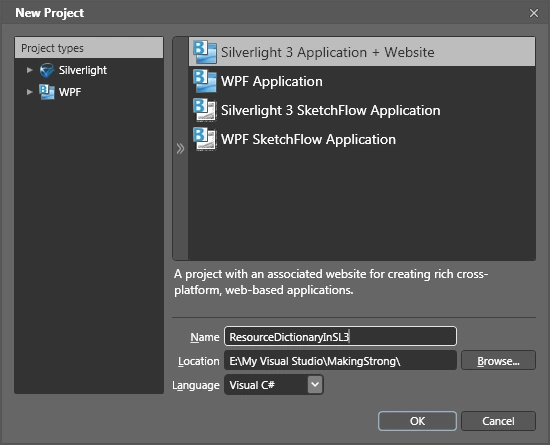
We will do the simple thing, customizing a Button Control.
Add a Button to the Application. Right Click on it and choose Edit Template and then choose Edit a copy.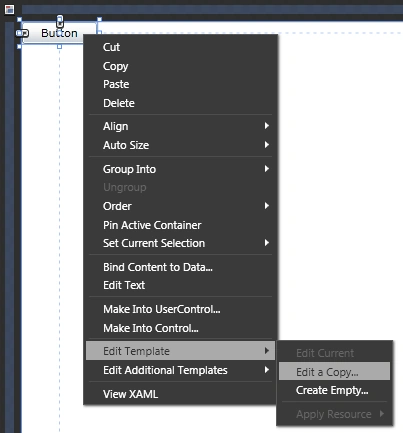
When you choose Edit a Copy a new dialog box pops up saying Create Style Resource.
First of all Name the Style for Example "MyButtonStyle".
Then you have Define option under that we have three choices to make to store the Style information.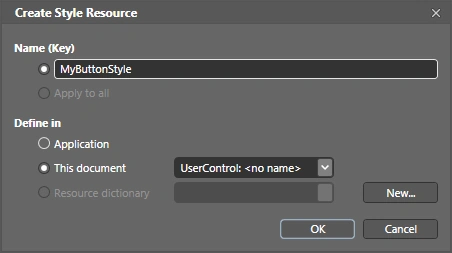
The default is under This Document which will store under the Page's xaml code behind.
The Application option will store the Style information in App.xaml file.
The third option is grayed, as there is no Resource Dictionary. We will use the Resource Dictionary option.
Create a new Resource Dictionary by clicking New.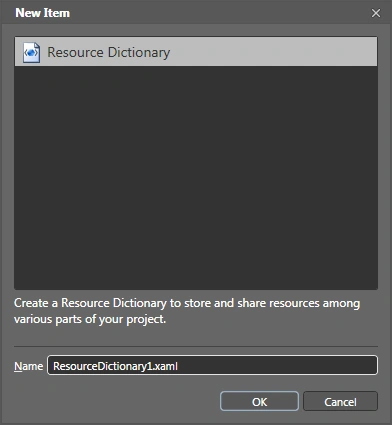
It asks for giving a name to the file. You can see the extension is xaml.
Now the Resource Dictionary option will be activated with proper file name.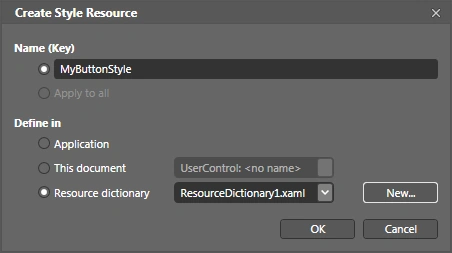
Press ok to continue with our work.
You can see a new file named ResourceDictionary2.xaml added to the Project. As it has only Style information so there is no code behind for it.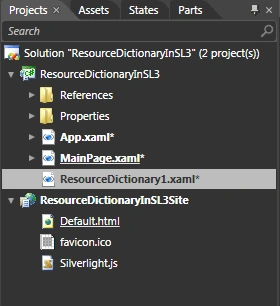
I have done simple change to the Button. (I have changed the Background Gradient to Red)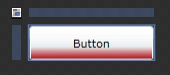
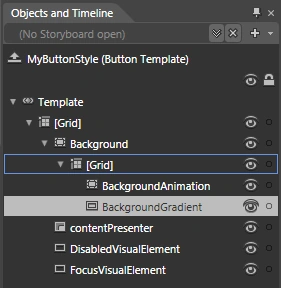
Now we have finished editing the Template, exit editing template.
Open App.xaml in xaml code behind you will find the Resource Dictionary is added to the Application Resource.
<Application
xmlns="http://schemas.microsoft.com/winfx/2006/xaml/presentation"
xmlns:x="http://schemas.microsoft.com/winfx/2006/xaml"
x:Class="ResourceDictionaryInSL3.App">
<Application.Resources>
<!-- Resources scoped at the Application level should be defined here. -->
<ResourceDictionary>
<ResourceDictionary.MergedDictionaries>
<ResourceDictionary Source="ResourceDictionary1.xaml"/>
</ResourceDictionary.MergedDictionaries>
</ResourceDictionary>
</Application.Resources>
</Application>
If you see the Button Control in xaml code behind, you will find the Style is Bound to the Name you have given for the Style.
<Button HorizontalAlignment="Left" VerticalAlignment="Top" Width="75" Content="Button" Style="{StaticResource MyButtonStyle}" Margin="198,29,0,0"/>
Now if you open the Resource Dictionary in xaml code behind you will find the Styles you have just changed.
<ResourceDictionary
xmlns="http://schemas.microsoft.com/winfx/2006/xaml/presentation"
xmlns:x="http://schemas.microsoft.com/winfx/2006/xaml">
<Style x:Key="MyButtonStyle" TargetType="Button">
<Setter Property="Background" Value="#FF1F3B53"/>
<Setter Property="Foreground" Value="#FF000000"/>
<Setter Property="Padding" Value="3"/>
<Setter Property="BorderThickness" Value="1"/>
<Setter Property="BorderBrush">
<Setter.Value>
<LinearGradientBrush EndPoint="0.5,1" StartPoint="0.5,0">
<GradientStop Color="#FFA3AEB9" Offset="0"/>
<GradientStop Color="#FF8399A9" Offset="0.375"/>
<GradientStop Color="#FF718597" Offset="0.375"/>
<GradientStop Color="#FF617584" Offset="1"/>
</LinearGradientBrush>
</Setter.Value>
</Setter>
<Setter Property="Template">
<Setter.Value>
<ControlTemplate TargetType="Button">
<Grid>
<VisualStateManager.VisualStateGroups>
<VisualStateGroup x:Name="CommonStates">
<VisualState x:Name="Normal"/>
<VisualState x:Name="MouseOver">
<Storyboard>
<DoubleAnimationUsingKeyFrames Storyboard.TargetName="BackgroundAnimation" Storyboard.TargetProperty="Opacity">
<SplineDoubleKeyFrame KeyTime="0" Value="1"/>
</DoubleAnimationUsingKeyFrames>
<ColorAnimationUsingKeyFrames Storyboard.TargetName="BackgroundGradient" Storyboard.TargetProperty="(Rectangle.Fill).(GradientBrush.GradientStops)[1].(GradientStop.Color)">
<SplineColorKeyFrame KeyTime="0" Value="#F2FFFFFF"/>
</ColorAnimationUsingKeyFrames>
<ColorAnimationUsingKeyFrames Storyboard.TargetName="BackgroundGradient" Storyboard.TargetProperty="(Rectangle.Fill).(GradientBrush.GradientStops)[2].(GradientStop.Color)">
<SplineColorKeyFrame KeyTime="0" Value="#CCFFFFFF"/>
</ColorAnimationUsingKeyFrames>
<ColorAnimationUsingKeyFrames Storyboard.TargetName="BackgroundGradient" Storyboard.TargetProperty="(Rectangle.Fill).(GradientBrush.GradientStops)[3].(GradientStop.Color)">
<SplineColorKeyFrame KeyTime="0" Value="#7FFFFFFF"/>
</ColorAnimationUsingKeyFrames>
</Storyboard>
</VisualState>
<VisualState x:Name="Pressed">
<Storyboard>
<ColorAnimationUsingKeyFrames Storyboard.TargetName="Background" Storyboard.TargetProperty="(Border.Background).(SolidColorBrush.Color)">
<SplineColorKeyFrame KeyTime="0" Value="#FF6DBDD1"/>
</ColorAnimationUsingKeyFrames>
<DoubleAnimationUsingKeyFrames Storyboard.TargetName="BackgroundAnimation" Storyboard.TargetProperty="Opacity">
<SplineDoubleKeyFrame KeyTime="0" Value="1"/>
</DoubleAnimationUsingKeyFrames>
<ColorAnimationUsingKeyFrames Storyboard.TargetName="BackgroundGradient" Storyboard.TargetProperty="(Rectangle.Fill).(GradientBrush.GradientStops)[0].(GradientStop.Color)">
<SplineColorKeyFrame KeyTime="0" Value="#D8FFFFFF"/>
</ColorAnimationUsingKeyFrames>
<ColorAnimationUsingKeyFrames Storyboard.TargetName="BackgroundGradient" Storyboard.TargetProperty="(Rectangle.Fill).(GradientBrush.GradientStops)[1].(GradientStop.Color)">
<SplineColorKeyFrame KeyTime="0" Value="#C6FFFFFF"/>
</ColorAnimationUsingKeyFrames>
<ColorAnimationUsingKeyFrames Storyboard.TargetName="BackgroundGradient" Storyboard.TargetProperty="(Rectangle.Fill).(GradientBrush.GradientStops)[2].(GradientStop.Color)">
<SplineColorKeyFrame KeyTime="0" Value="#8CFFFFFF"/>
</ColorAnimationUsingKeyFrames>
<ColorAnimationUsingKeyFrames Storyboard.TargetName="BackgroundGradient" Storyboard.TargetProperty="(Rectangle.Fill).(GradientBrush.GradientStops)[3].(GradientStop.Color)">
<SplineColorKeyFrame KeyTime="0" Value="#3FFFFFFF"/>
</ColorAnimationUsingKeyFrames>
</Storyboard>
</VisualState>
<VisualState x:Name="Disabled">
<Storyboard>
<DoubleAnimationUsingKeyFrames Storyboard.TargetName="DisabledVisualElement" Storyboard.TargetProperty="Opacity">
<SplineDoubleKeyFrame KeyTime="0" Value=".55"/>
</DoubleAnimationUsingKeyFrames>
</Storyboard>
</VisualState>
</VisualStateGroup>
<VisualStateGroup x:Name="FocusStates">
<VisualState x:Name="Focused">
<Storyboard>
<DoubleAnimationUsingKeyFrames Storyboard.TargetName="FocusVisualElement" Storyboard.TargetProperty="Opacity">
<SplineDoubleKeyFrame KeyTime="0" Value="1"/>
</DoubleAnimationUsingKeyFrames>
</Storyboard>
</VisualState>
<VisualState x:Name="Unfocused"/>
</VisualStateGroup>
</VisualStateManager.VisualStateGroups>
<Border x:Name="Background" Background="White" BorderBrush="{TemplateBinding BorderBrush}" BorderThickness="{TemplateBinding BorderThickness}" CornerRadius="3">
<Grid Margin="1" Background="{TemplateBinding Background}">
<Border x:Name="BackgroundAnimation" Opacity="0" Background="#FF448DCA"/>
<Rectangle x:Name="BackgroundGradient">
<Rectangle.Fill>
<LinearGradientBrush EndPoint=".7,1" StartPoint=".7,0">
<GradientStop Color="#FFFFFFFF" Offset="0"/>
<GradientStop Color="#F9FFFFFF" Offset="0.375"/>
<GradientStop Color="#E5FFFFFF" Offset="0.625"/>
<GradientStop Color="#C6DA0A0A" Offset="1"/>
</LinearGradientBrush>
</Rectangle.Fill>
</Rectangle>
</Grid>
</Border>
<ContentPresenter x:Name="contentPresenter" HorizontalAlignment="{TemplateBinding HorizontalContentAlignment}" Margin="{TemplateBinding Padding}" VerticalAlignment="{TemplateBinding VerticalContentAlignment}" Content="{TemplateBinding Content}" ContentTemplate="{TemplateBinding ContentTemplate}"/>
<Rectangle x:Name="DisabledVisualElement" Fill="#FFFFFFFF" RadiusX="3" RadiusY="3" IsHitTestVisible="false" Opacity="0"/>
<Rectangle x:Name="FocusVisualElement" Stroke="#FF6DBDD1" StrokeThickness="1" RadiusX="2" RadiusY="2" Margin="1" IsHitTestVisible="false" Opacity="0"/>
</Grid>
</ControlTemplate>
</Setter.Value>
</Setter>
</Style>
<!-- Resource dictionary entries should be defined here. -->
</ResourceDictionary>
That's it you have successfully used Resource Dictionary In Silverlight 3 using Blend 3.
Enjoy Coding.
Srividhya GopalakrishnanPosted Jul 29, 2009, 4:03 PM
Thanks for the article.. i tried using this for the glassy style buttton that you posted last week. I used the resource directory for other buttons. I worked fine except for the color. for the original button i gave blue color but while using the resource directory the button was in yellow color.. do i need to change any specification?? One more query reg treeview. I have created a treeview and wanted to display a datagrid according when the selected item gets changed. but i am unable to get the selected value. Treeview.selecteditem and treeview.selectedvalue is not working. Just let me know if you can help me on that. Thanks Srividhya