

First I would like to point out that his is not the best solution, but one that works great, perform well, and lends itself to extensibility.
Board and Graphics Object
The way I think of the Graphic object is as a wrapper to the graphic card or display device. For our board class the Graphics device will be passed in from the form OnPaint event or Image when we just want to output the results to an image. In the case that the render method of our Board class doesn't get call we will still need to specify a ParentSize and Dimension of the board (8x8, 20x20, 24x24) to create a logical representation for board rows and ranks calculations.
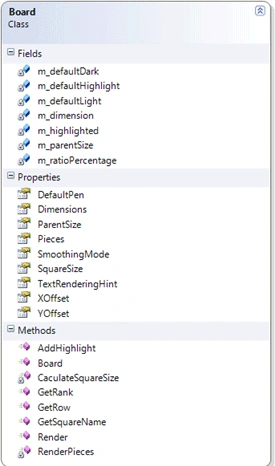
The board variables consist of our internal dimension of type Size under the System.Drawing namespace to keep track of board size and canvas size. The following variable contains a ration percentage used for calculating how big we want our board squares to be in relation to the ratio of the canvas and dimension. The following default Brushes are used for our rendering function. Lastly our rectangle list will contain a list of rectangles that have been visited.
private Size m_dimension = new Size(8, 8);
private Size m_parentSize = new Size(800, 600);
private float m_ratioPercentage = 0.8f;
private Brush m_defaultDark = new SolidBrush(Color.FromArgb(205, 133, 63));
private Brush m_defaultLight = new SolidBrush(Color.FromArgb(222, 184, 135));
private Brush m_defaultHighlight = new SolidBrush(Color.FromArgb(150, 240, 255, 255));
private List<Rectangle> m_highlighted;
The constructor will take care of setting some properties and calling the method to calculate the size of each square. The constructor could be change to take in different parameter or raise a NotImplementedException in the case we don't want to handle a particular case.
public Board()
{
// Defaults
DefaultPen = new Pen(Color.Black);
SmoothingMode = SmoothingMode.AntiAlias;
TextRenderingHint = TextRenderingHint.AntiAlias;
ParentSize = new Size(800, 600);
XOffset = 10;
YOffset = 10;
Pieces = new List<Piece>(1);
// Init
m_highlighted = new List<Rectangle>(1);
CaculateSquareSize();
}
The next part is going to be all our methods and their purpose, starting with the CaculateSquareSize since it is called from our constructor. The function is a simple calculation of the ratio of our canvas and dimension and once we have that, we take a given percentage to be the size of our square.
private void CaculateSquareSize()
{
SquareSize = (int)Math.Min(ParentSize.Height / Dimensions.Height * m_ratioPercentage, ParentSize.Width / Dimensions.Width * m_ratioPercentage);
}
The Render function uses a Graphics object to perform all our rendering. From top to bottom much like the XNA skeleton we want to clear the form in this case to white. Set both smoothing mode and text rendering hint to our property values. Next declare a bool flag to turn on and off to color our chess board. Much of the rest of the code is self explanatory, we want to create a square from left to right and top to bottom, and we also want to fill that square depending on our bool flag. The next two functions will fill our already visited squares with a light blue with some transparency and render our pieces.
public virtual void Render(Graphics graphics)
{
graphics.Clear(Color.White);
graphics.SmoothingMode = this.SmoothingMode;
graphics.TextRenderingHint = this.TextRenderingHint;
bool darkFlag = true;
for (int h = 0; h < Dimensions.Height; h++)
{
for (int w = 0; w < Dimensions.Width; w++)
{
// Create Rectangle
Rectangle rect = new Rectangle(w * SquareSize + XOffset,
h * SquareSize + YOffset,
SquareSize,
SquareSize);
// Fill Rectangle
graphics.FillRectangle(darkFlag ? m_defaultDark : m_defaultLight, rect);
// Draw Border
graphics.DrawRectangle(DefaultPen, rect);
// Reverse
darkFlag = !darkFlag;
}
// New Row Reverse
darkFlag = !darkFlag;
}
// Other Logic
foreach (Rectangle rect in m_highlighted)
graphics.FillRectangle(m_defaultHighlight, rect);
// Pieces
RenderPieces(graphics);
}
The RenderPieces function is a little more involved since it will need to iterate through each Piece and recreate a square object for their location. After we have a square for their position we want to render a point in the middle to indicate we have visited the particular square. Lastly we will want to map all the moves performed by our piece.
private void RenderPieces(Graphics graphics)
{
foreach (Piece piece in Pieces)
{
int h = piece.Loc.Row * SquareSize + YOffset;
int w = piece.Loc.Rank * SquareSize + XOffset;
Rectangle rect = new Rectangle(w,
h,
SquareSize,
SquareSize);
Point point = new Point(rect.X + SquareSize / 4,
rect.Y + SquareSize / 4);
piece.Render(graphics, point);
Point prevPoint = new Point(0, 0);
Pen pen = new Pen(new SolidBrush(Color.Black));
foreach (Location loc in piece.Moves)
{
h = loc.Row * SquareSize + YOffset;
w = loc.Rank * SquareSize + XOffset;
rect = new Rectangle(w,
h,
SquareSize,
SquareSize);
graphics.FillRectangle(m_defaultHighlight, rect);
graphics.DrawRectangle(pen, new Rectangle(rect.X + SquareSize / 2 - 2,
rect.Y + SquareSize / 2 - 2,
4,
4));
graphics.FillRectangle(new SolidBrush(Color.Black), new Rectangle(rect.X +
SquareSize / 2 - 2,
rect.Y + SquareSize / 2 - 2,
4,
4));
point = new Point(rect.X + SquareSize / 2,
rect.Y + SquareSize / 2);
if (prevPoint.X > 0)
{
graphics.DrawLine(pen, prevPoint, point);
}
prevPoint = point;
}
}
}
The last functions of importance are our GetRow and GetRank because they will take a mouse location and get the square that was clicked.
public int GetRow(Point location)
{
return (location.Y - YOffset) / SquareSize;
}
public int GetRank(Point location)
{
return (location.X - XOffset) / SquareSize;
}
Other Objects
The Piece base implements IDisposable because we want to make sure we dispose of our resources if we use images. 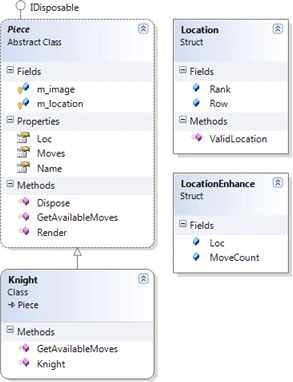
Algorithm Implementation
Strategy2 function will need to be called while there are unvisited squares. Starting from the top the last piece will always be the knight in this case because it will be the only piece in the board. We want to get available moves and get available moves for each result. Once we have two moves ahead we want to make sure we move to the one with the least amount of possible moves.
private void Strategy2()
{
Engine.Piece piece = m_board.Pieces.Last();
try
{
// Available moves for the current piece
List<Engine.Location> moves = piece.GetAvailableMoves(piece.Loc,
m_board.Dimensions);
List<Engine.Location> locationsToRemove = new List<Engine.Location>(1);
List<Engine.LocationEnhance> locationsEnhance = new List<Engine.LocationEnhance
(1);
// First we want to filter out the existing pieces
for (int x = 0; x < moves.Count; x++)
{
Engine.Location loc = moves[x];
if (piece.Moves.Contains(loc))
{
locationsToRemove.Add(loc);
continue;
}
List<Engine.Location> availableMoves = piece.GetAvailableMoves(loc, m_board.Dimensions);
List<Engine.Location> filterMoves = new List<Engine.Location>(1);
foreach (Engine.Location nLoc in availableMoves)
if (!piece.Moves.Contains(nLoc))
filterMoves.Add(nLoc);
locationsEnhance.Add(new Demo.Engine.LocationEnhance()
{
Loc = loc,
MoveCount = filterMoves.Count
});
}
List<Engine.LocationEnhance> lenhance = locationsEnhance.OrderBy(c =>
c.MoveCount).ToList<Engine.LocationEnhance>();
piece.Moves.Add(lenhance.First().Loc);
piece.Loc = lenhance.First().Loc;
}
catch (Exception)
{
if (piece.Moves.Count == 64)
{
m_timer.Stop();
}
}
}
Form Tips
I like setting the forms DoubleBuffered property to true to eliminate the flicker found when invalidating within a timer elapsed event.
this.DoubleBuffered = true;
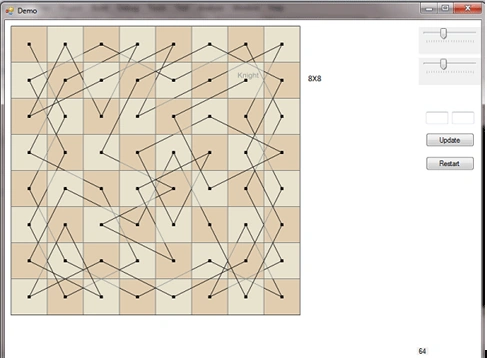
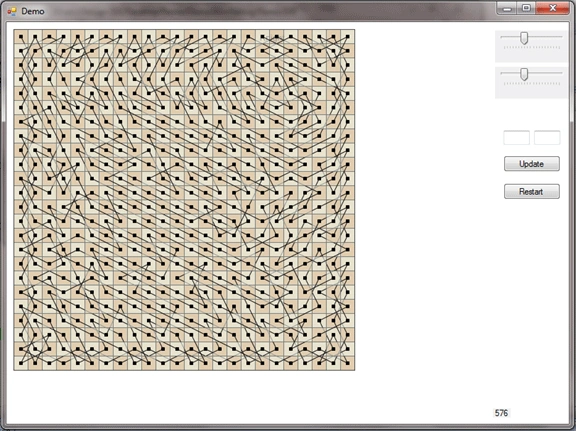
The easiest way to make sure the tour is done is to loop while the loop collection doesn't match the dimension multiplication.
while (m_board.Pieces.First().Moves.Count < m_board.Dimensions.Width *
m_board.Dimensions.Height)
{
Strategy2();
}
ngoc lamPosted Dec 19, 2011, 5:59 AM
Nice article
wizard wizardPosted Sep 30, 2010, 7:28 PM
Nice artice.
Mahesh ChandPosted Aug 31, 2010, 1:43 AM
Nice article.