Assuming you need to get some information from your Windows Phone 7 Device, I will be showing you how to do it easily.
As I am using an emulator, we won't get healthy results about Device ID. So you will need to test it in a real device.
So here it goes.
We will be getting the following information in our sample:
- Manufacturer
- Device Name
- Device ID
- Firmware Version
- Hardware Version
- Total Memory
- Application Current Memory Usage
- Application Peak Memory Usage
In this sample we will be getting this information in every 3 seconds using DispatcherTimer and show the results in 8 textblock controls.
I have designed this for our sample:
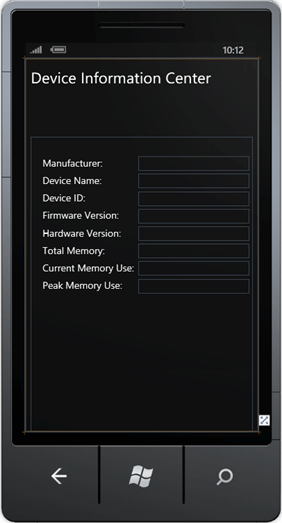
Here its XAML:
<phone:PhoneApplicationPage
x:Class="WindowsPhoneApplication2.MainPage"
xmlns="http://schemas.microsoft.com/winfx/2006/xaml/presentation"
xmlns:x="http://schemas.microsoft.com/winfx/2006/xaml"
xmlns:phone="clr-namespace:Microsoft.Phone.Controls;assembly=Microsoft.Phone"
xmlns:shell="clr-namespace:Microsoft.Phone.Shell;assembly=Microsoft.Phone"
xmlns:d="http://schemas.microsoft.com/expression/blend/2008"
xmlns:mc="http://schemas.openxmlformats.org/markup-compatibility/2006"
mc:Ignorable="d" d:DesignWidth="480" d:DesignHeight="768"
FontFamily="{StaticResource PhoneFontFamilyNormal}"
FontSize="{StaticResource PhoneFontSizeNormal}"
Foreground="{StaticResource PhoneForegroundBrush}"
SupportedOrientations="Portrait" Orientation="Portrait"
shell:SystemTray.IsVisible="True">
<Grid x:Name="LayoutRoot" Background="Transparent">
<StackPanel x:Name="TitlePanel" Margin="12,17,0,751"></StackPanel>
<Grid x:Name="ContentPanel" Margin="12,161,12,0">
<TextBlock Height="30" HorizontalAlignment="Left" Margin="24,40,0,0" Name="textBlock1" Text="Manufacturer: " VerticalAlignment="Top" />
<TextBlock Height="30" HorizontalAlignment="Left" Margin="221,40,0,0" Name="textBlock2" Text="" VerticalAlignment="Top" Width="229" />
<TextBlock Height="30" HorizontalAlignment="Left" Margin="24,76,0,0" Name="textBlock3" Text="Device Name: " VerticalAlignment="Top" />
<TextBlock Height="30" HorizontalAlignment="Left" Margin="221,76,0,0" Name="textBlock4" Text="" VerticalAlignment="Top" Width="229" />
<TextBlock Height="30" HorizontalAlignment="Left" Margin="24,112,0,0" Name="textBlock5" Text="Device ID: " VerticalAlignment="Top" />
<TextBlock Height="30" HorizontalAlignment="Left" Margin="221,112,0,0" Name="textBlock6" Text="" VerticalAlignment="Top" Width="229" FontSize="15" />
<TextBlock Height="30" HorizontalAlignment="Left" Margin="24,148,0,0" Name="textBlock7" Text="Firmware Version: " VerticalAlignment="Top" />
<TextBlock Height="30" HorizontalAlignment="Left" Margin="221,148,0,0" Name="textBlock8" Text="" VerticalAlignment="Top" Width="229" />
<TextBlock Height="30" HorizontalAlignment="Left" Margin="24,184,0,0" Name="textBlock9" Text="Hardware Version: " VerticalAlignment="Top" />
<TextBlock Height="30" HorizontalAlignment="Left" Margin="221,184,0,0" Name="textBlock10" Text="" VerticalAlignment="Top" Width="229" />
<TextBlock Height="30" HorizontalAlignment="Left" Margin="24,220,0,0" Name="textBlock11" Text="Total Memory: " VerticalAlignment="Top" />
<TextBlock Height="30" HorizontalAlignment="Left" Margin="221,220,0,0" Name="textBlock12" Text="" VerticalAlignment="Top" Width="229" />
<TextBlock Height="30" HorizontalAlignment="Left" Margin="24,256,0,0" Name="textBlock13" Text="Current Memory Use: " VerticalAlignment="Top" />
<TextBlock Height="30" HorizontalAlignment="Left" Margin="221,256,0,0" Name="textBlock14" Text="" VerticalAlignment="Top" Width="229" />
<TextBlock Height="30" HorizontalAlignment="Left" Margin="24,292,0,0" Name="textBlock15" Text="Peak Memory Use: " VerticalAlignment="Top" />
<TextBlock Height="30" HorizontalAlignment="Left" Margin="221,292,0,0" Name="textBlock16" Text="" VerticalAlignment="Top" Width="229" />
</Grid>
<TextBlock Height="60" HorizontalAlignment="Left" Margin="12,17,0,0" Name="textBlock17" Text="Device Information Center" VerticalAlignment="Top" FontSize="32" Width="402" />
</Grid>
</phone:PhoneApplicationPage>
-
Manufacturer = textBlock2
-
Device Name = textBlock4
-
Device ID = textBlock6
-
Firmware Version = textBlock8
-
Hardware Version = textBlock10
-
Total Memory = textBlock12
-
Application Current Memory Usage = textBlock14
-
Application Peak Memory Usage = textBlock16
So let's write some code for getting the info.
First of all we're creating a DispatcherTimer object
DispatcherTimer timer;
You'll need to add System.Windows.Threading namespace to use DispatcherTimer.
Add a string variable to get Device ID in string format:
public static string val;
Write a function that returns Device ID in byte. But we're converting the result to a string value.
public static byte[] GetDeviceUniqueID()
{
byte[] result = null;
object uniqueId;
if (DeviceExtendedProperties.TryGetValue("DeviceUniqueId", out uniqueId))
{
result = (byte[])uniqueId;
}
val=Convert.ToBase64String(result);
return result;
}
I found and changed a bit of this code in Nick Harris's Blog: http://www.nickharris.net/2010/09/windows-phone-7-how-to-find-the-device-unique-id-windows-live-anonymous-id-and-manufacturer/
We can get the Device ID in a byte array. But we could iterate (using a for-loop) through the array and get some values. But it would be unnecessary. So we are converting our byte array into a string to read it more clearly and assign it to a static string variable named "val"
Next we are adding the following code to our Page's constructor to start Timer and get Unique Device ID:
timer = new DispatcherTimer();
timer.Interval = new TimeSpan(0, 0, 3);
timer.Tick += new EventHandler(timer_Tick);
timer.Start();
GetDeviceUniqueID();
And add our timer_Tick function:
void timer_Tick(object sender, EventArgs e)
{
try
{
textBlock2.Text = DeviceExtendedProperties.GetValue("DeviceManufacturer").ToString();
textBlock4.Text = DeviceExtendedProperties.GetValue("DeviceName").ToString();
textBlock6.Text = val;
textBlock8.Text = DeviceExtendedProperties.GetValue("DeviceFirmwareVersion").ToString();
textBlock10.Text = DeviceExtendedProperties.GetValue("DeviceHardwareVersion").ToString();
textBlock12.Text = DeviceExtendedProperties.GetValue("DeviceTotalMemory").ToString();
textBlock14.Text = DeviceExtendedProperties.GetValue("ApplicationCurrentMemoryUsage").ToString();
textBlock16.Text = DeviceExtendedProperties.GetValue("ApplicationPeakMemoryUsage").ToString();
}
catch (Exception ex)
{
}
}
We can use DeviceExtendedProperties to get information about WP7 Device. The parameters are as described here:
http://msdn.microsoft.com/en-us/library/ff941122(v=VS.92).aspx
After we run the application.
We will be getting our information about WP7 Device:
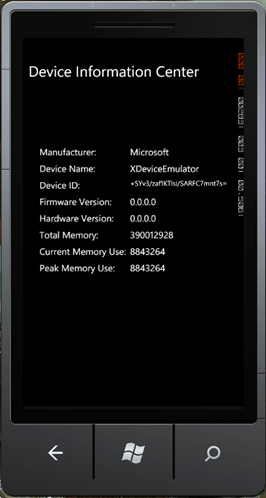
As I have said before since we're using an emulator we won't be getting an acceptable Device ID. So the result is as you see. But if you try it with a real WP7 device, I'm sure you'll get real results.
Hope this article helps you.