

In this article we will be working on using Windows Controls and WPF UserControls inside an XNA Game Project.
They tell Windows Controls cant be used inside an XNA game let alone WPF. Well, that has been proved in this article.
Components:
Windows Controls we'll be using
-
Button
-
TextBox
-
CheckBox
-
ElementHost
Tools
XNA GS 3.1 veya Visual Studio 2008(SP1)
.NET Framework 3.5(SP1)
We are creating a new project: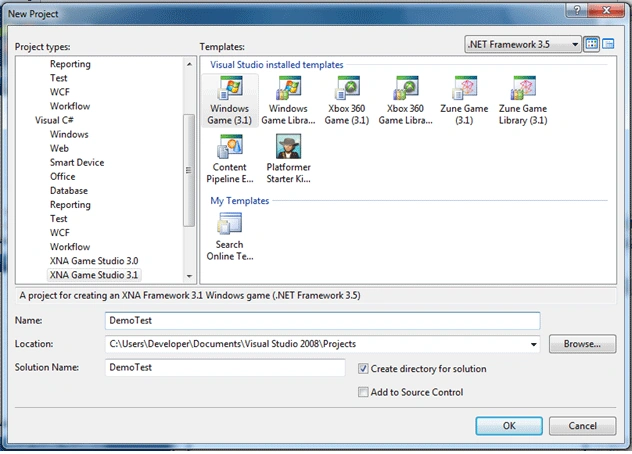
Now we will add reference.Project->Add Reference and then choose "System.Windows.Forms" namespace.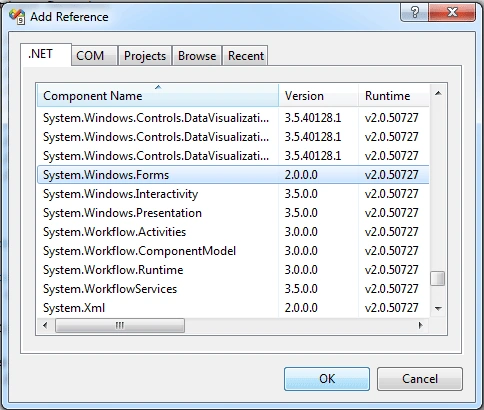
And declare it on Game1.cs: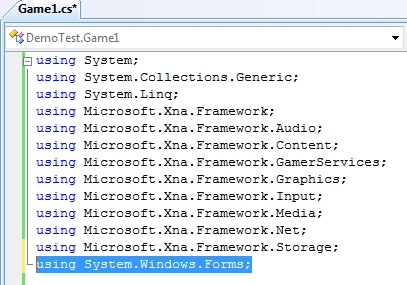
Note: You may need to declare and add reference to "System.Drawing" namespace as well.
TextBox Control:
An Input control we can use on Windows Forms.We add Textbox to our XNA project:
In anywhere we can declare variables:
TextBox text1 = new TextBox();
With that we have created a new Textbox variable.We are adding the code below to our Initialize() function.
protected override void Initialize()
{
base.Initialize();
text1.Location = new System.Drawing.Point(40, 40);
text1.BorderStyle = BorderStyle.None;
text1.Multiline = true;
text1.Size = new Size(400, 400);
Control.FromHandle(Window.Handle).Controls.Add(text1);
}
Let us explain : "Control.FromHandle(Window.Handle).Controls.Add(ornek);"
"Control.FromHandle" - helps us to call the handle we will add textbox.
"Control.FromHandle(Window.Handle)" We take the Handle of GameWindow class named Window.Game class is not a control.But because of GameWindow is a control that can be used on XNA project,we can call and add Windows Controls through it.We were able to add or remove any control while coding in Windows Forms because Windows Forms was itself a control too.Now let me tell you this: "Form class & GameWindow class looks alike".By thinking so we can make RAD(Rapid Application Development) in XNA just like we do while developing Windows Form Based Applications.
But if you run the project,you will not be able to enter a key inside TextBox class.
Because while Textbox class uses "System.Windows.Forms.Keys",XNA accepts only "XNA.Framework.Input.Keys".Although we cant make it with the Windows-Way,we will make it as we do on XNA Inputs.
string var_text1;
we add a string valuable that will store all the texts from your input and then assign to our text1 named TextBox class
protected override void Update(GameTime gameTime)
{
base.Update(gameTime);
if (text1.Focused)
{
KeyboardState ns = Keyboard.GetState();
foreach (Microsoft.Xna.Framework.Input.Keys a in ns.GetPressedKeys())
{
var_text1 = a.ToString();
text1.Text += var_text1;
}
}
}
"KeyboardState ns = Keyboard.GetState();" -> we get all the input from Keyboard("ns.GetPressedKeys()").This helps us to to write any key value to our Textbox.
If you wish you may not take all the keys,just use "if-else" structure and take any key you want to.
Let us run the project.Whats going to happen?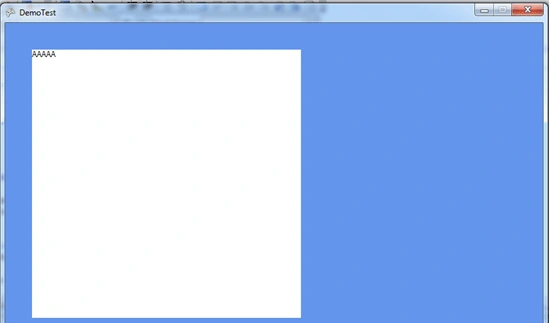
When we press a key,it wrote as we pressed 5 times.Let me explain this:
In Xna, every event happens on Update function depends on Gametime value.1 sec process is repeated 5 times so that the game window refreshes as we want.Why is it 1 sec/5? Because in continuous things like "chasing a car,shooting an opponent" we must see whats happening instantly.The user must feel like he is playing a "Real-time" game.Because of that Gametime repeats 5 times in 1 sec.Even 1 sec can differ sometime.
Lets go back to our project.How we will solve this?
create an int variable and query it on Update function.
int ct = 0; //the start value must be 0 so it cant be repeated.
Then update our Update function seen below:
protected override void Update(GameTime gameTime)
{
base.Update(gameTime);
if (text1.Focused)
{
ct = ct -1;
if(ct < 0)
{
ct = 5;
}
if(ct == 0)
{
KeyboardState ns = Keyboard.GetState();
foreach (Microsoft.Xna.Framework.Input.Keys a in ns.GetPressedKeys())
{
var_text1 = a.ToString();
Text1.Text += var_text1;
}
}
}
}
And you can enter any value without repeating: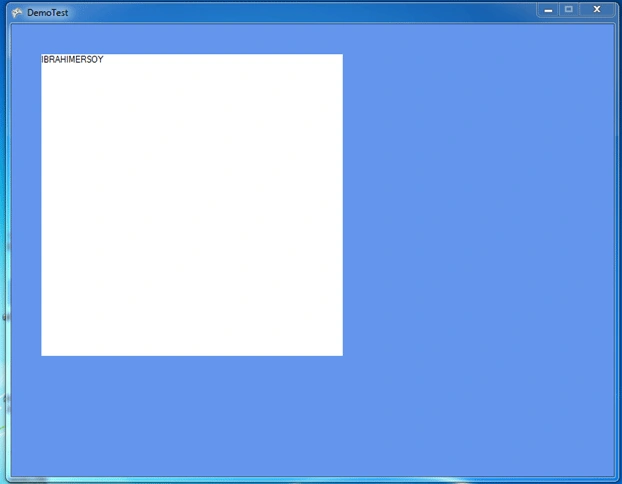
Thats it! You have created a Textbox control inside an XNA Window...
BUTTON Control:
Button control helps us to accept a process.In this section i will be talking about how to add a button control and its eventhandler.
We declare our Button Class first.
Button btn = new Button();
To add this inside project-update Initialize function just like below:
protected override void Initialize()
{
base.Initialize();
btn.Text = "Press Me!";
btn.Location = new System.Drawing.Point(50, 50);
btn.FlatStyle = FlatStyle.Popup;
Control.FromHandle(Window.Handle).Controls.Add(btn);
}
Now lets write down a simple EventHandler that will show us a MessageBox.
protected override void Initialize()
{
base.Initialize();
btn.Text = "Press Me!";
btn.Location = new System.Drawing.Point(50, 50);
btn.FlatStyle = FlatStyle.Popup;
btn.Click += new System.EventHandler(ButtonClick);
Control.FromHandle(Window.Handle).Controls.Add(btn);
}
private void ButtonClick(object sender, EventArgs e)
{
MessageBox.Show("Button is Clicked!");
}
By doing so we have added "Windows Control-Based" events inside XNA Game.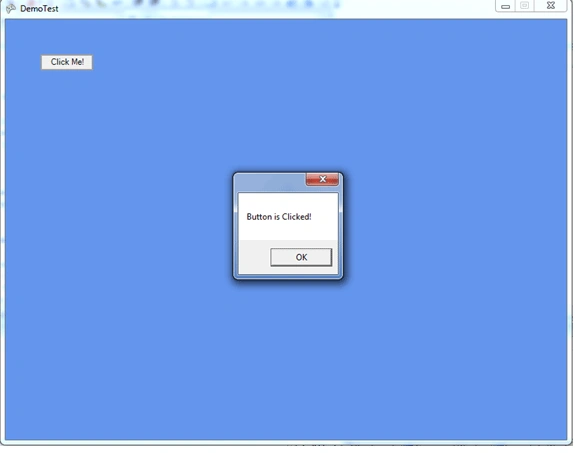
CHECKBOX Control:
Checkbox control helps us to select multi-options.
We declare it as seen below:
CheckBox cb = new CheckBox();
Using it:
protected override void Initialize()
{
base.Initialize();
cb.CheckState = CheckState.Unchecked;
cb.Location = new System.Drawing.Point(50, 50);
cb.Text = "Yes";
cb.BackColor = System.Drawing.Color.CornflowerBlue;
Control.FromHandle(Window.Handle).Controls.Add(cb);
}
Lets create an eventhandler and change the text value of checkbox object.
protected override void Initialize()
{
base.Initialize();
cb.CheckState = CheckState.Indeterminate;
cb.Location = new System.Drawing.Point(50, 50);
cb.Text = "Indeterminate";
cb.BackColor = System.Drawing.Color.CornflowerBlue;
cb.CheckStateChanged += new EventHandler(CBChanged);
Control.FromHandle(Window.Handle).Controls.Add(cb);
}
private void CBChanged(Object sender, EventArgs e)
{
if (cb.CheckState == CheckState.Unchecked)
{
cb.Text = "No";
}
else if (cb.CheckState == CheckState.Checked)
{
cb.Text = "Yes";
}
}
We have changed the code a little bit.
Check=Checked
No Check=Unchecked
Both of Them=Indeterminate
Lets run it!
Indeterminate Mode: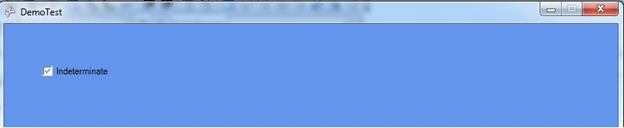
Unchecked Mode:
Checked Mode:
I have explained Windows controls as detailed as i can.Now lets talk about the most exciting feature: WPF!
WPF User Controls:
WPF User Controls are the most exciting controls we can add inside XNA Game.
But first we need to add some references that a WPF Application alone needs:
-
Presentation Core
-
Presentation Framework
-
UIAutomationProvider
-
WindowsBase
-
WindowsFormsIntegration
After that we will be adding our pre-made WPFUserControl from Project->"Add Existing Item..."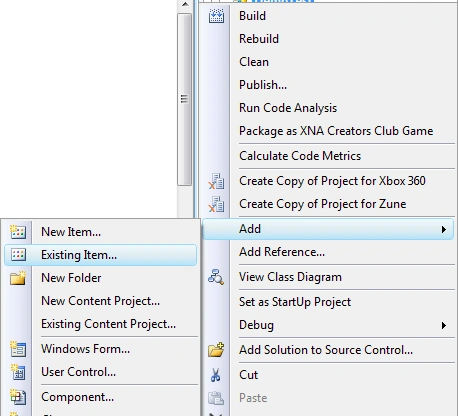
Find the files with Windows Markup Files & C# Source file and add them:
Now what we will do is to add them to our project as we have done before.
You can add the namespace we used for WPF UserControl.
using WindowsFormsApplication1; //That's the Namespace we have used inside WPF UserControl
Inside this WPF User Control we have added a combobox and an event "SelectionChanged" which shows us message for the selected item.
Code of WPF UserControl:
private void comboBox1_SelectionChanged(object sender, SelectionChangedEventArgs e)
{
ComboBoxItem cbi = ((ComboBox)sender).SelectedItem as ComboBoxItem;
MessageBox.Show(cbi.Content.ToString());
}
XAML of WPF UserControl:
<UserControl x:Class="WindowsFormsApplication1.Kontrol1"
xmlns="http://schemas.microsoft.com/winfx/2006/xaml/presentation"
xmlns:x="http://schemas.microsoft.com/winfx/2006/xaml"
Height="300" Width="300">
<Grid>
<ComboBox Height="23" Margin="48,70,132,0" Name="comboBox1" VerticalAlignment="Top" SelectionChanged="comboBox1_SelectionChanged">
<ComboBoxItem>1</ComboBoxItem>
<ComboBoxItem>2</ComboBoxItem>
<ComboBoxItem>3</ComboBoxItem>
<ComboBoxItem>4</ComboBoxItem>
</ComboBox>
</Grid>
</UserControl>
Lets add the control!
Kontrol1 kontrol11 = new Kontrol1();
We declared the control.
Then inside "Initialize()" function call our control named Kontrol11...
protected override void Initialize()
{
base.Initialize();
//ElementHost object helps us to connect a WPF User Control.
ElementHost elementHost1 = new ElementHost();
elementHost1.Location = new System.Drawing.Point(308, 69);
elementHost1.Name = "elementHost1";
elementHost1.Size = new System.Drawing.Size(350, 181);
elementHost1.TabIndex = 1;
elementHost1.Text = "elementHost1";
elementHost1.Child = this.kontrol11;
Control.FromHandle(Window.Handle).Controls.Add(elementHost1);
}
As you can see above we have added a WPF UserControl to our project
Lets run this project.Whats going to happen?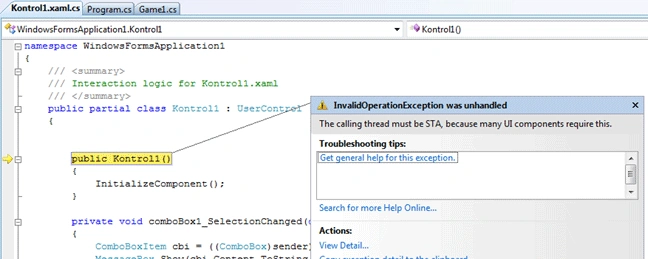
Yes Different UIS such as XAML cannot be used in directly inside an XNA Game.For that we must convert it to Single-Threaded.
Open your Program.cs file:
Change as it is:
using System;
namespace DemoTest
{
static class Program
{
[STAThread]
static void Main(string[] args)
{
using (Game1 game = new Game1())
{
game.Run();
}
}
}
}
[STAThread] Helps us to achieve this.Now our project is Single Threaded.And call any different UIs inside XNA!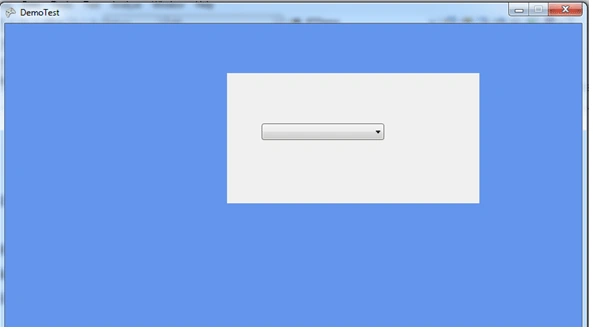
As you can see we have added it inside XNA Game!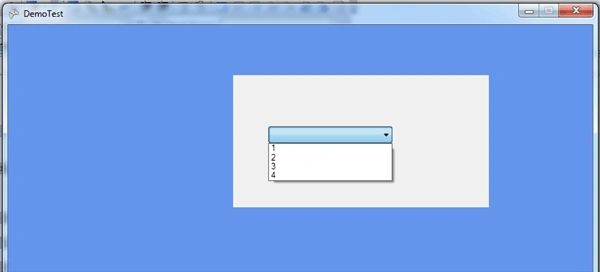
We are selecting an item and then:
It shows us the selected value. 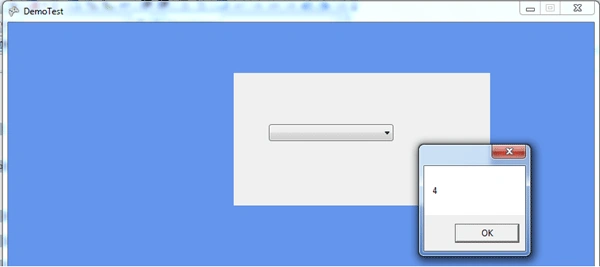
In this article I have written as detailed as much to explain how we can do all of this inside XNA Game.
By doing so you have integrated Windows Controls and WPF User Controls inside XNA!
I will tell much more about REXA(Rich-Effects XNA Applications) in the following days.
Update: FULL SCREEN
As you well know these samples run Windowed Mode.But what if they were running Full Screen?
If we use XNA's graphics.ToggleFullScreen() or graphics.IsFullScreen=true then all the things we have used -like Windows Controls and Dialogs- will disappear.Thats because Direct3D that XNA uses will take over the control and remove all the Window-based controls and dialogs from full screen view.
If we cant use XNA Framework for full screen what are we going to do?
It is easy to call a one-line code for full screen,isnt it? Well what are you going to do when you face something like that not able to see Windows Controls or anything related to Windows Object Model?
Theres a solution! : We will develop it the "Windows-Way"..
We will be using Windows API for Full Screen.So what i suggest you is to follow the steps then you will find it most easy:
1) Add these references by coding:
using System.Runtime.InteropServices;
2) Add Windows API declarations:
[DllImport("user32.dll")]
private static extern bool SetWindowPos(IntPtr hWnd, IntPtr hWndIntertAfter, int X, int Y, int cx, int cy, int uFlags);
[DllImport("user32.dll")]
private static extern int GetSystemMetrics(int Which);
private const int SM_CXSCREEN = 0;
private const int SM_CYSCREEN = 1;
private IntPtr HWND_TOP = IntPtr.Zero;
private const int SWP_SHOWWINDOW = 64;
These are going to show full screen or restore Windowed Mode.
3) Get Screen Values:
public int ScreenX
{
get
{
return GetSystemMetrics(SM_CXSCREEN);
}
}
public int ScreenY
{
get
{
return GetSystemMetrics(SM_CYSCREEN);
}
}
4) Write Full Screen & Restore Codes:
private void FullScreen()
{
Form.FromHandle(Window.Handle).FindForm().WindowState=FormWindowState.Maximized;
Form.FromHandle(Window.Handle).FindForm().FormBorderStyle = FormBorderStyle.None;
Form.FromHandle(Window.Handle).FindForm().TopMost = true;
SetWindowPos(Window.Handle, HWND_TOP, 0, 0, ScreenX, ScreenY, SWP_SHOWWINDOW);
}
private void Restore()
{
Form.FromHandle(Window.Handle).FindForm().WindowState = FormWindowState.Normal;
Form.FromHandle(Window.Handle).FindForm().FormBorderStyle = FormBorderStyle.FixedDialog;
Form.FromHandle(Window.Handle).FindForm().TopMost = false;
}
5) For calling these 2 functions we will write a code @ Update function:
KeyboardState newstat = Keyboard.GetState();
if (newstat.IsKeyDown(Microsoft.Xna.Framework.Input.Keys.Escape))
{
FullScreen();
}
else if (newstat.IsKeyDown(Microsoft.Xna.Framework.Input.Keys.Space))
{
Restore();
}
If we click on Escape the game will run on Full Screen.If we press Space it will restore the Windowed Mode.
Lets run the updated part and see what happens:
Windowed Mode: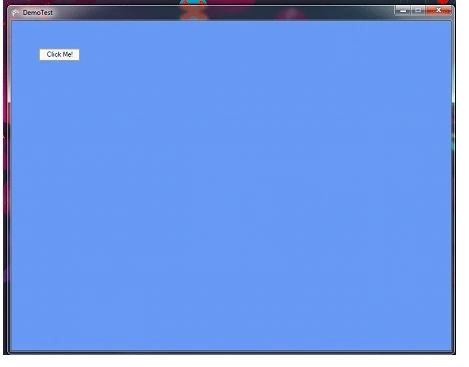
FULL SCREEN:

Thats it! We have successfully Run our project in Full Screen.As you can see its very simple isnt it?
Kauan KleinPosted Oct 25, 2016, 9:03 AM
Probably the most useful article I've ever read in my life. Thanks times a million for this!!!
Thiruppathi RPosted May 5, 2016, 6:34 AM
Nice Article.but can do this in vs 2015.
John ArildPosted Aug 26, 2012, 2:08 PM
Hi, when I add System.Windows.Forms and System.Drawing I get errors on input.ButtonStage and Color. It is very confusing since I haven't added anything else to my project. I'm trying this on XNA 4.0 using Visual Studio 2010 Pro.
ave angPosted Feb 21, 2012, 7:38 AM
why my textbox(wpf) can recieve any input when integrate in xna?
DionisioPosted Nov 15, 2010, 2:37 PM
this example has been very helpful to me for learning how to use WinForms and WPF within XNA. good job! thanks
Torpor IdesPosted Apr 23, 2010, 2:33 PM
You're Great!!!! :) Good job man.
Torpor IdesPosted Apr 8, 2010, 9:33 AM
Cool tricks and good explanation but it had a problem when you go fullscreen (graphics.IsFullScreen = true;) the button, in the example seems to blink. You know how to solve it? Thanks and good job. (Sorry for my english)
Roger RammPosted Feb 9, 2010, 2:04 PM
Nice article. Thanks for taking the time to write it. By the way, the samples html link appears to be broken.
Mike GoldPosted Feb 2, 2010, 5:37 PM
Nice article, I like how you bring the windows world into XNA.