

Introduction
Using this code snippet the user would be able to send an email with attachment through Outlook, Yahoo, AOL, HOTMAIL and Gmail.
Background
Already loads of information is available on the internet for this purpose. But not all the code is placed in one place. So here is my small effort to accumulate all the code in one place and that is nothing better than this place. Hopefully it will be helpful for the beginners or whoever in need of it.
Using the code
Namespace:
using System;
using System.Collections.Generic;
using System.ComponentModel;
using System.Data;
using System.Drawing;
using System.Text;
using System.Windows.Forms;
using System.Net.Mail;
using System.Net;
using Outlook = Microsoft.Office.Interop.Outlook;
Block Diagram (SMTP Setting for various client):
Below is the Block diagram for the SMTP settings I have used to send out an email from various client providers.
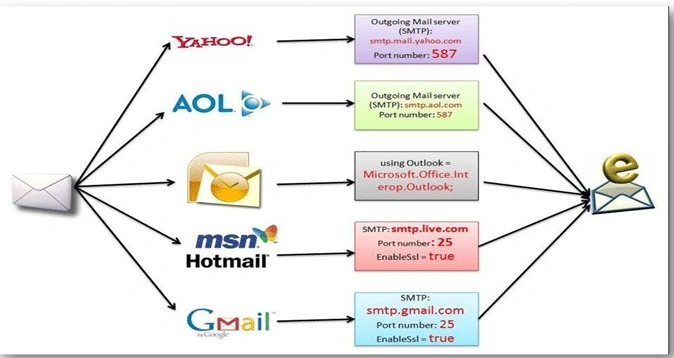
Wherever needed I have explained the code in details. The codes are self explanatory, any way for the same I have included comments. So here is the code snippet to achieve your purpose.
1. Using Outlook:
To send an email using outlook, we need to add a reference to the dynamic link library for Outlook which is called Microsoft.Office.Interop.Outlook.dll.
For that follow the steps below.
1. Go to your solution explorer
2. Click on add a reference
3. Click on .Net Tab
4. Go through the DLL and select Microsoft.Office.Interop.Outlook.dll correctly.
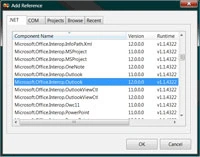
5. When you have selected the correct reference you select the "OK" button and this reference will be added to your project under references.
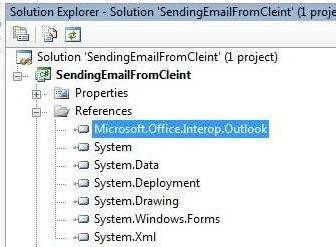
6. Now we need to add a reference in our class to the Outlook reference we have added to the project in our previous example.
using Outlook = Microsoft.Office.Interop.Outlook;
And finally the code would look something like this:
//method to send email to outlook
public void sendEMailThroughOUTLOOK()
{
try
{
// Create the Outlook application.
Outlook.Application oApp = new Outlook.Application();
// Create a new mail item.
Outlook.MailItem oMsg = (Outlook.MailItem)oApp.CreateItem(Outlook.OlItemType.olMailItem);
// Set HTMLBody.
//add the body of the email
oMsg.HTMLBody = "Hello, Jawed your message body will go here!!";
//Add an attachment.
String sDisplayName = "MyAttachment";
int iPosition = (int)oMsg.Body.Length + 1;
int iAttachType = (int)Outlook.OlAttachmentType.olByValue;
//now attached the file
Outlook.Attachment oAttach = oMsg.Attachments.Add(@"C:\\fileName.jpg", iAttachType, iPosition, sDisplayName);
//Subject line
oMsg.Subject = "Your Subject will go here.";
// Add a recipient.
Outlook.Recipients oRecips = (Outlook.Recipients)oMsg.Recipients;
// Change the recipient in the next line if necessary.
Outlook.Recipient oRecip = (Outlook.Recipient)oRecips.Add("[email protected]");
oRecip.Resolve();
// Send.
oMsg.Send();
// Clean up.
oRecip = null;
oRecips = null;
oMsg = null;
oApp = null;
}//end of try block
catch (Exception ex)
{
}//end of catch
}//end of Email Method
2. Using HOTMAIL:
To send an email using HotMail, we need to add a reference to the dynamic link library for Hotmail/Gmail/AOL/Yahoo which is called System.Net.Mail.
For the same follow the steps below:
1. Go to solution explorer of your project
2. Select add a reference
3. Click on .Net Tab
4. Go through the DLL and select System.Net.Mail.
5. When you have selected the correct reference you select the "OK" button and this reference will be added to your project under references.
6. Now we need to add a reference in our class to the Hotmail/Gmail/AOL/Yahoo reference we have added to the project.
using System.Net.Mail;
Note: The HOTMAIL SMTP Server requires an encrypted connection (SSL) on port 25.
And finally the code would look something like this:
//method to send email to HOTMAIL
public void sendEMailThroughHotMail()
{
try
{
//Mail Message
MailMessage mM = new MailMessage();
//Mail Address
mM.From = new MailAddress("[email protected]");
//receiver email id
mM.To.Add("[email protected]");
//subject of the email
mM.Subject = "your subject line will go here";
//deciding for the attachment
mM.Attachments.Add(new Attachment(@"C:\\attachedfile.jpg"));
//add the body of the email
mM.Body = "Body of the email";
mM.IsBodyHtml = true;
//SMTP client
SmtpClient sC = new SmtpClient("smtp.live.com");
//port number for Hot mail
sC.Port = 25;
//credentials to login in to hotmail account
sC.Credentials = new NetworkCredential("[email protected]","HotMailPassword");
//enabled SSL
sC.EnableSsl = true;
//Send an email
sC.Send(mM);
}//end of try block
catch (Exception ex)
{
}//end of catch
}//end of Email Method HotMail
3. Using Yahoo!
//Method to send email from YAHOO!!
public void sendEMailThroughYahoo()
{
try
{
//mail message
MailMessage mM = new MailMessage();
//Mail Address
mM.From = new MailAddress("[email protected]");
//emailid to send
mM.To.Add("[email protected]");
//your subject line of the message
mM.Subject = "your subject line will go here.";
//now attached the file
mM.Attachments.Add(new Attachment(@"C:\\attachedfile.jpg"));
//add the body of the email
mM.Body = "Your Body of the email.";
mM.IsBodyHtml = false;
//SMTP
SmtpClient SmtpServer = new SmtpClient();
//your credential will go here
SmtpServer.Credentials = new System.Net.NetworkCredential("[email protected]", "password");
//port number to login yahoo server
SmtpServer.Port = 587;
//yahoo host name
SmtpServer.Host = "smtp.mail.yahoo.com";
//Send the email
SmtpServer.Send(mM);
}//end of try block
catch (Exception ex)
{
}//end of catch
}//end of Yahoo Email Method
4. Using AOL:
//Method to send email from YAHOO!!
public void sendEMailThroughAOL()
{
try
{
//mail message
MailMessage mM = new MailMessage();
//Mail Address
mM.From = new MailAddress("[email protected]");
//emailid to send
mM.To.Add("[email protected]");
//your subject line of the message
mM.Subject = "your subject line will go here.";
//now attached the file
mM.Attachments.Add(new Attachment(@"C:\\attachedfile.jpg"));
//add the body of the email
mM.Body = "Your Body of the email.";
mM.IsBodyHtml = false;
//SMTP
SmtpClient SmtpServer = new SmtpClient();
//your credential will go here
SmtpServer.Credentials = new System.Net.NetworkCredential("[email protected]", "AOLpassword");
//port number to login yahoo server
SmtpServer.Port = 587;
//yahoo host name
SmtpServer.Host = "smtp.aol.com";
//Send the email
SmtpServer.Send(mM);
}//end of try block
catch (Exception ex)
{
}//end of catch
}//end of AOLEmail Method
5. Using Gmail:
Note: The GMAIL SMTP Server requires an encrypted connection (SSL) on port 487.
//method to send email to Gmail
public void sendEMailThroughGmail()
{
try
{
//Mail Message
MailMessage mM = new MailMessage();
//Mail Address
mM.From = new MailAddress("[email protected]");
//receiver email id
mM.To.Add("[email protected]");
//subject of the email
mM.Subject = "your subject line will go here";
//deciding for the attachment
mM.Attachments.Add(new Attachment(@"C:\\attachedfile.jpg"));
//add the body of the email
mM.Body = "Body of the email";
mM.IsBodyHtml = true;
//SMTP client
SmtpClient sC = new SmtpClient("smtp.gmail.com");
//port number for Gmail mail
sC.Port = 587;
//credentials to login in to Gmail account
sC.Credentials = new NetworkCredential("[email protected]", "GmailPassword");
//enabled SSL
sC.EnableSsl = true;
//Send an email
sC.Send(mM);
}//end of try block
catch (Exception ex)
{
}//end of catch
}//end of Email Method
Already I am using the above code snippet for my automation purpose and it's working fine for me!!
Thank you!!
Feel Free to provide your comments and suggestion.
anup dhatePosted Oct 19, 2012, 1:59 PM
hi..., it is good. i have tested gmail part with fields and its working. Further i want to generate invoice/bills from database MSSQL EXPRESS and make pdf then send to recipients(500+) ..how to go about it...
mk bajajPosted Aug 23, 2012, 9:28 AM
hi I have two question related to sending a mail through outlook. what is 'solution explorer' and where i can get this? please provide us screenshot. and 2nd one is are you using any jar file for 'Application' or what? if you are using any jar file please provide us that also. thanks in advance. actually I'm trying to sent a mail through outlook or Microsoft exchange server, if you have any idea please share with me it would really appreciated
Mahesh ChandPosted Mar 8, 2011, 10:36 AM
This is very useful Jawed. Thanks for sharing.