

We some time need to create control on the page dynamically
in Silverlight I will teach you about this in this article.
For learning how to add controls dynamically lets learn some
basic controls that are good to align other controls on the page.
Step 1:
Start with new Silverlight project
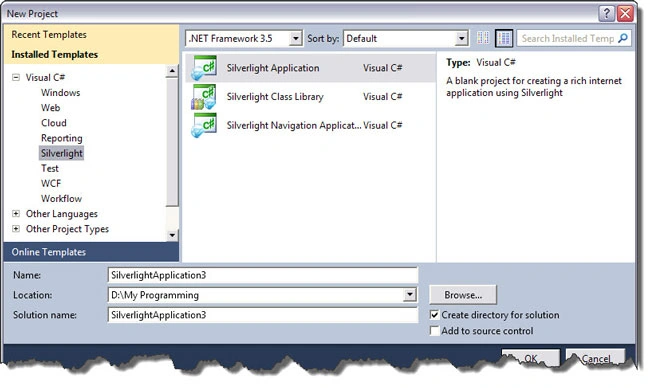
Before Starting Lets understand
below two controls
Canvas
Canvas is control that can be used to place other elements
on it .it's similar to like we use canvas for drawing that we can draw anything
on it.
Stack Panel
Stack panel is control used to stack controls on
each other its orientation can be horizontal / vertical
This both controls we are going to use in our process of adding controls dynamically on the page of Silverlight. Its invisible control.
Vertical
Stack panel
|
Control1 |
|
Control2 |
|
Control3 |
Horizontal
Stack panel
|
Control 1 |
Control2 |
Control3 |
We will use this stack panel because we don't need
to specify at which position we want to add the control we can just add buttons
into stack panel and it will be aligned automatically by stack panel.
Now lets start with code.
Step 2 :
Add new button from the toolbox to page
Set its Content = "Add Button"
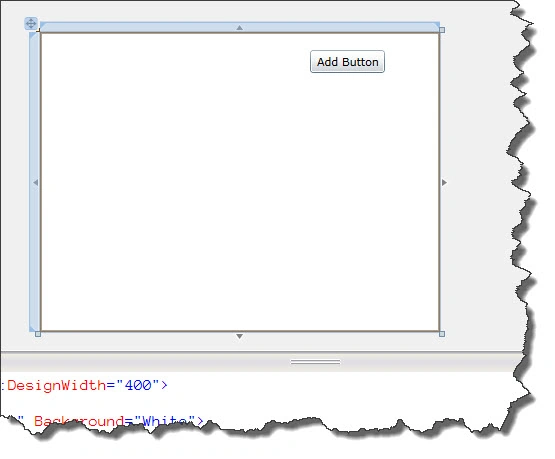
Step 3:
Now look at your XAML code it would look like
<Grid x:Name="LayoutRoot" Background="White">

        <Button Content="Button" Height="23" HorizontalAlignment="Left" Margin="12,21,0,0" Name="button1"
VerticalAlignment="Top" Width="75" Click="button1_Click" Canvas.Left="259" Canvas.Top="-3" />
<Now we will add canvas into this code so that we can add controls dynamically on the canvas .so modified code will look like below
</Grid>
<Grid x:Name="LayoutRoot" Background="White">
        <Canvas Name="MyCanvas">
        <Button Content="Button" Height="23" HorizontalAlignment="Left" Margin="12,21,0,0" Name="button1"
VerticalAlignment="Top" Width="75" Click="button1_Click" Canvas.Left="259" Canvas.Top="-3" />
        </Canvas>
    </Grid>
Now that we have done 60% of our work .
Step 4:
Now lets add code in code behind so that on the click event of button we can generate other buttons .
 public partial class MainPage : UserControl
    {
        StackPanel sp1 = new StackPanel();
        public MainPage()
        {
            InitializeComponent();
            sp1.Orientation = Orientation.Vertical;
            MyCanvas.Children.Add(sp1);
        }

        private void button1_Click(object sender, RoutedEventArgs e)
        {
            Button b1 = new Button();
            b1.Content = "I m new Button";
            b1.Click +=new RoutedEventHandler(b1_Click);
            sp1.Children.Add(b1);
        }

        public void b1_Click(Object Sender,RoutedEventArgs e)
        {
            MessageBox.Show("I m clicked");
        }
    }
Look at the code I have taken object of StackPanel and Added it to canvas before proceeding to other things .
Now we have stack panel on the canvas now on the click event of button we can write code for adding control dynamically .
So I have created one object of Button Class. Set its properties like Content and added event handler by b1.Click + new RoutedEventHandler(b1_Click)
We have declared event handler so we need to define method that will execute on that dynamically created button. So we written method called b1_Click and that contain code that will execute on click of dynamically created buttons.
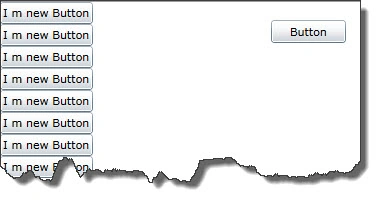
Dileep Kumar PatelPosted Apr 19, 2012, 3:58 AM
This is a good Plateform of the presentation of your good and new thought for sharing with us.
hechlaf abdouPosted Sep 17, 2010, 4:31 AM
Thanks! :)
Mahesh ChandPosted Sep 6, 2010, 12:45 PM
Nice