ARTICLE

Transfer Files Over Bluetooth Devices

Posted by Krishna Garad Articles | Windows Forms C# April 05, 2011
In this article we will see how to transfer data on PC, Pocket-PC and Mobiles etc... via Bluetooth.
Reader Level:
Download Files:


Introduction:

In this article we will see how to transfer data on PC, Pocket-PC and Mobiles etc... via Bluetooth. You can find out so many sources on 32feet.net. Actually I got this source also from that website only but it was raising some security issues. In this article I have modified some code.

Background:

Transferring files over LAN from one PC to another PC we can use Remoting of .Net but transferring files on Bluetooth enabled devices is not like .Net Remoting. Here we will see how to send files over various Bluetooth enabled devices.

Pre-Requisites:

For doing our task first we have to download the DLL files from 32feet.net. Download the DLLs and add references to those DLLs to your project.

These DLLs will provide all functionality which we need to do the transfers such as searching for Bluetooth devices, view their MAC address, send the data etc...

Follow the steps given below to complete our task.

Step 1:

Download InTheHand.dll from above link.

Step 2:

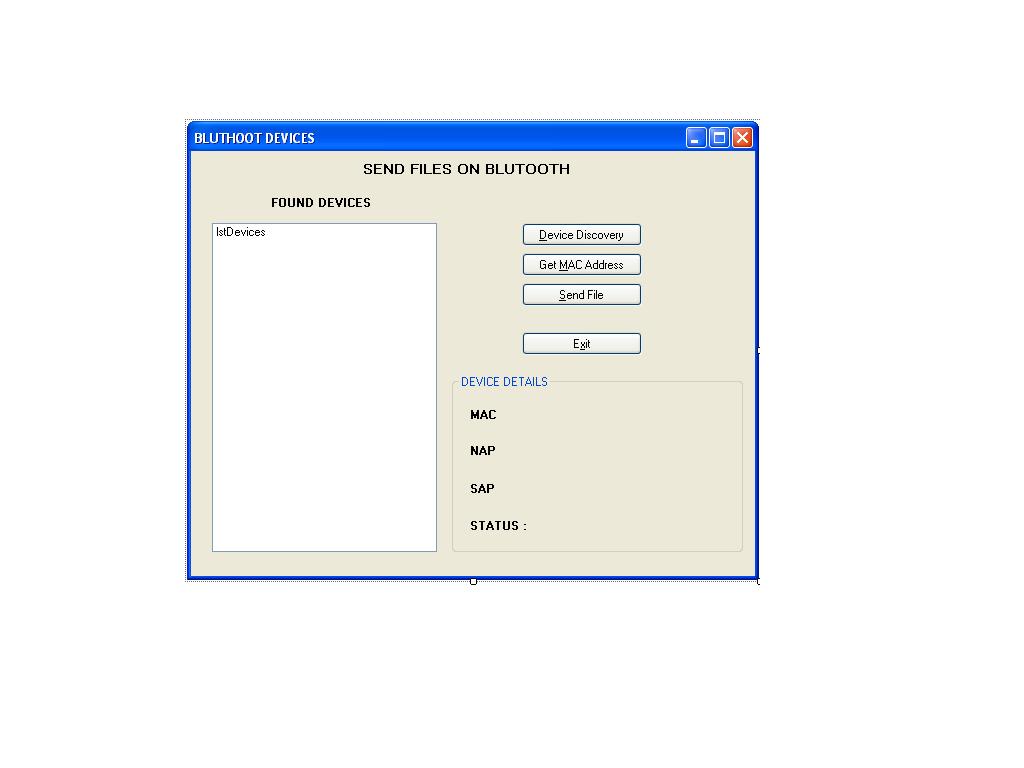
Start a new Windows application and add a reference to this DLL file. Design your UI like shown below.
screen.JPG

Step 3:

First import the namespace from the referenced DLLs like below.

using InTheHand.Net;
using InTheHand.IO.Ports;
using InTheHand.Net.Bluetooth;
using InTheHand.Net.Forms;


Step 4:

In the declaration section create an instance of the BluetoothAddress class which is present in InTheHand namespace of the referenced dll.

InTheHand.Net.BluetoothAddress[] address_array = new BluetoothAddress[1000];
private Thread thrSend;


Step 5:

In the btnDescover click event write the following code to discover the Bluetooth devices around us. Here we are creating an instance of Bluetoothclient Class present in InTheHand namespace of the referenced DLL.

InTheHand.Net.Sockets.BluetoothClient bc = new InTheHand.Net.Sockets.BluetoothClient();

            InTheHand.Net.Sockets.BluetoothDeviceInfo[] array = bc.DiscoverDevices();
            for (int i = 0; i < array.Length; i++)
            {
                this.address_array[i] = array[i].DeviceAddress;
                this.lstDevices.Items.Add(array[i].DeviceName);
            }

Step 6:

For viewing the MAC, NAP and SAP address of selected bluetooth devices write the folowing code in the GetMAC_Click event for getting various addresses of Bluetooth devices.

if (this.lstDevices.SelectedIndex == -1)
           
{
               
MessageBox.Show("Please select a device.");
               
return;
           
}

            int index = this.lstDevices.SelectedIndex;
           
string mac = this.address_array[index].ToString();
           
string nap = this.address_array[index].Nap.ToString();
           
string sap = this.address_array[index].Sap.ToString();
           
lblmac.Text = "MAC : " + mac.ToString();
           
lblnap.Text = "NAP :" + nap.ToString();

           
lblsap.Text = "SAP :" + sap.ToString();


Step 7:

For sending a file to a Bluetooth device write the following code in the Send file_Click event to send the file.

this.thrSend = new Thread(new ThreadStart(sendfile));
            this.thrSend.Start();


Step 8:

The above code will start only the thread for sending a file but you have to write the method which will do the actual work of sending the file. Write the method sendfile as below.

private void sendfile()
        {
            SelectBluetoothDeviceDialog dialog = new SelectBluetoothDeviceDialog();
            dialog.ShowAuthenticated = true;
            dialog.ShowRemembered = true;
            dialog.ShowUnknown = true;
            OpenFileDialog ofd = new OpenFileDialog();
            ofd.Title = "Select File";
            ofd.Filter = "All Files (*.*)|.*";
            if (dialog.ShowDialog() == System.Windows.Forms.DialogResult.OK)
            {
                if (ofd.ShowDialog() == DialogResult.OK)
                {
                    Cursor.Current = Cursors.WaitCursor;
                    System.Uri uri = new Uri("obex://" + dialog.SelectedDevice.ToString() + "/" + ofd.FileName);
                    ObexWebRequest request = new ObexWebRequest(uri);
                    request.ReadFile(ofd.FileName);
                    ObexWebResponse response = (ObexWebResponse)request.GetResponse();
                    MessageBox.Show(response.StatusCode.ToString());
                    response.Close();
                    Cursor.Current = Cursors.Default;
                }
                else
                {
                    MessageBox.Show("File Not Selected");
                }
            }
            else
            {
                MessageBox.Show("Device Not Selected");
            }

        }

In the above method you can find ObexRequest and Response object to transfer the object from our application to a Bluetooth device.

Conclusion:

In such an easy manner we can send files over various Bluetooth enabled devices.
 

Login to add your contents and source code to this article
Article Extensions
Contents added by jose ferreira on May 16, 2013
Contents added by mohammad abumahfouz on Oct 02, 2012
  private void sendfile()
        {
            SelectBluetoothDeviceDialog dialog = new SelectBluetoothDeviceDialog();
            dialog.ShowAuthenticated = true;
            dialog.ShowRemembered = true;
            dialog.ShowUnknown = true;
           

          //  OpenFileDialog ofd = new OpenFileDialog();
          //  ofd.Title = "Select File";
          //  ofd.Filter = "All Files (*.*)|*.*";
            if (dialog.ShowDialog() == System.Windows.Forms.DialogResult.OK)
            {
                
              //  if (dialog.SelectedDevice.Connected == true)
               // {
                    string device = dialog.SelectedDevice.DeviceAddress .ToString();
                    MessageBox.Show(device.ToString());

                   
                    Cursor.Current = Cursors.WaitCursor;
                    //System.Uri uri = new Uri("",
                    System.Uri uri = new Uri("obex://" + dialog.SelectedDevice.DeviceAddress .ToString() + "/" + "3.jpg");
                    MessageBox.Show("obex://" + dialog.SelectedDevice.DeviceName.ToString() + "/" + "3.jpg");
                    //    System.Uri uri = new Uri(device);

                    ObexWebRequest request = new ObexWebRequest(uri);
                    //request.RequestUri./("obex://" + dialog.SelectedDevice.DeviceName.ToString() + "/" + "3.jpg");
                    request.ReadFile("3.jpg");
                    //request.
                    //request.
                    ObexWebResponse response = (ObexWebResponse)request.GetResponse();

                    MessageBox.Show(response.StatusCode.ToString());
                    response.Close();
                    Cursor.Current = Cursors.Default;
                  
        }
            else
            {
                MessageBox.Show("Device Not Selected");
            }

        }

post comment
     

is there any waty to send only data like text by using the same libraries

Posted by imam bukhsh Mar 11, 2013

do you have any link regarding the new version of dll. If so can you please share it.

Posted by tanuja jami Feb 25, 2013

Tanuja I din't tested it on windows 8. I think it will not work for windows 8. Check for new version of InTheHand.net dll they may have new release for windows 8.

Posted by Krishna Garad Feb 25, 2013

can this API be used for win 8 desktop app also? I'm trying to create a win 8 desktop app for bluetooth transfer using vs 2012 express.can this API be used for it.I'm facing problem with inTheHand.Net.Forms

Posted by tanuja jami Feb 25, 2013

thank so much

Posted by mohammad abumahfouz Oct 02, 2012
COMMENT USING
PREMIUM SPONSORS
Over-C is a holistic consortium of communications and technology specialists. We build, deploy and market both business as well as consumer products and solutions.
Join a Chapter
SPONSORED BY
  • PDF reports have never been easier to create. With our included WYSIWYG Designer, you can layout your reports, set up your data source and let DynamicPDF ReportWriter do the rest.