
Introduction
This article demonstrates how to create a TextBox in WPF that can suggest items at runtime based on an input, in this case, disk drive folders.
Background
There is a number of AutoComplete TextBox implementation around but some don't support data binding, others don't support runtime items polling and so on. After lot of research and Googling, I decided to write my own instead of continue looking for one.
My Design process
My first design is based on ComboBox, I copy the default template and remove the drop down button and develop from that, it doesnt work because combobox have it's own autocomplete mechanism which will change the selection of textbox when Items is changed, it's not designed for Items that change at realtime.
So the second design is based on TextBox, I create the following style,
This article demonstrates how to create a TextBox in WPF that can suggest items at runtime based on an input, in this case, disk drive folders.
Background
There is a number of AutoComplete TextBox implementation around but some don't support data binding, others don't support runtime items polling and so on. After lot of research and Googling, I decided to write my own instead of continue looking for one.
My Design process
My first design is based on ComboBox, I copy the default template and remove the drop down button and develop from that, it doesnt work because combobox have it's own autocomplete mechanism which will change the selection of textbox when Items is changed, it's not designed for Items that change at realtime.
So the second design is based on TextBox, I create the following style,
- <Style x:Key="autoCompleteTextBox" TargetType="{x:Type TextBox}">
- <Setter Property="Template">
- <Setter.Value>
- <ControlTemplate TargetType="{x:Type TextBoxBase}">
- <Grid x:Name="root">
- <ScrollViewer Margin="0" x:Name="PART_ContentHost"/>
- <Popup x:Name="PART_Popup" AllowsTransparency="true"
- Placement="Bottom" IsOpen="False"
- PopupAnimation="{DynamicResource
- {x:Static SystemParameters.ComboBoxPopupAnimationKey}}">
- <ListBox x:Name="PART_ItemList" SnapsToDevicePixels
- ="{TemplateBinding
- SnapsToDevicePixels}"
- VerticalContentAlignment="Stretch" HorizontalContentAlignment
- ="Stretch"
- KeyboardNavigation.DirectionalNavigation="Contained" />
- </Popup>
- </Grid>
- </ControlTemplate>
- </Setter.Value>
- </Setter>
- </Style>
And then create a custom control and hook the style to it,
- <TextBox x:Class="QuickZip.Controls.SelectFolderTextBox" Style="{DynamicResource
- autoCompleteTextBox}" >...
- </TextBox>
PART_ContentHost is actually a control that TextBoxView, it is required for TextBox template (with that name), or the control won't function, the another two part (PART_Popup and PART_ItemList) is defined so I can use them in the custom control,
- public partial class SelectFolderTextBox: TextBox {
- Popup Popup {
- get {
- return this.Template.FindName("PART_Popup", this) as Popup;
- }
- }
- ListBox ItemList {
- get {
- return this.Template.FindName("PART_ItemList", this) as ListBox;
- }
- }
- ScrollViewer Host {
- get {
- return this.Template.FindName("PART_ContentHost", this) as ScrollViewer;
- }
- }
- UIElement TextBoxView {
- get {
- foreach(object o in LogicalTreeHelper.GetChildren(Host)) return o as UIElement;
- return null;
- }
- }
- }
The output looks like the following Figure.
If text is changed, the suggestion item list is updated as well,
If text is changed, the suggestion item list is updated as well,
- protected override void OnTextChanged(TextChangedEventArgs e) {
- if (_loaded) {
- try {
- if (lastPath != Path.GetDirectoryName(this.Text)) {
- lastPath = Path.GetDirectoryName(this.Text);
- string[] paths = Lookup(this.Text);
- ItemList.Items.Clear();
- foreach(string path in paths)
- if (!(String.Equals(path, this.Text, StringComparison.CurrentCultureIgnoreCase))) ItemList.Items.Add(path);
- }
- Popup.IsOpen = true;
- //I added a Filter so Directory polling is only called once per directory, thus improve speed
- ItemList.Items.Filter = p => {
- string path = p as string;
- return path.StartsWith(this.Text, StringComparison.CurrentCultureIgnoreCase) && !(String.Equals(path, this.Text, StringComparison.CurrentCultureIgnoreCase));
- };
- } catch {}
- }
- }
A number of handlers is then defined,
- public override void OnApplyTemplate() {
- base.OnApplyTemplate();
- _loaded = true;
- this.KeyDown += new KeyEventHandler(AutoCompleteTextBox_KeyDown);
- this.PreviewKeyDown += new KeyEventHandler(AutoCompleteTextBox_PreviewKeyDown);
- ItemList.PreviewMouseDown += new MouseButtonEventHandler(ItemList_PreviewMouseDown);
- ItemList.KeyDown += new KeyEventHandler(ItemList_KeyDown);
- }
AutoCompleteTextBox_PreviewKeyDown
if user press down button, the textbox will move focus to the Listbox, so the user can choose an item from it, this is placed in PreviewKeyDown instead of KeyDown because TextBox's mechanism will consume the event before it reach KeyDown if the button is down button.
if user press down button, the textbox will move focus to the Listbox, so the user can choose an item from it, this is placed in PreviewKeyDown instead of KeyDown because TextBox's mechanism will consume the event before it reach KeyDown if the button is down button.
- void AutoCompleteTextBox_PreviewKeyDown(object sender, KeyEventArgs e) {
- if (e.Key == Key.Down && ItemList.Items.Count > 0 && !(e.OriginalSource is ListBoxItem)) {
- ItemList.Focus();
- ItemList.SelectedIndex = 0;
- ListBoxItem lbi = ItemList.ItemContainerGenerator.ContainerFromIndex(ItemList.SelectedIndex) as ListBoxItem;
- lbi.Focus();
- e.Handled = true;
- }
- }
AutoCompleteTextBox_KeyDown
if user press <enter> button, the textbox will close the popup and update the binding.
if user press <enter> button, the textbox will close the popup and update the binding.
- void AutoCompleteTextBox_KeyDown(object sender, KeyEventArgs e) {
- if (e.Key == Key.Enter) {
- Popup.IsOpen = false;
- updateSource();
- }
- }
ItemList_PreviewMouseDown and ItemList_PreviewMouseDown
if user press <enter> button (or select by mouse), the text textbox will be updated with ListBox.SelectedValue, and then update the binding.
if user press <enter> button (or select by mouse), the text textbox will be updated with ListBox.SelectedValue, and then update the binding.
- void ItemList_KeyDown(object sender, KeyEventArgs e) {
- if (e.OriginalSource is ListBoxItem) {
- ListBoxItem tb = e.OriginalSource as ListBoxItem;
- Text = (tb.Content as string);
- if (e.Key == Key.Enter) {
- Popup.IsOpen = false;
- updateSource();
- }
- }
- }
- void ItemList_PreviewMouseDown(object sender, MouseButtonEventArgs e) {
- if (e.LeftButton == MouseButtonState.Pressed) {
- {
- TextBlock tb = e.OriginalSource as TextBlock;
- if (tb != null) {
- Text = tb.Text;
- updateSource();
- Popup.IsOpen = false;
- e.Handled = true;
- }
- }
- }
updateSource is required because I bound text's UpdateSourceTrigger as Explicit, if updateSource is not called it wont update the text,
- void updateSource()
- {
- if (this.GetBindingExpression(TextBox.TextProperty) != null) this.GetBindingExpression(TextBox.TextProperty).UpdateSource();
- }
The component is working now, but if you want to add validation as well, read below,
To support validation, a Validation Rule is written,
To support validation, a Validation Rule is written,
If the path is not found or an exception raised when looking up, it will return ValidationResult false, the error will be accessed by using the attached properties Validation.Errors and Validation.HasError.
- public class DirectoryExistsRule: ValidationRule {
- public static DirectoryExistsRule Instance = new DirectoryExistsRule();
- public override ValidationResult Validate(object value, System.Globalization.CultureInfo cultureInfo) {
- try {
- if (!(value is string)) return new ValidationResult(false, "InvalidPath");
- if (!Directory.Exists((string) value)) return new ValidationResult(false, "Path Not Found");
- } catch (Exception ex) {
- return new ValidationResult(false, "Invalid Path");
- }
- return new ValidationResult(true, null);
- }
- }
and change the binding : (to use the created Validation rule, noted that UpdateSourceTrigger is Explicit. )
- <local:SelectFolderTextBox x:Name="stb" DockPanel.Dock="Bottom" Margin="4,0,0,0">
- <local:SelectFolderTextBox.Text>
- <Binding Path="Text" UpdateSourceTrigger="Explicit">
- <Binding.ValidationRules>
- <t:DirectoryExistsRule />
- </Binding.ValidationRules>
- </Binding>
- </local:SelectFolderTextBox.Text>
- </local:SelectFolderTextBox>
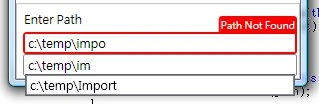
Now the textbox show a red border if directory not exists. As a red border isnt clear enough, we can change the behavior :
to disable the default red border,
then change the control template, which will show the dockWarning when Validation.HasError,
- <Style x:Key="autoCompleteTextBox" TargetType="{x:Type TextBox}">
- <...>
- <Setter Property="Validation.ErrorTemplate">
- <Setter.Value>
- <ControlTemplate>
- <AdornedElementPlaceholder />
- < !-- The TextBox Element -->
- </ControlTemplate>
- </Setter.Value>
- </Setter>
- </Style>
- <ControlTemplate TargetType="{x:Type TextBoxBase}">
- <Border Name="Border" CornerRadius="2" Background="{StaticResource WindowBackgroundBrush}" BorderBrush="{StaticResource SolidBorderBrush}" BorderThickness="1" Padding="1">
- <Grid x:Name="root">
- <...>
- <DockPanel x:Name="dockWarning" Visibility="Collapsed" LastChildFill="False">
- <Border DockPanel.Dock="Right" BorderBrush="Red" Background="Red" BorderThickness="2" CornerRadius="2,2,0,0">
- <TextBlock x:Name="txtWarning" DockPanel.Dock="Right" Text="{TemplateBinding ToolTip}" VerticalAlignment="Top" Background="Red" Foreground="White" FontSize="10" />
- <Border.RenderTransform>
- <TranslateTransform X="2" Y="{Binding ElementName=dockWarning, Path=ActualHeight,
- Converter={x:Static t:InvertSignConverter.Instance}}" />
- <!--TranslateTransform move the border to upper right corner, outside the TextBox -->
- <!--InvertSignConverter is a IValueConverter that change + to -, - to + -->
- </Border.RenderTransform>
- </Border>
- </DockPanel>
- </Grid>
- </Border>
- <ControlTemplate.Triggers>
- <MultiTrigger>
- <MultiTrigger.Conditions>
- <Condition Property="Validation.HasError" Value="true" />
- <Condition SourceName="PART_Popup" Property="IsOpen" Value="False" />
- </MultiTrigger.Conditions>
- <Setter Property="ToolTip" Value="{Binding RelativeSource={RelativeSource Self}, Path=(Validation.Errors)[0].ErrorContent}" />
- <Setter TargetName="dockWarning" Property="Visibility" Value="Visible" />
- <Setter TargetName="Border" Property="BorderThickness" Value="2" />
- <Setter TargetName="Border" Property="Padding" Value="0" />
- <Setter TargetName="Border" Property="BorderBrush" Value="Red" />
- </MultiTrigger>
- </ControlTemplate.Triggers>
- </ControlTemplate>
- 22-12-08 Initial version
- 25-12-08 - Add Ghost image when picking from ItemList
- 25-12-08 - Handle PageUp/Down/Up Button in Textbox
- 25-12-08 - Handle \ / Escape button in ItemList
- 25-12-08 - Disabled the caching system as it dont work well.
- 25-12-08 Updated version 1
License
This article, along with any associated source code and files, is licensed under The GNU Lesser General Public Licence.
This article, along with any associated source code and files, is licensed under The GNU Lesser General Public Licence.
Deepak shrivastavaPosted Oct 14, 2019, 1:32 AM
I need it will work even after spaces and backspace.
Bhavya GaurPosted Aug 31, 2018, 6:13 AM
Updated on 31/08/2018
Mahesh ChandPosted Dec 23, 2008, 4:58 PM
Great article Leung.