

Introduction
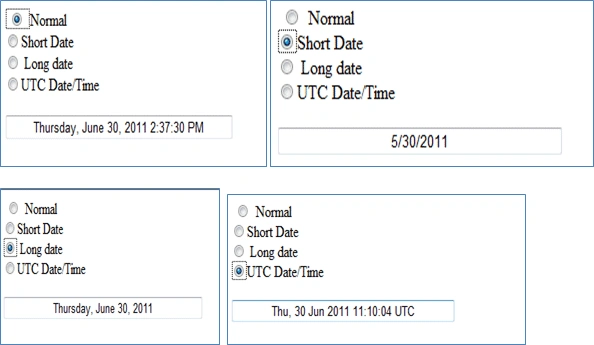
- <input id="rdonormal" type="radio" name="group1" value="Normal" />Normal
- <br />
- <input id="rdoshortdate" type="radio" name="group1" value="Short Date" />Short Date
- <br />
- <input id="rdolongdate" type="radio" name="group1" value="Long Date" /> Long date
- <br />
- <input id="rdoutcdatetime" type="radio" name="group1" value="UTCDateTime" />UTC Date/Time
- <br />
- <br />
- <input type="text" id="txtdate" style=" text-align:center; width: 278px;" />
- <input id="rdonormal" type="radio" name="group1" value="Normal" onclick="Show()" />
JavaScript Function
Here the toLocaleString() method is used to convert the date to a string according to the Locale.
(b) ): Here we write the code for the first radio button (rdoshortdate); when we click on it, it shows the date according to the js function(ShowShortDate()):
JavaScript Function
Here we use the getDate(), getMonth() and getYear() functions to get the current Date, Month and Year.
(c) ): Here we write the code for the first radio button (rdolongdate); when we click on it, it shows the date according to the js function(ShowLongDate()):
- function Show() {
- var a = new Date();
- document.getElementById('txtdate').value = a.toLocaleString();
- }
- <input id="rdoshortdate" type="radio" name="group1" value="Short Date" onclick="ShowShortDate()" />Short Date
- function ShowShortDate() {
- var a = new Date();
- document.getElementById('txtdate').value = a.getMonth() + "/" + a.getDate() + "/" + a.getYear();
- }
- <input id="rdolongdate" type="radio" name="group1" value="Long Date" onclick="ShowLongDate()"/> Long date
JavaScript Function
Here the tolocaleDateString() method returns the date portion as a string as per the Locale.
(d) ): Here we write the code for the first radio button (rdoutcdatetime); when we click on it, it shows the Date according to the js function(ShowUTCDateTime()):
JavaScript Function
Here ToUTCString() converts the date to a string, according to the Coordinated Universal Time (UTC).
Complete Program
- function ShowLongDate() {
- var a = new Date();
- document.getElementById('txtdate').value = a.toLocaleDateString();
- }
- <input id="rdoutcdatetime" type="radio" name="group1" value="UTCDateTime" onclick="ShowUTCDateTime()"/>UTC Date/Time
- function ShowUTCDateTime() {
- var a = new Date();s
- document.getElementById('txtdate').value = a.toUTCString();
- }
- <head runat="server">
- <script language="javascript" type="text/javascript">
- function Show() {
- var a = new Date();
- document.getElementById('txtdate').value = a.toLocaleString();
- }
- function ShowShortDate() {
- var a = new Date();
- document.getElementById('txtdate').value = a.getMonth() + "/" + a.getDate() + "/" + a.getYear();
- }
- function ShowLongDate() {
- var a = new Date();
- document.getElementById('txtdate').value = a.toLocaleDateString();
- }
- function ShowUTCDateTime() {
- var a = new Date();
- document.getElementById('txtdate').value = a.toUTCString();
- }
- </script>
- <title></title>
- <style type="text/css">
- #rdonormal
- {
- width: 24px;
- }
- </style>
- </head>
- <body>
- <form id="form1" runat="server">
- <div>
- <input id="rdonormal" type="radio" name="group1" value="Normal" onclick="Show()" />Normal
- <br />
- <input id="rdoshortdate" type="radio" name="group1" value="Short Date" onclick="ShowShortDate()" />Short Date
- <br />
- <input id="rdolongdate" type="radio" name="group1" value="Long Date" onclick="ShowLongDate()"/> Long date
- <br />
- <input id="rdoutcdatetime" type="radio" name="group1" value="UTCDateTime" onclick="ShowUTCDateTime()"/>UTC Date/Time
- <br />
- <br />
- <input type="text" id="txtdate" style=" text-align:center; width: 278px;" />
- </div>
- </form>
- </body>
Join the conversation! Your thoughts help the community grow.