

WPF does not ship with default charting controls. Charting functionality is supported by WPF Toolkit that was last updated in 2010. You can download the latest version of the WPF Toolkit here.
The WPF Toolkit is a collection of WPF features and components that are being made available outside of the normal .NET Framework ship cycle. The following advanced controls are a part of this toolkit.
- AutoCompleteBox
- Accordion
- Rating
- DataGrid
- Calendar
- DatePicker
- VisualStateManager
- Chart Controls
The WPF Toolkit data visualization assembly is called System.Windows.Controls.DataVisualization.Toolkit.dll that hosts the charting functionality in WPF. This article demonstrates how to draw area charts using the WPF Toolkit.
Adding WPF Toolkit Reference
Before you can use any charting related functionality in a WPF application, you must download the WPF Toolkit.
Create a WPF application using Visual Studio or use an existing app.
Right click on your project name in Visual Studio and select Manage Nuget Packages menu item. It will launch the following dialog where you click on Browse tab and type WPFToolkit.DataVisualization. It will load WPFToolkit.DataVisualization package in the list. Click on the little download and install icon. See Figure 1.
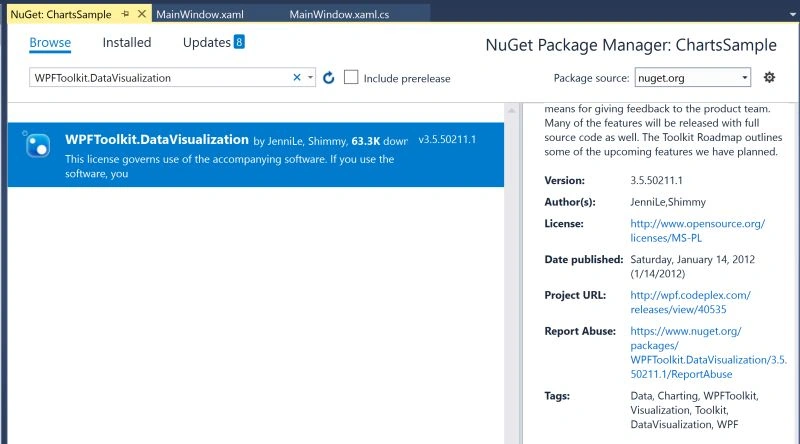
Figure 1.
Next screen Figure 2 shows what is being installed.
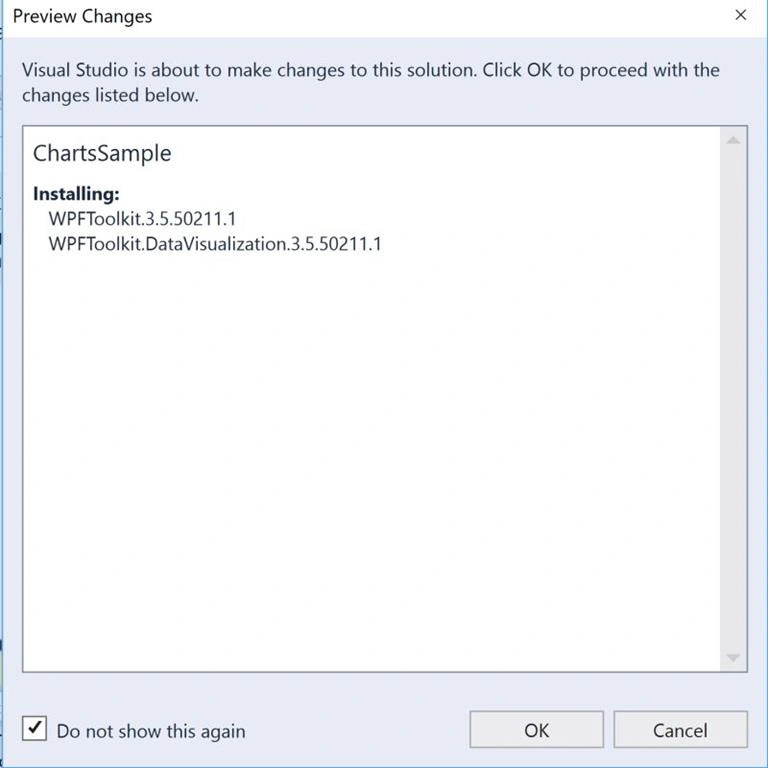
Figure 2.
Click OK and accept on the following screen.
This action will install WPF Toolkit in your project.
Once the Toolkit in installed, you need to add reference to the System.Windows.Controls.DataVisualization and Charting namespace references to the project. For charting functionality, you just need the Chartign namespace. See Figure 3.
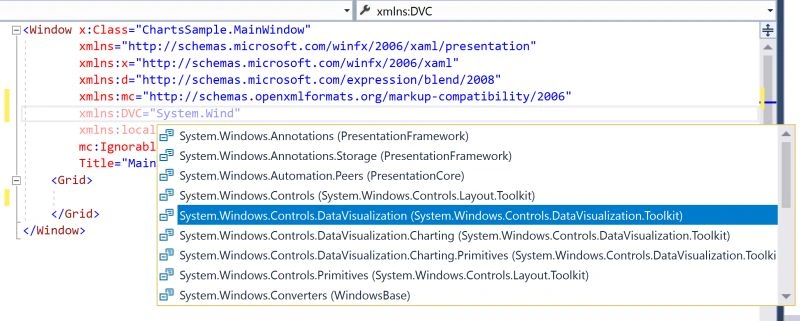
Figure 3.
The namespace in my code looks like the following:
- xmlns:DVC="clr-namespace:System.Windows.Controls.DataVisualization.Charting;
assembly=System.Windows.Controls.DataVisualization.Toolkit"
Now you will see the DVC in your XAML and code is availalbe to use.
Once you type DVC in your XAML and use ., you will see Intellisense loads all available controls.
To add a Chart control to your page, just select the Chart control from the list. The list of charting related elements looks like Figure 4.
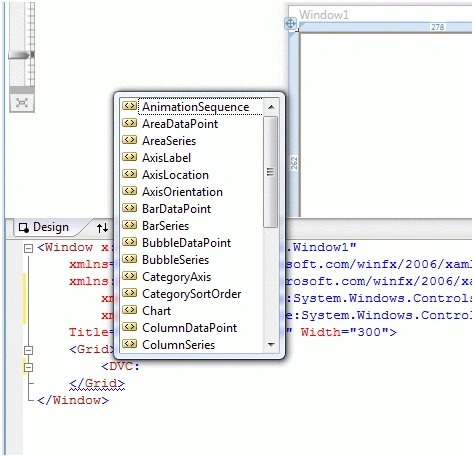
Figure 4.
Creating a Chart
The Chart element represents a WPF Chart control in XAML.
- < DVC:Chart></DVC:Chart>
The code snippet in Listing 1 creates a Chart and sets its width, height, and background properties of the Chart control. The Title and LegendTitle properties represent the title of the chart and the title of legend.
- <DVC:Chart Name="mcChart"
- Width="400" Height="250" Background="YellowGreen" Foreground="DarkBlue"
- Title="Area Chart" LegendTitle="Month Rating" />
Listing 1
The output of Listing 1 looks like Figure 5.
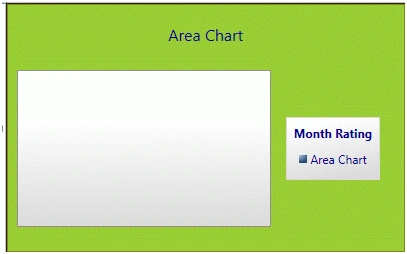
Figure 5
Chart Types
The Series attribute of the Chart element is used to create a chart type. If you see in Figure 6, you will notice BarSeries, ColumnSeries, LineSeries, PieSeries, AreaSeries and ScatterSeries attributes and based on the attribute, the chart will be created.
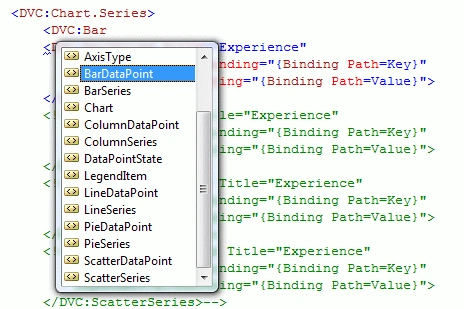
Figure 6
Area Chart
The code snippet in Listing 2 creates an area chart by setting Chart.Series to AreaSeries. As you may see, the binding is occurred on Key and Value fields of a data source.
- <!-- Area Chart in Code Behind -->
- <DVC:Chart Canvas.Top="80" Canvas.Left="10" Name="mcChart"
- Width="400" Height="250" Background="LightSteelBlue"
- Title="Area Chart"
- LegendTitle="Month Rating">
- <DVC:Chart.Series>
- <DVC:AreaSeries
- Title="Area Chart"
- IndependentValuePath="Key"
- DependentValuePath="Value">
- </DVC:AreaSeries>
- </DVC:Chart.Series>
- </DVC:Chart>
Listing 2
The code snippet in Listing 3 creates a collection in KeyValuePair form and sets the ItemsSource property of the chart series. Same data can be used for other chart types.
- private void LoadAreaChartData()
- {
- ((AreaSeries)mcChart.Series[0]).ItemsSource =
- new KeyValuePair<string, int>[]{
- new KeyValuePair<string, int>("Jan 2009", 100),
- new KeyValuePair<string, int>("Apr 2009", 180),
- new KeyValuePair<string, int>("July 2009", 110),
- new KeyValuePair<string, int>("Oct 2009", 95),
- new KeyValuePair<string, int>("Jan 2010", 40),
- new KeyValuePair<string, int>("Apr 2010", 95)
- };
- }
Listing 3
The output looks like Figure 7.
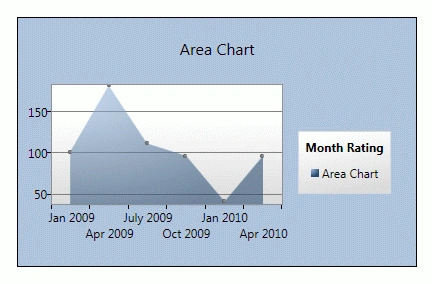
Figure 7
Chart Axes
The Axes property of Chart is used to add x and y axis to the chart. The code snippet in Listing 4 adds a linear axis to the chart with its orientation, title, font and other properties.
- <DVC:Chart.Axes>
- <!-- Add Horizontal and Vertical Axes-->
- <DVC:LinearAxis
- Orientation="Y"
- Title="New Hires"
- Interval="40"
- Foreground="Black"
- Background="GreenYellow"
- FontFamily="Georgia"
- FontSize="14"
- FontWeight="Bold"
- />
- </DVC:Chart.Axes>
Listing 4
Generating an Area Chart from a Collection
Now we are going to generate a bar chart from a collection. I have a class Fruit that looks like Listing 5. It has two members Name and Share.
- class Fruit
- {
- public string Name { get; set; }
- public Int16 Share { get; set; }
- }
Listing 5
Listing 6 is a Fruit collection class that adds some Fruit objects in the constructor.
- class FruitCollection : System.Collections.ObjectModel.Collection<Fruit>
- {
- public FruitCollection()
- {
- Add(new Fruit { Name = "Mango", Share = 10 });
- Add(new Fruit { Name = "Banana", Share = 36 });
- Add(new Fruit { Name = "Apple", Share = 24 });
- Add(new Fruit { Name = "Guava", Share = 4 });
- Add(new Fruit { Name = "Orange", Share = 12 });
- Add(new Fruit { Name = "Pear", Share = 10 });
- Add(new Fruit { Name = "Pineapple", Share = 4 });
- }
- }
Listing 6
Now in our XAML code, I create a resource called FruitCollection and bind it to the AreaSeries using the ItemsSource property as listed in Listing 7.
- <Grid.Resources>
- <local:FruitCollection x:Key="FruitCollection" />
- </Grid.Resources>
Listing 7
XAML code for binding a FruitCollection with an AreaSeries is listed in Listing 8.
- <DVC:Chart.Series>
- <DVC:AreaSeries Title="Fruits"
- ItemsSource="{StaticResource FruitCollection}"
- IndependentValueBinding="{Binding Path=Name}"
- DependentValueBinding="{Binding Path=Share}">
- </DVC:AreaSeries>
- </DVC:Chart.Series>
Listing 8
Now simply build and run the project. New output looks like Figure 8.
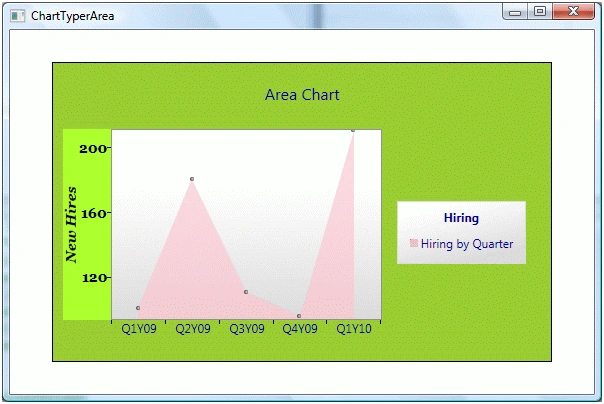
Figure 8
Summary
This tutorial discusses how to use WPF Toolkit to create an area chart.
Gowtham RajamanickamPosted Apr 12, 2016, 2:19 AM
Good One, Thanks for sharing
seung hyun koPosted Apr 8, 2013, 12:49 AM
Thank you :-)
Gilbert SchuurmanPosted Jun 27, 2012, 9:14 AM
Hi Mahesh, I am trying to get rid of the semi-transparency of the area chart. Any ideas? Thanks.
Marat BogdanovPosted Nov 12, 2011, 12:36 PM
The article is really good! Thank you)))
DanielPosted Mar 1, 2011, 5:32 PM
Hi Mahesh, Is it possible to set a non-zero minimum value for the data series too? I'm trying to plot a range rather than just an upper bound, if that makes sense. It kind of looks like an area between two lines. Maybe the area chart is not the right way to go about it... Thanks.