

Silverlight Calendar Control
A Calendar control is used to create a visual calendar that let users pick a date and fire an event on the selection of the date. This article demonstrates how to create and use a Calendar control in Silverlight using XAML and C#.
Creating a Calendar
The Calendar element represents a Silverlight calendar control in XAML.
<Calendar/>
The Calendar control is defined in the System.Windows.Controls namespace. When you drag and drop a Calendar control from Toolbox to the page, you will notice the following namespace is added to the top of the page.
xmlns:basics="clr-namespace:System.Windows.Controls;assembly=System.Windows.Controls"
And following code is added for the Calendar control.
<basics:Calendar></basics:Calendar>
The default view of the Calendar control looks like Figure 1.
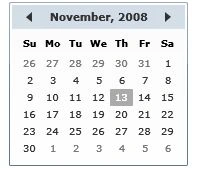
Figure 1
The Width and Height attributes of the Calendar element represent the width and the height of a Calendar. The Content attribute represents the text of a Calendar. The x:Name attribute represents the name of the control, which is a unique identifier of a control.
The code snippet in Listing 1 creates a Calendar control and sets the name, height, and width properties of a Calendar control.
<Calendar x:Name="DrawCircleCalendar" Height="30" Width="100" >
</Calendar>
Listing 1
Display Modes
The DisplayMode property of the Calendar class represents the format of display of a Calendar, which can be a month, year, or decade. Month is the default mode. By setting the DisplayMode to Year and Decade generates Figure 2 and Figure 3 respectively.
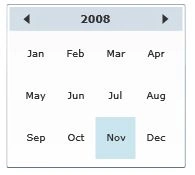
Figure 2
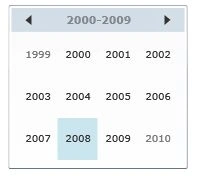
Figure 3
The Month view that is also the default view looks like Figure 4.
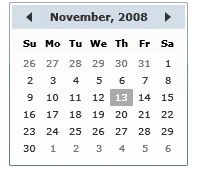
Figure 4
If you take an example of the Decade, and click on year 2008 in Figure 3, you will get another Calendar format with all months in year 2008 and if you click on any month, you will eventually get the month view of the Calendar.
The following code snippet sets the DisplayMode property to Decade.
<basics:Calendar DisplayMode="Decade">
</basics:Calendar>
Selection Modes and Selection Dates
The SelectedDate property represents the currently selected date. If multiple dates selection is true, the SelectedDates property represents a collection of currently selected dates.
The SelectionMode of type CalendarSelectionMode enumeration represents the selection mode of calendar. Table 1 describes the CalendarSelectionMode enumeration and its members.
|
CalendarSelectionMode |
Description |
|
None |
No selections are allowed. |
|
SingleDate |
Only a single date can be selected, either by setting SelectedDate or the first value in SelectedDates. AddRange cannot be used. |
|
SingleRange |
A single range of dates can be selected. Setting SelectedDate, adding a date individually to SelectedDates, or using AddRange will clear all previous values from SelectedDates. |
|
MultipleRange |
Multiple non-contiguous ranges of dates can be selected. Adding a date individually to SelectedDates or using AddRange will not clear SelectedDates. Setting SelectedDate will still clear SelectedDates, but additional dates or range can then be added. Adding a range that includes some dates that are already selected or overlaps with another range results in the union of the ranges and does not cause an exception. |
The following code snippet sets the SelectionMode property to single range.
<basics:Calendar SelectionMode="SingleRange">
</basics:Calendar>
BlackoutDates
The BlackoutDates property of the Calendar class represents a collection of dates that are not available for selection. All non selection dates are marked by a cross. For example, say in Jan month of year 2009, we would like to block dates from Jan 1st to Jan 4th and then all Saturdays and Sundays and the final calendar should look like Figure 5.
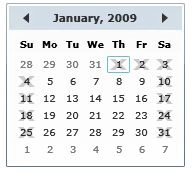
Figure 5
We can achieve this by adding code listed in Listing 2. As you can see from Listing 3, the BlackoutDates.Add method takes a CalendarDateRange object, which is a collection of two DateTime objects. The first date is the start date of the range and second date is the end date of the date range.
private void SetBlackOutDates()
{
MonthlyCalendar.BlackoutDates.Add(new CalendarDateRange(
new DateTime(2009, 1, 1),
new DateTime(2009, 1, 4)
));
MonthlyCalendar.BlackoutDates.Add(new CalendarDateRange(
new DateTime(2009, 1, 10),
new DateTime(2009, 1, 11)
));
MonthlyCalendar.BlackoutDates.Add(new CalendarDateRange(
new DateTime(2009, 1, 17),
new DateTime(2009, 1, 18)
));
MonthlyCalendar.BlackoutDates.Add(new CalendarDateRange(
new DateTime(2009, 1, 24),
new DateTime(2009, 1, 25)
));
MonthlyCalendar.BlackoutDates.Add(new CalendarDateRange(
new DateTime(2009, 1, 31),
new DateTime(2009, 1, 31)
));
}
Listing 2
DisplayDateStart and DisplayDateEnd
The Calendar control allows you to set the start and end display dates by using the DisplayDateStart and DisplayDateEnd properties. If you see Figure 5 in the previous section, you may notice the Jan 2009 month calendar display start with Dec 28, 2008 date. But now what if you want to display dates for Jan 2009 month only? We can use the DisplayStartDate and DisplayEndDate properties to control the start and end dates of a month. The code listed in Listing 3 makes sure the start date is Jan 01, 2009 and end date is Jan 31, 2009. The current selected date is Jan 05.
private void SetDisplayDates()
{
MonthlyCalendar.DisplayDate = new DateTime(2009, 5, 1);
MonthlyCalendar.DisplayDateStart = new DateTime(2009, 1, 1);
MonthlyCalendar.DisplayDateEnd = new DateTime(2009, 1, 31);
}
Listing 3
The new calendar looks like Figure 6.
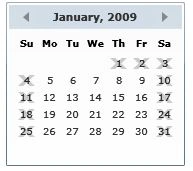
Figure 6
FirstDayOfWeek and IsTodayHighlighted
By default, Sunday is the first day of week. If you would like to change it, you use FirstDayOfWeek property. The IsTodayHightlighted property is used to make today highlighted. The following code snippet sets the FirstDayOfWeek to Monday and makes today hightlited.
MonthlyCalendar.FirstDayOfWeek = DayOfWeek.Monday;
MonthlyCalendar.IsTodayHighlighted = true;
The new calendar looks like Figure 7, where you can see the start day of the week us Sunday.
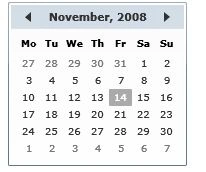
Figure 7
Calendar Events
Besides the normal control events, the Calendar control has three events calendar related events. These events are the DisplayDateChanged, DisplayModeChanged, and SelectedDatesChanged. The DisplayDateChanged event is fired where the DisplayDate property is changed. The DisplayModeChanged event is fired when the DisplayMode property is changed. The SelectedDatesChanged event is fired when the SelectedDate or SelectedDates properties are changed. The following code snippet sets these three events attributes.
<basics:Calendar SelectionMode="SingleRange"
x:Name="MonthlyCalendar"
SelectedDatesChanged="MonthlyCalendar_SelectedDatesChanged"
DisplayDateChanged="MonthlyCalendar_DisplayDateChanged"
DisplayModeChanged="MonthlyCalendar_DisplayModeChanged"
HorizontalAlignment="Left"
VerticalAlignment="Top"
Margin="10,10,0,0">
</basics:Calendar>
The code behind for these events looks like Listing 4.
private void MonthlyCalendar_SelectedDatesChanged(object sender,
SelectionChangedEventArgs e)
{
}
private void MonthlyCalendar_DisplayDateChanged(object sender,
CalendarDateChangedEventArgs e)
{
}
private void MonthlyCalendar_DisplayModeChanged(object sender,
CalendarModeChangedEventArgs e)
{
}
Listing 4
Normally, on a date selection, you may want to capture that event and know what the current selected date is. Now how about we add a TextBox control to the page and on the date selection, we are going to set the text of the TextBox to the currently selected date.
We add the following code to the XAML just below the Calendar control.
<TextBox Width="200" Height="50"
VerticalAlignment="Bottom"
HorizontalAlignment="Left"
Margin="10,10,10,10"
x:Name="SelectedDateTextBox">
</TextBox>
On the SelectedDateChanged event handler, we set the TextBox.Text property to the SelectedDate property of the Calendar control as you can see from code in Listing 5.
private void MonthlyCalendar_SelectedDatesChanged(object sender,
SelectionChangedEventArgs e)
{
SelectedDateTextBox.Text = MonthlyCalendar.SelectedDate.ToString();
}
Listing 5
Now when you run the application, you will see output looks like Figure 8. When you select a date in the Calendar, it will be displayed in the textbox.
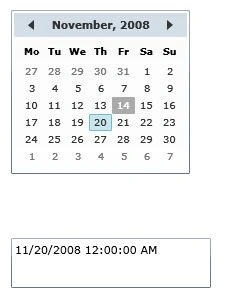
Figure 8
Formatting a Calendar
How about we create a Calendar control with a border formatting, background, and foreground of the Calendar?
The BorderBrush property of the Calendar sets a brush to draw the border of a Calendar. You may use any brush to fill the border. The following code snippet uses a linear gradient brush to draw the border with a combination of red and blue color.
<basics:Calendar.BorderBrush>
<LinearGradientBrush StartPoint="0,0" EndPoint="1,1" >
<GradientStop Color="Blue" Offset="0" />
<GradientStop Color="Red" Offset="1.0" />
</LinearGradientBrush>
</basics:Calendar.BorderBrush>
The Background and Foreground properties of the Calendar set the background and foreground colors of a Calendar. You may use any brush to fill the border. The following code snippet uses linear gradient brushes to draw the background and foreground of a Calendar.
<basics:Calendar.Background>
<LinearGradientBrush StartPoint="0,0" EndPoint="1,1" >
<GradientStop Color="Blue" Offset="0.1" />
<GradientStop Color="Orange" Offset="0.25" />
<GradientStop Color="Green" Offset="0.75" />
<GradientStop Color="Red" Offset="1.0" />
</LinearGradientBrush>
</basics:Calendar.Background>
<basics:Calendar.Foreground>
<LinearGradientBrush StartPoint="0,0" EndPoint="1,1" >
<GradientStop Color="Black" Offset="0.25" />
<GradientStop Color="Green" Offset="1.0" />
</LinearGradientBrush>
</basics:Calendar.Foreground>
The new Calendar looks like Figure 9.
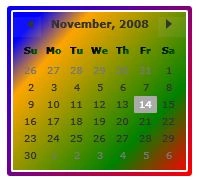
Figure 9
Setting Image as Background of a Calendar
To set an image as background of a Calendar, we can set an image as the Background of the Calendar. The following code snippet sets the background of a Calendar to an image. The code also sets the opacity of the image.
<basics:Calendar.Background>
<ImageBrush ImageSource="Garden.jpg" Opacity="0.3"/>
</basics:Calendar.Background>
The new output looks like Figure 10.
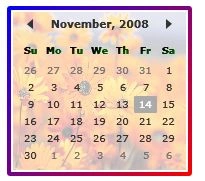
Figure 10
Creating a Calendar Dynamically
The code listed in Listing 6 creates a Calendar control programmatically. First, it creates a Calendar object and sets its DisplayMode and SelectedMode properties and later the Calendar is added to the LayoutRoot.
private void CreateDynamicCalendar()
{
Calendar cal = new Calendar();
cal.DisplayMode = CalendarMode.Year;
cal.SelectionMode = CalendarSelectionMode.SingleDate;
LayoutRoot.Children.Add(cal);
}
Listing 6
Summary
In this article, I discussed how we can create a Calendar control in Silverlight and C#. We also saw how to set display modes, selection modes, blackout dates, selected dates, border, background, and foreground properties. After that, we saw you to set an image as the background of a Calendar. In the end of this article, we saw how to create a Calendar dynamically.
Manoj Singh PanwarPosted Nov 23, 2011, 12:21 PM
Gotta know more about calender. Nice one sir.
Mahesh ChandPosted Nov 23, 2011, 2:01 AM
Thanks Jean
Jean PaulPosted Nov 3, 2010, 11:12 AM
That was a cool one. Super!
narcisse balabanPosted Dec 3, 2009, 12:43 PM
Calendar SelectionDatesChanged causes a problem.As the mouse is on the control, this event is triggered by the first date the mouse is over. User cannot go to select a specific date !!
danny drorPosted Oct 28, 2009, 6:05 PM
It works great, thanks! ------------------------------ Danny, Fire Sprinkler
marko bozaneditedPosted Apr 9, 2009, 6:58 PMEdited Apr 9, 2009, 7:01 PM
how to bind column dates from database to calendar blackoutdates property????