

Silverlight ComboBox Tutorial
A ComboBox control is an items control that works as a ListBox control but only one item from the collection is visible at a time and clicking on the ComboBox makes the collection visible and allows users to pick an item from the collection. Unlike a ComboBox control, a ComboBox does not have multiple item selection.
This article demonstrates how to create and use a ComboBox control in Silverlight.
Introduction
The ComboBox element represents a ComboBox control in XAML.
<ComboBox></ComboBox>
The Width and Height properties represent the width and the height of a ComboBox. The x:Name property represents the name of the control, which is a unique identifier of a control. The Margin property sets the location of a ComboBox on the parent control. The HorizontalAlignment and VerticalAlignment properties are used to set horizontal and vertical alignments.
The code snippet in Listing 1 creates a ComboBox control and sets the name, height, and width of a ComboBox control. The code also sets the vertical and horizontal alignment of the ComboBox and sets the margin.
<ComboBox x:Name="DaysDropDownList" Width="200" Height="30"
VerticalAlignment="Top" HorizontalAlignment="Left"
Margin="10,10,0,0">
</ComboBox>
Listing 1
The output looks like Figure 1.

Figure 1
The IsSelected property of the ComboBox control sets an item as currently selected item in the ComboBox. The following code snippet sets the IsSelected property of a ComboBox.
<ComboBoxItem Content="Coffie" IsSelected="True" />
Adding ComboBox Items
A ComboBox control hosts a collection of ComboBoxItem. The code snippet in Listing 2 adds items to a ComboBox control at design-time using XAML.
<ComboBox Margin="10,10,0,13" Name="ComboBox1" HorizontalAlignment="Left"
VerticalAlignment="Top" Width="194" Height="200">
<ComboBoxItem Content="Coffie"></ComboBoxItem>
<ComboBoxItem Content="Tea"></ComboBoxItem>
<ComboBoxItem Content="Orange Juice"></ComboBoxItem>
<ComboBoxItem Content="Milk"></ComboBoxItem>
<ComboBoxItem Content="Iced Tea"></ComboBoxItem>
<ComboBoxItem Content="Mango Shake"></ComboBoxItem>
</ComboBox>
Listing 2
The above code generates Figure 2.
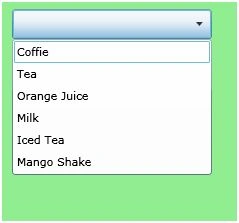
Figure 2
Adding and Deleting ComboBox Items at Run-time
In the previous section, we saw how to add items to a ComboBox at design-time from XAML. Now we will add items to a ComboBox at run-time.
The Items property of the ComboBox represents ComboBox items, which is an ItemsCollection object. To add and remove items from the collection, we use Add and Remove or RemoveAt methods of the ItemsCollection.
Let’s change our UI and add a TextBox and a button control to the page. The XAML code in Listing 3 adds a TextBox and a Button controls to UI.
<TextBox x:Name="TextBox1" Width="200" Height="25"
Canvas.Left="10" Canvas.Top="10"/>
<Button x:Name="AddButton" Width="80" Height="25"
Canvas.Left="220" Canvas.Top="10" Content="Add Item" />
Listing 3
The final UI looks like Figure 3.
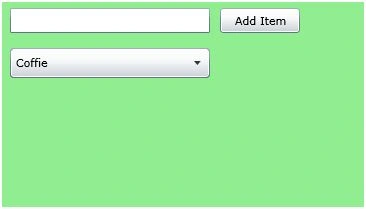
Figure 3
On button click event handler, we add the content of TextBox to the ComboBox by calling ComboBox.Items.Add method. The code in Listing 4 adds TextBox contents to the ComboBox items.
private void AddButton_Click(object sender, RoutedEventArgs e)
{
ComboBox1.Items.Add(TextBox1.Text);
}
Listing 4
On button click event handler, we add the content of TextBox to the ComboBox by calling ComboBox.Items.Add method.
Now if you enter text in the TextBox and click Add Item button, it will add contents of the TextBox to the ComboBox. See Figure 4.
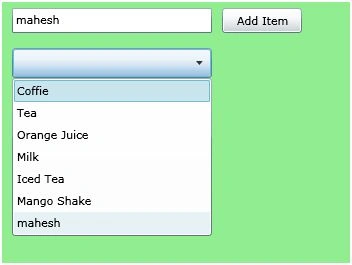
Figure 4
We can use ComboBox.Items.Remove or ComboBox.Items.RemoveAt method to delete an item from the collection of items in the ComboBox. The RemoveAt method takes the index of the item in the collection.
Now, we modify our application and add a new button called Delete Item. The XAML code for this button looks is listed in Listing 5.
<Button x:Name="DeleteButton" Width="80" Height="25"
Canvas.Left="300" Canvas.Top="10"
Click="DeleteButton_Click" Content="Delete Item"/>
Listing 5
The new page looks like Figure 5.
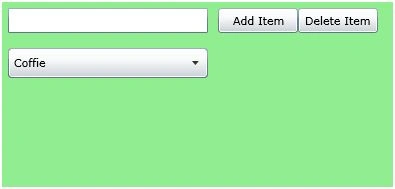
Figure 5
The button click event handler looks like Listing 6. On this button click, we find the index of the selected item and call ComboBox.Items.RemoveAt method and pass the selected item of the ComboBox. Now if you click on the Delete button click, the selected item will be removed from the ComboBox items.
private void DeleteButton_Click(object sender, RoutedEventArgs e)
{
ComboBox1.Items.RemoveAt
(ComboBox1.Items.IndexOf(ComboBox1.SelectedItem));
}
Listing 6
Formatting and Styling ComboBox Items
The Foreground and Background attributes of ComboBoxItem represents the background and foreground colors of the item. The following code snippet sets background and foreground color of a ComboBoxItem.
<ComboBoxItem Background="LightCoral" Foreground="Red" Content="Coffie"></ComboBoxItem>
The FontFamily, FontSize, and FontWeight are used to set a font of a ComboBoxItem. The following code snippet sets font verdana, size 12, and bold of a ComboBoxItem.
<ComboBoxItem Background="LightCoral" Foreground="Red" Content="Coffie"
FontFamily="Verdana" FontSize="12" FontWeight="Bold"></ComboBoxItem>
The code in Listing 7 sets the formatting of the ComboBox items.
<ComboBoxItem Background="LightCoral" Foreground="Red" Content="Coffie"
FontFamily="Verdana" FontSize="12" FontWeight="Bold" IsSelected="True"></ComboBoxItem>
<ComboBoxItem Background="LightGray" Foreground="Black" Content="Tea"
FontFamily="Georgia" FontSize="14" FontWeight="Bold"></ComboBoxItem>
<ComboBoxItem Background="LightBlue" Foreground="Purple" Content="Orange Juice"
FontFamily="Verdana" FontSize="12" FontWeight="Bold"></ComboBoxItem>
<ComboBoxItem Background="LightGreen" Foreground="Green" Content="Milk"
FontFamily="Georgia" FontSize="14" FontWeight="Bold"></ComboBoxItem>
<ComboBoxItem Background="LightBlue" Foreground="Blue" Content="Iced Tea"
FontFamily="Verdana" FontSize="12" FontWeight="Bold"></ComboBoxItem>
<ComboBoxItem Background="LightSlateGray" Foreground="Orange" Content="Mango Shake"
FontFamily="Georgia" FontSize="14" FontWeight="Bold"></ComboBoxItem>
Listing 7
The new ComboBox looks like Figure 6.
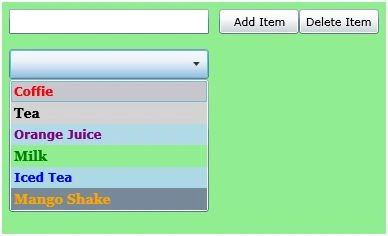
Figure 6
Display Image in ComboBox Items
We can put any controls inside a ComboBoxItem such as an image and text. To display an image side by side some text, we add an Image and TextBlock control within a StackPanel. The Image.Source property takes the name of the image you would like to display in the Image control and TextBlock.Text property takes a string that you would like to display in the TextBlock.
The code snippet in Listing 8 adds an image and text to a ComboBoxItem.
<ComboBoxItem Background="LightCoral" Foreground="Red"
FontFamily="Verdana" FontSize="12" FontWeight="Bold">
<StackPanel Orientation="Horizontal">
<Image Source="coffie.jpg" Height="30"></Image>
<TextBlock Text="Coffie"></TextBlock>
</StackPanel>
</ComboBoxItem>
Listing 8
The ComboBox item with an image looks like Figure 7.
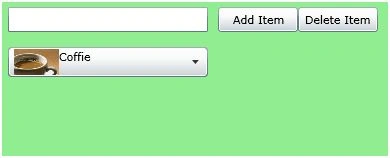
Figure 7
Adding CheckBoxes to the ComboBox Items
If you put a CheckBox control inside ComboBoxItems, you generate a ComboBox control with checkboxes in it. The CheckBox can host controls within it as well. For instance, we can put an image and text block as content of a CheckBox.
The code snippet in Listing 9 adds a CheckBox with an image and text to a ComboBoxItem.
<ComboBoxItem Background="LightCoral" Foreground="Red"
FontFamily="Verdana" FontSize="12" FontWeight="Bold">
<CheckBox Name="CoffieCheckBox">
<StackPanel Orientation="Horizontal">
<Image Source="coffie.jpg" Height="30"></Image>
<TextBlock Text="Coffie"></TextBlock>
</StackPanel>
</CheckBox>
</ComboBoxItem>
Listing 9
Now we can change the code of ComboBoxItems and add CheckBoxe and images to all the items as shown in Listing 10. As you may see, we set the name of the CheckBoxes using Name property. If you need to access these CheckBoxes, you may access them in the code using their Name property.
<ComboBoxItem Background="LightCoral" Foreground="Red"
FontFamily="Verdana" FontSize="12" FontWeight="Bold">
<CheckBox Name="CoffieCheckBox">
<StackPanel Orientation="Horizontal">
<Image Source="coffie.jpg" Height="30"></Image>
<TextBlock Text="Coffie"></TextBlock>
</StackPanel>
</CheckBox>
</ComboBoxItem>
<ComboBoxItem Background="LightGray" Foreground="Black"
FontFamily="Georgia" FontSize="14" FontWeight="Bold">
<CheckBox Name="TeaCheckBox">
<StackPanel Orientation="Horizontal">
<Image Source="tea.jpg" Height="30"></Image>
<TextBlock Text="Tea"></TextBlock>
</StackPanel>
</CheckBox>
</ComboBoxItem>
<ComboBoxItem Background="LightBlue" Foreground="Purple"
FontFamily="Verdana" FontSize="12" FontWeight="Bold">
<CheckBox Name="OrangeJuiceCheckBox">
<StackPanel Orientation="Horizontal">
<Image Source="OrangeJuice.jpg" Height="40"></Image>
<TextBlock Text="OrangeJuice"></TextBlock>
</StackPanel>
</CheckBox>
</ComboBoxItem>
<ComboBoxItem Background="LightGreen" Foreground="Green"
FontFamily="Georgia" FontSize="14" FontWeight="Bold">
<CheckBox Name="MilkCheckBox">
<StackPanel Orientation="Horizontal">
<Image Source="Milk.jpg" Height="30"></Image>
<TextBlock Text="Milk"></TextBlock>
</StackPanel>
</CheckBox>
</ComboBoxItem>
<ComboBoxItem Background="LightBlue" Foreground="Blue"
FontFamily="Verdana" FontSize="12" FontWeight="Bold">
<CheckBox Name="IcedTeaCheckBox">
<StackPanel Orientation="Horizontal">
<Image Source="IcedTea.jpg" Height="30"></Image>
<TextBlock Text="Iced Tea"></TextBlock>
</StackPanel>
</CheckBox>
</ComboBoxItem>
<ComboBoxItem Background="LightSlateGray" Foreground="Orange"
FontFamily="Georgia" FontSize="14" FontWeight="Bold">
<CheckBox Name="MangoShakeCheckBox">
<StackPanel Orientation="Horizontal">
<Image Source="MangoShake.jpg" Height="30"></Image>
<TextBlock Text="Mango Shake"></TextBlock>
</StackPanel>
</CheckBox>
</ComboBoxItem>
Listing 10
Now, the new ComboBox looks like Figure 8.
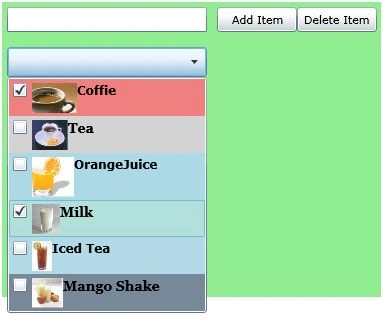
Figure 8
Data Binding
The ItemsSource property of ComboBox is used to bind a collection of IEnuemerable such as an Array. The code listed in Listing 11 creates an array of strings.
private string [] LoadComboBoxData()
{
string[] strArray =
{
"Coffie",
"Tea",
"Orange Juice",
"Milk",
"Mango Shake",
"Iced Tea",
"Soda",
"Water"
};
return strArray;
}
Listing 11
The following line of code sets the ItemsSource property of a ComboBox to the array.
ComboBox1.ItemsSource = LoadComboBoxData();
Summary
In this article, I discussed how to create and use a ComboBox control available in Silverlight. We saw how we can add items to a ComboBox, change item properties, add images add check boxes. In the end of this article, we saw how data binding works in ComboBox.
anusha saxenaeditedPosted Jan 29, 2013, 7:21 AMEdited Jan 29, 2013, 7:22 AM
How to fetch images from database using mvvm model in silverlight and show in combobox? Please reply me i am having issue regarding fetch from database.
Thom VanPosted Oct 11, 2012, 11:08 PM
How to set selectedItem in combobox when load page.
Babak SekandariPosted Jul 13, 2011, 11:47 AM
How does one extract the value of the selected item in the combo box?
Web GuyPosted Jul 8, 2011, 12:13 PM
Terrific post my friehnd however I am stuck at the most basic of things. How can I add text to the combo box as displayed in figure #1 - for example I want it to display a description of the items collection. Such as "Select an item."
DavidPosted Jun 28, 2011, 8:31 AM
Idiot Article
mirza baigPosted Jun 14, 2011, 5:44 AM
my requirement is that, i have to get access to the checkbox control which is placed inside combobox control. Declarative code is some thing like this.. <ComboBox x:Name="AreaCombo" ItemsSource="{Binding AreaList}" Width="170" Canvas.Left="92" Canvas.Top="41"> <ComboBox.ItemTemplate> <DataTemplate> <!--<Grid x:Name="RootElement">--> <CheckBox x:Name="AreaCheckbox" ClickMode="Press" Content="{Binding Path=Name}" IsChecked="{Binding Path=IsSelected, Mode=TwoWay}" Checked="CheckBox_Checked" /> <!--</Grid>--> </DataTemplate> </ComboBox.ItemTemplate>
rajib_banPosted Dec 29, 2010, 11:32 AM
Mahesh, Nice article. How do I remove duplicates from my combobox ?
ramesh rameshPosted Jun 18, 2010, 4:26 AM
Thanks Mahesh article is very usefull thanks again
Mukesh ShrimaliPosted Dec 7, 2009, 6:40 AM
Hi Mahesh, I want to know how to combobox bind with database table as I my knowledge Syste.Data.SqlClient not available in Silverlight page........
Krishan krishanPosted Jun 26, 2009, 8:09 AM
As in normal dropdown list or in Combobox we can set TextField and ValueField, can we done same here ?
somanath nayakPosted Jun 16, 2009, 2:07 AM
Dear Mr. Chand, article is nice n useful. thnx a lot. Can u plz help me out in something. i want to return a List<> of objects from a FUNCTION present in WCF service and i want to bind it with the datagrid. but i am unable to do it. the list also can be bound to the listbox or combo box etc. please help me immediately. Thanks, Somanath [email protected]
Mohd ImdPosted Jun 1, 2009, 5:40 PM
Silverlight Combobox looks like a button. How can i change the appearance so that it looks like a simple windows or asp.net ComboBox?
Ye Htut WinPosted Dec 3, 2008, 11:04 PM
private void AddButton_Click(object sender, RoutedEventArgs e) { ComboBox1.Items.Add(TextBox1.Text); } I try to run your example. "add" methods not working property. bcoz of readonly collection. Can u run this?