

In this article, you will learn how to use a WPF DataGrid control, set its properties, and load data from a collection.
Introduction
DataGrid element represents WPF DataGrid control in XAML.
<DataGrid />
When you drag and drop a DataGrid control from Toolbox to your designer, position the control, this action adds the following code to XA
The Width and Height properties represent the width and the height of a DataGrid. The Name property represents the name of the control, which is a unique identifier of a control. The Margin property sets the margin of placement of DataGrid on the window. The following code snippet sets the name, height, width, and margin of a DataGrid control.
<DataGrid Height="148" HorizontalAlignment="Left" Margin="12,21,0,0" Name="dataGrid1" VerticalAlignment="Top" Width="225" />
Listing 1.
Now, change the Name of DataGrid.
Name="McDataGrid"
Figure 1 shows Toolbox and XAML code preview after a DataGrid is added to a page.
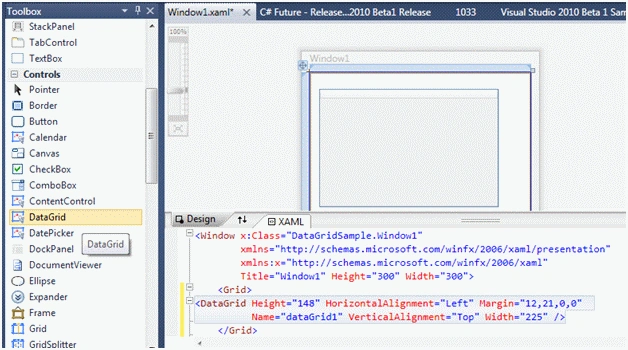
Figure 1
Data Binding
The ItemSource property of DataGrid is the key to data binding. You can bind any data source that implements IEnuemerable. Each row in the DataGrid is bound to an object in the data source and each column in the DataGrid is bound to a property of the data source objects.
In this example, we will create a collection of objects and bind it to a DataGrid control.
First, we are going to add a class to the project. The Author class looks like Listing 2 that has ID, Name, DOB, BookTitle, and IsMVP members.
public class Author
{
    public int ID { get; set; }
    public string Name { get; set; }
    public DateTime DOB { get; set; }
    public string BookTitle { get; set; }
    public bool IsMVP  { get; set; }
}
Listing 2
Now let's create a collection of Author objects by using the List class. The LoadCollectionData method in Listing 3 creates a List of Author objects.
/// <summary>
/// List of Authors
/// </summary>
/// <returns></returns>

private List<Author> LoadCollectionData()
{
    List<Author> authors = new List<Author>();
    authors.Add(new Author(){
            ID = 101,
            Name = "Mahesh Chand",
            BookTitle = "Graphics Programming with GDI+",
            DOB = new DateTime(1975, 2, 23),
            IsMVP = false });

    authors.Add(new Author()
    {
        ID = 201,
        Name = "Mike Gold",
        BookTitle = "Programming C#",
        DOB = new DateTime(1982, 4, 12),
        IsMVP = true
    });

    authors.Add(new Author()
    {
        ID = 244,
        Name = "Mathew Cochran",
        BookTitle = "LINQ in Vista",
        DOB = new DateTime(1985, 9, 11),
        IsMVP = true
    });

    return authors;
}
Listing 3
Now the last step is to set ItemsSource property of DataGrid. The following code snippet sets the ItemsSource property of a DataGrid to List of Authors.
McDataGrid.ItemsSource = LoadCollectionData();
The data loaded in DataGrid looks like Figure 2, which shows the properties of the Author class a column names.
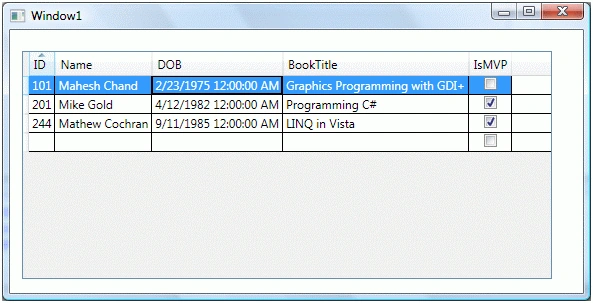
Figure 2
As you saw in Figure 2, all public properties of the Author object are represented as columns of the DataGrid. This is because by default, the AutoGenerateColumns property of DataGrid is true. If you do not wish to generate automatic columns, you simply need to set this property to false.
McDataGrid.AutoGenerateColumns = false;
Setting Column Width and Row Height
The ColumnWidth and RowHeight properties of DataGrid are used to set the default column width and row height of DataGrid columns and rows.
The following code snippet sets column width and row height to 100 and 30 respectively.
<DataGrid Height="200" Width="500" HorizontalAlignment="Left" Margin="12,21,0,0"
Name="McDataGrid" VerticalAlignment="Top" RowHeight="30" ColumnWidth="100" >
The new DataGrid looks like Figure 3.
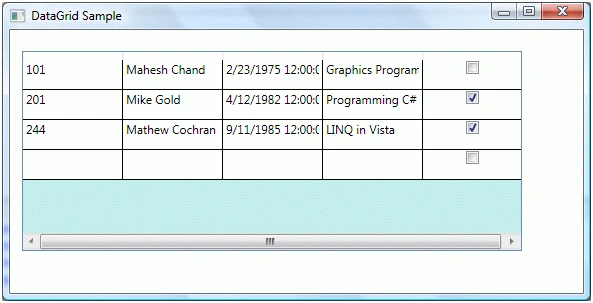
Figure 3
The MaxWidth and MaxHeight properties represent the maximum width and maximum height of a DataGrid. The MinWidth and MinHeight properties represent the minimum width and maximum height of a DataGrid. The MaxColumnWidth and MinColumnWidth properties represent the maximum width and minimum width of columns in a DataGrid.
Grid Lines Visibility and Header Visibility
The GridLinesVisibility property is used to make grid lines visible. Using this option you can show and hide vertical, horizontal, all, or none lines. The HeaderVisibility property is used to show and hide row and column headers.
The following code snippet makes vertical grid lines visible and header visible for both rows and columns.
GridLinesVisibility="Vertical" HeadersVisibility="All"
The new DataGrid looks like Figure 4.

Figure 4
Grid Background, Row Background, and Alternative Row Background
The Background property is used to set the background color of the DataGrid. The RowBackground and AlternativeRowBackground properties are used to set the background color of rows and alternative of the DataGrid.
The following code snippet sets background, row background, and alternative row background colors of a DataGrid.
Background="LightGray" RowBackground="LightYellow" AlternatingRowBackground="LightBlue"
The new DataGrid looks like Figure 5.
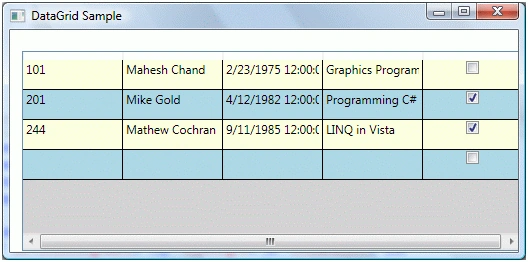
Figure 5
Border Color and Thickness
The BorderBrush and BorderThickness properties are used to set the color and width of the border. The following code snippet sets border color to gray and thickness to 5.
BorderBrush="Gray" BorderThickness="5"
The DataGrid with a new border looks like Figure 6.
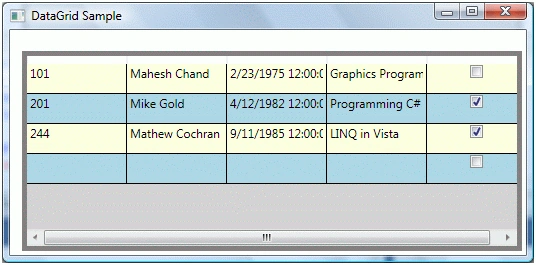
Figure 6
Read Only and Freezing
The IsReadOnly property is used to make a DataGrid read only. That means you cannot edit a DataGrid. The following code snippet sets IsReadOnly property to true.
IsReadOnly="True"
The AreRowDetailsFrozen property is used to freeze the row details area so it cannot be resized. The FrozenColumnCount property represents the number of columns that user can not scroll horizontally. The following code snippets sets AreRowDetailsFrozen to true and FrozenColumnCount to 2.
AreRowDetailsFrozen="True"
FrozenColumnCount="2"
DataGrid allows you to reorder columns by dragging a column but you may disable this feature by setting the CanUserReorderColumns property to false. The following code snippet sets CanUserReorderColumns properties to false.
CanUserReorderColumns="False"
Data Grid allows you to change the width of columns. You may fix columns so user can't resize them by setting the CanUserResizeColumns property to false. The following code snippet sets CanUserResizeColumns properties to false.
CanUserResizeColumns="False"
Sorting
By default, column sorting is enabled on a DataGrid. You can sort a column by simply clicking on the column header. You may disable this feature by setting CanUserSortColumns property to false. The following code snippet sets CanUserSortColumns properties to false.
CanUserSortColumns = "False"
Scrolling
The HorizontalScrollBarVisibility and VerticalScrollBarVisibility properties of type ScrollBarVisibility enumeration control the horizontal and vertical scrollbars of the DataGrid. It has four values - Auto, Disabled, Hidden, and Visible. The default value of these properties is Auto, that means, when scrolling is needed, you will see it, otherwise it will be hidden.
The following code snippet enables the horizontal and vertical scrollbars.
HorizontalScrollBarVisibility="Visible"
VerticalScrollBarVisibility="Visible"
The DataGrid with both scrollbars looks like Figure 7.
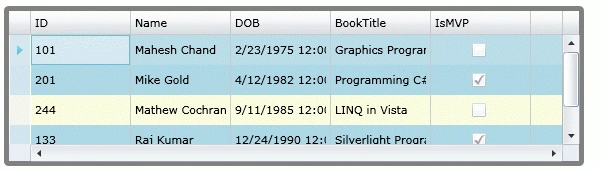
Figure 7
Selection Mode
The SelectionMode property decides if the DataGrid allows only a single row or multiple rows selection. It has two values – Single and Extended. The following code snippet sets the SelectionMode to Extended.
SelectionMode="Extended"
Summary
In this article, I demonstrated how to use a DataGrid control in WPF, set its properties and display data using an object collection. I also discussed how to format rows, columns, their visibility, and scrolling. We also saw, how to make rows read-only and set selection mode property.
chirag patelPosted May 4, 2020, 8:19 AM
Hello Sir, How can i bind nested datagridview in WPF C#...???
Muhammad HasanPosted Mar 10, 2020, 12:01 AM
Very helpful, want to know how to add marge column header in wpf datagrid ?
Jet WellPosted Oct 5, 2018, 1:52 AM
Thanks eng: mahesh
Luisa BorrueyPosted Aug 5, 2018, 11:33 AM
Thank you, very much !! Very clear and great help !!
Sagar Pandurang KapPosted Feb 14, 2018, 12:19 AM
Very much helpful.....
Rushi MehtaPosted Feb 12, 2018, 12:39 AM
Very Informative article
Sachin YadavPosted Oct 30, 2017, 8:07 AM
Thanks, its good practice for me...
Viswa NerellaPosted Sep 22, 2017, 12:34 PM
Hi, Can you please explain me how to set individual column width?
qinkali lyuPosted Mar 22, 2016, 3:36 AM
Please can you give grid full style, I used all styles given in article but my grid doesn't look so nice as on the last image. Thanks
Santosh KokatnurPosted Feb 17, 2016, 2:56 AM
Needful information Sir..
Vishal BorudePosted Oct 23, 2015, 2:35 PM
how i can load particular column secondarily in datagrid. Example i have employee class which contains name,age, and company details, for performance issue first i have to only update name and age and then while populating name and age, updating company details.
Mohammed Umarfarook Mohammed ZakriaPosted Mar 3, 2015, 5:36 AM
How do I get the Triangle symbol on left side of the selected row
Arda BPosted Dec 17, 2014, 11:29 PM
How to select a DataGrid as default loaded with a TabControl in WPF Window?
Thijs ErendsPosted Sep 24, 2014, 8:48 AM
Thank you very much for this post! It helped me a lot
Edward BrunoPosted May 22, 2014, 5:45 PM
Very good Post. Please let me know how to make a specific cell in the grid as read only.
Gani SistuPosted May 3, 2013, 1:59 AM
HI,Thanks a lot for quick & good post.I am getting an extra row at the end of the data .. It is also there in the examples you given ... Can you please explain how to remove them?
Antony Romar M GPosted Apr 30, 2013, 10:12 AM
Sorry My Bad, to resolve the build errror. add "System.xaml" namespace
Antony Romar M GeditedPosted Apr 30, 2013, 10:05 AMEdited Apr 30, 2013, 10:11 AM
This code doesn't get build, Error 1 The type 'System.Windows.Markup.IQueryAmbient' is defined in an assembly that is not referenced. You must add a reference to assembly 'System.Xaml, Version=4.0.0.0, Culture=neutral, PublicKeyToken=b77a5c561934e089'. 26 DataGridSample getting above error..please correct it and upload
azedine azedinePosted Dec 14, 2012, 6:06 PM
good tut tks but if we want fetch the datgrid n get all cell exist in a columne like all columne booktitl
Wouter VerheyenPosted Jul 30, 2012, 8:28 PM
I like the article. Most of us beginners rush through the learning curve and miss out some of the basics. Articles like this are good to read through once in a while. I'd like to see some information added on binding data to a table, how to modify column widths or headers with a databound grid etc.
Santosh ThubePosted May 30, 2012, 1:30 AM
Good Article for WPF beginners.
Mc TopPosted Mar 21, 2012, 6:23 PM
some assemblys don't work per default if you put there some additional assemblys, than write down how, where and the rest of the sh... because i don't get this peace of code that i have download here to work.
Jamie BowersPosted Jan 26, 2012, 3:22 PM
I'm curious as to where the "McDataGrid.ItemsSource = LoadCollectionData();" goes.
Edwin DannyPosted Oct 3, 2011, 6:56 AM
Hi, Very use full article. For beginners in WPF like me can utilize it very well. Thanks a lot. I have some doubt on Datragrid's Readability after binding data from a standers source. I am binding datagrid to its Itemsource property from a Dataset which is linked to a Stored procedure Now based on a specific column's value i want to change the baground color of a row in this grid. after searching i could find ".Rows" property at all in the grid. And getting the specific Rows and column's value is impossible. we normally use "datagrid1.Rows[0].Cell[0].values" in c# code, Is there any substitute for this line in WPF DataGrid? can you please help me on this? Since we all need to bind data from Database through any specific source, and manipulate the data from DataGrid, if you could flash some lights on the topic for the correct path will be grate full. I hope you can. Thank you in advance Edwin
Tegan TheunissenPosted Oct 2, 2011, 8:49 PM
Hi.. Thanks for the article. I have two Datagrids both bound to similar tables in a sql 08 db. What i am struggling to do is to select a row in lets say dgA and select a row in dgB. Then the Row in dgA updates the row in dgB Thanks
weizz sPosted Jul 25, 2011, 4:12 AM
Hi, I'm a newbie to wpf, hope to get some advise. I'm now need to retrieve the survey questions from the database(Microsoft Sql Server 2008) through web service of remote computer and display it at the wpf app over another machine. My question is how can i retrieve the questions at the wpf app? Do I need to download the WPF Toolkit and what is the use of it? How to bind the datagrid source to the data retrieve from the web service? Please guide me. Thanks in advance.
F YPosted Apr 29, 2011, 6:42 PM
I have 2 books on WPF but neither one shows how to use controls such as the datagrid. Anyone know of any useful books?
F YPosted Apr 29, 2011, 6:39 PM
How are you getting the gridlines to show in the column headers? I get gridlines elsewhere but not in the header. Also how is the background color of the header determined?
rama challaPosted Apr 22, 2011, 6:01 AM
Hi, In the last image for the selected row you are showing an pointer in the left most column , how to get that pointer , i checked in ur sample application but its not implemented , can you please share it ??
stephandeckersPosted Feb 12, 2011, 3:14 PM
When I bind a list as in List<Person> of classes to a Datagrid, the Datagrid is able to discover all properties and to bind themto columns. When I create a collection class which holds the same Person class, and derive it from IEnumerable and IEnumerator,the DataGrid calls IEnumerator.MoveNext and IEnumerator.Current and it shows the correct # of rows, but now properties are discovered ? What is it in a List that makes a Datagrid discover the properties of a object used for databinding ? thanks, Steef
Stickleback AszuneeditedPosted Jan 28, 2011, 3:23 AMEdited Jan 28, 2011, 9:51 AM
Hi. First off thanks for a very useful article. I do have a question though regarding an additional empty column that I have appearing on the right hand side of the datagrid. A similar situation seems to be happening in figure 2 in your tutorial. I was wondering why it is happening & if there is anything that can be done to stop it. Thanks in advance. Stick.
Pritesh PatelPosted Dec 8, 2010, 4:28 AM
Hi masters, I can't see datagrid control in my tool box what should i do? I am using VS2008 and i am creating small application in WPF?
lakchanaPosted Oct 6, 2010, 6:26 AM
Thanks for the article. I've a datagrid with both scrollbars visibility set to Auto. I need to adjust one of my columns width based on the visibility of vertical scroll bar, so that my horizontal scroll bar will not be visible.
olaamigoquepasaPosted Oct 4, 2010, 12:29 PM
Very readable and clear. Found it very useful. Thanks for posting. Ed
SuryaPosted Sep 17, 2010, 2:19 AM
Great article man.This one helped me a lot .Thank you so much
Patrick BrunerPosted Jun 4, 2010, 5:18 AM
uh, thanks, finally a simple tutorial how to use Datagrid :)
MehriPosted Mar 16, 2010, 4:36 PM
good one !
moria zuberiPosted Jan 26, 2010, 12:34 PM
hello! first of all, thank you very much for your work. it has been very usful to me many times. in my application (c#: WPF) i have binded a datagrid to an arrylist. one of the properties in my class is a sum of two of the other properties (all ints). i am trying to get the sum column to change if the user changes one of the values that the sum is made of, but with no luck. can you help me pleas? thank you, moria