

A DomainUpDown control allows users to provide a spin (up/down) interface to move through pre-defined strings using up and down arrows. In this tutorial, we will see how to create a DomainUpDown control and use it in a Windows Forms application.
Creating a DomainUpDown
Creating a DomainUpDown control at run-time is merely a work of creating an instance of DomainUpDown class, set its properties and adds DomainUpDown class to the Form controls.
First step to create a dynamic DomainUpDown is to create an instance of DomainUpDown class. The following code snippet creates a DomainUpDown control object.
- privateDomainUpDown dynamicUpDown = newDomainUpDown();
In the next step, you may set properties of a DomainUpDown control. The following code snippet sets the Location, Width, Height and Name properties of a DomainUpDown.
- dynamicUpDown.Location = new System.Drawing.Point(12, 50);
- dynamicUpDown.Width = 200;
- dynamicUpDown.Height = 25;
- dynamicUpDown.Name = "DynamicUpDownButton";
Once the DomainUpDown control is ready with its properties, the next step is to add the DomainUpDown to a Form. To do so, we use Form.Controls.Add method that adds DomainUpDown control to the Form controls and displays on the Form based on the location and size of the control. The following code snippet adds a DomainUpDown control to the current Form.
- Controls.Add(dynamicUpDown);
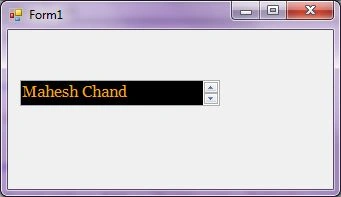
The DomainUpDown control looks like Figure 1.
Setting DomainUpDown Properties
After you place a DomainUpDown control on a Form, the next step is to set its properties.
Name
Name property represents a unique name of a DomainUpDown control. It is used to access the control in the code. The following code snippet sets and gets the name and text of a DomainUpDown control.
- privateDomainUpDown dynamicUpDown = newDomainUpDown();
- dynamicUpDown.Name = "DynamicUpDownButton";
Location, Height, Width and Size
The Location property takes a Point that specifies the starting position of the DomainUpDown on a Form. You may also use Left and Top properties to specify the location of a control from the left top corner of the Form. The Size property specifies the size of the control. We can also use Width and Height property instead of Size property. The following code snippet sets Location, Width, and Height properties of a DomainUpDown control.
- dynamicUpDown.Location = new System.Drawing.Point(12, 50);
- dynamicUpDown.Width = 200;
- dynamicUpDown.Height = 25;
Font
Font property represents the font of text of a DomainUpDown control. If you click on the Font property in Properties window, you will see Font name, size and other font options. The following code snippet sets Font property at run-time.
- dynamicUpDown.Font = newFont("Georgia", 12);
Foreground and Background
ForeColor and BackColor properties represent foreground and background colors of a control. The following code snippet sets the background and foreground colors of a control.
- dynamicUpDown.ForeColor = Color.Orange;
- dynamicUpDown.BackColor = Color.Black;
Items and Selected Item
The Items property is a collection of items of a DomainUpDown control. We can use the Add method to add items. The following code snippet adds items to a DomainUpDown control.
- dynamicUpDown.Items.Add("Mahesh Chand");
- dynamicUpDown.Items.Add("Praveen Kumar");
- dynamicUpDown.Items.Add("Mike Gold");
- dynamicUpDown.Items.Add("Raj Beniwal");
- dynamicUpDown.Items.Add("Dinesh Beniwal");
The SelectedItem and SelectedIndex properties represent the selected item and selected item index in a DomainUpDown control. The following code snippet sets the SelectedIndex to the first item and gets the selected item value.
- dynamicUpDown.SelectedIndex = 0;
- MessageBox.Show(dynamicUpDown.Items[dynamicUpDown.SelectedIndex].ToString());
DomainUpDown ValueChanged Event Hander
ItemChanged event is fired when the item index of a DomainUpDown control is changed. The following code snippet defines and implements the SelectedItemChanged event.
- dynamicUpDown.SelectedItemChanged += new System.EventHandler(ItemChangedInDomainUpDown);
- privatevoid ItemChangedInDomainUpDown(object sender, EventArgs e)
- {
- // Do something there when item is changed
- }
Summary
In this article, we discussed discuss how to create a DomainUpDown control in Windows Forms.
Mudasir Buzdar BalOchPosted Jan 21, 2021, 7:13 AM
Most important data thanks for this
Bhavya GaurPosted Sep 4, 2018, 6:24 AM
Updated on 09/04/2018
Pancaz KumarPosted Sep 11, 2017, 2:54 PM
How to add items in run time from database in domainUpDown ....????