

WPF GridView control
If you have not used a ListView control in WPF, I recommend you read my ListView in WPF article before this article.
The View property is used to provide a GridView layout and design in a ListView control. The View property of ListView is a type of ViewBase class that supports two view types - GridView and a custom view. A GridView is used for arranging data in columns and adding layout and design support to a ListView.
The following code snippet sets the View property of a ListView to GridView mode.
- <ListView>
- <ListView.View>
- <GridView />
- </ListView.View>
- </ListView>
A GridView is used as a supplement control to a ListView to provide style and layout. The GridView does not have its own control related properties such as background and foreground colors, font properties, size, and location. The container ListView is used to provide all control related properties.
Creating a GridView
The GridView element in XAML represents a GridView at design-time. The Columns property of GridView returns a collection of GridViewColumn objects. GridViewColumn element in XAML represents a GridView column. AllowsColumnReorder property represents weather columns in a GridView and can be reordered by a user by dragging and dropping from one position to another. ColumnHeaderToolTip property represents the content of a tooltip that appears when the mouse pointer pauses over one of the column headers.
The code listed in Listing 1 creates a GridView control and adds four columns to it. The Header property of GridViewColumn represents the header of a column. The Width property represents the width of a column and the DisplayMemberBinding property is used to bind a GridViewColumn to a property of data binding object.
- <GridView AllowsColumnReorder="true" ColumnHeaderToolTip="Authors">
- <GridViewColumn Header="Name" Width="120" DisplayMemberBinding="{Binding Path=Name}" />
- <GridViewColumn Header="Age" Width="50" DisplayMemberBinding="{Binding Path=Age}" />
- <GridViewColumn Header="Book" Width="250" DisplayMemberBinding="{Binding Path=Book}" />
- <GridViewColumn Header="MVP" Width="50" DisplayMemberBinding="{Binding Path=Mvp}" />
- </GridView>
Listing 1
The output of listing looks like Figure 1.
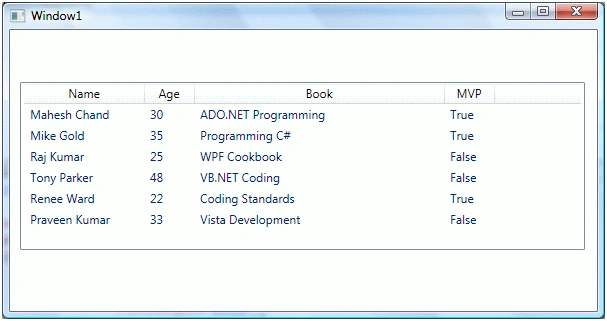
The GridCiew class in WPF represents a GridView control. The GridViewColumn class represents a GridView column. The code listed in Listing 2 creates a GridView control and adds four columns to it dynamically.
- privatevoid CreateDynamicGridView() {
- // Create a GridView
- GridView grdView = newGridView();
- grdView.AllowsColumnReorder = true;
- grdView.ColumnHeaderToolTip = "Authors";
- GridViewColumn nameColumn = newGridViewColumn();
- nameColumn.DisplayMemberBinding = newBinding("Name");
- nameColumn.Header = "Author Name";
- nameColumn.Width = 120;
- grdView.Columns.Add(nameColumn);
- GridViewColumn ageColumn = newGridViewColumn();
- ageColumn.DisplayMemberBinding = newBinding("Age");
- ageColumn.Header = "Age";
- ageColumn.Width = 30;
- grdView.Columns.Add(ageColumn);
- GridViewColumn bookColumn = newGridViewColumn();
- bookColumn.DisplayMemberBinding = newBinding("Book");
- bookColumn.Header = "Book";
- bookColumn.Width = 250;
- grdView.Columns.Add(bookColumn);
- GridViewColumn mvpColumn = newGridViewColumn();
- mvpColumn.DisplayMemberBinding = newBinding("Mvp");
- mvpColumn.Header = "Mvp";
- mvpColumn.Width = 50;
- grdView.Columns.Add(mvpColumn);
- ListView1.View = grdView;
- }
Listing 2
Adding a ContextMenu to a GridView Header
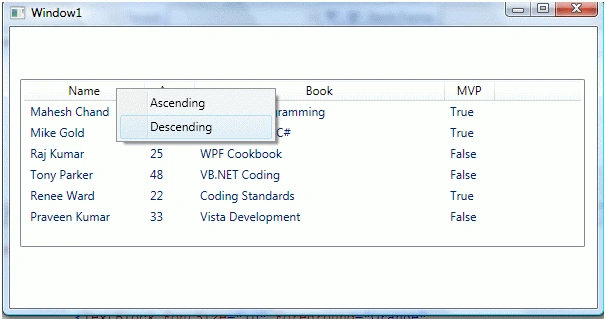
The ColumnHeaderContextMenu property of GridView is used to get or set a ContextMenu when you click on the header of a GridView control. The code snippet listed in Listing 3 adds a ContextMenu to a GridView header.
- <GridView AllowsColumnReorder="true" ColumnHeaderToolTip="Authors">
- <!-- Add a ContextMenu to GridView Header -->
- <GridView.ColumnHeaderContextMenu>
- <ContextMenu>
- <MenuItem Header="Ascending" Click="MenuItem_Click" />
- <MenuItem Header="Descending" />
- </ContextMenu>
- </GridView.ColumnHeaderContextMenu>
- <!-- Add GridVeiw Columns -->
- <GridViewColumn Header="Name" Width="120" DisplayMemberBinding="{Binding Path=Name}" />
- <GridViewColumn Header="Age" Width="50" DisplayMemberBinding="{Binding Path=Age}" />
- <GridViewColumn Header="Book" Width="250" DisplayMemberBinding="{Binding Path=Book}" />
- <GridViewColumn Header="MVP" Width="50" DisplayMemberBinding="{Binding Path=Mvp}" />
- </GridView>
Listing 3
The output of listing looks like Figure2.
Adding a CheckBox to a GridView Header
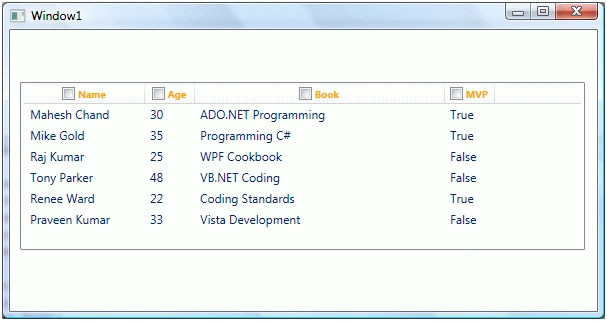
The ColumnHeaderTemplate property represents the template for the column header. Using this property, you may format GridView column headers the way you want. You may add CheckBoxes or Images to the column headers.
The code snippet in Listing 4 creates a DataTemplate resource with a CheckBox and orange foreground color of text that we can set as ColumnHeaderTemplate of a GridView.
- <Window.Resources>
- <DataTemplate x:Key="OrangeHeaderTemplate">
- <DockPanel>
- <CheckBox />
- <TextBlock FontSize="10" Foreground="Orange" FontWeight="Bold">
- <TextBlock.Text>
- <Binding />
- </TextBlock.Text>
- </TextBlock>
- </DockPanel>
- </DataTemplate>
- </Window.Resources>
Listing 4
The code snippet in Listing 5 sets the ColumnHeaderTemplate of a GridView.
- <GridView AllowsColumnReorder="true" ColumnHeaderToolTip="Authors" ColumnHeaderTemplate="{StaticResource OrangeHeaderTemplate}" >
Listing 5
The output of listing looks like Figure 3.
Summary
This article was an introduction of using a GridView in WPF. I will be discussing more GridView related functionality in my forthcoming articles.
Riya SharmaPosted Jun 27, 2020, 12:57 AM
Any code to perform CRUD operation on listview with gridview?
Sachin HingePosted Nov 28, 2018, 8:08 AM
Can you tell please how to give border all column in listview.
Razali HusainPosted Oct 1, 2018, 1:08 AM
The example uses bindings. I need to create a dynamic list of columns later populate each cell directly. How can I do that using code behind just like a 2D matrix? Thanks.
raghavan raghavanPosted Nov 29, 2017, 11:54 PM
can you please tell us how to add seperators between columns values
ujwal khairnarPosted Oct 18, 2011, 1:01 AM
Thanks for this article. Its solved my half of the problem.... Thank you very much.
Shai BazzPosted May 23, 2011, 2:14 PM
Hello, I am trying to put dataGrid(Gridview) in vertical order. This datagrid works similar to data entry form but user will be editing data instead of entering new one. user should be able to borwse/edit using pagination, so we need to display one dataset at a time. I must be able to create DataGrid dynamically since column name (e.g. FirstName, LastName...250+ columns, is stored in database table). Each column's value could be edited differently. For example if column-name is Age then user should be able to pick some age from Drop down box. See example below. FristName | Steve LastName | Ronald Age | 25 ==> DropDownbox with value from 1- 100 Sex | Male ==> DropDownbox with value of Male and Female Employed | Yes ==> check box and so on Any help is highly appreciated
shriram iyerPosted Apr 9, 2011, 1:00 AM
you have qouted this example by binding the gridview to specific examples like name ,,,,how to do it without binding ?..the header and entries should be displayed dynammically based on the requirement.i hope you are getting my point example: if my query is select name the result should be only one column as name wit entries below it if my query is select name,id the result should be 2 columns and so on please help !!!!
VincentPosted Mar 30, 2011, 3:01 PM
Hi Mahesh, In your MenuItem_Click event method, how do you know the column on which event is fired ? Thanks Vince
Mojalefa RafubeeditedPosted Jan 7, 2011, 4:48 AMEdited Jan 7, 2011, 4:52 AM
thanks for this
CraigPosted Jan 5, 2011, 11:46 PM
Thanks! This helped me. But if I click on a row and want to access the value in a column, how to I do that in codebehind?
MahiPosted Nov 15, 2010, 8:15 AM
can u pls help me on this..... i am creating one registration wpf application.... In that first window customer need to register with his personal details.....once he will submit those details they will store in db.... and in 2 nd window one grid,text box and one search button is there.....when customer is entering some db cust name when we click on search i should get that particular customer data in the grid.....i wrote the below code but still am not finding any data in the grid..... fallowing code i tried pls chk................ //dgNames.ColumnDefinitions.Add(1); SqlConnection con = new SqlConnection("server=.;database=MyApp;uid=sa;pwd=sa;"); SqlDataAdapter da = new SqlDataAdapter("select FirstName from Registration where FirstName='" +txtCustName.Text.Trim() + "'", con); SqlDataReader dr; con.Open(); DataSet ds = new DataSet(); da.Fill(ds, "Names"); dgNames.DataSource = ds; dgNames.DataBind(); dgNames.DataContext = ds; this.DataContext = ds.Tables[0].DefaultView; here when i build this code it is successful but when am debugging that it not deplaying any thing in the Grid...........please help as early as possible..................
mukul rajgurePosted Aug 12, 2010, 4:58 AM
Good Document for fresher
DanielPosted May 11, 2010, 3:00 PM
The default behavior draws a separator after your final column (MVP in this example), followed by an empty column. Is there a way to make your GridView never show this empty column and still have a resizing capabality?
arfan baigPosted Apr 23, 2010, 3:46 AM
nice clean article. Thanks for posting.
Riaan de WetPosted Nov 20, 2009, 1:32 AM
Hi, Good news, there is a DataGrid control in VS2010 Beta2. Cheers
TarikPosted Nov 9, 2009, 3:14 AM
Thanks for this nice article. Please keep posting new articles as well.