Blue Theme Orange Theme Green Theme Red Theme
 
Home | Forums | Videos | Advertise | Certifications | Downloads | Blogs | Interviews | Jobs | Beginners | Training
 | Consulting  
Submit an Article Submit a Blog 
 Jump to
Skip Navigation Links
TechnologyExpand Technology
WebsiteExpand Website
Discover the top 5 tips for understanding .NET Interop
Search :       Advanced Search »
Home » WPF » Image Transformation in WPF

Image Transformation in WPF

Image transformation is a process of rotating and scaling images. This article demonstrates how to rotate and translate images in WPF and XAML.

Author Rank :
Page Views : 4694
Downloads : 0
Rating :
 Rate it
Level : Beginner
   Print Read/Post comments Post a comment  Similar Articles  
   Email to a friend  Bookmark  Author's other articles  
 
Team Foundation Server Hosting
Become a Sponsor
 Tag Cloud
 Latest Jobs
More ... 
 Latest Interview Questions
More ... 


Image transformation is a process of rotating and scaling images.

Rotating Images

There are two ways to rotate an image. First option is to use the Rotation property of BitmapImage and second option is use a TransformBitmap image. The TransformBitmap class is use for both scaling and rotating images.


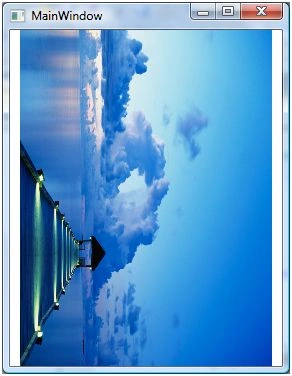
The Rotation property of BitmapImage is a type of Rotation enumeration that has four values Rotate0, Rotate90, Rotate180, and Rotate270.  The following code snippet creates a BitmapImage element and set its Rotation attribute to Rotate270.


<Image HorizontalAlignment="Center">

    <Image.Source>

        <BitmapImage UriSource="Dock.jpg" Rotation="Rotate270" />

    </Image.Source>

</Image>


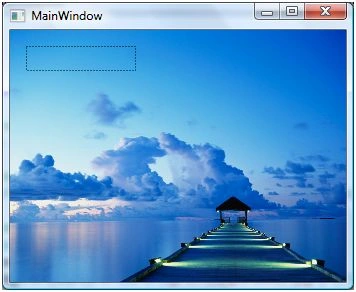
Figure 44 shows the regular image and Figure 45 is the image rotates at 270 degrees.
 

ImageTransformImg1.jpg

Figure 45

ImageTransformImg2.jpg

Figure 46

Alternatively, we can use TransformBitmap and its Transform property to transform an image. The Source attribute of TransformedBitmap is the image name. To rotate an image, we simply need to set the Transform property to RotateTransform and set Angle attribute to the angle of rotation as shown in below code.


<Image >

    <Image.Source>

        <TransformedBitmap Source="Dock.jpg" >

            <TransformedBitmap.Transform>                          

                <RotateTransform Angle="90"/>

            </TransformedBitmap.Transform>

        </TransformedBitmap>

    </Image.Source>

</Image>


The code listed in Listing 42 rotates an image at run-time.


private void RotateImageDynamically()

{     

    // Create an Image

    Image imgControl = new Image();


    // Create the TransformedBitmap

    TransformedBitmap transformBmp = new TransformedBitmap();


    // Create a BitmapImage

    BitmapImage bmpImage = new BitmapImage();

    bmpImage.BeginInit();

    bmpImage.UriSource = new Uri(@"C:\Images\Dock.jpg", UriKind.RelativeOrAbsolute);

    bmpImage.EndInit();


    // Properties must be set between BeginInit and EndInit

    transformBmp.BeginInit();

    transformBmp.Source = bmpImage;

    RotateTransform transform = new RotateTransform(90);

    transformBmp.Transform = transform;

    transformBmp.EndInit();


    // Set Image.Source to TransformedBitmap

    imgControl.Source = transformBmp;


    LayoutRoot.Children.Add(imgControl);

}

Listing 42

Scaling Images

The ScaleTransform is used to scale an image. The ScaleX and ScaleY properties are used to resize the image by the given factor. For example, value 0.5 reduces the image size by 50% and value 1.50 stretches image by 150%. The CenterX and CenterY properties are used to set the point that is the center of the scaling. By default, CenterX and CenterY values are 0 and 0 that represents the top-left corner.


The following code snippet creates a BitmapImage element and set its ScaleTransform property and its attributes CenterX, CenterY, ScaleX, and ScaleY.


<Image Name="ImageControl" >

    <Image.Source>

        <TransformedBitmap Source="Dock.jpg" >

            <TransformedBitmap.Transform>                         

                <!--<RotateTransform Angle="90"/>-->

                <ScaleTransform CenterX="25" CenterY="25" ScaleX="2" ScaleY="2" />

            </TransformedBitmap.Transform>

        </TransformedBitmap>

    </Image.Source>

</Image>


Comment Request!
Thank you for reading this post. Please post your feedback, question, or comments about this post Here.
Login to add your contents and source code to this article
 [Top] Rate this article
 
 About the author
 
Mahesh Chand
Mahesh is the founder of C# Corner and Mindcracker Network, an author of several .NET programming books and a Microsoft MVP for 6 consecutive years. In his day to day work, Mahesh is a Senior Software Consultant with over 14 years of IT industry experience building systems for Financial and Banking, Engineering & Architectural, Imaging, Construction, Biological & Pharmaceuticals, Healthcare and Education industries. His expertise is Windows Forms, ASP.NET, Silverlight, WPF, WCF, Visual Studio 2010, SQL Server, and Oracle.  If you are looking for a Sharepoint, Windows Forms, ASP.NET, WPF, Silverlight, C#, VB.NET, Oracle, and SQL Server Consultant in Philadelphia area or remote location, drop me a line at MAHESH [AT] C-SHARPCORNER [DOT] COM.
Looking for C# Consulting?
C# Consulting is founded in 2002 by the founders of C# Corner. Unlike a traditional consulting company, our consultants are well-known experts in .NET and many of them are MVPs, authors, and trainers. We specialize in Microsoft .NET development and utilize Agile Development and Extreme Programming practices to provide fast pace quick turnaround results. Our software development model is a mix of Agile Development, traditional SDLC, and Waterfall models.
Click here to learn more about C# Consulting.
 
Introducing MaxV - one click. infinite control. Hyper-V Hosting from MaximumASP.
Finally – a virtual platform that delivers next-generation Windows Server 2008 Hyper-V virtualization technology from a managed hosting partner you can truly depend on. Visit www.maximumasp.com/max for a FREE 30 day trial. Hurry offer ends soon. Climb aboard the MaxV platform and take advantage of High Availability, Intelligent Monitoring, Recurrent Backups, and Scalability – with no hassle or hidden fees. As a managed hosting partner focused solely on Microsoft technologies since 2000, MaximumASP is uniquely qualified to provide the superior support that our business is built on. Unparalleled expertise with Microsoft technologies lead to working directly with Microsoft as first to offer IIS 7 and SQL 2008 betas in a hosted environment; partnering in the Go Live Program for Hyper-V; and product co-launches built on WS 2008 with Hyper-V technology.
Dynamic PDF
ceTE software specializes in components for dynamic PDF generation and manipulation. The DynamicPDF™ product line allows you to dynamically generate PDF documents, merge PDF documents and new content to existing PDF documents from within your applications.
Discover the Top 5 .NET Memory Management Fundamentals
To write the best .NET code, you need to know exactly how the .NET framework really manages memory. Ricky Leeks presents the Top 5 fundamental facts of .NET memory management. Learn more.
Nevron Chart for .NET 2010.1 Now Available
The leading .NET charting control now features PDF, Flash and Silverlight export, visualization of large datasets and more. Deliver true charting functionality to your BI, Scorecard, Presentation or Scientific apps. Download evaluation now.
ASP.NET 4 Hosting
Get 2 Months Free of ASP.NET Hosting for Only $4.95/month! Receive FREE MS SQL and MySQL Databases Including ASP.NET 4/3.5, MVC 3.0, Silverlight 4, Windows 2008/IIS 7.0 Plus FREE IIS 7 Modules. Host UNLIMITED ASP.NET Web Sites – Click Here!
 
 Post a Feedback, Comment, or Question about this article
Subject:
Comment:
Team Foundation Server Hosting
Become a Sponsor
 Comments
6 Months Free & No Setup Fees ASP.NET Hosting!
 © 2012  contents copyright of their authors. Rest everything copyright Mindcracker. All rights reserved.