

WPF does not have a built-in media controls but it provides a wrapper around current Windows Media Player 10 ActiveX (OCX) control. A computer where this functionality will be used must have Media Player 10 or later versions installed.
WPF has two classes to work with audio, video and video with audio - MediaElement and MediaPlayer. The MediaElement is a part of XAML UIElement and is supported by both XAML and WPF code behind but MediaPlayer is available in WPF code behind only.
The project attached with this article let you browse a media file and plays in the TV below.
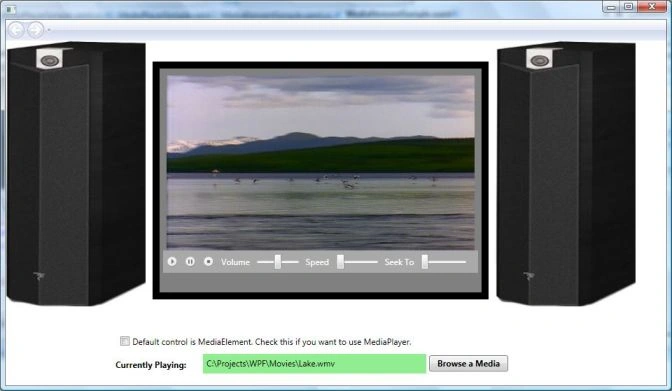
The following XAML code snippet creates a MediaElement and sets the default media file.
<MediaElement Margin="10,10,10,0 " Source="C:\Projects\WPF\MediaSamples\MediaSamples\Media\Lake.wmv"
Name="McMediaElement"
Width="450" Height="250" LoadedBehavior="Manual" UnloadedBehavior="Stop" Stretch="Fill"
MediaOpened="Element_MediaOpened" MediaEnded="Element_MediaEnded"/>
The Browse button click event handler code listed below uses OpenFileDialog and let you browse media files and sets MediaElement.Source to new URI that takes media file name as a parameter.
private void BrowseButtonClick(object sender, RoutedEventArgs e)
{
OpenFileDialog dlg = new OpenFileDialog();
dlg.InitialDirectory = "c:\\";
dlg.Filter = "Media files (*.wmv)|*.wmv|All Files (*.*)|*.*";
dlg.RestoreDirectory = true;
if (dlg.ShowDialog() == System.Windows.Forms.DialogResult.OK)
{
string selectedFileName = dlg.FileName;
FileNameLabel.Content = selectedFileName;
McMediaElement.Source = new Uri(selectedFileName);
McMediaElement.Play();
}
}
MediaElement has methods - Play, Stop, and Pause, which are used to play, stop, and pause the current media. The code for Play, Pause, and Stop buttons looks like following:
// Play the media.
void OnMouseDownPlayMedia(object sender, MouseButtonEventArgs args)
{
McMediaElement.Play();
}
// Pause the media.
void OnMouseDownPauseMedia(object sender, MouseButtonEventArgs args)
{
McMediaElement.Pause();
}
// Stop the media.
void OnMouseDownStopMedia(object sender, MouseButtonEventArgs args)
{
McMediaElement.Stop();
}
MediaElement has Volume and SpeedRatio properties to set volume and the speed of the media.
// Change the volume of the media.
private void ChangeMediaVolume(object sender, RoutedPropertyChangedEventArgs<double> args)
{
McMediaElement.Volume = (double)volumeSlider.Value;
}
// Change the speed of the media.
private void ChangeMediaSpeedRatio(object sender, RoutedPropertyChangedEventArgs<double> args)
{
McMediaElement.SpeedRatio = (double)speedRatioSlider.Value;
}
Summary
In this article and attached source code, I discussed how to create and use a MediaElement in WPF to play media files.
Kishor Bikram OliPosted Apr 23, 2020, 6:22 AM
Does it run in Windows 7 machines?
RanoPosted Jun 29, 2013, 3:57 AM
Good one.
hoang nguyenPosted Aug 11, 2011, 11:10 AM
thanks
gabng sdhfjPosted May 6, 2011, 2:54 PM
Thank you very much
Gunjan TiwariPosted Mar 9, 2011, 6:14 AM
Materials are very usefull, and according to developer's need. Post a Step by Step process to create media player using wpf in c#.net. Tanks a lot........
yogi mPosted Aug 5, 2010, 4:35 AM
i want to play audio file of any format. please tell me what to do. thanks
lolPosted Mar 2, 2010, 2:47 AM
good day, first of all, i would like to thank you for this feature. Its very useful but somehow i cant seem to make the video auto play for a reason even though i've check the directory of my files. please do advise~
Thanachoti CharoensapPosted Dec 12, 2008, 4:28 AM
Thank you very much