

Introduction
In my previous article
Programming Speech in WPF - Speech Synthesis, I covered text-to-speech
functionality in WPF. This article is about speech to text, also known as speech
recognition.
Speech Recognition is a reverse process of Speech Synthesis that converts speech
to text. There are two major applications for speech recognition. The first
application is people who are for some reason unable to type but can speak to
the system and system will type text for them. For example, in endoscopic
applications a surgeon can evaluate the patient and speak to the system. While
surgeon is doing the evaluation, his hands are buys but he can speak. The second
application is speech command enabled applications where instead of using mouse,
we can use voice to run and execute an application commands.
Windows Vista and Window 7 comes with built-in Speech Recognition controls that
allow you to setup speech related options such as voice settings, microphone,
and other voice recognition settings. Let's take a quick look at what Control
Panel has to offer related to Speech Recognition.
Go to Control Panel and open Speech Recognition Options. You will see a dialog
looks like Figure 1.
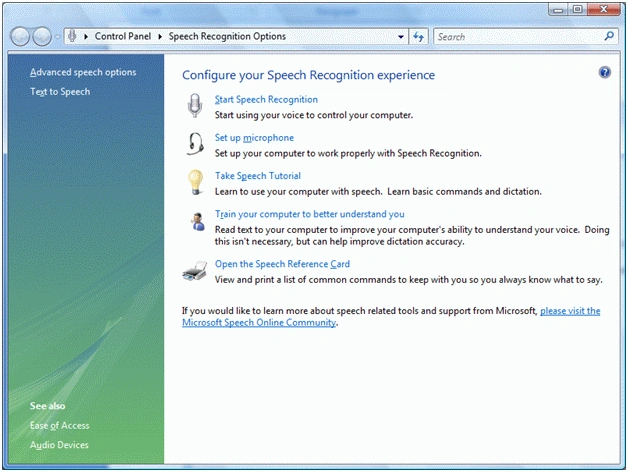
Figure 1
As you can see from Figure 5, there are options to start speech recognition,
setup your microphone, take speech tutorial, train your computer, and open
reference card. You may want to click on these options one by one to understand
Speech Recognition better.
If you click on first link Start Speech Recognition, it will activate speech
recognition on the system and system will start listening sounds around your
computer.
Next option is Set up Microphone. This option allows you to tell system what
microphone to use if you have more than one. Otherwise system will use default
microphone.
Next option Take Speech Tutorial is a step by step tutorial that teaches you how
to use various system controls.
Next option, Train your computer to better understand is very important. Before
you want build and test your application, I recommend you use this option and
follow step by steps of the wizard. This wizard will understand your voice and
ensures the accuracy of commands you sends to the system. If you do not train
your computer for your voice, computer may not understand your command properly.
The component that is responsible for controlling and managing speech
recognition is called Windows Desktop Speech Technology Recognition Engine (SR
Engine).
When you build a Speech Recognition application and you do not setup microphone
and voice settings, system will launch wizards and it will ask you to setup
these settings. On Windows Vista machine, when first time you will use its and
some Speech Recognition controls, you will notice a Windows application like
figure 2.
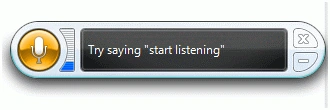
Figure 2
That tells me that SR Engine is ready. We just need to enable this by saying
first command start listening.
If you right click on Speech Recognition control, you will see various options
that allow you to turn speech recognition on, off and put it in sleep mode as
you see in Figure 3.
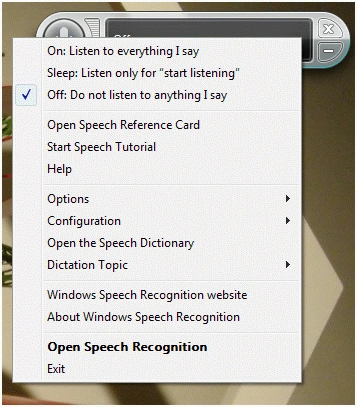
Figure 3
Speech Recognition API
Speech Recognition functionality is defined in the System.Speech.Recognition
namespace. Before you start using Speech Recognition related functionality, you
must import these two namespaces in your application:
using System.Speech;
using System.Speech.Recognition;
SpeechRecognizer
The SpeechRecognizer is the main component of Speech Recognition API. The
SpeechRecognition class is listens and catches the spoken text from the system
and converts it to text or text commands.
protected SpeechRecognizer spRecognizer
= new SpeechRecognizer();
Enabling SpeechRecognizer
The State property returns the current state of SpeechRecognizer that can either
by in Stopped or Listening. The Enabled property controls if the
SpeechRecognizer is enabled and ready to listen or not. Listing 9 enables
SpeechRecognizer by setting Enabled property to true.
SpeechRecognizer spRecognizer = new SpeechRecognizer();
spRecognizer.Enabled = true;
Listing 9
Reading Text
The SpeechRecignized event of SpeechRecognizer is raised when the recognition
engine detects speech, and has found one or more phrases with sufficient
confidence levels. This event is used to get the speech that is detected by the
speech engine.
The code snippet in Listing 10 sets the SpeechRecognized event handler and gets
the text recognized by the speech engine and copies it in a string.
SpeechRecognizer spRecognizer = new SpeechRecognizer();
spRecognizer.Enabled = true;
spRecognizer.SpeechRecognized += new EventHandler<SpeechRecognizedEventArgs>(spRecognizer_SpeechRecognized);
void spRecognizer_SpeechRecognized(object sender, SpeechRecognizedEventArgs e)
{
string str = e.Result.Text;
}
Listing 10
Grammar and GrammarBuilder
One of the key usages of speech-enabled applications to build software product
that listens to your commands and execute functionality based on the given
commands. For example, instead of using a menu items to open and close files, we
can build a system that will open and close a file when speech command Open File
and Close File are sent to the speech system. The Grammar object of
SpeechRecognizer handles these commands and the Grammar class is used to create
a Grammar component.
The Grammar object in WPF represents a grammar document. The Grammar object
fully supports the W3C Speech Recognition Grammar Specification (SRGS) and
Context Free Grammar (CFG) specifications. You create a Grammar object by
passing a GrammarBuilder object as a parameter in its constructor. Listing 11
creates a Grammar object by passing a Grammer Builder object as the default
parameter of its constructor.
GrammarBuilder gBuilder = new GrammarBuilder();
// Construct GrammarBuilder here
// Create a Grammar from a GrammarBuilder
Grammar speechGrammar
= new Grammar(gBuilder);
Listing 11
A GrammarBuilder object is used to provide a simple mechanism to build speech
grammar. Add and Append methods of GrammarBuilder are used to add and append
speech text, phrases and other GrammarBuilder objects to a grammar.
The methods of GrammarBuilder take parameters of either string or Choices
object. The Choices object represents a list of alternative items to make up an
element in a speech grammar.
The code snippet in Listing 12 creates a Grammar Builder using some Choices
objects and then builds a Grammar object that can be load into a
SpeechRecognizer.
private Grammar CreateGrammarDocument()
{
GrammarBuilder gBuilder = new GrammarBuilder();
// Construct GrammarBuilder here
gBuilder.Append(new Choices("Phone", "Email", "Text"));
gBuilder.Append("my");
gBuilder.Append(new Choices("Mom", "Dad", "Brother", "Sister"));
// Create a Grammar from a GrammarBuilder
Grammar speechGrammar = new Grammar(gBuilder);
return speechGrammar;
}
Listing 12
Here is a list of few sentences that can be constructed using Listing 12.
- Phone my Mom
- Text my Brother
- Email my Mom
- Phone my Brother
- Email my Dad
The LoadGrammar method of SpeechRecognizer synchronously loads a specific grammar into a SpeechRecognizer. The code snippet in Listing 13 calls LoadGrammar method and loads a grammar.
SpeechRecognizer spRecognizer = new SpeechRecognizer();
spRecognizer.LoadGrammar(CreateGrammarDocument());
Listing 13
The LoadGrammarSync method of SpeechRecognizer asynchronously loads a specific
grammar into a SpeechRecognizer. The code snippet in Listing 14 calls
LoadGrammarAsync method and loads a grammar.
SpeechRecognizer spRecognizer = new SpeechRecognizer();
spRecognizer.LoadGrammarAsync(CreateGrammarDocument());
Listing 14
The UnloadGrammar method unloads a given Grammar and UnloadAllGrammars method
unloads all grammars in a SpeechRecognizer object. The code snippet in Listing
15 shows how to upload grammars using UnloadGrammar and UnloadAllGrammars
methods.
spRecognizer.UnloadGrammar(g);
spRecognizer.UnloadAllGrammars();
Listing 15
SRGS
Speech Recognition Grammar Specification (SRGS) is a W3C recommendation to build
grammar that is used in speech enabled applications. More details about SRGS can
be found at http://www.w3.org/TR/speech-grammar/.
The System.Speech.Recognition.SrgsGrammar namespace defines all functionality
related to SRGS. The SrgsDocument class represents a SRGS document. The
namespace also have classes for grammar objects such as SrgsElement, SgrsItem,
SrgsOneOf, SrgsRule, SrgsText, SrgsToken and so on. In WPF, each object has its
own class. Discussion of these classes in details is out of scope of this
chapter.
The following code snippet creates a Rule and sets its scope.
SrgsRule rootRule = new SrgsRule("Months and Days");
rootRule.Scope = SrgsRuleScope.Public;
The following code snippet adds an element to a Rule.
rootRule.Elements.Add(new SrgsItem("Months
and Days Grammar "));
And the following code snippet adds a rule to a document.
SrgsText textItem = new SrgsText("Start of the Document.");
SrgsRule textRule = new SrgsRule("TextItem");
textRule.Elements.Add(textItem);
document.Rules.Add(textRule);
Listing 16 creates a complete SRGS document dynamically and saves this document
in an XML file. As you can see from Listing 16, the code adds rules for months
and days of week and some extra items as rules.
private SrgsDocument BuildDynamicSRGSDocument()
{
// Create SrgsDocument
SrgsDocument document = new SrgsDocument();
// Create Root Rule
SrgsRule rootRule = new SrgsRule("MonthsandDays");
rootRule.Scope = SrgsRuleScope.Public;
rootRule.Elements.Add(new SrgsItem("Months and Days Grammar "));
// Create months
SrgsOneOf oneOfMonths = new SrgsOneOf(
new SrgsItem("January"),
new SrgsItem("February"),
new SrgsItem("March"),
new SrgsItem("April"),
new SrgsItem("May"),
new SrgsItem("June"),
new SrgsItem("July"),
new SrgsItem("August"),
new SrgsItem("September"),
new SrgsItem("October"),
new SrgsItem("November"),
new SrgsItem("December")
);
SrgsRule ruleMonths = new SrgsRule("Months", oneOfMonths);
SrgsItem of = new SrgsItem("of");
SrgsItem year = new SrgsItem("year");
SrgsItem ruleMonthsItem = new SrgsItem(new SrgsRuleRef(ruleMonths), of, year);
// Create Days
SrgsOneOf oneOfDays = new SrgsOneOf(
new SrgsItem("Monday"),
new SrgsItem("Tuesday"),
new SrgsItem("Wednesday"),
new SrgsItem("Thursday"),
new SrgsItem("Friday"),
new SrgsItem("Saturday"),
new SrgsItem("Sunday")
);
SrgsRule ruleDays = new SrgsRule("Days", oneOfDays);
SrgsItem week = new SrgsItem("week");
SrgsItem ruleDaysItem = new SrgsItem(new SrgsRuleRef(ruleDays), of, week);
// Add items to root Rule
rootRule.Elements.Add(ruleMonthsItem);
rootRule.Elements.Add(ruleDaysItem);
// Add all Rules to Document
document.Rules.Add(rootRule, ruleMonths, ruleDays);
// Add some extra sperate Rules
SrgsText textItem = new SrgsText("Start of the Document.");
SrgsRule textRule = new SrgsRule("TextItem");
textRule.Elements.Add(textItem);
document.Rules.Add(textRule);
SrgsItem stringItem = new SrgsItem("Item as String.");
SrgsRule itemRule = new SrgsRule("ItemRule");
itemRule.Elements.Add(stringItem);
document.Rules.Add(itemRule);
SrgsItem elementItem = new SrgsItem();
SrgsRule elementRule = new SrgsRule("ElementRule");
elementRule.Elements.Add(elementItem);
document.Rules.Add(elementRule);
// Set Document Root
document.Root = rootRule;
// Save Created SRGS Document to XML file
XmlWriter writer = XmlWriter.Create("DynamicSRGSDocument.Xml");
document.WriteSrgs(writer);
writer.Close();
return document;
}
Listing 16
The document generated by code Listing 16 looks like Figure 4.
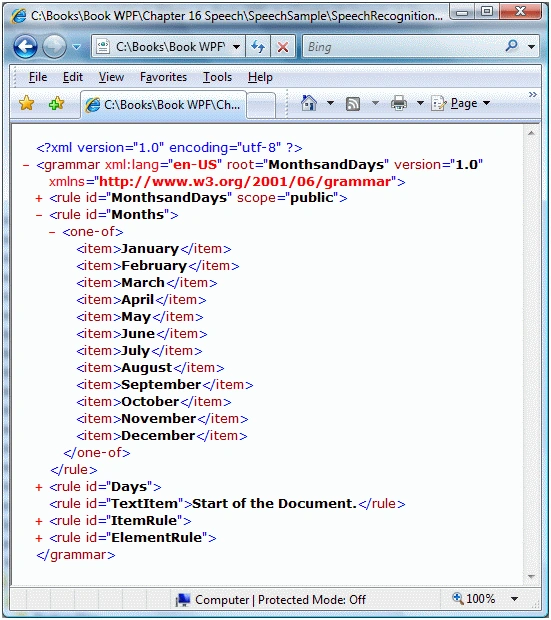
Figure 4
We can load a SRGS document as a parameter in the Grammar constructor to create
a grammar from a SrgsDocument. The code snippet in Listing 17 loads a SRGS
Grammar document by calling SpeechRecognizer's LoadGrammar.
SpeechRecognizer spRecognizer = new SpeechRecognizer();
spRecognizer.LoadGrammar(new Grammar(BuildDynamicSRGSDocument()));
Listing 17
Summary
Speech API (SAPI) 5.3 is a managed API comes with Windows Vista. This chapter
demonstrated how we can use SAPI in a WPF application to build speech-enabled
applications. First part of this article covered the text-to-speech (TTS) or
Speech Synthesis, Programming Speech in WPF - Speech Synthesis where we built an
application that convert text to speech. The second part of the article
discussed speech recognition where we built an application that captures the
speech from a voice device and convert to text. We also saw how to build speech
grammars and use these grammars in speech-enabled applications.
Mahesh ChandPosted Dec 14, 2012, 12:46 PM
Did you download the attached project? I recommend creating a new project and copy code one by one. Keep building the project and see where the error is coming from. If you open one version of Visual Studio project in other, you may get error. As you can clearly see from the code, XAML has nothing to with the Speech recognition.
Sunil SharmaPosted Aug 24, 2012, 1:49 PM
I have the Visual Studio 2008 and also reference the WPF Tool Kit dll in the code but getting the same exception...
Sunil SharmaPosted Aug 24, 2012, 1:38 PM
Getting the Exception----- XamlParseException was unhandled!
ashwiniPosted Mar 30, 2011, 3:16 PM
Hello Sir..I am devloping a scientific calculator(taking input in speech and giving output in text as well as speech)in c# using wpf.Is there is any other way to maintain all the grammar required for my application? This tutorial helped me a lot. Thank You.
WilsonPosted Jan 27, 2011, 7:51 PM
Hi Mahesh, Thank you for the example on Speech Recognition. When I compiled the sample and run, I get this exception when it runs this statement spRecognizer.Enabled = true;, Cannot create instance of 'Window1' defined in assembly 'SpeechRecognitionSample, Version=1.0.0.0, Culture=neutral, PublicKeyToken=null'. Exception has been thrown by the target of an invocation. Error in markup file 'Window1.xaml' Line 1 Position 9. Am I missing anything that I should know of to get this sample app to work? Thanks.
mohan ArjunanPosted Dec 13, 2010, 1:50 PM
Hi Sir.. Mohan here. Im developing a speech recognition in vb.net. How to code, when user say something, eg: "CAT", system will reply "CORRECT!" by speech. (speech-to-speech). Thank you...
syamsul adlyPosted Sep 26, 2010, 3:31 AM
hello everyone, does any know on how i can add a new word into the list? Dim entity As New Recognition.SrgsGrammar.SrgsOneOf("Exit", "Learning Process", "about", "file") perhaps by clicking a button, new word such as " book " will be added intp the entity thanks a lot
IvanPosted Aug 7, 2010, 11:34 AM
Hi, .... I liked a lot your article and i wanted to try to write one for my one... But when i compiled it it gave me a "Xaml.Parse.Exception" on windows.Form1.. I tried to rewrite it in new project but as soon as i add the CreateGrammarDocument function it gives me this error... Do you know why?... thanks, I.
Carlos LoriaPosted Jul 16, 2010, 9:56 PM
Hi thank yuo very much for this post. Do you know if it's possible to bind a recognizer to a wave file instead to the microphone? Or some simple way to get recognizing from a wavefile ? Appreciate your answer Regards
zeeshan ahmadPosted Feb 10, 2010, 1:17 PM
Dear mahesh, I have to datagridviews in C# windows application. grid1 contains some records columns like (item name, Qty). and grid2 is empty initially. what i am doing , reading first record from grid1 & inserting into Grid2. now wat i want, while reading 2nd record from grid1 & comparing(item name) it with existing records in grid2 if same record is found it should update the qty of existing record in grid2 else new row inserted into grid2. how can i do this? i hope that i make you understand with my problem. Please tell what should i do?? Thanks