

The Slider class in C# represents a WPF slider control. The XAML Slider element is a UI representation of the slider control. The code examples in this article show, how to use the Slider control, available in WPF using C# and XAML.
Slider Control
The Slider element in XAML represents a WPF Slider control.
- <Slider></Slider>
Slider Control Properties
The Width and Height property represent the width and the height of the control. The Name property represents name of the control, which is a unique identifier of the control. The Background property is used to set the background color of the control. The Minimum and Maximum properties represent the minimum and maximum values of the slider range.
The code snippet in Listing 1 creates a Slider control and sets its name, height, width, background, maximum, and minimum properties. .
- <Slider Name="mcSlider" Width="300" Height="20"
- Background="Gray" Maximum="100" Minimum="0">
- </Slider>
Listing 1
The code snippet in Listing 1 generates output that looks like Figure 1.

Figure 1
The IsFocused property indicates whether the slider control has focus and IsDirectionReversed property represents the direction of increasing value. By default, the slider control sits on UI in horizontal direction. By using the Orientation property, a slider control can be placed vertically.
The code snippet in Listing 2 sets the orientation of a slider control vertical.
- <Slider Name="mcSlider" Width="300" Height="20"
- Background="Gray" Maximum="100" Minimum="0">
- </Slider>
Listing 1
The code snippet in Listing 2 generates output looks like Figure 2.

Figure 2
The Application
Now we are going to create a real world application that will use Slider controls values to create a color from three values Red, Green, and Blue respectively. From these three values, we will create a color and fill an ellipse with that color.
First we create a UI page with one circle and three slider controls that looks like Figure 3.
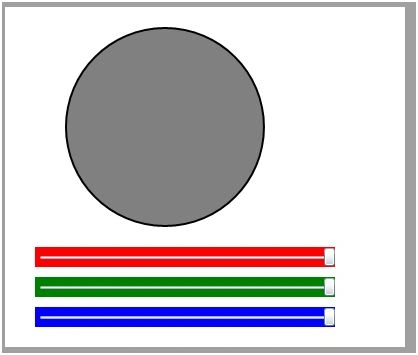
Figure 3
The code that generates Figure 3 is listed in Listing 2.
- <Canvas Name="LayoutRoot" Background="LightGray">
- <!-- Create an Ellipse -->
- <Ellipse Name="mcCircle" Width="200" Height="200" Canvas.Left="60" Canvas.Top="20" Fill="Gray" Stroke="Black" StrokeThickness="2">
- </Ellipse>
- <!-- Create Slider controls -->
- <Slider Name="RedSlider" Width="300" Height="20" Background="Red" Maximum="255" Minimum="0" Canvas.Left="30" Canvas.Top="240" ValueChanged="RedSlider_ValueChanged" />
- <Slider Name="GreenSlider" Width="300" Height="20" Background="Green" Maximum="255" Minimum="0" Canvas.Left="30" Canvas.Top="270" ValueChanged="GreenSlider_ValueChanged" />
- <Slider Name="BlueSlider" Width="300" Height="20" Background="Blue" Maximum="255" Minimum="0" Canvas.Left="30" Canvas.Top="300" ValueChanged="BlueSlider_ValueChanged" />
- </Canvas>
Listing 2
Now, on the ValueChanged event of slider controls, we write the code listed in Listing 3. In this code, we simply create a Color from the values of the slider controls and create a brush with this color and fill the circle.
- privatevoid RedSlider_ValueChanged(object sender, RoutedPropertyChangedEventArgs < double > e) {
- UpdateCircleWithColors();
- }
- privatevoid GreenSlider_ValueChanged(object sender, RoutedPropertyChangedEventArgs < double > e) {
- UpdateCircleWithColors();
- }
- privatevoid BlueSlider_ValueChanged(object sender, RoutedPropertyChangedEventArgs < double > e) {
- UpdateCircleWithColors();
- }
- privatevoid UpdateCircleWithColors() {
- Color clr = Color.FromArgb(255, Convert.ToByte(RedSlider.Value), Convert.ToByte(GreenSlider.Value), Convert.ToByte(BlueSlider.Value));
- mcCircle.Fill = newSolidColorBrush(clr);
- }
Listing 3
Now if you run the application and change slider values, you will see the fill color of circle changes accordingly. See Figure 4.
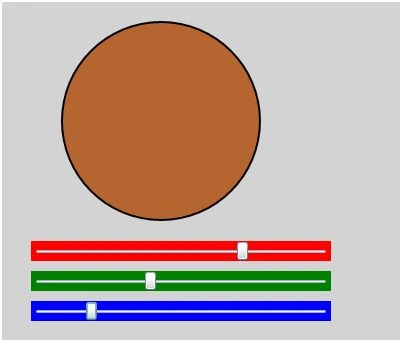
Figure 4
Summary
In this article, I discussed how to create and use a Slider control available in WPF. We also saw how to create a real world application using slider controls.
Sivaraman DhamodaranPosted Nov 29, 2010, 3:19 AM
Very Well Explained. Thanks for sharing Mahesh.