

This article demonstrates how to implement timer in WPF using the DispatchTimer class.
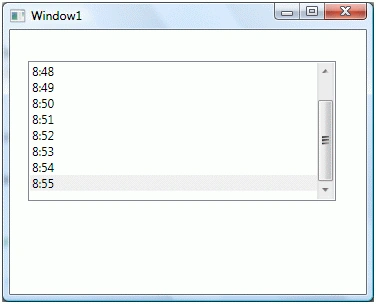
In this article and the attached project, I am going to create a WPF application that has a ListBox control and this control is being updated every second with current time. The application looks like Figure 1.
Creating a DispatchTimer
XAML does not support any timer feature and WPF does not have a Timer control or class. The DispatchTimer class defined in the System.Windows.Threading namespace is used to add timer functionality in WPF.
The following code snippet creates a DispatchTimer object.
- DispatcherTimer dispatcherTimer = newDispatcherTimer();
Setting Tick and Interval
The Tick event handler executes when a DispatchTimer is started on a given Interval. The following code snippet sets the Tick and Interval of a DispatchTimer.
- dispatcherTimer.Tick += newEventHandler(dispatcherTimer_Tick);
- dispatcherTimer.Interval = newTimeSpan(0, 0, 1);
Start DispatchTimer
The Start method is used to start a DispatchTimer.
- dispatcherTimer.Start();
Complete Code Example
The code snippet in Listing 1 creates a DispatchTimer, sets its Tick event and Interval property and calls its Start method. The Start method starts the timer and the Tick event handler is executed on the given Interval value. In this code, on the Tick event handler, I update a ListBox control and add the current time. I also set the selected item of the ListBox to the currently added item and make sure this item is visible in the ListView.
- privatevoid Window_Loaded(object sender, RoutedEventArgs e) {
- DispatcherTimer dispatcherTimer = newDispatcherTimer();
- dispatcherTimer.Tick += newEventHandler(dispatcherTimer_Tick);
- dispatcherTimer.Interval = newTimeSpan(0, 0, 1);
- dispatcherTimer.Start();
- }
- privatevoid dispatcherTimer_Tick(object sender, EventArgs e) {
- listBox1.Items.Add(DateTime.Now.ToString("HH:mm:ss"));
- CommandManager.InvalidateRequerySuggested();
- listBox1.Items.MoveCurrentToLast();
- listBox1.SelectedItem = listBox1.Items.CurrentItem;
- listBox1.ScrollIntoView(listBox1.Items.CurrentItem);
- }
Listing 1
Summary
In this article, I discussed how we can create a DispatchTimer control to build timer applications in WPF and C#. We saw how to update a ListBox control every second with the current time.
Pravin NimbalkarPosted Jun 3, 2019, 12:39 AM
It doesn't work code!
Divya BediPosted Mar 5, 2018, 7:48 AM
How do I make it so when I click the button, the time prints rather than it printing every one second?
Xiao ZengPosted Apr 27, 2015, 8:18 AM
You didnt explain what the interval does. that make this tutorial useless really.
Scott SmithPosted Feb 13, 2015, 4:26 PM
This worked perfectly. I am liking WPF more than ever.
Lucio MenciPosted Dec 23, 2014, 11:59 AM
This is orrible: listBox1.Items.Add(DateTime.Now.Hour.ToString() + ":" + DateTime.Now.Second.ToString()); you should write listBox1.Items.Add(DateTime.Now.ToString("HH:mm:ss"));
Reg GamaloPosted Jul 24, 2013, 5:48 AM
Great work! Help me save my time...
SuneditedPosted Jan 9, 2013, 10:46 AMEdited Jan 9, 2013, 10:48 AM
that's great! by the way, your code [ listBox1.Items.Add(DateTime.Now.Hour.ToString() + ":" +DateTime.Now.Second.ToString()); ] should be changed to [ listBox1.Items.Add(DateTime.Now.Minute.ToString("D2") + ":" + DateTime.Now.Second.ToString("D2")); ]
AminePosted Nov 28, 2012, 9:28 AM
It doesn't work !
Amol VitekarPosted Sep 3, 2012, 6:13 AM
Helped me.
mmaPosted Aug 6, 2012, 1:15 PM
You have been such a big help to me!...I'm just a beginner learning by myself (15 years old)... Thank you sooo much for your help!
Shuvro PallPosted Jul 12, 2012, 4:11 AM
good one
Shuvro PallPosted Jul 12, 2012, 4:11 AM
good one
NobodyPosted Nov 11, 2011, 7:52 PM
hey i saw the sample but it is not i wanted. I do not want the timer to be open in another window when i run the program.How do i actually add it into my game without displaying the countdown of the time? Like those normal game, i want to display it at the top right hand corner and from 60seconds counting down to 0 second. can u help?
Jisss shyamPosted Aug 27, 2011, 3:55 AM
Its a very simple and good article for those who try to implement timers in there WPF project.. thanks a lot..
jay aignerPosted Nov 1, 2010, 1:58 PM
I get this error when I try to compile: Error 1 The type 'System.Windows.Markup.IQueryAmbient' is defined in an assembly that is not referenced. You must add a reference to assembly 'System.Xaml, Version=4.0.0.0, Culture=neutral, PublicKeyToken=xxxx'. C:\Users\xxxx\Downloads\DispatchTimerSampleInCS\DispatchTimerSampleInCS\DispatchTimerSampleInCS\App.xaml.cs 13 26 DispatchTimerSampleInCS
Abdel MantiPosted Feb 10, 2010, 6:38 AM
Mahesh thank you for al this samples, i have learnt a lot. do you have more video whit samples. Keep up the good working. Greetings Abdel Manti [email protected]
sergio mtzPosted Dec 7, 2009, 12:35 AM
Gracias u save my live!!!! thankuuuuu!!!!