

This article has been
excerpted from book "A Programmer's Guide to ADO.NET in C#".
Microsoft ActiveX Data Objects Extensions for Data Definition Language and
Security (ADOX) is an extension to ADO and provides an object model to
manipulate data definition and security.
You can use ADOX in managed code in a pretty similar way to how you used an ADO
recordset in the previous section. Just add a reference to ADOX type library
using VS .NET's Add Reference option and use the namespace and its members as
you would in unmanaged code.
To test this, create a new Windows application. After that add a reference to
the Microsoft ADO Ext. 2-7 for DLL and Security component to the project (see
Figure 10-27).
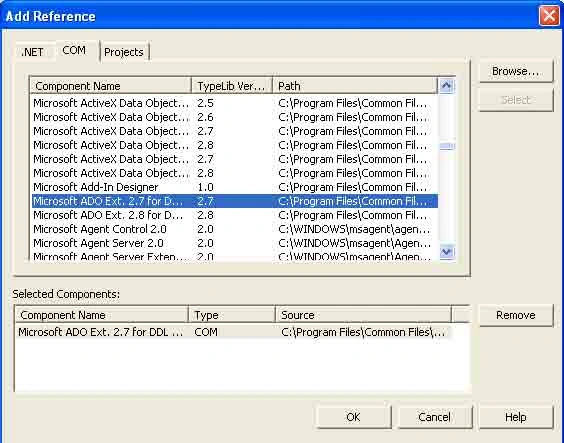
Figure 10-27: Adding a reference to ADOX library
Now of you add reference in your project, you'll see that ADOX namespace is
listed (see Figure 10-28).
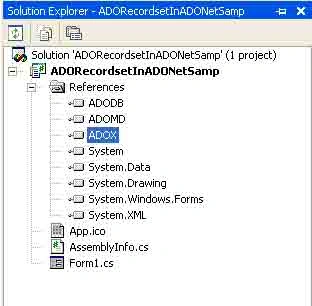
Figure 10-28: ADOX namespace listed in project reference
Now the only thing you need to do is to use the namespace and its members. The
ADOX classes should be available in your application after adding using ADOX to
the project. ADOX provides objects that you can use to create databases, tables,
and columns. The Catalog object represent a database and its create method
creates a new database. The table object represents a database table. You can
add columns to a table using the Columns collection's Append method.
Listing 10-7 creates a new Microsoft Access database called Test.mdb with the
table MyTable and two columns, col1 and col2, in it.
Listing 10-7. Using ADOX from managed code
private
void Form1_Load(object
sender, System.EventArgs e)
{
// Create SQL and
Connection strings
string ConnectionString =
@"Provider=Microsoft.Jet.OLEDB.4.0; DataSource=c:\Test.mdb";
try
{
// Create a
Catalog object
Catalog ct = new Catalog();
ct.Create(ConnectionString);
// Create a
table and two columns
Table dt = new Table();
dt.Name = "MyTable";
dt.Columns.Append("col1",
DataTypeEnum.adInteger, 4);
dt.Columns.Append("col2",
DataTypeEnum.adVarWChar, 255);
//Add table to
the tables collection
ct.Table.Append((object)dt);
}
catch (Exception
exp)
{
MessageBox.Show(exp.Message.ToString());
}
}
Conclusion
Hope this article would have helped you in understanding using
ADOX with ADO.NET. See other articles on
the website also for further reference.
 |
This essential guide to Microsoft's ADO.NET overviews C#, then leads you toward deeper understanding of ADO.NET. |
Join the conversation! Your thoughts help the community grow.