

This article has been
excerpted from book "Graphics Programming with GDI+".
LISTING 4.15: Using the Pen class constructor to create Pen objects
private void Form1_Paint(object sender, PaintEventArgs e)
{
//Create a Graphics object and set it clear
Graphics g = this.CreateGraphics();
g.Clear(this.BackColor);
//Create a solid brush and a hatch brush
SolidBrush blueBrush = new SolidBrush(Color.Blue);
HatchBrush hatchBrush = new HatchBrush(HatchStyle.DashedVertical, Color.Black, Color.Green);
//Create a pen from a solid brush with width 3
Pen pn1 = new Pen(blueBrush, 3);
//Create a pen from a hatch brush
Pen pn2 = new Pen(hatchBrush, 8);
//Create a pen from a Color structure
Pen pn3 = new Pen(Color.Red);
//Draw a line, ellipse, and rectangle
g.DrawLine(pn1, new Point(10, 40), new Point(10, 90));
g.DrawEllipse(pn2, 20, 50, 100, 100);
g.DrawRectangle(pn3, 40, 90, 100, 100);
//Dispose of objects
pn1.Dispose();
pn2.Dispose();
pn3.Dispose();
blueBrush.Dispose();
hatchBrush.Dispose();
g.Dispose();
}
Figure 4.19 shows the output from Listing 4.15.
The Pens class has static properties for all standard colors, which return appropriately colored Pen objects. The following code snipped creates three Pen objects using the Pens class.
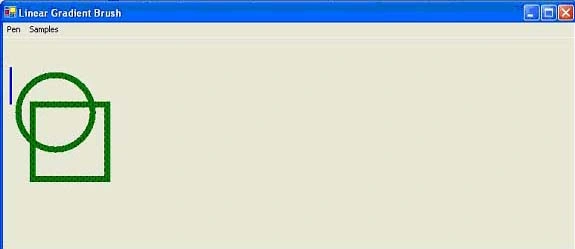
TABLE 4.8: Pen class properties
|
Property |
Description |
Alignment |
Alignment for a pen- a type of PenAlignment enumeration, which is defined in Table 4.11. |
|
Brush |
Brush object attached with a pen. Setting the Color property after Brush will replace the color of the current brush with the specified color. |
|
Color |
Color of a pen. Setting the Brush property after Color will update the color of a pen to the color of the brush. |
|
CompoundArray |
Specifies values of a compound pen, which draws compound lines made up of parallel lines and spaces. |
|
CustomEndCap, CustomStartCap, DashCap |
A line drawn by a pen can have custom staring and ending caps. The CustomEndCap and CutomerStartCap properties represent the ending and starting caps, respectively, of lines drawn by a pen. DashCap is used for dashed lines. |
|
DashOffset |
The distance from the start of a line to the beginning of a dash pattern. |
|
DashPattern |
An array of custom dashes and spaces. |
|
DashStyle |
The style used for dashed lines. |
|
EndCap, StartCap |
Ending and starting cap of a line. |
|
LineJoin |
The join style for the ends of two consecutive lines. |
|
MiterLimit |
Limit of the thickness of the join on a mitered corner. |
|
PenType |
The style of lines of a pen. This property is represented by the PenType enumeration. |
|
Transform |
The geometric transformation of a pen. |
|
Width |
The width of a pen. |
TABLE 4.9: Pen class methods
|
Property |
Description |
|
Clone |
Create an exact copy of a pen. |
|
MultiplyTransform |
Multiplies the transformation matrix of a pen by Matrix. |
|
ResetTransform |
Resets the geometric transformation by the specified angle. |
|
RotateTransform |
Rotates the local geometric transformation by the specified angle. |
|
ScaleTransform |
Scales the local geometric transformation by the specified factors. |
|
SetLineCap |
Sets the values that determine the style of cap used to end lines drawn by a pen. |
|
TranslateTransform |
Translates the local geometric transformation by the specified dimensions. |
TABLE 4.10: PenType members
|
Member |
Description |
|
HatchFill |
A hatch fill |
|
LinearGradient |
A linear gradient fill |
|
PathGradient |
A path gradient fill |
|
SolidColor |
A solid fill |
|
TextureFill |
A bitmap texture fill |
LISTING 4.16: Getting pen types
private void
Form1_Paint(object sender,
PaintEventArgs e)
{
//Create a Graphics object
Graphics g = this.CreateGraphics();
g.Clear(this.BackColor);
//Create three different types of brushes
Image img = new
Bitmap("D:/VB.NET
Basic Practice Projects/WindowsApplication8/Images/Image.GIF");
SolidBrush redBrush =
new SolidBrush(Color.Red);
TextureBrush txtrBrush =
new TextureBrush(img);
LinearGradientBrush lgBrush =
new
LinearGradientBrush( new Rectangle(10,
10, 10, 10),
Color.Red, Color.Black,
45.0f);
//Create pens from brushes
Pen pn1 = new
Pen(redBrush, 4);
Pen pn2 = new
Pen(txtrBrush, 20);
Pen pn3 = new
Pen(lgBrush, 20);
//Drawing objects
g.DrawEllipse(pn1, 100, 100, 50, 50);
g.DrawRectangle(pn2, 80, 80, 100, 100);
g.DrawEllipse(pn3, 30, 30, 200, 200);
//Get pen types
string str = "Pen1
Type: " +
pn1.PenType.ToString() +
"\n";
str +=
"Pen2 Type : " +
pn2.PenType.ToString() +
"\n";
str +=
"Pen3 Type : " +
pn3.PenType.ToString();
MessageBox.Show(str);
//Dispose of objects
pn1.Dispose();
pn2.Dispose();
pn3.Dispose();
redBrush.Dispose();
txtrBrush.Dispose();
lgBrush.Dispose();
img.Dispose();
g.Dispose();
}
Figure 4.20 shows the output from Listing 4.16.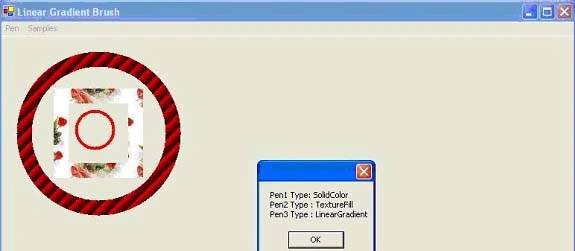
FIGURE 4.20: Displaying pen types
Conclusion
Hope the article would have helped you in understanding using Pens in GDI+. Read other articles on GDI+ on the website.
 |
This book teaches .NET developers how to work with GDI+ as they develop applications that include graphics, or that interact with monitors or printers. It begins by explaining the difference between GDI and GDI+, and covering the basic concepts of graphics programming in Windows. |
Join the conversation! Your thoughts help the community grow.