

This article has been
excerpted from book "A Programmer's Guide to ADO.NET in C#".
Using Visual Studio .NET, you can import a type library in an application using
the Project > Add Reference menu option. The Add Reference option adds the
assembly namespace to your project.
In this sample, you'll see how to import the ADO type library and use the ADO
recordset to access a database. After that, you'll fill data to a DataSet from
the ADO recordset using a data adapter.
To test this application, create a Windows application and drag a DataGrid
control to the form from the toolbox. To add a reference to a COM type library,
go to the Add reference option from the project menu and select the COM tab in
the Add Reference dialog box. As you can see from figure 10-24, I selected
Microsoft ActiveX Data Objects 2.7 Library. Click select to add the selection to
the selected components list. Now click OK.
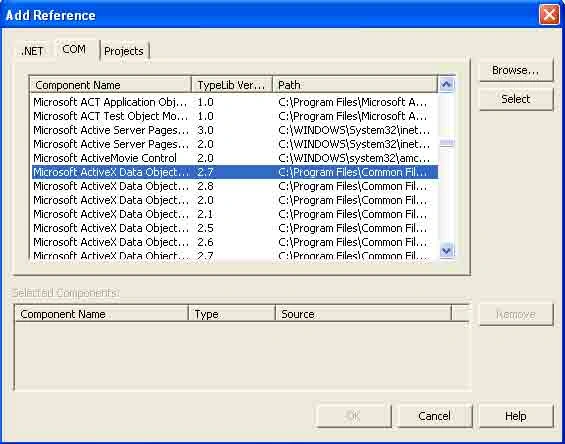
Figure 10-24. Adding a reference to a COM library
This action adds the ADODB namespace to the project. You can see this namespace
from the project namespace (see figure 10-25).
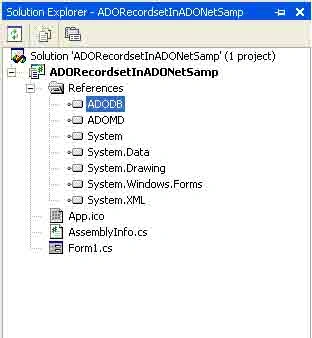
Figure 10-25. Namespace after adding ADODB namespace to the project
After adding a reference of a namespace to a project, its members are available
for use in your project. You include this namespace in your application by
calling using. You also should add a reference to the System.Data.OleDb
namespace because you'll use the OleDb data adapter to fill a dataset. So, add
these two namespace references to the project with this:
using
System.Data.OleDb;
using ADODB;
Now you can use the ADO recordset and connection to access a database. As you
can see from listing 10-6, I created a Connection object and set the connection
mode and cursor location. After that I called the connectionn's Execute method
to execute a SQL statement that returns the _Recordset object. The Fill method
of data adapter reads data from a recordset and fills data to a dataset. As you
can see, I also created a dataset and data adapter and called the data adapter's
Fill method. The Fill method takes three parameters: a dataset, a recordset, and
a dataset name. After that, bind the dataset to a data grid in order to fill
data from the dataset to the data grid.
Listing 10-6. Using ADODB namespace to access a database
private
void Form1_load(object
sender, System.EventArgs e)
{
// Create SQL and
Connection strings
string ConnectionString =
@"Provider=Microsoft.Jet.OLEDB.4.0;
DataSource=C:/Northwind.mdb";
string sql =
"SELECT CustomerID,CompanyName,ContactName From
Customers";
// Create a
Connection object and open it
Connection conn = new Connection();
int connMode = (int)ConnectModeEnum.adModeUnknown;
conn.CursorLocation = CursorLocationEnum.adUseServer;
conn.Open(ConnectionString, " ",
" ", connMode);
object recAffected =
null;
int cmdType = (int)CommandTypeEnum.adCmdText;
_Recordset rs = conn.Execute(sql, out
recAffected, cmdType);
// Create dataset
and data adapter objects
DataSet ds =
new DataSet("Recordset");
OleDbDataAdapter da = new
OleDbDataAdapter();
// Call data
adapter's Fill method to fill data from ADO
// Recordset to the
dataset
da.Fill(ds, rs, "Customers");
// Now use dataset
dataGrid1.DataSource = ds.DefaultViewManager;
}
The output of listing 10-6 looks like figure 10-26.
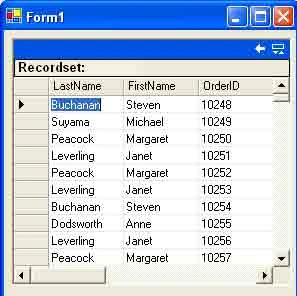
Figure 10-26. Displaying data from an ADO recordset to a data grid
Conclusion
Hope this article would have helped you in understanding Hypertext Markup
Language (HTML), XML, and other Web-related technologies. See other articles on
the website also for further reference.
 |
This essential guide to Microsoft's ADO.NET overviews C#, then leads you toward deeper understanding of ADO.NET. |
Muchineripi MamhingaPosted Mar 9, 2010, 3:16 AM
How do I programmatically maximise a web page in C#