

A ComboBox control is an items control that works as a ListBox control but only one item from the collection is visible at a time and clicking on the ComboBox makes the collection visible and allows users to pick an item from the collection. Unlike a ListBox control, a ComboBox does not have multiple item selection. A ComboBox control is a combination of three controls - A Button, a Popup, and a TextBox. The Button control is used to show or hide available items and Popup control displays items and lets user select one item from the list. The TextBox control then displays the selected item.
This article demonstrates how to create and use a ComboBox control in WPF.
Introduction
The ComboBox element represents a ComboBox control in XAML.
<ComboBox></ComboBox>
The Width and Height properties represent the width and the height of a ComboBox. The x:Name property represents the name of the control, which is a unique identifier of a control. The Margin property sets the location of a ComboBox on the parent control. The HorizontalAlignment and VerticalAlignment properties are used to set horizontal and vertical alignments.
The code snippet in Listing 1 creates a ComboBox control and sets the name, height, and width of a ComboBox control. The code also sets the vertical and horizontal alignment of the ComboBox and sets the margin.
<ComboBox Name="ComboBox1" Width="200" Height="30" VerticalAlignment="Top" HorizontalAlignment="Left" Margin="10,10,0,0">
</ComboBox>
Listing 1
The output looks like Figure 1.
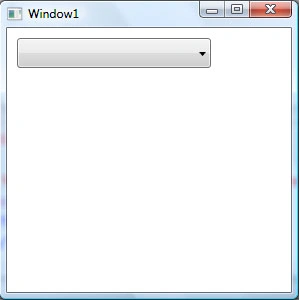
Figure 1
The IsSelected property of the ComboBox control sets an item as currently selected item in the ComboBox. The following code snippet sets the IsSelected property of a ComboBox.
<ComboBoxItem Content="Coffie" IsSelected="True" />
Adding ComboBox Items
A ComboBox control hosts a collection of ComboBoxItem.
The code snippet in Listing 2 adds items to a ComboBox control at design-time using XAML.
<ComboBox Margin="10,10,0,13" Name="ComboBox1" HorizontalAlignment="Left" VerticalAlignment="Top" Width="194" Height="30">
    <ComboBoxItem Content="Coffie"></ComboBoxItem>
    <ComboBoxItem Content="Tea"></ComboBoxItem>
    <ComboBoxItem Content="Orange Juice"></ComboBoxItem>
    <ComboBoxItem Content="Milk"></ComboBoxItem>
    <ComboBoxItem Content="Iced Tea"></ComboBoxItem>
    <ComboBoxItem Content="Mango Shake"></ComboBoxItem>
</ComboBox>
Listing 2
The above code generates Figure 2.
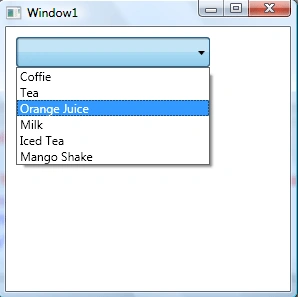
Figure 2
Adding and Deleting ComboBox Items at Run-time
In the previous section, we saw how to add items to a ComboBox at design-time from XAML. Now we will add items to a ComboBox at run-time.
The Items property of the ComboBox represents ComboBox items, which is an ItemsCollection object. To add and remove items from the collection, we use Add and Remove or RemoveAt methods of the ItemsCollection.
Let's change our UI and add a TextBox and a button control to the page. The XAML code in Listing 3 adds a TextBox and a Button controls to UI.
<TextBox Name="TextBox1" Height="25" Margin="219,12,158,225" />
<Button Name="AddButton" Width="80" Height="25" Content="Add Item" Margin="351,10,72,227" />
Listing 3
The final UI looks like Figure 3.
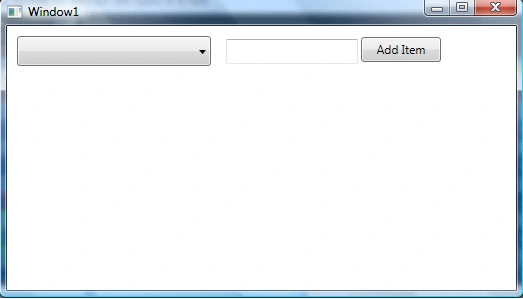
Figure 3
On button click event handler, we add the content of TextBox to the ComboBox by calling ComboBox.Items.Add method. The code in Listing 4 adds TextBox contents to the ComboBox items.
private void AddButton_Click(object sender, RoutedEventArgs e)
{
   ComboBox1.Items.Add(TextBox1.Text);
}
Listing 4
On button click event handler, we add the content of TextBox to the ComboBox by calling ComboBox.Items.Add method.
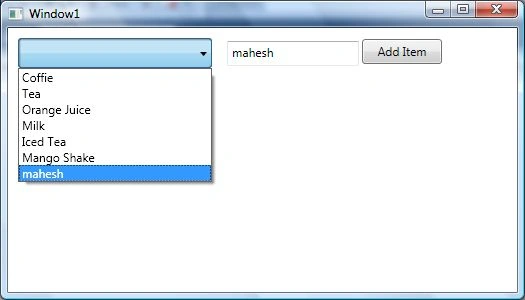
Now if you enter text in the TextBox and click Add Item button, it will add contents of the TextBox to the ComboBox. See Figure 4.
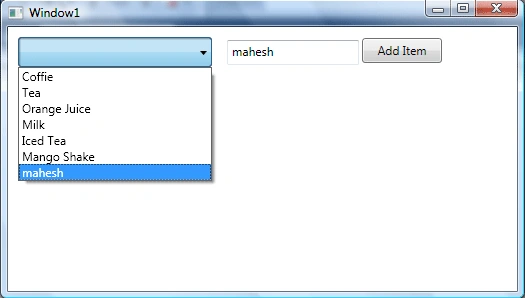
Figure 4
We can use ComboBox.Items.Remove or ComboBox.Items.RemoveAt method to delete an item from the collection of items in the ComboBox. The RemoveAt method takes the index of the item in the collection.
Now, we modify our application and add a new button called Delete Item. The XAML code for this button is listed in Listing 5.
<Button Name="DeleteButton" Click="DeleteButton_Click" Content="Delete Item" Height="30" Margin="405,14,12,0" VerticalAlignment="Top" />
Listing 5
The new page looks like Figure 5.
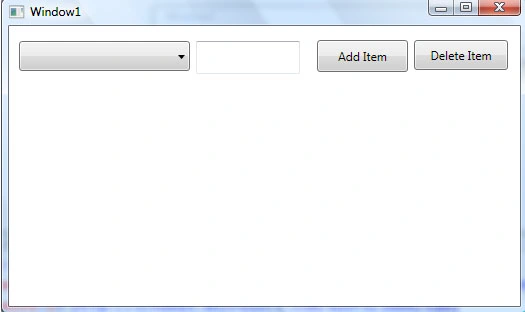
Figure 5
The button click event handler looks like Listing 6. On this button click, we find the index of the selected item and call ComboBox.Items.RemoveAt method and pass the selected item of the ComboBox. Now if you click on the Delete button click, the selected item will be removed from the ComboBox items.
private void DeleteButton_Click(object sender, RoutedEventArgs e)
{
    ComboBox1.Items.RemoveAt(ComboBox1.Items.IndexOf(ComboBox1.SelectedItem));
}
Listing 6
Formatting and Styling ComboBox Items
The Foreground and Background attributes of ComboBoxItem represents the background and foreground colors of the item. The following code snippet sets background and foreground color of a ComboBoxItem
<ComboBoxItem Background="LightCoral" Foreground="Red" Content="Coffie"></ComboBoxItem>
The FontFamily, FontSize, and FontWeight are used to set a font of a ComboBoxItem. The following code snippet sets font verdana, size 12, and bold of a ComboBoxItem.
<ComboBoxItem Background="LightCoral" Foreground="Red" Content="Coffie" FontFamily="Verdana" FontSize="12" FontWeight="Bold"></ComboBoxItem>
The code in Listing 7 sets the formatting of the ComboBox items.
<ComboBoxItem Background="LightCoral" Foreground="Red" Content="Coffie" FontFamily="Verdana" FontSize="12" FontWeight="Bold" IsSelected="True"></ComboBoxItem>
<ComboBoxItem Background="LightGray" Foreground="Black" Content="Tea" FontFamily="Georgia" FontSize="14" FontWeight="Bold"></ComboBoxItem>
<ComboBoxItem Background="LightBlue" Foreground="Purple" Content="Orange Juice" FontFamily="Verdana" FontSize="12" FontWeight="Bold"></ComboBoxItem>
<ComboBoxItem Background="LightGreen" Foreground="Green" Content="Milk" FontFamily="Georgia" FontSize="14" FontWeight="Bold"></ComboBoxItem>
<ComboBoxItem Background="LightBlue" Foreground="Blue" Content="Iced Tea" FontFamily="Verdana" FontSize="12" FontWeight="Bold"></ComboBoxItem>
<ComboBoxItem Background="LightSlateGray" Foreground="Orange" Content="Mango Shake" FontFamily="Georgia" FontSize="14" FontWeight="Bold"></ComboBoxItem>
Listing 7.
The new ComboBox looks like Figure 6.
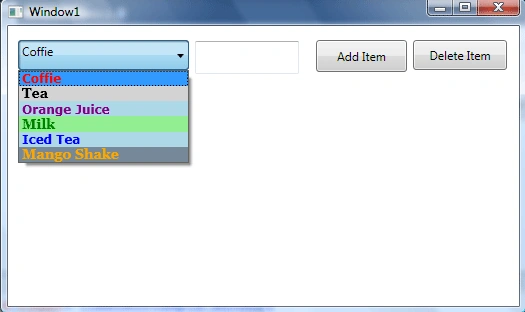
Figure 6
Display Image in ComboBox Items
We can put any controls inside a ComboBoxItem such as an image and text. To display an image side by side some text, we add an Image and TextBlock control within a StackPanel. The Image.Source property takes the name of the image you would like to display in the Image control and TextBlock.Text property takes a string that you would like to display in the TextBlock.
The code snippet in Listing 8 adds an image and text to a ComboBoxItem.
<ComboBoxItem Background="LightCoral" Foreground="Red" FontFamily="Verdana" FontSize="12" FontWeight="Bold">
    <StackPanel Orientation="Horizontal">
        <Image Source="coffie.jpg" Height="30"></Image>
        <TextBlock Text="Coffie"></TextBlock>
    </StackPanel>
</ComboBoxItem>
Listing 8
The ComboBox item with an image looks like Figure 7.
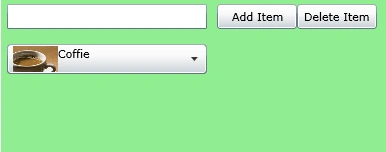
Figure 7
Adding CheckBoxes to the ComboBox Items
If you put a CheckBox control inside ComboBoxItems, you generate a ComboBox control with checkboxes in it. The CheckBox can host controls within it as well. For instance, we can put an image and text block as content of a CheckBox.
The code snippet in Listing 9 adds a CheckBox with an image and text to a ComboBoxItem.
<ComboBoxItem Background="LightCoral" Foreground="Red" FontFamily="Verdana" FontSize="12" FontWeight="Bold">
    <CheckBox Name="CoffieCheckBox">
        <StackPanel Orientation="Horizontal">
            <Image Source="coffie.jpg" Height="30"></Image>
            <TextBlock Text="Coffie"></TextBlock>
        </StackPanel>
    </CheckBox>
</ComboBoxItem>
Listing 9
Now we can change the code of ComboBoxItems and add CheckBox and images to all the items as shown in Listing 10. As you may see, we set the name of the CheckBoxes using Name property. If you need to access these CheckBoxes, you may access them in the code using their Name property.
<ComboBoxItem Background="LightCoral" Foreground="Red" FontFamily="Verdana" FontSize="12" FontWeight="Bold">
    <CheckBox Name="CoffieCheckBox">
        <StackPanel Orientation="Horizontal">
            <Image Source="coffie.jpg" Height="30"></Image>
            <TextBlock Text="Coffie"></TextBlock>
        </StackPanel>
    </CheckBox>
</ComboBoxItem>
<ComboBoxItem Background="LightGray" Foreground="Black" FontFamily="Georgia" FontSize="14" FontWeight="Bold">
    <CheckBox Name="TeaCheckBox">
        <StackPanel Orientation="Horizontal">
            <Image Source="tea.jpg" Height="30"></Image>
            <TextBlock Text="Tea"></TextBlock>
        </StackPanel>
    </CheckBox>
</ComboBoxItem>
<ComboBoxItem Background="LightBlue" Foreground="Purple" FontFamily="Verdana" FontSize="12" FontWeight="Bold">
    <CheckBox Name="OrangeJuiceCheckBox">
        <StackPanel Orientation="Horizontal">
            <Image Source="OrangeJuice.jpg" Height="40"></Image>
            <TextBlock Text="OrangeJuice"></TextBlock>
        </StackPanel>
    </CheckBox>
</ComboBoxItem>
<ComboBoxItem Background="LightGreen" Foreground="Green" FontFamily="Georgia" FontSize="14" FontWeight="Bold">
    <CheckBox Name="MilkCheckBox">
        <StackPanel Orientation="Horizontal">
            <Image Source="Milk.jpg" Height="30"></Image>
            <TextBlock Text="Milk"></TextBlock>
        </StackPanel>
    </CheckBox>
</ComboBoxItem>
<ComboBoxItem Background="LightBlue" Foreground="Blue" FontFamily="Verdana" FontSize="12" FontWeight="Bold">
    <CheckBox Name="IcedTeaCheckBox">
        <StackPanel Orientation="Horizontal">
            <Image Source="IcedTea.jpg" Height="30"></Image>
            <TextBlock Text="Iced Tea"></TextBlock>
        </StackPanel>
    </CheckBox>
</ComboBoxItem>
<ComboBoxItem Background="LightSlateGray" Foreground="Orange" FontFamily="Georgia" FontSize="14" FontWeight="Bold">
    <CheckBox Name="MangoShakeCheckBox">
        <StackPanel Orientation="Horizontal">
            <Image Source="MangoShake.jpg" Height="30"></Image>
            <TextBlock Text="Mango Shake"></TextBlock>
        </StackPanel>
    </CheckBox>
</ComboBoxItem>
Listing 10
Now, the new ComboBox looks like Figure 8.
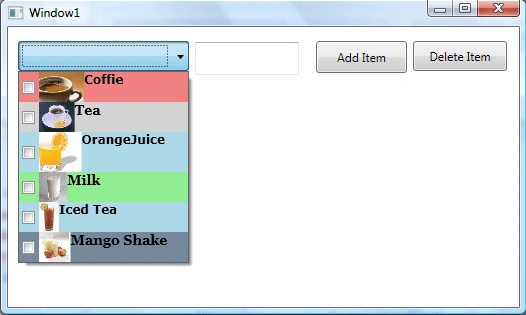
Figure 8
Data Binding
The ItemsSource property of ComboBox is used to bind a collection of IEnuemerable such as an Array. The code listed in Listing 11 creates an array of strings.
private string[] LoadComboBoxData() {
    string[] strArray = {
        "Coffie",
        "Tea",
        "Orange Juice",
        "Milk",
        "Mango Shake",
        "Iced Tea",
        "Soda",
        "Water"
    };
    return strArray;
}
Listing 11
The following line of code sets the ItemsSource property of a ComboBox to the array.
ComboBox1.ItemsSource = LoadComboBoxData();
Creating ComboBox Dynamically
The ComboBox class in WPF represents a ComboBox control. The code snippet in Listing 12 creates a ComboBox at run-time and adds a few items to the ComboBox.
private void CreateDynamicComboBox() {
    ComboBox cbx = new ComboBox();
    cbx.Name = "ComboBox1";
    cbx.Width = 194;
    cbx.Height = 30;
    ComboBoxItem item = new ComboBoxItem();
    item.Content = "Coffie";
    cbx.Items.Add(item);
    cbx.Items.Add("Tea");
    cbx.Items.Add("Orange");
    cbx.Items.Add("Milk");
    cbx.Items.Add("Iced Tea");
    cbx.Items.Add("Mango Shake");
    RootLayout.Children.Add(cbx);
}
Listing 12
Selected and Current Item
Text property of ComboBox represents the text of the current selected item in a ComboBox.
SelectedItem represents the first item in the currently selected items in a ComboBox.
SelectedValue represents the value of the currently selected item in a ComboBox.
SelectedIndex represents the index of first item in the currently selected items in a ComboBox.
List 13 shows how to use these properties.
string str = ComboBox1.Text;
ComboBoxItem cbi = (ComboBoxItem)ComboBox1.SelectedItem;
string str1 = cbi.Content.ToString();
string val = ComboBox1.SelectedValue.ToString();
Listing 13
Summary
In this article, I discussed how to create and use a ComboBox control available in Silverlight. We saw how we can add items to a ComboBox, change item properties, add images add check boxes. At the end of this article, we saw how data binding works in ComboBox.
ca ThichPosted Jun 17, 2022, 7:53 PM
How can I create a combobox with pre-defined static items to be able to use in different xaml? Thanks
rakesh vPosted Jun 25, 2019, 5:59 AM
WPF (not using MVVM) I have a list of Items ex. 1,2,3,4,5,6 . I was added this list to combobox from code behind. I have grid with rows(AllUsers and SomeUsers related data), When I click on AllUsers data row then in selection changed i was adding 1,2,3,4,5,6 through item source from code behind. when I click on SomeUsers data row then in selection changed i was adding 2,5,6 through itemsource from code behind. Here I was using observable collection for grid data and combobox(it is sub list of observable collection). Combobox is in outside the grid. What ever data is selected in combobox it will automatically updated to my grid model(i was using two way binding in combobox). Problem :- when selection changed happens I was adding relevant data to combobox through Item source from code behind , at that time previously selected value is getting null in the model property(especailly 'AllUsers' data when property contains 1 or 3 or 4 values because those are not exist in combobox list of SomeUsers data
MaicoLinuX JJeyPosted Dec 6, 2018, 6:28 PM
Is possible to add and delete items with images dinamically?
aparichitudu againPosted Apr 24, 2018, 2:34 AM
How to bind seleted value to static vales
aparichitudu againPosted Apr 24, 2018, 2:33 AM
How to bind selected value to that static list,Ex I need to make "Tea" as selected item in dynamically
vijay rajPosted Dec 20, 2017, 11:34 PM
Is it possible to scroll through the values of combo box without having to use scroll bar, can i simply scroll the values using touch. or is there an alternate component for doing such things
Ramesh PalaniappanPosted Sep 7, 2016, 11:56 AM
Good one
Dinesh BeniwalPosted Jun 29, 2014, 1:26 PM
Good article
Nilesh AvhadPosted Jun 16, 2014, 6:44 AM
Nice Article Mahesh!! You always rocks :)
Sourabh SomaniPosted Jun 15, 2014, 2:49 PM
Very Nice article sir
Divya SharmaPosted Jun 15, 2014, 2:27 PM
nice article sir
Mahesh ChandPosted Jun 15, 2014, 1:41 PM
Thank for the comments guys
Praveen kumarPosted Jun 9, 2014, 3:14 AM
i understand the code, if i work means i didn't get the output please tell some ideas how to develop the coding knowledge
Musa AjPosted Nov 6, 2012, 4:53 AM
Nice very Useful for beginners......
Meir GalperinPosted Jul 29, 2012, 4:47 PM
Thank you for this useful article
Mahesh ChandPosted Jun 25, 2012, 10:15 AM
Thanks Garcia. Please feel free to add your code sample to the article by Adding it at the bottom "Add an Article Extension". and that will add your code at the bottom. thank you!
Marcus GarciaPosted Jun 25, 2012, 9:19 AM
Well, if somebody needs here is the code that worked for me:<code> ////ItemTemplate Style estilo = new Style(); estilo.TargetType = typeof(ComboBoxItem); estilo.Setters.Add(new Setter(ComboBoxItem.ForegroundProperty, item.Foreground.SelectedBrush)); comboBoxFactory.SetValue(ComboBox.ItemContainerStyleProperty, estilo); comboBoxFactory.SetValue(ComboBox.ForegroundProperty, item.Foreground.SelectedBrush); </code>
kalikrishna maddulaPosted Jun 25, 2012, 7:31 AM
Good article.....
Marcus GarciaPosted Jun 14, 2012, 8:12 AM
Hey man, very good tutorial!! Let me make a question... how do I color the Items in the combobox direct in the code? I tried this: <code> var dtFact = new FrameworkElementFactory(typeof(TextBlock)); dtFact.SetBinding(TextBlock.TextProperty, new Binding(String.Format("[{0}]", item.GetHashCode()))); comboBoxFactory.SetValue(ComboBox.ItemTemplateProperty, new DataTemplate { VisualTree = dtFact }); </code> but it Didn't work.. t.i.a. Marcus.
Mahesh ChandPosted May 30, 2012, 10:27 AM
Gangadhar, I would say, just go to WPF section of this site and read my articles one by one. I have written ton of articles on WPF and they are very easy to follow. Good luck!
Gangadhar MahindrakareditedPosted May 14, 2012, 7:03 AMEdited May 14, 2012, 7:18 AM
Thanks, i am just now learning the wpf, but i am not getting.please help me understanding the wpf.
paul ramsdenPosted Jul 13, 2011, 4:21 AM
"Text property of ComboBox represents the text of the current selected item in a ComboBox" Text is the contents of the TextBox part and is not necessarily in the ComboBox item list. It may therefore differ from the selected item
Kate MilantievaPosted Jul 10, 2011, 10:15 AM
thank you! such a useful article
shriram iyerPosted Feb 17, 2011, 3:54 AM
how do i display the selected item from a combobox in a separate textbox
Showken YipPosted Jan 22, 2011, 10:18 AM
Great Article!!
Michael PellegriniPosted Nov 4, 2010, 9:02 AM
private void comboBox1_SelectionChanged(object sender, SelectionChangedEventArgs e) { // Declaration ComboBox cbox = new ComboBox(); // Properties cbox.Name = "comboBox1"; cbox.Width = 120; cbox.Height = 123; // Combo Box Items ComboBoxItem item = new ComboBoxItem(); item.Content = "Arizona Cardinals"; cbox.Items.Add(item); cbox.Items.Add("Atlanta Falcons"); cbox.Items.Add("Baltimore Ravens"); cbox.Items.Add("Buffalo Bills"); cbox.Items.Add("Carolina Panthers"); cbox.Items.Add("Chicago Bears"); cbox.Items.Add("Cincinnati Bengals"); cbox.Items.Add("Cleveland Browns"); cbox.Items.Add("Dallas Cowboys"); cbox.Items.Add("Denver Broncos"); cbox.Items.Add("Detroit Lions"); cbox.Items.Add("Green Bay Packers"); cbox.Items.Add("Houston Texans"); cbox.Items.Add("Indianapolis Colts"); cbox.Items.Add("Jacksonville Jaguars"); cbox.Items.Add("Kansas City Chiefs"); cbox.Items.Add("Miami Dolphins"); cbox.Items.Add("Minnesota Vikings"); cbox.Items.Add("New England Patriots"); cbox.Items.Add("New Orleans Saints"); cbox.Items.Add("New York Giants"); cbox.Items.Add("New York Jets"); cbox.Items.Add("Oakland Raiders"); cbox.Items.Add("Philadelphia Eagles"); cbox.Items.Add("Pittsburgh Steelers"); cbox.Items.Add("San Diego Chargers"); cbox.Items.Add("San Francisco 49ers"); cbox.Items.Add("Seattle Seahawks"); cbox.Items.Add("St Louis Rams"); cbox.Items.Add("Tampa Bay Buccaneers"); cbox.Items.Add("Tennessee Titans"); cbox.Items.Add("Washington Redskins"); } } } Ive programmed the above, but for some reason the items are not appearing in the combo box when i run the problem. why is this, please help me!
Ilya TsilikovPosted Sep 23, 2010, 9:32 AM
I want to note that the proposed definition of ComboBox items is no good at all. Such items don't display properly. You can check it.
ashish patelPosted Aug 12, 2010, 6:14 AM
damn cool artical..
EugenPosted Jun 9, 2010, 10:49 AM
but how to bind with sql??? give an exaple pls))
EugenPosted Jun 9, 2010, 10:45 AM
Great article!!!