

Radial Gradient Brush
A radial gradient brush paints an area with a radial gradient that has a circle, along with a focal point, to define the gradient behavior. The focal point defines the center of the gradient and has default value 0.0. The RadialGradientBrush object represents a radial gradient brush.
Figure 21 shows a radial gradient.
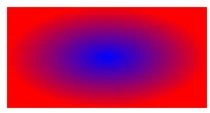
Figure 21. Radial Gradient
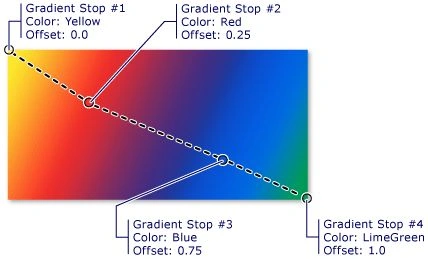
Figure 22. Radial Gradient with Stops
Creating a Radial Gradient Brush
The RadialGradientBrush element in XAML creates a radial gradient brush.
The Center property of the RadialGradientBrush represents the center of the outermost circle of the radial gradient. The default center point of the gradient circle is (0.5, 0.5).
The GradientOrigin property of the RadialGradientBrush represents the location of the focal point of the gradient. The default focal point of the gradient circle is (0.5, 0.5).
The RadiusX and the RadiusY properties of the RadialGradientBrush represent the X and Y radius of the radial gradient.
The following code snippet creates a radial gradient brush with blue and red colors by setting GradientStops. The GradientOrigin and Center properties are default properties. The code snippet also sets the RadiusX and RadiusY properties.
<RadialGradientBrush
GradientOrigin="0.5,0.5"
Center="0.5,0.5"
RadiusX="0.5" RadiusY="0.5">
<RadialGradientBrush.GradientStops>
<GradientStop Color="Blue"
Offset="0" />
<GradientStop Color="Red"
Offset="1.0" />
</RadialGradientBrush.GradientStops>
</RadialGradientBrush>
We can fill a shape with a radial gradient brush by setting a shape's Fill property to the gradient brush. The code snippet in Listing 18 creates a rectangle shape sets the Fill property to a RadialGradientBrush with blue and red colors where center of the radial gradient starts with the blue color.
<Rectangle Width="200"
Height="100" Stroke="Black"
>
<Rectangle.Fill>
<RadialGradientBrush
GradientOrigin="0.5,0.5"
Center="0.5,0.5"
>
<RadialGradientBrush.GradientStops>
<GradientStop Color="Blue"
Offset="0" />
<GradientStop Color="Red"
Offset="1.0" />
</RadialGradientBrush.GradientStops>
</RadialGradientBrush>
</Rectangle.Fill>
</Rectangle>
Listing 18
The output looks like Figure 23.
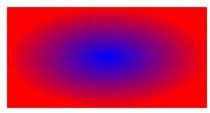
Figure 23. A shape filled with a radial gradient brush
Now let's apply multiple stops with multiple colors. The code snippet in Listing 19 creates a radial gradient brush with five stops.
<Rectangle Width="200"
Height="100" Stroke="Black"
>
<Rectangle.Fill>
<RadialGradientBrush
GradientOrigin="0.5,0.5"
Center="0.5,0.5"
>
<RadialGradientBrush.GradientStops>
<GradientStop Color="Blue"
Offset="0.1" />
<GradientStop Color="Orange"
Offset="0.25" />
<GradientStop Color="Yellow"
Offset="0.50" />
<GradientStop Color="Green"
Offset="0.75" />
<GradientStop Color="Red"
Offset="1.0" />
</RadialGradientBrush.GradientStops>
</RadialGradientBrush>
</Rectangle.Fill>
</Rectangle>
Listing 19
The new output generated by Listing 96 looks like Figure 34.
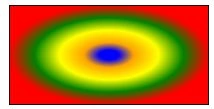
Figure 24. A radial gradient brush with 5 stops
The CreateARectangleWithRGBrush method listed in Listing 20 draws same rectangle in Figure 24 dynamically.
public void CreateARectangleWithRGBrush()
{
// Create a
Rectangle
Rectangle
blueRectangle = new Rectangle();
blueRectangle.Height = 100;
blueRectangle.Width = 200;
// Create a
radial gradient brush with five stops
RadialGradientBrush
fiveColorRGB = new RadialGradientBrush();
fiveColorRGB.GradientOrigin = new Point(0.5,
0.5);
fiveColorRGB.Center = new Point(0.5,
0.5);
// Create and add
Gradient stops
GradientStop
blueGS = new GradientStop();
blueGS.Color = Colors.Blue;
blueGS.Offset = 0.0;
fiveColorRGB.GradientStops.Add(blueGS);
GradientStop
orangeGS = new GradientStop();
orangeGS.Color = Colors.Orange;
orangeGS.Offset = 0.25;
fiveColorRGB.GradientStops.Add(orangeGS);
GradientStop
yellowGS = new GradientStop();
yellowGS.Color = Colors.Yellow;
yellowGS.Offset = 0.50;
fiveColorRGB.GradientStops.Add(yellowGS);
GradientStop
greenGS = new GradientStop();
greenGS.Color = Colors.Green;
greenGS.Offset = 0.75;
fiveColorRGB.GradientStops.Add(greenGS);
GradientStop
redGS = new GradientStop();
redGS.Color = Colors.Red;
redGS.Offset = 1.0;
fiveColorRGB.GradientStops.Add(redGS);
// Set Fill property
of rectangle
blueRectangle.Fill = fiveColorRGB;
// Add Rectangle
to the page
LayoutRoot.Children.Add(blueRectangle);
}
Listing 20
The following code snippet changes the GradientOrigin and Center properties and now new output looks like Figure 25.
<RadialGradientBrush
GradientOrigin="0.2,0.5"
Center="0.1,0.5"
RadiusX="0.5" RadiusY="0.5">
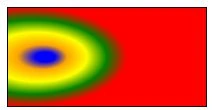
Figure 25. Radial gradient
sujith rPosted Jan 7, 2013, 8:40 AM
great job