

If you thought Silverlight 2 and Blend could only be used to create user interfaces, you couldn't be wrong. While the real use of Silverlight is, of course, for rich Internet applications, you could also design some swanky Web pages with it displaying only creative shapes and curves. Take a look at the image shown in Figure 1. 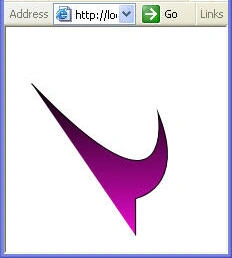
Figure 1. Creating Art using Silverlight and Blend.
Could you believe that this was created in Expression Blend 2 as a Silverlight 2 application with very little effort and hardly any coding? Yes, it's true. Let's see how you can do this.
The first step is to create a new Silverlight application in Expression Blend. Assume that you name this application as CreativeShape. Figure 2 shows the New Project dialog box.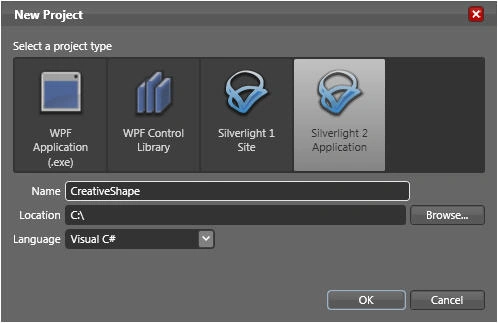
Figure 2. New Project dialog box.
Once the project has been created, use the Pen tool from the Toolbox to draw a random shape. Figure 3 shows how the Pen tool looks in the Toolbox. 
Figure 3.
Let us assume that you have drawn a shape similar to that shown in Figure 4.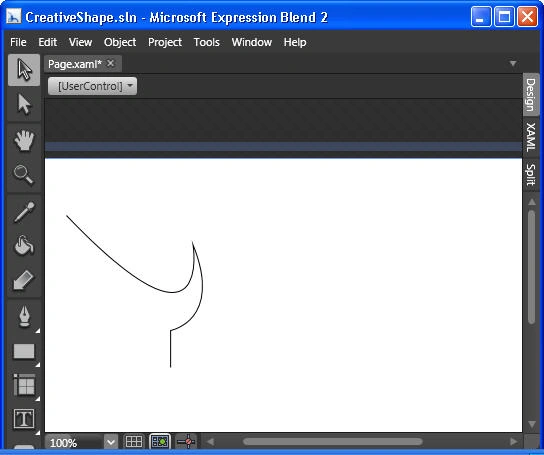
Figure 4. Drawing a shape using Pen tool.
Then, select the shape drawn using the Selection tool from the Toolbox (it's present at the topmost left corner).
Now, open the Properties window using Window-> Properties. 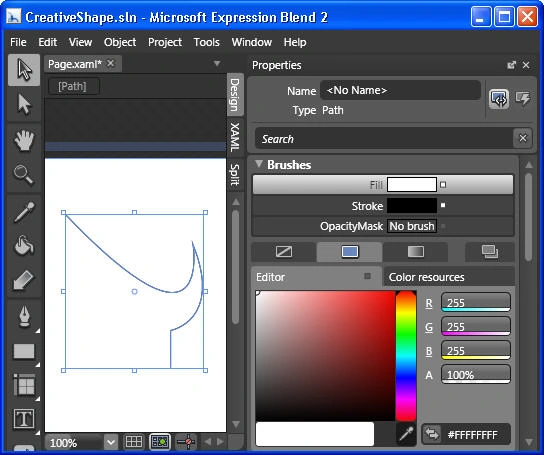
Figure 5. Selecting the shape and opening Properties window.
Next, you set the Brush properties as shown in Figure 6. 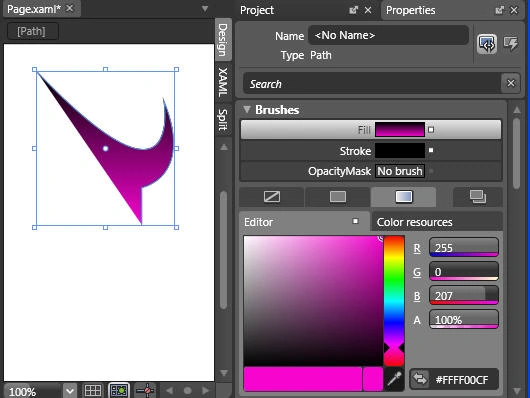
Figure 6. Setting the Brushes properties
Make sure that you have chosen GradientBrush option.
Save the project, build and execute it. This can be done using the options on the Project menu.
When the application executes, you will see the output similar to that shown earlier in Figure 1.
Thus, you have created an attractive shape filled with color using minimal effort and no coding at all!
Let your imagination run riot with the Pen tool and the various options presented by the Brushes properties. You can also experiment with the Stroke and StrokeThickness options to create various effects for the shape.
Take a look at some fancy shapes created using the Pen tool and colored using the Brushes properties: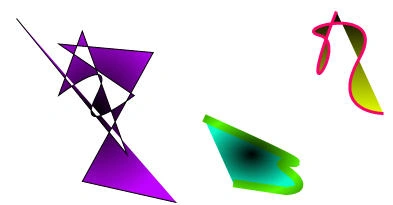
Figure 7. Abstract Shapes
Happy Creating !!!
Join the conversation! Your thoughts help the community grow.