

Introduction:
This article will show how to data bind a WPF application using a WCF service.
Note: This solution was created using Microsoft Visual Studio 2010..
To begin with, create a new project using the ASP.NET Web Application project template. In the Name box, type EmployeeService and click OK.
To expose data to an application by using a WCF Data Service, you must define a data model for the service. The WCF Data Service supports two types of data models: Entity Data Models and custom data models. We will create an Entity Data Model.
On the Project menu, click Add New Item. Select the ADO.NET Entity Data Model project item. Change the name to Employee.edmx, and click Add. In the Entity Data Model Wizard, on the Choose Model Contents page, click Generate from database. Click Next.
On the Choose Your Data Connection page, specify the connection details. On the Choose Your Database Objects page, expand Tables, and then select the Employees table.
Here, in our example, the Employees table is assumed to have the following structure:
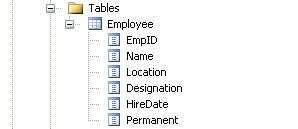
Figure 1
Click Finish.
Now, you need to create a WCF Data Service in order to expose the data in the newly created model to a WPF application.
On the Project menu, select Add New Item. Select the WCF Data Service project item. In the Name box, type WcfDataService1.svc and click Add. Visual Studio adds the WcfDataService1.svc to the project.
Modify the .svc code file as follows:
public class WcfDataService1
: DataService<EmployeeManagementEntities>
{
public static void InitializeService(DataServiceConfiguration
config)
{
config.SetEntitySetAccessRule("*", EntitySetRights.AllRead);
config.SetServiceOperationAccessRule("*", ServiceOperationRights.All);
config.DataServiceBehavior.MaxProtocolVersion
= DataServiceProtocolVersion.V2;
}
}
Then, build the project.
Now, we will create a new WPF application with a data source that is based on the service. This will display the data from the WCF Data Service.
Add a new project using the WPF Application project template. On the Data menu, click Show Data Sources. In the Data Sources window, click Add New Data Source.
In the Choose a Data Source Type page of the wizard, select Service and then click Next. In the Add Service Reference dialog box, click Discover.
Visual Studio searches the current solution for available services, and adds WcfDataService1.svc to the list of available services in the Services box.
Click OK to add a service reference to this service. In the Add Service Reference page, click Finish.
Now, we will use the service proxy object to load data from the service. This data will then be assigned to the data source for the CollectionViewSource in the WPF window.
In the designer, double-click the text MainWindow so that the Window_Loaded event handler is created.
Modify the code in the MainWindow.xaml.cs as follows:
public partial class MainWindow : Window
{
CollectionViewSource empViewSource;
public MainWindow()
{
InitializeComponent();
}
private void
Window_Loaded(object sender, RoutedEventArgs e)
{
EmpWCF.ServiceReference1.EmployeeManagementEntities empclient;
DataServiceQuery<EmpWCF.ServiceReference1.Employee> query;
empclient = new EmpWCF.ServiceReference1.EmployeeManagementEntities(
new Uri("http://localhost:1575/WcfDataService1.svc/"));
query =
empclient.Employees;
empViewSource = ((CollectionViewSource)(this.FindResource("employeesViewSource")));
empViewSource.Source
= query.Execute();
empViewSource.View.MoveCurrentToFirst();
}
}
Add code that enables users to scroll through the records.
private void backButton_Click(object
sender, RoutedEventArgs e)
{
if (empViewSource.View.CurrentPosition > 0)
empViewSource.View.MoveCurrentToPrevious();
}
Build and execute the application. You can see the output that is similar to Figure 2.
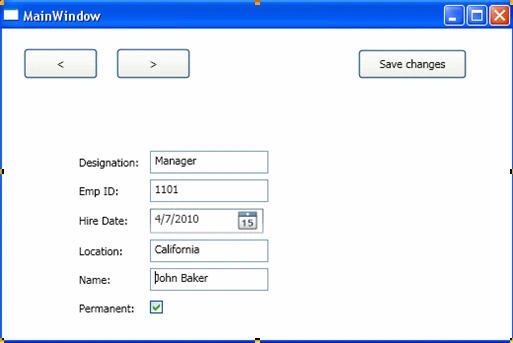
Figure 2
Thus, you created an Entity Data Model data source with a WCF service and consumed the data in a WPF application.
Conclusion: This article show how to data bind a WPF application using a WCF service.
Ashish RamtekePosted Mar 8, 2013, 3:58 AM
Nicely written article. Thanks Mamta, this article helps a lot for beginner as well as intermediate peoples. Those who want to learn how to consume a wcf service in WPF application can follow below link - It is very nice article to understand how to call WCF in WPF. http://a1ashiish-csharp.blogspot.com/2013/02/Csharp.net-How-to-Consume-a-WCF-service-in-WPF-application-using-Csharp.html