

Introduction:
Themes are like styles that you can apply to your Web pages. While ASP.NET 3.5 had ample support for styling through themes, Silverlight 2 itself does not include any built-in support for themes. This has been overcome now by the Silverlight Toolkit.
The Silverlight Toolkit is an open source community project hosted at www.codeplex.com.
A number of controls from the Toolkit have already been explained in various articles here.
In addition to these controls, the Silverlight Toolkit also provides themes.
In this article, we shall see how to use these themes with some amount of coding in the Page.xaml.cs file.
Before you begin, download the latest release of the Toolkit from www.codeplex.com. The December release should work fine. The November release of the Toolkit seems to cause some exceptions when themes are used. So make sure you download the December 08 (or later) release.
Once you have extracted the zip file into a desired folder on your PC, you will have folder structures similar to Figure 1, 2 and 3 for themes. 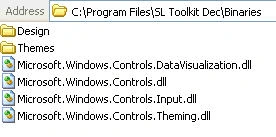
Figure 1: The main dll files for using the Silverlight Toolkit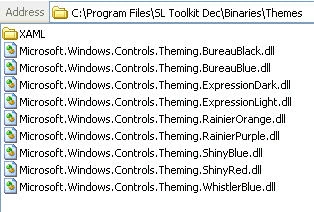
Figure 2: Themes that are defined in the Toolkit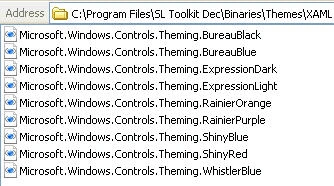
Figure 3: The XAML files for the themes
Now comes the step by step procedure to use themes in your application. Create a Silverlight 2 application having the following user interface: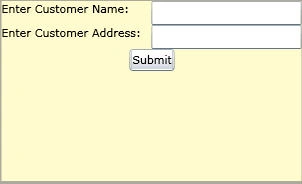
Figure 4: UI for the application
The Page.xaml for this UI may look like below:
<UserControl x:Class="ThemeDemo.Page"
xmlns="http://schemas.microsoft.com/winfx/2006/xaml/presentation"
xmlns:x="http://schemas.microsoft.com/winfx/2006/xaml"
xmlns:controls="clr-namespace:Microsoft.Windows.Controls;assembly=Microsoft.Windows.Controls"
xmlns:themes="clr-namespace:Microsoft.Windows.Controls.Theming;assembly=Microsoft.Windows.Controls.Theming"
Width="400" Height="300">
<Grid Background="LemonChiffon" Width="300" Height="180" Name="LayoutRoot">
<Grid.ColumnDefinitions>
<ColumnDefinition Width="150" />
<ColumnDefinition Width="150" />
</Grid.ColumnDefinitions>
<Grid.RowDefinitions>
<RowDefinition Height="Auto" />
<RowDefinition Height="Auto" />
<RowDefinition Height="Auto" />
<RowDefinition Height="Auto" />
<RowDefinition Height="Auto" />
<RowDefinition Height="Auto" />
<RowDefinition Height="Auto" />
</Grid.RowDefinitions>
<TextBlock Name="txtblkName" Grid.Row="0" Grid.Column="0" Text="Enter Customer Name:" Height="Auto" HorizontalAlignment="Left">
</TextBlock>
<TextBox x:Name="txtName" Grid.Row="0" Grid.Column="1" Text="" >
</TextBox>
<TextBlock Name="txtblkAddr" Grid.Row="1" Grid.Column="0" Text="Enter Customer Address:" HorizontalAlignment="Left">
</TextBlock>
<TextBox x:Name="txtAddr" Grid.Row="1" Grid.Column="1" Text="" >
</TextBox>
<TextBlock Grid.Row="4"></TextBlock>
<Button Grid.Row="5" Grid.ColumnSpan="2" Content="Submit" HorizontalAlignment="Center"></Button>
</Grid>
</UserControl>
Once this is done, open the Page.xaml.cs and type in code similar to the below:
using System;
using System.Collections.Generic;
using System.Linq;
using System.Net;
using System.Windows;
using System.Windows.Controls;
using System.Windows.Documents;
using System.Windows.Input;
using System.Windows.Media;
using System.Windows.Media.Animation;
using System.Windows.Shapes;
using Microsoft.Windows.Controls.Theming;
namespace ThemeDemo
{
public partial class Page : UserControl
{
public Page()
{
InitializeComponent();
Loaded += new RoutedEventHandler(Page_Loaded);
}
void Page_Loaded(object sender, RoutedEventArgs e)
{
Uri uri = new Uri(@"ThemeDemo;component/Microsoft.Windows.Controls.Theming.RainierOrange.xaml", UriKind.Relative);
ImplicitStyleManager.SetResourceDictionaryUri(LayoutRoot, uri);
ImplicitStyleManager.SetApplyMode(LayoutRoot, ImplicitStylesApplyMode.Auto);
ImplicitStyleManager.Apply(LayoutRoot);
}
}
}
The ImplicitStyleManager class is defined in the Microsoft.Windows.Controls.Theming namespace and is a static class.
According to the available documentation in the Toolkit folder (look for the .chm file) the purpose of this class is to "encapsulate an attached behavior that propagates styles in a framework element's associated resource dictionary to its children". In simplest terms, it means that if you use this class and apply a theme to a layout container such as a Grid, all the contents of the Grid would have the same theme. This is a great concept!
Go to the Solution Explorer. Click References -> Add Reference and add references to all the dlls that were shown in Figure 1.
Copy the XAML file of the desired theme into your project folder and save it locally as part of your project.
Save, build and test the application. Ensure that you have replaced "ThemeDemo" in the above code with the name of your own application.
You will see that when the page is loaded, the RainierOrange theme is applied to all the contents of the Grid. Figure 5 shows a sample output. 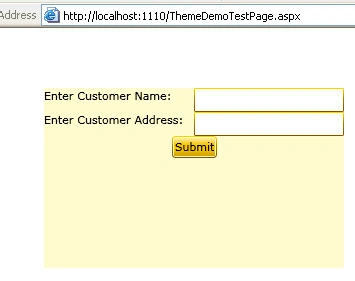
Conclusion: Thus, in this article, you explored how to use themes from the Silverlight Toolkit.
Daisy KrausePosted Jan 16, 2012, 11:10 PM
Hi Mamta. Its a very nice and useful article for those who want to learn about Toolkits in Silverlight.
Jimmy UnderwoodPosted Jan 16, 2012, 5:30 PM
Thanks
Manoj Singh PanwarPosted Jan 16, 2012, 11:25 AM
Great, I was working with this technology these days and its pleasure to collect such articles to expedite my exploration. Thank you Mamta.
Vineet Kumar SainiPosted Jan 16, 2012, 11:23 AM
Good article...
Arjun PanwarPosted Jan 16, 2012, 11:22 AM
Thanks for sharing
Sonakshi SinghPosted Jan 16, 2012, 6:21 AM
It is really good to learn about a new technology... Thank you for sharing...!!