

Introduction
The GridView view mode displays a list of data
items by binding data fields to columns and by displaying a column header to
identify the field. The column cells and the column header of a GridViewColumn
have the same width. By default, each column sizes its width to fit its content.
Optionally, you can set a column to a fixed width. Related data content displays
in horizontal rows.
GridView in Android
GridView is a ViewGroup in which you can displays
items in a two-dimensional and also scrollable grid. By using ListAdapter you
can add items in the grid the items are automatically inserted to the layout.
GridView is basically used to create more interactive app widgets on the users
Home screen. You can use the GridView view together with ImageView views to
display a series of images.
The table below shows the XML Attributes
which you have to use while working with GridView XML file:
| Attribute Name | Related Method | Description |
| android:columnWidth | setColumnWidth(int) | Used for width for each column. |
| android:gravity | setGravity(int) | Used for gravity within each cell. |
| android:horizontalSpacing | setHorizontalSpacing(int) | Used for default horizontal spacing between columns. |
| android:numColumns | setNumColumns(int) | Used for how many columns want to show. |
| android:stretchMode | setStretchMode(int) | Used for fill the available empty space. |
| android:verticalSpacing | setVerticalSpacing(int) | Used for default vertical spacing between rows. |
I am trying to explain to you
how to use GridView in Android by the given example below:
Steps to create GridView in Android
- First, create a new android application give the name to project like WelcomeGridView
- Save the image files into the project's Resources/Drawable/ directory
- Now Edit your Resources/Layout/Main.axml
file
- <?xml version="1.0" encoding="utf-8"?>
- <GridView xmlns:android="http://schemas.android.com/apk/res/android"
- android:id="@+id/PhotoGridView"
- android:layout_width="fill_parent"
- android:layout_height="fill_parent"
- android:columnWidth="100dp"
- android:numColumns="auto_fit"
- android:verticalSpacing="15dp"
- android:horizontalSpacing="15dp"
- android:stretchMode="columnWidth"
- android:gravity="center"
- />
- Now in OnCreate() method call the
GridView from the layout using findViewById(int) and create a source for all items through which items to be displayed in the grid. One more interesting thing we do here, using setOnItemClickListener() method which is passed a
new AdapterView.OnItemClickListener. This anonymous instance defines the
onItemClick() callback method to show a Toast that displays the index position of the selected item.
- protected override void OnCreate(Bundle bundle) {
- base.OnCreate(bundle);
- SetContentView(Resource.Layout.Main);
- var PhotoGridView = FindViewById < GridView > (Resource.Id.PhotoGridView);
- PhotoGridView.Adapter = new ImageAdapter(this);
- PhotoGridView.ItemClick += delegate(object sender, ItemEventArgs args) {
- Toast.MakeText(this, (args.Position + 1).ToString(), ToastLength.Short).Show();
- };
- }
-
Create a new ImageView for each item referenced by the Adapter
- public override View GetView(int position, View convertView, ViewGroup parent)
- {
- ImageView imageView;
- if (convertView == null)
- {
- imageView = new ImageView(contextcreate);
- imageView.LayoutParameters = new GridView.LayoutParams(90, 90);
- imageView.SetScaleType(ImageView.ScaleType.CenterCrop);
- imageView.SetPadding(10, 10, 10, 10);
- }
- else
- {
- imageView = (ImageView) convertView;
- }
- imageView.SetImageResource(imageIds[position]);
- return imageView;
- }
This is the basic methods
which you learn above, nowhere is the complete code:
- using System;
- using Android.App;
- using Android.Content;
- using Android.Runtime;
- using Android.Views;
- using Android.Widget;
- using Android.OS;
- namespace WelcomeGridView
- {
- [Activity(Label = "WelcomeGridView", MainLauncher = true, Icon = "@drawable/icon")]
- public class Activity1: Activity
- {
- protected override void OnCreate(Bundle bundle)
- base.OnCreate(bundle);
- SetContentView(Resource.Layout.Main);
- var PhotoGridView = FindViewById < GridView > (Resource.Id.PhotoGridView);
- PhotoGridView.Adapter = new ImageAdapter(this);
- PhotoGridView.ItemClick += delegate(object sender, ItemEventArgs args)
- {
- Toast.MakeText(this, (args.Position + 1).ToString(), ToastLength.Short).Show();
- };
- }
- public class ImageAdapter: BaseAdapter
- {
- Context contextcreate;
- public ImageAdapter(Context a)
- {
- contextcreate = a;
- }
- public override int Count
- {
- get
- {
- return imageIds.Length;
- }
- }
- public override Java.Lang.Object GetItem(int position)
- {
- return null;
- }
- public override long GetItemId(int position)
- {
- return 0;
- }
- public override View GetView(int position, View convertView, ViewGroup parent)
- {
- ImageView imageView;
- if (convertView == null)
- {
- imageView = new ImageView(contextcreate);
- imageView.LayoutParameters = new GridView.LayoutParams(90, 90);
- imageView.SetScaleType(ImageView.ScaleType.CenterCrop);
- imageView.SetPadding(10, 10, 10, 10);
- }
- else
- {
- imageView = (ImageView) convertView;
- }
- imageView.SetImageResource(imageIds[position]);
- return imageView;
- }
- int[] imageIds =
- {
- Resource.Drawable.mahesh,
- Resource.Drawable.dbeniwal321,
- Resource.Drawable.kartik,
- Resource.Drawable.mgold,
- Resource.Drawable.dhananjaycoder,
- Resource.Drawable.nandi,
- Resource.Drawable.praveen,
- Resource.Drawable.suthish,
- Resource.Drawable.nipuntomar,
- Resource.Drawable.dpatra,
- Resource.Drawable.jaganathan,
- Resource.Drawable.abhikumarvatsa,
- };
- }
- }
- }
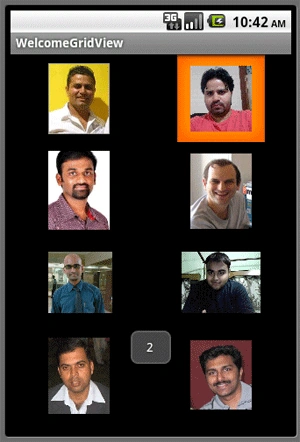
Run the application your
grid layout should look something like this:

When you click on any image the position of the
the image will show on the screen:
Happy Learning.......
Gowtham RajamanickamPosted Apr 12, 2016, 2:12 AM
Good One, Thanks for sharing
Pranav J.DevPosted Mar 29, 2016, 6:47 AM
Good one
Vinicius VendrameleditedPosted Feb 26, 2013, 9:19 AMEdited Feb 26, 2013, 9:20 AM
Donwload do code? Solution? please!!! I need i lot!!!
dipali patelPosted Mar 6, 2012, 12:53 AM
i am not getting image from mysql to android.... i have already all try from myside... but i have not be success in this problem.. so plz solve this problem.. and submit in my mail id:[email protected]
Karthikeyan AnbarasanPosted Jul 14, 2011, 1:51 AM
Nice article Manish...
Jaganathan BantheswaranPosted Jul 14, 2011, 1:46 AM
Please tell me how to create emulator image for Android. I cant create. If i run the SDK Manager it giving error like GetTempFileName failed.
Angelina ErinPosted Jul 14, 2011, 1:36 AM
Good One