

| Developing in |  |
| Part I |
With much excitement (and a little trepidation), I finally broke out the box to test out Silverlight 2.0 with some prodding from Mahesh. It looks like Microsoft is headed in the right direction by giving us developers a rich client to play with that can be blasted over the internet. This article is being written in real-time as I stumble through creating my first Silverlight application. The first step to creating a Silverlight app is to install everything you need for Silverlight. The installation components for Silverlight 2.0 beta can be found on the following page from Microsoft. After installing the sdk, you'll also want to install the documentation and the beta 2 tools for visual studio 2008. (Don't forget to install Silverlight 2 if you already haven't!).
Creating a Silverlight Project
Once we have installed all the tools necessary for developing Silverlight applications, we can turn to our old friend Visual Studio and create a Silverlight web project. Go to the File->New->Project menu item and choose the Silverlight Application. Type in the name of your project and click OK.
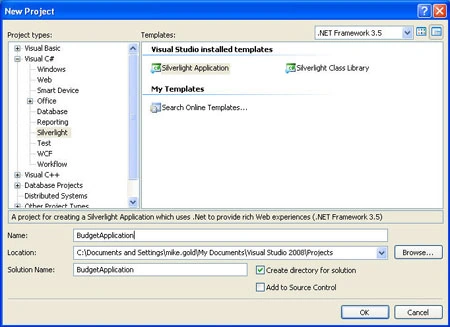
Figure 1 - New Project for Silverlight Applications
This then gives you the option on how you want to host your Silverlight application for testing. I just picked the default option (Add a new web solution.) which proceeded to create an asp.net web project to host the app.
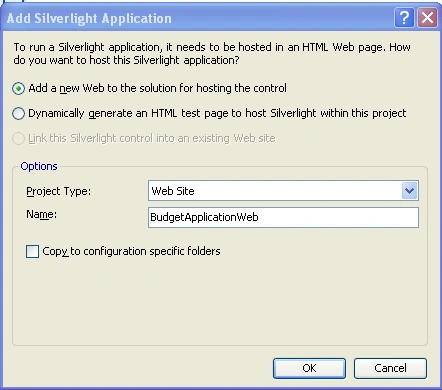
Figure 2 - Creating a WebSite Project around the Silverlight Component
Designing the XAML Page
We are now ready to put our fields into our application much like we would in a Windows Form Application (yipee!). Just bring up Page.xaml and start dropping controls from the toolbox. A few controls worth mentioning are the TextBox, the CheckBox and the DataGrid. As I started dropping controls into my XAML page, it seems you actually need to drop the control into the XAML itself instead of the GUI. This is a little counter intuitive, but hey, whatever works. (Looks like I'll need to install Expression Blend 2.5 to do anything useful). While I'm waiting for Blend to download, I'll just do as the help file suggests and create a grid layout to contain my objects. It seems like there is already a grid at the root, which is fine with me, so we'll use that one.
<Grid x:Name="LayoutRoot" Background="White">
</Grid>
I'll need to add some rows and columns to make the grid a bit more functional, so let's do that. We'll add two columns and three rows. Note that without expression blend, you'll need to type them into the view.
<Grid x:Name="LayoutRoot" Background="White">
<Grid.ColumnDefinitions>
<ColumnDefinition Width="150"/>
<ColumnDefinition Width="150"/>
</Grid.ColumnDefinitions>
<Grid.RowDefinitions>
<RowDefinition Height="40"/>
<RowDefinition Height="40"/>
<RowDefinition Height="40"/>
</Grid.RowDefinitions>
</Grid>
I just looked back at my machine and Blend is almost finished downloading...But let's continue temporarily without it. So now I'll add a few labels and text boxes to my application placing them at different locations inside the grid:
<Grid x:Name="LayoutRoot" Background="White">
<Grid.ColumnDefinitions>
<ColumnDefinition Width="150"/>
<ColumnDefinition Width="150"/>
</Grid.ColumnDefinitions>
<Grid.RowDefinitions>
<RowDefinition Height="40"/>
<RowDefinition Height="40"/>
<RowDefinition Height="40"/>
</Grid.RowDefinitions>
<TextBlock Grid.Column="0" Grid.Row="0" Text="Expenses"></TextBlock>
<TextBlock Grid.Column="0" Grid.Row="1" Text="Salary"></TextBlock>
<TextBox Grid.Column="1" Grid.Row="0"></TextBox>
<TextBox Grid.Column="1" Grid.Row="1"></TextBox>
<TextBox Grid.Column="1" Grid.Row="2"></TextBox>
</Grid>
The XAML is reflected nicely in the read-only design view as shown in figure 2:
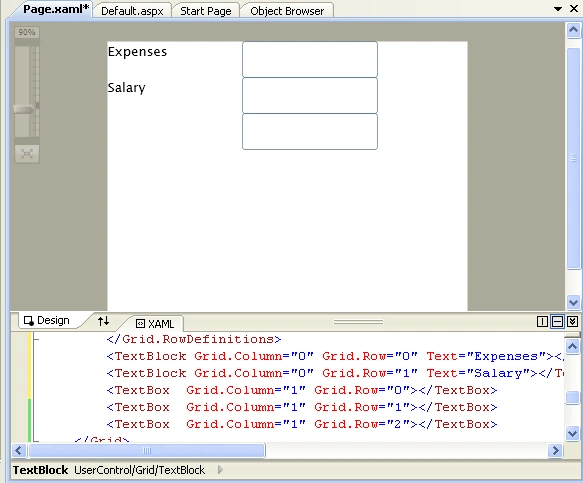
Figure 3 - Design View of Silverlight APP in Visual Studio 2008
To make the application a little more interesting, we'll add a button to tell the application to perform the calculation. We'll also give each of the textboxes names so we can later refer to them in our C# code. To add a name to a XAML component, use the x: followed by the name of the component. The x: is an alias for the namespace xmlns:x="http://schemas.microsoft.com/winfx/2006/xaml" which references the winfx controls in xaml.
<Grid x:Name="LayoutRoot" Background="White">
<Grid.ColumnDefinitions>
<ColumnDefinition Width="150"/>
<ColumnDefinition Width="150"/>
</Grid.ColumnDefinitions>
<Grid.RowDefinitions>
<RowDefinition Height="40"/>
<RowDefinition Height="40"/>
<RowDefinition Height="40"/>
<RowDefinition Height="40"/>
</Grid.RowDefinitions>
<TextBlock Grid.Column="0" Grid.Row="0" Text="Expenses"></TextBlock>
<TextBlock Grid.Column="0" Grid.Row="1" Text="Salary"></TextBlock>
<TextBlock Grid.Column="0" Grid.Row="2" Text="Net"></TextBlock>
<TextBox x:Name="txtExpenses" Grid.Column="1" Grid.Row="0"></TextBox>
<TextBox x:Name="txtSalary" Grid.Column="1" Grid.Row="1"></TextBox>
<TextBox x:Name="txtNet" Grid.Column="1" Grid.Row="2"></TextBox>
<Button Content="Calculate" Grid.Column="1" Grid.Row="3"></Button>
</Grid>
One thing I found interesting is that in order to place text in a TextBlock, you use the Text property. In order to put text in a Button, you use the Content property. I found this confusing and inconsistent, unlike Windows Forms which are consistent with all control properties. Perhaps there is some reason for this such as the ability to nest an image in the button, but in that case I would expect the label control to also use the Content property. It's confusing either way. Anyway, let's move onto coding to perform the calculation:
Hooking the Event
As with all Microsoft IDE's I would expect to be able to double click on the button in the design view and have it hook up the event. The design view appears to be read-only, so I'll add the Click event manually, which gives me an intellisense to add the event handler.
<Button x:Name="btnCalculate" Click="btnCalculate_Click" Content="Calculate" Grid.Column="1" Grid.Row="3"></Button>
It does seem to pick an appropriate name, and if I right-click on the event-handler and say View Code, it does wire up the event handler. Probably the same would have happened if I picked Navigate to Event Handler.
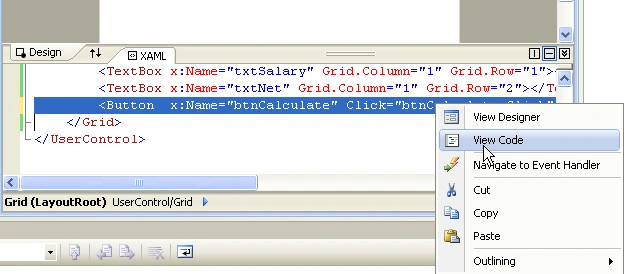
Figure 4 - Wiring up the btnCalculate function
Upon looking at our C# file, we see that we end up with a nice empty calculate method shown in the listing below:
private void btnCalculate_Click(object sender, RoutedEventArgs e)
{
}
Let's add our calculate code to complete the mini-application. (I think expression blend just finished installing, can't wait to make my life easier). We can use the XAML Name attributes to reference all our objects directly in C# similarly to the way we did in ASP.NET. Coding in XAML/Silverlight is looking to be a lot more developer-friendly than ASP.NET which is one reason I can't wait to switch over. There is less concern about request/response, postbacks, and webcentric browser-limitation issues. So those of you thinking of Silverlight as just a flash knock-off, think again. Silverlight is looking to be the future of web development for rich gui applications (goodbye ASP.NET, goodbye AJAX, goodbye JavaScript)
Any way, the net budget calculation is performed using some readily available .NET conversion classes. We placed all our calculation code in the event handler, so when the user presses the button (inside the browser), a calculation occurs in the textbox. We added a validation routine to validate if we can perform the calculation. Validate just makes sure the fields are not empty and that we are using numbers.
private void btnCalculate_Click(object sender, RoutedEventArgs e)
{
try
{
if (Validate())
{
txtNet.Text = (float.Parse(txtSalary.Text) - float.Parse(txtExpenses.Text)).ToString("#.00");
}
}
catch (Exception ex)
{
System.Diagnostics.Debug.WriteLine("invalid number format somewhere");
}
}
private bool Validate()
{
float answer = 0.0f;
return (txtSalary.Text.Trim().Length > 0) &&
txtExpenses.Text.Trim().Length > 0 &&
float.TryParse(txtSalary.Text, out answer) &&
float.TryParse(txtExpenses.Text, out answer);
}
That's it, we are done with the application! It's a pleasure not having to worry about whether your button is posting back or not (as you do in ASP.NET) and whether your browser will render appropriately in response. Actually, it's a pleasure that you don't have to postback at all! And look, ma, no javascript! Just pure unadulterated C# GUI code. Here is what the application looks like (with a few minor embellishments)
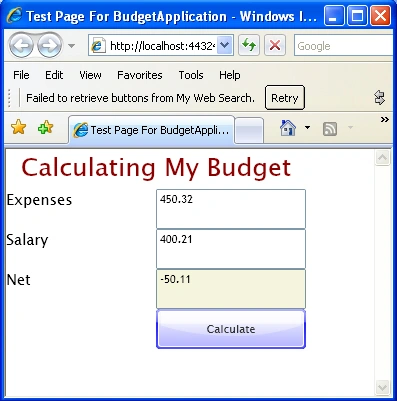
Figure 5 - The Running Silverlight Application
Expression Blend
Let's spruce up our application even more using Expression Blend 2.5 Pre-Release software. You can open your Silverlight .sln solution file directly in Expression Blend in the File->Open->Project/Solution menu item. Expression Blend shows a nice design view which we can alter as we wish:
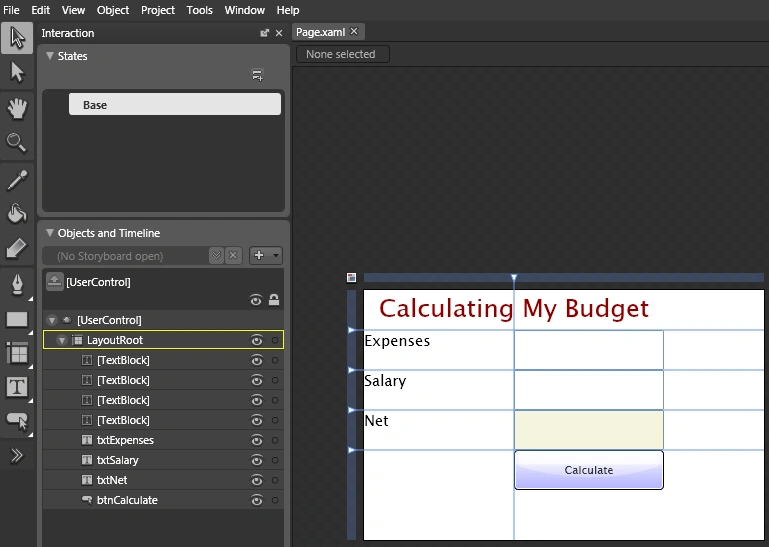
Figure 6 - Our Silverlight App insight of Expression Blend
The first order of business is to size my text boxes and calculate buttons. I'll just select all the text boxes in the objects and timeline toolbar, and then choose Object->Make Same -> Size in the Expression Blend Menu.
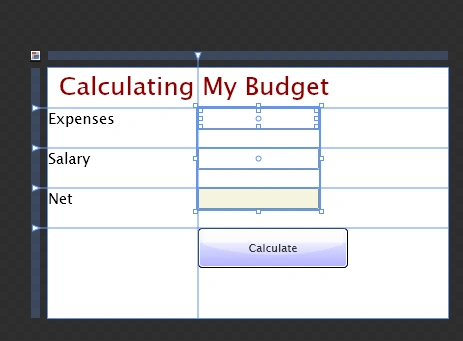
Figure 7 - Sizing the Text Boxes
I'll also shrink down the Calculate button and move it down a bit by dragging the button inside the view. Next I'll click on the Properties Window and change the colors. I'll use the dropper control and match the button color to the application title. I'll also change the button text color just for kicks.
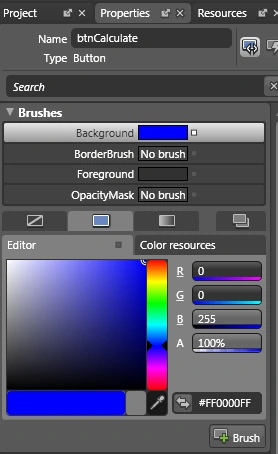
Figure 8 - Properties of the calculate button in Expression Blend
Figure 9 shows the results from changing the foreground and background properties of the button:
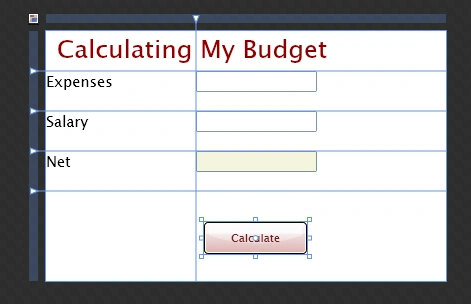
Figure 9 - Results of Editing colors in the Calculate Button
Finally I'll add a nice border around the application so it appears on the web page. You can choose the border control from the toolbar on the left or from the Asset Toolbox:

Figure 10 - Toolbar containing Border Control.
Using the Properties window, you can size each border side individually around your application in the Appearance section of the properties tab.
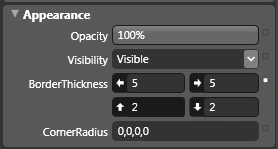
Figure 11 - Appearance Section of Border Properties
After we save the XAML in Expression Blend and recompile our Silverlight application in Visual Studio, the budget app is rendered inside the browser just as we designed it in Expression Blend.
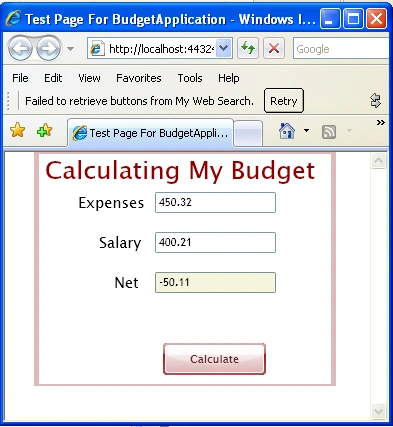
Figure 12 - Final Silverlight App after Expression Blend Touch ups.
Conclusion
Once you get over the idiosyncrasies of using a new technology such as XAML and Silverlight, and you get used to the nuances of a tool like Expression Blend, you are well on your way of developing very rich GUI applications on the web in record time. Combine this new client technology with a database backend, and you are developing secure distributed applications that blow away most of the presentation and complexity of any of the existing web technologies. If you are a Windows Form developer moving to the Web, then you will find Silverlight a much more comfortable transition than ASP.NET. You will still be faced with the learning curve of understanding a slew of new properties and classes, as well as different ways to bind them to data, but you'll soon be comfortable in this new environment which leverages existing .NET technology. Anyway, travel lightly on the road to a new blend of technology in the world of C# and .NET.
Join the conversation! Your thoughts help the community grow.