
A SharePoint Web Part is a server side control that can be added into Webpart zones in Webpart pages in a SharePoint environment.
Webpart categories:
|
Category |
Web Part Name |
|
Business Data
|
Business Data ActionsBottom of Form |
|
Business Data Connectivity FilterBottom of Form | |
|
Business Data ItemBottom of Form | |
|
Business Data Item BuilderBottom of Form | |
|
Business Data ListBottom of Form | |
|
Business Data Related ListBottom of Form | |
|
ChartBottom of Form | |
|
Excel Web AccessBottom of Form | |
|
Indicator DetailsBottom of Form | |
|
Status ListBottom of Form | |
|
Visio Web AccessBottom of Form | |
|
Content Rollup
|
CategoriesBottom of Form |
|
Content QueryBottom of Form | |
|
iView | |
|
MembershipsBottom of Form | |
|
My SharePoint SitesBottom of Form | |
|
My WorkspacesBottom of Form | |
|
Relevant DocumentsBottom of Form | |
|
RSS ViewerBottom of Form | |
|
SharePoint DocumentsBottom of Form | |
|
Site AggregatorBottom of Form | |
|
Sites In CategoryBottom of Form | |
|
Summary LinksBottom of Form | |
|
Table Of ContentsBottom of Form | |
|
Web AnalyticsBottom of Form | |
|
WSRP ViewerBottom of Form | |
|
XML ViewerBottom of Form | |
|
Document Sets |
Document Set ContentsBottom of Form |
|
Document Set PropertiesBottom of Form | |
|
Filters
|
Choice FilterBottom of Form |
|
Current User FilterBottom of Form | |
|
Date FilterBottom of Form | |
|
Filter ActionsBottom of Form | |
|
Page Field FilterBottom of Form | |
|
Query String (URL) FilterBottom of Form | |
|
SharePoint List FilterBottom of Form | |
|
SQL Analysis Server FilterBottom of Form | |
|
Text FilterBottom of Form | |
|
Forms |
HTML FormBottom of Form |
|
InfoPath FormBottom of Form | |
|
Lists and Libraries |
Form ViewBottom of Form |
|
List View | |
|
Media and Content
|
Content EditorBottom of Form |
|
Image ViewerBottom of Form | |
|
Media Web PartBottom of Form | |
|
Page ViewerBottom of Form | |
|
Picture Library SlideshowBottom of Form | |
|
SilverlightBottom of Form | |
|
Outlook Web App
|
My CalendarBottom of Form |
|
My ContactsBottom of Form | |
|
My InboxBottom of Form | |
|
My Mail FolderBottom of Form | |
|
My TasksBottom of Form | |
|
PerformancePoint
|
PerformancePoint FilterBottom of Form |
|
PerformancePoint ReportBottom of Form | |
|
PerformancePoint ScorecardBottom of Form | |
|
PerformancePoint Stack SelectorBottom of Form | |
|
Search |
Advanced Search BoxBottom of Form |
|
Dual Chinese SearchBottom of Form | |
|
Federated ResultsBottom of Form | |
|
People Refinement PanelBottom of Form | |
|
People Search BoxBottom of Form | |
|
People Search Core ResultsBottom of Form | |
|
Top of Form Refinement PanelBottom of Form | |
|
Related QueriesBottom of Form | |
|
Search Action LinksBottom of Form | |
|
Search Best BetsBottom of Form | |
|
Search BoxBottom of Form | |
|
Search Core ResultsBottom of Form | |
|
Search PagingBottom of Form | |
|
Search StatisticsBottom of Form | |
|
Search SummaryBottom of Form | |
|
Top Federated ResultsTop of Form Bottom of Form | |
|
Social Collaboration
|
Ask Me AboutBottom of Form |
|
ColleaguesBottom of Form | |
|
Contact DetailsBottom of Form | |
|
In Common With YouBottom of Form | |
|
My Organization ChartBottom of Form | |
|
Note BoardBottom of Form | |
|
Organization BrowserBottom of Form | |
|
Recent ActivitiesBottom of Form | |
|
Recent Blog PostsBottom of Form | |
|
Site UsersBottom of Form | |
|
Tag CloudBottom of Form | |
|
User TasksBottom of Form | |
|
What's NewBottom of Form | |
|
WhereaboutsBottom of Form | |
|
SQL Server Reporting |
Top of Form SQL Server Reporting Services Report ViewerBottom of Form |
What is visual Webpart?
A Visual Webpart is one of the good features in SharePoint whereby it allows the user to do a drag & drop from VS 2010. Internally what happens is that in the Webpart's CreateChildControls() method it is adding the user control from the specified location. And the user control is supporting the drag & drop feature.
How to use a Visual Webpart?
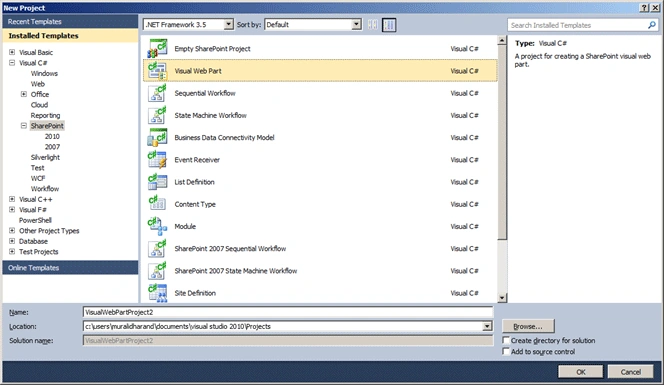
Step 1 : Create a new Visual Web Part Project.
Step 2:
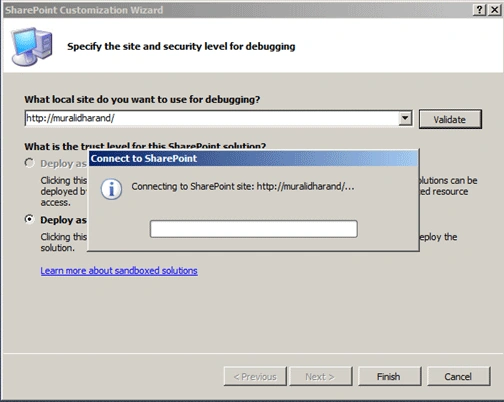
Step 3:
Farm Solution:
FARM solutions are hosted in the IIS worker processer and the code will affect the entire FARM.
Sandboxed Solution:
Sandboxed solutions are hosted in SPUCWorkerProcess and the code will affect the site collection of the solution. Visual Webparts can't be sandboxed.
From the Solution Explorer, open the VisulaWebPart1usercontrol.ascx page and go to Design view.
Drag the DataGridView into the Designer.
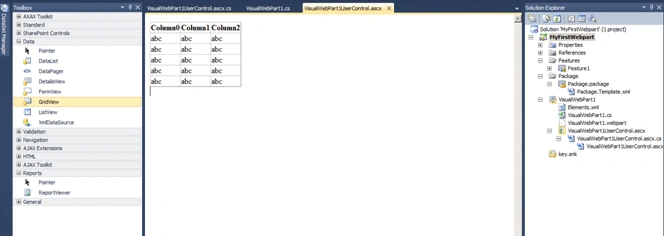
Step 4: On the Page Load event of the user control, please add the following code.
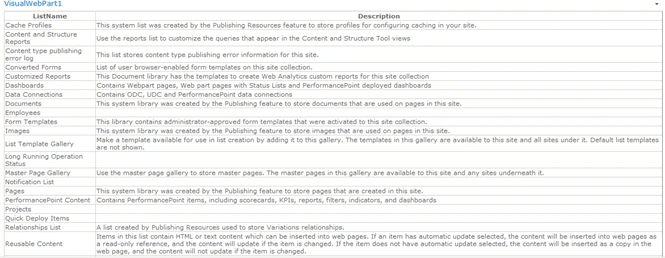
This code is used to get the available list & libraries from http://localhost site.
protected void Page_Load(object sender, EventArgs e)
{
if (!IsPostBack)
{
using (SPSite site = new SPSite("http://localhost"))
{
using (SPWeb web = site.OpenWeb())
{
DataTable listDataTable = new DataTable();
listDataTable.Columns.Add(new DataColumn("ListName"));
listDataTable.Columns.Add(new DataColumn("Description"));
foreach (SPList list in web.Lists)
{
DataRow listDataRow = listDataTable.NewRow();
listDataRow["ListName"] = list.Title;
listDataRow["Description"] = list.Description;
listDataTable.Rows.Add(listDataRow);
listDataTable.AcceptChanges();
}
GridView1.AutoGenerateColumns = true;
GridView1.DataSource = listDataTable;
GridView1.DataBind();
}
}
}
}
Step 5: Build and deploy the solution. Once it is successfully deployed go to SharePoint in your browser.[ http://localhost/ ]
Step 6 : Click on Edit Page from the Site Actions menu.
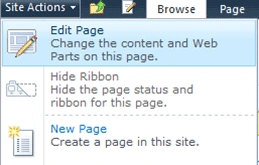
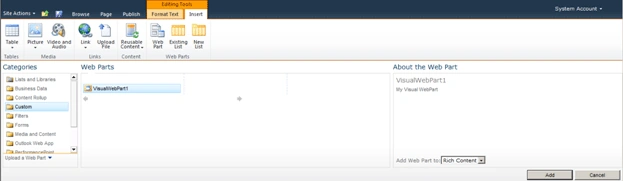
Step 7 : Click on Edit Tools-> Insert->Webpart. The deployed web part will be available under the Custom Category. Click on the Custom category option; then you can get the new deployed visualwebpart1. Select the VisualWebpart1 and Click Add button.
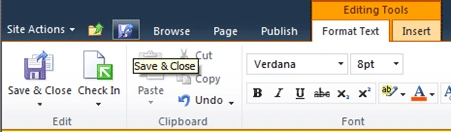
Step 8 : Once you've added it, click on the Save & Close button.
Step 9 : Output of the Visualwebpart1.
Dinesh BeniwalPosted Jun 1, 2011, 7:52 AM
Thanks for sharing......
Shirsendu NandiPosted Jun 1, 2011, 7:35 AM
good article..cheers...