

Brushes play a very important role in creating an application in WPF. Use of brushes make an application more attractive.
Expression Blend is a program that allows you to easily create the user interface for applications based on Windows Presentation Foundation (WPF). Expression Blend supports creating brush resources using XAML.
One of the benefits of using Expression Blend to create brush resources is that the brush can be created using the rich toolset of Expression Blend and then, once happy with it, convert it to a resource. Through brushes we can easily change the appearance of the specific object lets learn how to use different types of brushes, and the special emphasis is given to gradient tools. Brushes are found in the properties pane, when you open your project:
One of the benefits of using Expression Blend to create brush resources is that the brush can be created using the rich toolset of Expression Blend and then, once happy with it, convert it to a resource. Through brushes we can easily change the appearance of the specific object lets learn how to use different types of brushes, and the special emphasis is given to gradient tools. Brushes are found in the properties pane, when you open your project:
TYPES OF BRUSHES
- SOLID COLOR BRUSH
- LINEAR GRADIENT BRUSH
- RADIAL GRADIENT BRUSH
- IMAGE/TILE BRUSH
1. Solid Color Brush:
It is composed of a single color and the Fill property of shape paints the internal areas of a shape. We can directly specify the Fill property. For Example: Draw an ellipse on your artboard and apply solid Brush by setting the Fill property as under:
- The code showing how to fill the element with Color:
Fill="#FF1EB4AA"
- Similarly create stroke by choosing solid color brush:
Stroke="#FF032B28" StrokeThickness="4"
Properties --> Brushes --> Solid Color Brush --> Fill (to fill the internal part)
Properties --> Brushes --> Solid Color Brush --> Stroke (to set the color of Stroke)
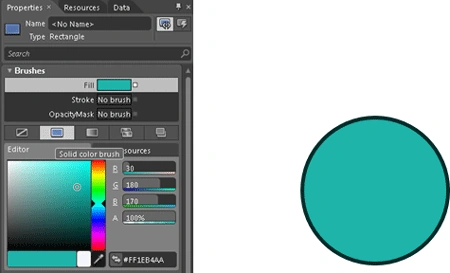
Appearance
Code:
<Grid x:Name="LayoutRoot">
<Ellipse Fill="#FF1EB4AA" HorizontalAlignment="Left" Height="158" Margin="97,29,0,0" VerticalAlignment="Top" Width="158" Stroke="#FF032B28" StrokeThickness="4"/>
</Grid>
2. Linear Gradient Brush:
It is composed of a linear color gradation. For example draw a rectangle and apply linear gradient as under:
Properties --> Brushes --> Gradient Brush --> Linear Gradient Brush --> Fill
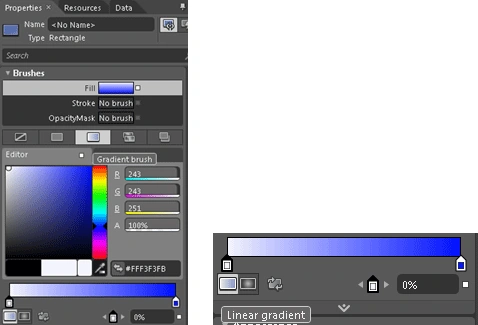
In this rectangle we are not giving the Stroke color; we only set the Stroke to "No Brush".

Appearance
Code:
<Grid x:Name="LayoutRoot">
<Rectangle Margin="180,122,289,218" StrokeThickness="4">
<Rectangle.Fill>
<LinearGradientBrush EndPoint="0.5,1" StartPoint="0.5,0">
<GradientStop Color="Blue" Offset="1"/>
<GradientStop Color="#FFF3F3FB"/>
</LinearGradientBrush>
</Rectangle.Fill>
</Rectangle>
</Grid>
We can also apply Gradient to it by selecting the gradient tool as under:
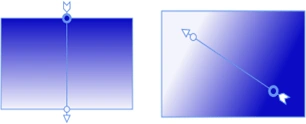
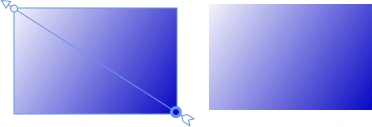
After Gradient
3. Radial Gradient Brush:
It is Composed of a radial color gradation and much more similar to linear gradient but the difference is of Appearance, different colors can be applied in both. For example draw a rectangle and apply radial gradient as under:
Properties --> Brushes --> Gradient Brush --> Radial Gradient Brush --> Fill
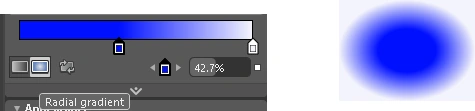
Appearance
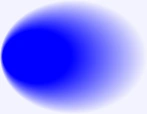
After Applying Gradient
Code:
<Grid x:Name="LayoutRoot">
<Rectangle Margin="180,122,289,203" StrokeThickness="4">
<Rectangle.Fill>
<RadialGradientBrush>
<GradientStop Color="Blue" Offset="0.427"/>
<GradientStop Color="#FFF3F3FB" Offset="1"/>
</RadialGradientBrush>
</Rectangle.Fill>
</Rectangle>
</Grid>
4. Image/Tile Brush:
The Image/Tile brush is created from an image. From left to right: the initial image brush, the image brush tiled, and the image brush flipped.
To use the Tile Brush, first click on the tile brush and select the tile mode= "Tile" and Stretch="Fill".
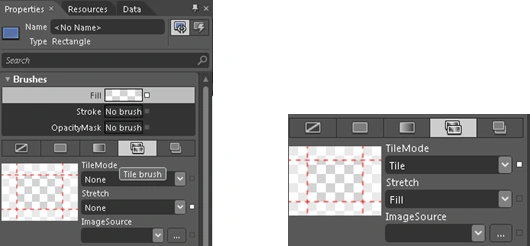
Now draw a rectangle and give the path for Image source as under:
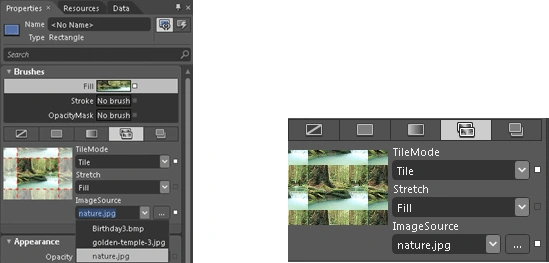
Now your rectangle will like this:

Sam HobbseditedPosted Mar 10, 2011, 6:13 PMEdited Mar 10, 2011, 6:58 PM
Your introduction describes the iPhone Brushes application; are you sure that has any relation to Windows, WPF or Expression brushes? See: http://www.brushesapp.com