

This article will demonstrate how to set up a WPF Gridsplitter in XAML and also using tab control with Microsoft Expression Blend.
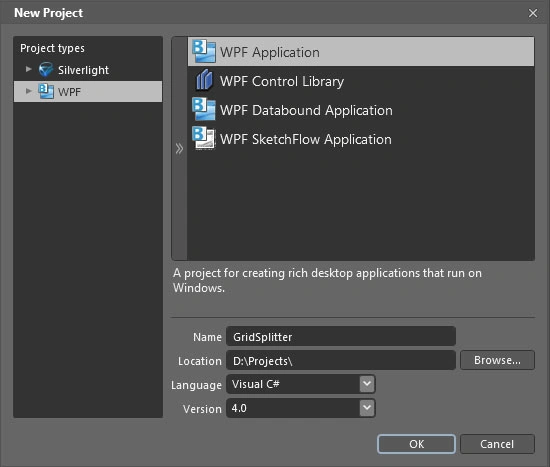
Open a new WPF application in Expression Blend 4.0 and name it "GridSplitter".
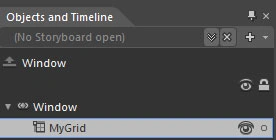
1. Change the name of your layout root to "MyGrid".
2. Add Rows and columns to it using the code below:
<Grid.RowDefinitions>
<RowDefinition Height="150*" />
<RowDefinition Height="3*" />
<RowDefinition Height="150*" />
</Grid.RowDefinitions>
<Grid.ColumnDefinitions>
<ColumnDefinition Width="250*" />
<ColumnDefinition Width="5*" />
<ColumnDefinition Width="590*" />
</Grid.ColumnDefinitions>
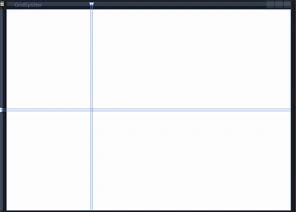
Your window will look like this:
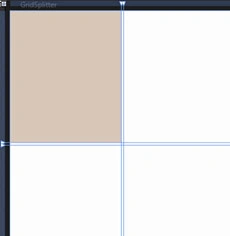
3. Add a new grid to the existing Grid and change its background:
<Grid Background="#FFDAC9BB" Grid.Column="0"></Grid>
4. Select GridSplitter which is available in the Assets library under the head "All controls". And add it in the grid; first we are adding "Vertical Splitter".
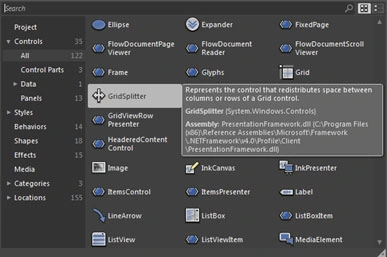
<GridSplitter Grid.Row="0" Grid.Column="1" Background="Black"
HorizontalAlignment="Stretch" VerticalAlignment="Stretch" Width="Auto"
Height="Auto" Grid.RowSpan="3" ResizeDirection="Columns">
</GridSplitter>
5. And similarly for the second column add a new grid to it:
<Grid Grid.Row="0" Grid.Column="2" Background="#FFACDDED" ></Grid>
And then add Horizontal Splitter by using the below code:
<GridSplitter Grid.Row="1" Grid.Column="0" Background="Black"
HorizontalAlignment="Stretch" VerticalAlignment="Stretch" Width="Auto"
Height="Auto" Grid.ColumnSpan="3" ResizeDirection="Rows">
</GridSplitter>
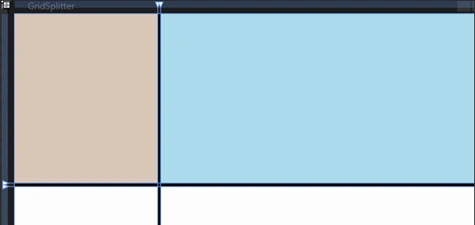
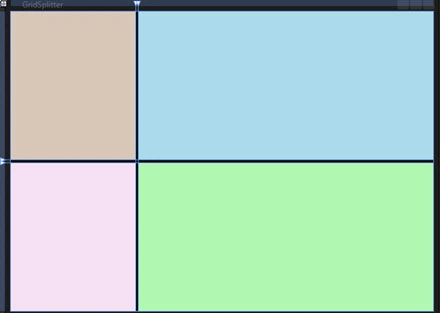
6. And lastly two more grids to the remaining columns:
<Grid Grid.Row="2" Grid.Column="0" Background="#FFF7E2F5" ></Grid>
<Grid Grid.Row="2" Grid.Column="2" Background="#FFB2F9B3"></Grid>
7. Let's add some controls to it, for example Tab Control  . It is also available in the Assets Library.
. It is also available in the Assets Library.Add the tab control to the first Grid as under:
<Grid Background="#FFDAC9BB" Grid.Column="0">
<TabControl Margin="8" Name="TabControl1"/>
</Grid>
And then Tab item:
<TabItem Header="Vegetables" Background="#FF002B81" Foreground="Black"/>
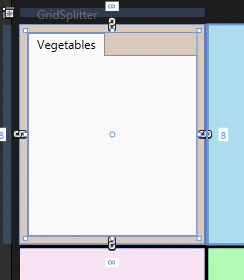
8. Now in that "TabItem" add one more grid and then in a grid add listbox with it's items:
<Grid>
<ListBox Background="#FFB2B6E9" Margin="0,0,8.615,0">
<ListBoxItem>LadyFinger</ListBoxItem>
<ListBoxItem>Onion</ListBoxItem>
<ListBoxItem>Patato</ListBoxItem>
<ListBoxItem>Peas</ListBoxItem>
<ListBoxItem>Carrot</ListBoxItem>
<ListBoxItem>Cawliflower</ListBoxItem>
<ListBoxItem>Cabbage</ListBoxItem>
<ListBoxItem>Beans</ListBoxItem>
</ListBox>
</Grid>
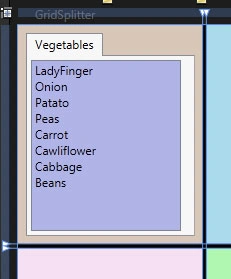
9. Similarly you can add more tab items to your tab control. As I have added:
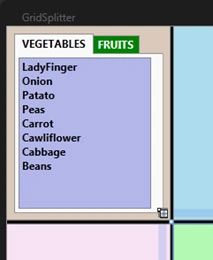
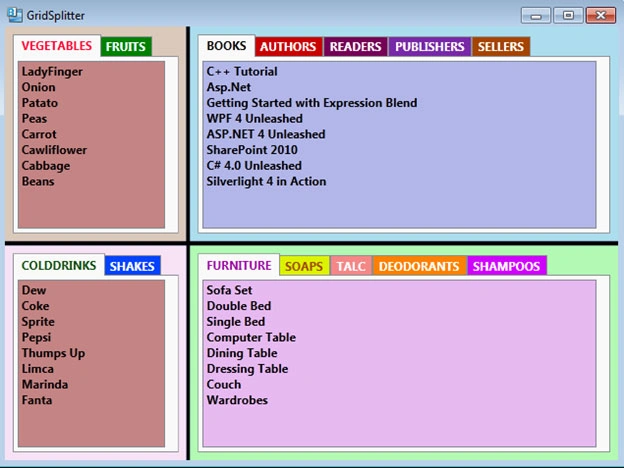
10. You can now add the tab controls and tab items to your rest of the grids and can change the background as well as Foreground according to you.
So, at last my window looks like:
Suzana BrPosted Nov 28, 2011, 7:00 AM
How can I click on Fruits and see the fruit lists
Suzana BrPosted Nov 28, 2011, 7:00 AM
How can I click on Fruits and see the fruit lists