

The ListView control displays a list of items with icons. It can be used to create a user interface like the right pane of Windows Explorer. The control has four view modes: LargeIcon, SmallIcon, List, and Details. It can display a graphical icon, as well as the item text and additional information about an item in a subitem. To display subitem information in the ListView control, set View property to View.Details, create ColumnHeader objects and assign them to the Columns property of the ListView control. Once these properties are set, items are displayed in a row and column format similar to a DataGrid control. This ability makes the ListView control a quick and easy solution for displaying data from any type of data source.
When you are working with the ListView control, you may want to sort its contents based on a specific column. For this create a type that implements the System.Collection.IComparer interface. IComparer type can sort based on any ListViewItem criteria specified. Just set the ListView.ListViewItemSorter property with an instance of IComparer type and call ListView.Sort method.
Below is the ItemComparer:
using System;
using System.Collections.Generic;
using System.Linq;
using System.Text;
using System.Collections;
using System.Windows.Forms;
namespace ListViewSortAnyColumn
{
public class ItemComparer : IComparer
{
//column used for comparison
public int Column { get; set; }
public ItemComparer(int colIndex)
{
Column = colIndex;
}
public int Compare(object a, object b)
{
int result;
ListViewItem itemA = a as ListViewItem;
ListViewItem itemB = b as ListViewItem;
if (itemA == null && itemB == null)
result = 0;
else if (itemA == null)
result = -1;
else if (itemB == null)
result = 1;
if (itemA == itemB)
result = 0;
//alphabetic comparison
result = String.Compare(itemA.SubItems[Column].Text, itemB.SubItems[Column].Text);
return result;
}
}
}
And Windows Form Form1:
using System;
using System.Collections.Generic;
using System.ComponentModel;
using System.Data;
using System.Drawing;
using System.Linq;
using System.Text;
using System.Windows.Forms;
namespace ListViewSortAnyColumn
{
public partial class Form1 : Form
{
public Form1()
{
InitializeComponent();
}
private void Form1_Load(object sender, EventArgs e)
{
//fill the list with data
FillItems();
}
private void listViewSample_ColumnClick(object sender, ColumnClickEventArgs e)
{
ItemComparer sorter = listViewSample.ListViewItemSorter as ItemComparer;
if (sorter == null)
{
sorter = new ItemComparer(e.Column);
listViewSample.ListViewItemSorter = sorter;
}
else
{
// Set the column number that is to be sorted
sorter.Column = e.Column;
}
listViewSample.Sort();
}
private void FillItems()
{
// Add items
ListViewItem item1 = new ListViewItem("Nipun Tomar");
item1.SubItems.Add("10/11/2000");
item1.SubItems.Add("[email protected]");
item1.SubItems.Add("123.456");
ListViewItem item2 = new ListViewItem("First Last");
item2.SubItems.Add("12/12/2010");
item2.SubItems.Add("[email protected]");
item2.SubItems.Add("123.4561");
ListViewItem item3 = new ListViewItem("User User");
item3.SubItems.Add("12/01/1800");
item3.SubItems.Add("[email protected]");
item3.SubItems.Add("123.4559");
ListViewItem item4 = new ListViewItem("Sample");
item4.SubItems.Add("05/30/1900");
item4.SubItems.Add("[email protected]");
item4.SubItems.Add("-123.456000");
// Add the items to the ListView.
listViewSample.Items.AddRange(
new ListViewItem[] {item1,
item2,
item3,
item4}
);
}
}
Sorting in Ascending or Descending Order
To add the ability to sort ListView items in both ascending and descending order, you need to do some changes in the above code to enable the Compare method to identify the items to sort.
So ItemComparer:
public class ItemComparer : IComparer
{
//column used for comparison
public int Column { get; set; }
//Order of sorting
public SortOrder Order { get; set; }
public ItemComparer(int colIndex)
{
Column = colIndex;
Order = SortOrder.None;
}
public int Compare(object a, object b)
{
int result;
ListViewItem itemA = a as ListViewItem;
ListViewItem itemB = b as ListViewItem;
if (itemA == null && itemB == null)
result = 0;
else if (itemA == null)
result = -1;
else if (itemB == null)
result = 1;
if (itemA == itemB)
result = 0;
//alphabetic comparison
result = String.Compare(itemA.SubItems[Column].Text, itemB.SubItems[Column].Text);
// if sort order is descending.
if (Order == SortOrder.Descending)
// Invert the value returned by Compare.
result *= -1;
return result;
}
}
Form1
private void listViewSample_ColumnClick(object sender, ColumnClickEventArgs e)
{
ItemComparer sorter = listViewSample.ListViewItemSorter as ItemComparer;
if (sorter == null)
{
sorter = new ItemComparer(e.Column);
sorter.Order = SortOrder.Ascending;
listViewSample.ListViewItemSorter = sorter;
}
// if clicked column is already the column that is being sorted
if (e.Column == sorter.Column)
{
// Reverse the current sort direction
if (sorter.Order == SortOrder.Ascending)
sorter.Order = SortOrder.Descending;
else
sorter.Order = SortOrder.Ascending;
}
else
{
// Set the column number that is to be sorted; default to ascending.
sorter.Column = e.Column;
sorter.Order = SortOrder.Ascending;
}
listViewSample.Sort();
}
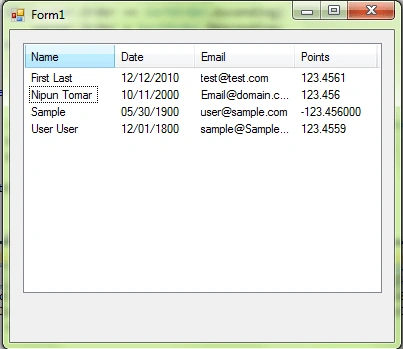
Result (first column- Name):
Sorting Dates
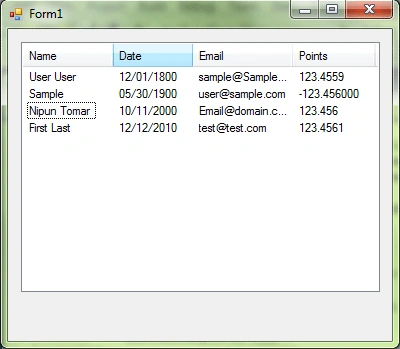
Data that is placed into the ListView control as an item is displayed as text and stored as text. This makes it easy to sort using the String.Compare method in an IComparer class which sorts both alphabetical characters and numbers. However, certain data types do not sort correctly using String.Compare, such as date and time information. So, you have to use the Compare method of System.DateTime structure. This method performs sorting based on chronological order.
So ItemComparer:
...
public int Compare(object a, object b)
{
int result;
ListViewItem itemA = a as ListViewItem;
ListViewItem itemB = b as ListViewItem;
if (itemA == null && itemB == null)
result = 0;
else if (itemA == null)
result = -1;
else if (itemB == null)
result = 1;
if (itemA == itemB)
result = 0;
// datetime comparison
DateTime x1, y1;
// Parse the two objects passed as a parameter as a DateTime.
if (!DateTime.TryParse(itemA.SubItems[Column].Text, out x1))
x1 = DateTime.MinValue;
if (!DateTime.TryParse(itemB.SubItems[Column].Text, out y1))
y1 = DateTime.MinValue;
result = DateTime.Compare(x1, y1);
if (x1 != DateTime.MinValue && y1 != DateTime.MinValue)
goto done;
//alphabetic comparison
result = String.Compare(itemA.SubItems[Column].Text, itemB.SubItems[Column].Text);
done:
// if sort order is descending.
if (Order == SortOrder.Descending)
// Invert the value returned by Compare.
result *= -1;
return result;
}
}
Result (second column- Date):
Sorting Decimals
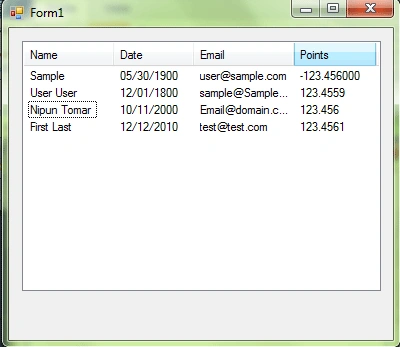
Similar to Dates you may also have decimal data into the ListView control. For this to work properly, you have to use the Compare method of System.Decimal structure.
So finally ItemComparer:
public int Compare(object a, object b)
{
int result;
ListViewItem itemA = a as ListViewItem;
ListViewItem itemB = b as ListViewItem;
if (itemA == null && itemB == null)
result = 0;
else if (itemA == null)
result = -1;
else if (itemB == null)
result = 1;
if (itemA == itemB)
result = 0;
// datetime comparison
DateTime x1, y1;
// Parse the two objects passed as a parameter as a DateTime.
if (!DateTime.TryParse(itemA.SubItems[Column].Text, out x1))
x1 = DateTime.MinValue;
if (!DateTime.TryParse(itemB.SubItems[Column].Text, out y1))
y1 = DateTime.MinValue;
result = DateTime.Compare(x1, y1);
if (x1 != DateTime.MinValue && y1 != DateTime.MinValue)
goto done;
//numeric comparison
decimal x2, y2;
if (!Decimal.TryParse(itemA.SubItems[Column].Text, out x2))
x2 = Decimal.MinValue;
if (!Decimal.TryParse(itemB.SubItems[Column].Text, out y2))
y2 = Decimal.MinValue;
result = Decimal.Compare(x2, y2);
if (x2 != Decimal.MinValue && y2 != Decimal.MinValue)
goto done;
//alphabetic comparison
result = String.Compare(itemA.SubItems[Column].Text, itemB.SubItems[Column].Text);
done:
// if sort order is descending.
if (Order == SortOrder.Descending)
// Invert the value returned by Compare.
result *= -1;
return result;
}
Result (last Column- Points):
RyeMoes RyeMoesPosted Dec 11, 2018, 10:37 PM
Only thing this doesn't work for is sorting groups. For some reason they stay the same. Thank you for this!
ZoltoneditedPosted Dec 4, 2010, 10:26 PMEdited Dec 4, 2010, 10:29 PM
Hi Nipun, Do you know how to get the SortDirection icons to appear using 100% managed code and using a CLS compliant assembly? Zolton