
One of the new feature introduced in WCF for Silverlight 4.0 is an improvement
of PollingDuplex binding. You must be aware of commonly used request-reply
pattern, where client (Silverlight) initiate the request and response from WCF
service is delivered on the same HTTP connection. The duplex binding allows
either WCF service or Silverlight 4.0 client to initiate message exchange. The
duplex messaging is useful when server needs to notify the client.
In older version of Silverlight when client communicates to server, the client
directly send request to server and server send response to client in the same
connection. When server needs to be enabled to communicate with client, the
client has to poll the server and server uses same poll response to send message
to clients. In this model the server will send single message on every poll
response, and server will wait for new poll to return every message. The
Silverlight 4 added a new mode MultipleMessagesPerPoll in existing PollingDuplex
binding to address this issue.
The new polling mode is using HTTP response streaming to send multiple messages
in a single poll response. The server will return chunked response with as many
messages as are pending and then it close the poll response.
Silverlight 4.0 offers duplex messaging over HTTP or TCP. In this article I am
going to cover HTTP based duplex messaging. This article first talks about how
to created Duplex WCF service and next we will see how Silverlight client
consume the Duplex service.
Following are the steps to create Duplex service and consume it in Silverlight
client.
Create new Silverlight application. Go to, File > New > Project. From the new
Project dialog select "Silverlight Application", specify the project name
HTTPDuplexMessaging.
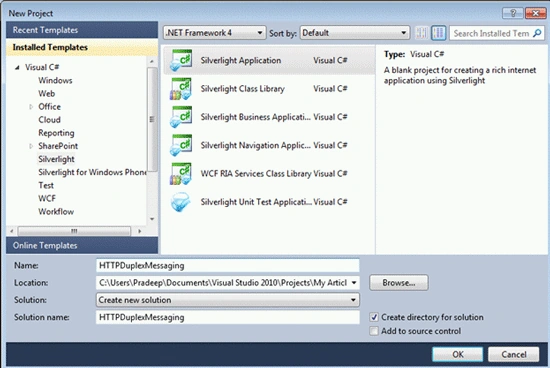
Click on "OK" button.
Create Duplex Service:
- Add WCF service in web project
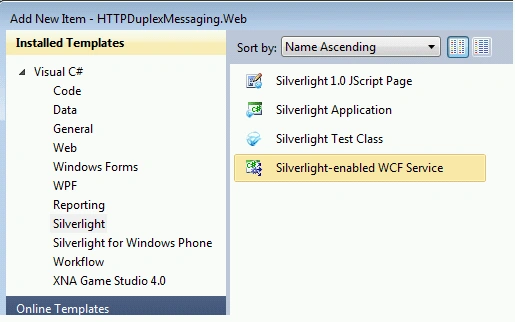
Right click on "HTTPDuplexMessaging.Web" project, select Add > New Item. From the Add New Item dialog box, select Silverlight Enabled WCF service, give the name "ChatService" and click on Add button. - Add IChatClient interface
Right click on web project and select Add > New Item, select Class template give file name "IChatClient" and click on Add button.
This interface will be used as callback by service. Add below code for IChatClient interface.
[ServiceContract]
public interface IChatClient
{
[OperationContract(IsOneWay = true)]
void NotifyClient(string message);
}
- Specify Callback Contract in service contract attribute
[ServiceContract(Namespace = "", CallbackContract = typeof(IChatClient))]
- Add Service contract to register client
SynchronizedCollection<IChatClient> clients = new SynchronizedCollection<IChatClient>();[OperationContract]
public void AttachClient()
{
clients.Add(OperationContext.Current.GetCallbackChannel<IChatClient>());
}
The clients will use AttchClient contract to register for chat.
-
Implement client notification
Add PublishMessage contract, this contract will be used to notify registered clients.
[OperationContract]
public void PublishMessage(string message)
{
foreach (IChatClient channel in clients)
{
channel.NotifyClient(message);
}
} -
Add binding extension to use PollingDuplex
Add PollingDuplex binding extension in web.config. Here I have added binding extension with the name "duplexHttpBinding".
<extensions>
<bindingExtensions>
<add name="duplexHttpBinding"
type="System.ServiceModel.Configuration.PollingDuplexHttpBindingCollectionElement,
System.ServiceModel.PollingDuplex,
Version=4.0.0.0,
Culture=neutral,
PublicKeyToken=31bf3856ad364e35" />
</bindingExtensions>
</extensions>
Now use duplexHttpBinding declared above in binding section to make use of this binding. Here the important thing to note is, the duplexMode property is set to MultipleMessagesPerPoll mode.
<bindings>
<duplexHttpBinding>
<binding name="myDuplexHttpBinding" duplexMode="MultipleMessagesPerPoll" maxOutputDelay="00:00:07"/>
</duplexHttpBinding
</bindings>
At this moment the Service changes are completed. Next we will see how the Silverlight client consumes the above created service.
Create Silverlight client application:
- Add ChatService service reference
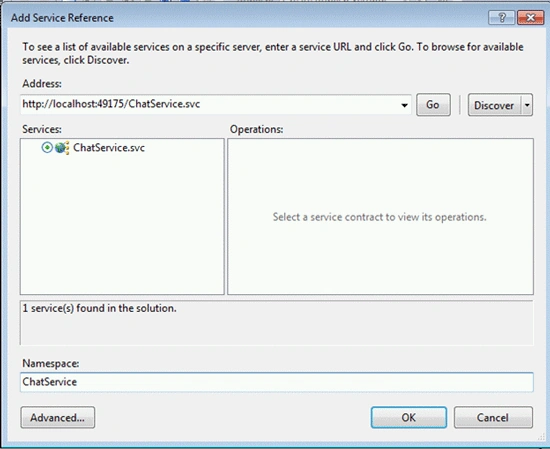
Right click on Silverlight project and select Add Service Reference. In the Add Service Reference dialog box click on "Discover" button, by default ChatService will be selected. Specify the namespace name to "ChatService" and click on OK button. -
Design the Silverlight UI
Add below line of code in MainPage.xaml.
<StackPanel>
<TextBox x:Name="txtReceivedMsg" Height="200" Width="300"/>
<StackPanel Orientation="Horizontal">
<TextBox x:Name="txtMyMsg" Height="25" Width="250"/>
<Button x:Name="btnSend" Height="25" Width="50" Content="Send" Click="btnSend_Click"/>
</StackPanel>
</StackPanel>
Here when you type message in txtMyMsg textbox and click on Send button, this message will be submitted to service and the same message will be published to all registered clients. The message notified from server to client will be displayed on txtReceivedMsg textbox.
- Create ChatService object and define endpoint
Declare ChatService object and define binding and endpoint.
ChatService.ChatServiceClient proxy;proxy = new ChatService.ChatServiceClient(
new PollingDuplexHttpBinding { DuplexMode = PollingDuplexMode.MultipleMessagesPerPoll},
new EndpointAddress("../ChatService.svc")); - Register client
To register client to receive service notification add below code in MainPage constructor.
proxy.AttachClientAsync();
- Attach Received event
Attach Received event in MainPage constructor to get notification message published from server.
proxy.NotifyClientReceived += new EventHandler<ChatService.NotifyClientReceivedEventArgs>(proxy_NotifyClientReceived);
void proxy_NotifyClientReceived(object sender, ChatService.NotifyClientReceivedEventArgs e)
{
txtReceivedMsg.Text += e.message + "\n";
}
- Send message from client to server
On Send button click event, call PublishMessage async contract to send message from client to server. When server will receive message from any client, the server will send the same message to all registered clients.
private void btnSend_Click(object sender, RoutedEventArgs e)
{
proxy.PublishMessageAsync(txtMyMsg.Text);
txtMyMsg.Text = "";
}
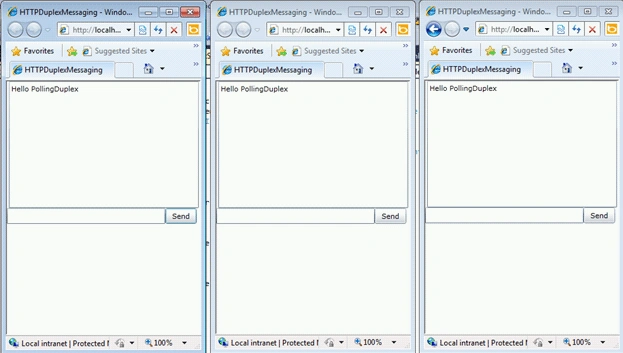
When you run application it will be launched in browser. Copy the URL from this browse instance and open two more instances of browser and access the same URL. The chat application will be opened in all three browser instances. At this moment three clients are registered to get service notification.
Now when you type message in any of the client and click on send button, the same message will be notified to all clients. You can see the same message in all clients.
In this article we learned how we can implement PollingDuplex with MultipleMessagesPerPoll duplex mode.
MA GEeditedPosted Jan 23, 2013, 7:38 AMEdited Jan 23, 2013, 8:07 AM
@sean The value maxOutputDelay="00:00:07" -> set 7 seconds of delay time before the service begin to respond and deque all the message that it has been collected. The maxOutputDelay is the time between the last outgoing server-to-client application message and the HTTP response being closed; it’s reset with each new outgoing message being dequeued. Closing the response ensures that all messages are flushed and no message will take longer than MaxOutputDelay to be delivered to the client. Bound to the client dispatcher. The default value is 200 msec
sean freemanPosted Nov 1, 2012, 11:02 PM
Why is it slwoer? it's pretty slow even on local machine. how can this be faster on internet. :D it's taking atleast 9 seconds to deliver the messege.
Preeti BangPosted May 23, 2012, 5:50 AM
How to use this app on multiple machines?
EmmanuelPosted Oct 12, 2010, 6:31 PM
when clicking on Send I get this execption. I've open your solution directly under VS2010 and it fails here [OperationContract] public void PublishMessage(string message) { foreach (IChatClient channel in clients) { channel.NotifyClient(message); } } System.ServiceModel.CommunicationObjectAbortedException was unhandled by user code Message=The communication object, System.ServiceModel.Channels.ServiceChannel, cannot be used for communication because it has been Aborted. Source=mscorlib StackTrace: Server stack trace: at System.ServiceModel.Channels.CommunicationObject.ThrowIfDisposedOrNotOpen() at System.ServiceModel.Channels.ServiceChannel.Call(String action, Boolean oneway, ProxyOperationRuntime operation, Object[] ins, Object[] outs, TimeSpan timeout) at System.ServiceModel.Channels.ServiceChannelProxy.InvokeService(IMethodCallMessage methodCall, ProxyOperationRuntime operation) at System.ServiceModel.Channels.ServiceChannelProxy.Invoke(IMessage message) Exception rethrown at [0]: at System.Runtime.Remoting.Proxies.RealProxy.HandleReturnMessage(IMessage reqMsg, IMessage retMsg) at System.Runtime.Remoting.Proxies.RealProxy.PrivateInvoke(MessageData& msgData, Int32 type) at HTTPDuplexMessaging.Web.IChatClient.NotifyClient(String message) at HTTPDuplexMessaging.Web.ChatService.PublishMessage(String message) in G:\Downloads\Chrome\HTTPDuplexMessaging\HTTPDuplexMessaging.Web\ChatService.svc.cs:line 28 at SyncInvokePublishMessage(Object , Object[] , Object[] ) at System.ServiceModel.Dispatcher.SyncMethodInvoker.Invoke(Object instance, Object[] inputs, Object[]& outputs) at System.ServiceModel.Dispatcher.DispatchOperationRuntime.InvokeBegin(MessageRpc& rpc) InnerException: