

I am proud to present to you our unique image comparison application in C#.Net. C# .Net provides a good support for processing on the image, and the purpose of this article is not to give you a lot of insight into the image processing, rather it is written to help you start your image processing career using C#.
Let's create a project and compare two images using this application. to do this follows the given steps:
Step 1: In Visual studio 2005. click on file menu -> New -> Project then the following dialogbox will appear.
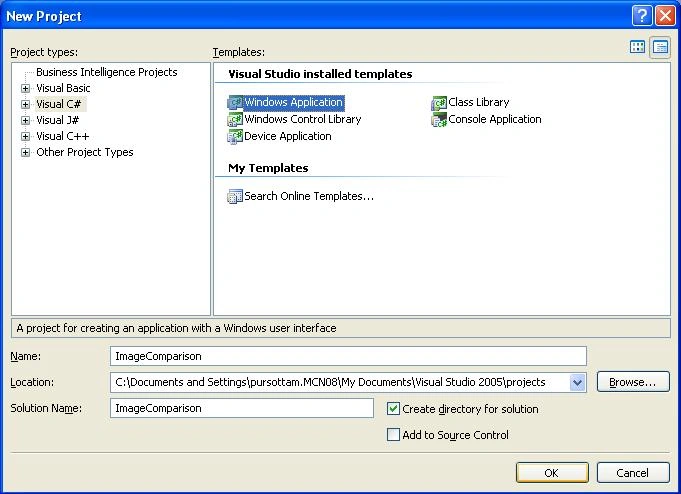
Figure 1:
Step 2: Now drag and drop the following tools on the Form from toolbox.
Two LinkLable
One Button
Two OpenFileDialog
ProgressBar
PictureBox
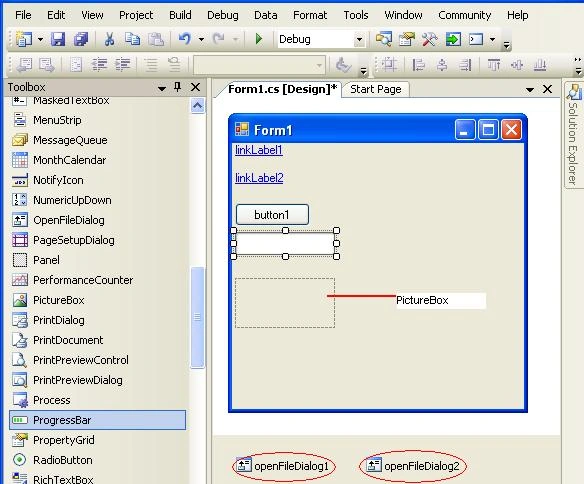
Figure 2:
Step 3: Go to properties window and design the form as you want.
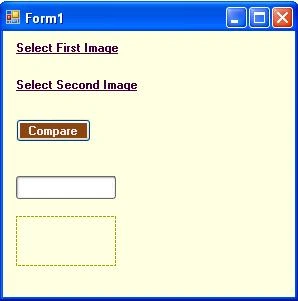
Figure 3:
Step 4: Double click on form and write the following line on the form_load.
- private void Form1_Load(object sender, EventArgs e)
- {
- progressBar1.Visible = false;
- pictureBox1.Visible = false;
- }
- using System.IO;
Step 6: Write the following line on the linkLabel1_LinkClicked event
- private void linkLabel1_LinkClicked(object sender, LinkLabelLinkClickedEventArgs e)
- {
- openFileDialog1.FileName = "";
- openFileDialog1.Title = "Images";
- openFileDialog1.Filter = "All Images|*.jpg; *.bmp; *.png";
- openFileDialog1.ShowDialog();
- if (openFileDialog1.FileName.ToString() != "")
- {
- fname1 = openFileDialog1.FileName.ToString();
- }
- }
Step 7: Write the following line on the linkLabel2_LinkClicked event
- private void linkLabel2_LinkClicked(object sender, LinkLabelLinkClickedEventArgs e)
- {
- openFileDialog2.FileName = "";
- openFileDialog2.Title = "Images";
- openFileDialog2.Filter = "All Images|*.jpg; *.bmp; *.png";
- openFileDialog2.ShowDialog();
- if (openFileDialog2.FileName.ToString() != "")
- {
- fname2 = openFileDialog2.FileName.ToString();
- }
- }
Step 8: Finally write the follwoing code in the button click event.
- private void button1_Click(object sender, EventArgs e)
- {
- progressBar1.Visible = true;
- string img1_ref, img2_ref;
- img1 = new Bitmap(fname1);
- img2 = new Bitmap(fname2);
- progressBar1.Maximum = img1.Width;
- if (img1.Width == img2.Width && img1.Height == img2.Height)
- {
- for (int i = 0; i < img1.Width; i++)
- {
- for (int j = 0; j < img1.Height; j++)
- {
- img1_ref = img1.GetPixel(i, j).ToString();
- img2_ref = img2.GetPixel(i, j).ToString();
- if (img1_ref != img2_ref)
- {
- count2++;
- flag = false;
- break;
- }
- count1++;
- }
- progressBar1.Value++;
- }
- if (flag == false)
- MessageBox.Show("Sorry, Images are not same , " + count2 + " wrong pixels found");
- else
- MessageBox.Show(" Images are same , " + count1 + " same pixels found and " + count2 + " wrong pixels found");
- }
- else
- MessageBox.Show("can not compare this images");
- this.Dispose();
- }
Step 9: Now debug the application. When you compare same images like as follows:
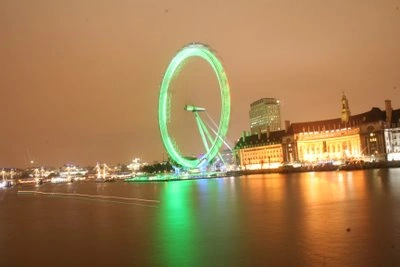
Img 1:
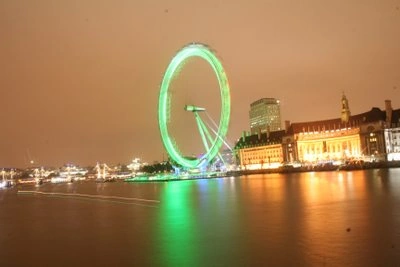
Img 2:
Then the following output will occur.
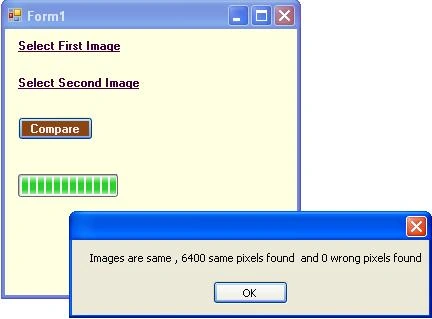
Figure 4:
Step 10: When you compare different images like as follows:
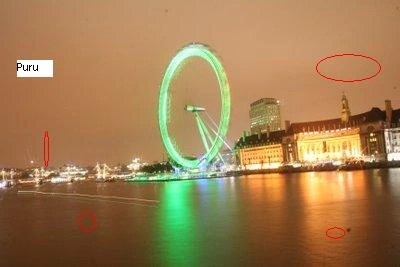
Img 3_Different:
Then the following output will occur.
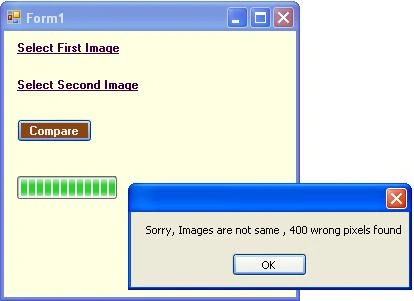
Figure 5:
bhavesh bhaveshPosted Dec 6, 2021, 6:33 PM
This is nice article sir, Can we do same in OpenCV?
TaTam SupachaiPosted Jan 3, 2020, 12:10 AM
I found error img1 and img2 , how to debug
Atir TahirPosted Sep 8, 2019, 3:05 PM
Try out GroupDocs.Comparison for .NET in order to do pixel to pixel comparison https://www.c-sharpcorner.com/blogs/pixel-by-pixel-image-comparison-in-net.
Larry TagePosted May 30, 2019, 11:53 PM
This code does not work in visual studio 2012 and above
narasimha sai kumarPosted Feb 5, 2019, 11:47 PM
Sir how we get img3_different with circles ...
shan pcPosted Aug 16, 2018, 9:40 AM
How do sql save image to openFileDialog image compare
CHIO MOBYPosted May 8, 2014, 4:33 AM
It's good, thanks.
abhishek sharmaPosted Dec 25, 2013, 2:51 AM
@ali hassani.....I do require ur code...ur website z mising...mail me plz at [email protected]
abhishek sharmaPosted Dec 24, 2013, 1:38 PM
useful info...i appreciate....
aman gargPosted Sep 23, 2013, 5:36 AM
if yes, then please do mail me on this [email protected]
aman gargPosted Sep 23, 2013, 5:27 AM
can we get the data of different pixels ?
Divakar RajPosted Feb 19, 2013, 6:11 AM
I'm getting an error in Visual Studio 2008 Dot net framework 3.5 'System.Drawing.Image' does not contain a definition for 'GetPixel' and no extension method 'GetPixel' accepting a first argument of type 'System.Drawing.Image' could be found (are you missing a using directive or an assembly reference?) i couldnt download the file so i added the code manually.. I have the following namspaces using System; using System.Collections.Generic; using System.ComponentModel; using System.Data; using System.Drawing; using System.Linq; using System.Text; using System.Windows.Forms; using System.IO; what is the reason for my error ? and should i add any more namespaces
sathish rangaPosted Nov 9, 2012, 5:29 AM
Hello Rathore, How do i compare with different image formats if i compare same image with different images it shown as not matching. how to compare irrespective of image format (ex. jpeg, bmp, gif) please send me piece of code my mail id is [email protected]
Guest UserPosted Sep 14, 2012, 5:41 AM
I have a better way with Eyeopen.It gets two images and tells you similarity percent.If anyone is interested mail me at [email protected] and if you want a closer look you can download my face recognizer or similar images in my website:www.hydarnes.com
aravind sankerPosted Mar 19, 2012, 1:54 PM
How complicated is it to do a project like this as a Web based application ?
sonia naiduPosted Mar 19, 2012, 3:02 AM
can u tell me how to find an image1 which is a part of image 2 in image 2. fr eg. image 1= swing image 2= tree with swing after running the code , result must be 'position of image 1 in image 2'..
Eleazar MtzPosted Feb 17, 2012, 9:02 AM
Thanks for this work I`m begining in this and i hope learn more.
RajeshPosted Dec 27, 2011, 9:41 AM
Hello Rathore, Could you Pls help me regarding this issue? I want to compare two screen (CRT+HDMI) and check for the junk display while cloning the display. Plz help me my mail id :[email protected]
soheil sedighiPosted Nov 17, 2011, 3:49 AM
You're look so cool , Thank You. One Question If Possible : In FingerPrint , I do ImageProcessing With Mathlab on one image(FingerPrint) and I want to compare this image with image that exist in swl database, if your program can help me and it's accuracey is high for fingerprint compiration. Thank You
khoo kah wengPosted Oct 9, 2011, 4:28 AM
may i know what is the picture box for?
dineshPosted Sep 14, 2011, 8:40 AM
code that you put in zip file is working.., and tell me how to do this for serial port communication .. i want to compare images that scanned by scanner kid...with the image that already stored in the data base.. for embedded proj
hassin lacabPosted Feb 19, 2011, 7:58 AM
Is a good program thank you Purushottam Rathore
enis eftekinPosted Feb 16, 2011, 5:55 AM
how can you compare two same image those have different color tone(for example they have different hue values)?
saidfix fixPosted Feb 14, 2011, 3:07 AM
Hi please tell me how to compare two images in web using c#???
Mike PollackPosted Feb 10, 2011, 6:48 PM
this is terrible code
Eva WongPosted Sep 11, 2010, 2:27 AM
Hi! Anyone has any idea on how to compare image in database table using the same method? help....
Jorge HoracioPosted Sep 9, 2010, 9:34 PM
Hi Purushottam, Can a C# program take a screen shot of a predeterminated part of the screen and then do the Image Comparison? Thanks
Jefferey FeiPosted Sep 7, 2010, 5:39 AM
Hi.. Thanks for sharing such a good application source code. Currently, I am doing my final year project. I am having a problem in the web cam captured images comparison using C#. The object that captured by the web cam is the same object. However, the object was not accurately fall at the same position (even just a different of 0.1mm in X or Y direction) . Hence, the result from the comparison is the images are not same. In fact, what actually i want to compare is the shape of the object, to check whether the object is out of shape. I have an idea, perhaps to set a 'datum point' at the center of the object (not at the center of the image) and the comparison is started at the 'datum point.' But I was unable to write the code. Do you have any idea or solution on this matter? Thanks in advance. :) Jefferey.
Eva WongPosted Aug 24, 2010, 1:51 PM
Hey! Thanks for sharing.. I'h learnt new thing and I felt great! ;)
Benjapol SuksakulchaiPosted Aug 24, 2010, 7:45 AM
Hello Purushottam can you please explain me how i can replace Red-Channel on Different pixel between 2 picture thanks a lot
siddardhaPosted Aug 9, 2010, 1:09 PM
its very simple and good application
siddardhaPosted Aug 9, 2010, 1:06 PM
its very simple and good application
venkat madduruPosted Jun 23, 2010, 1:16 AM
so far i have not traid. after trail i will give my feed back
Pawan GuptaPosted Jun 17, 2010, 3:41 PM
the code you provide is totally worst, you compare image when you perform xor. The perfect black output shows that the images are totally same.
cata cataPosted Mar 12, 2010, 6:08 PM
thanks man....you helped me a lot! you're cool
danny drorPosted Nov 11, 2009, 4:44 AM
thanks for sharing, although this is not a true image comparing function it does show how to access images using C#, thanks again :) --------------------------------------------- Danny, Los Angeles Locksmith
abdul rahimPosted Sep 21, 2009, 12:23 PM
hi man i really liked the way you explain your program but i am new in c# and would like to know if there can be a possibility to create also a database relate to the program where image can be saved in so that when we compare the second can take as reference the first one.
Mohammad Ilyas SoomroPosted Jun 4, 2009, 2:56 AM
Image comparison is not just comparing pixels as they are. Because two images captured by the same camera does not exactly same. Light dimming can make all pixels unequal, so in that environment two same object images cannot be compared with this technique, but there are so many programs in matlab for true comparison semantically, and do not found any in C#, if you could solve this problem tell me at.... [email protected] thanks if you could solve...
shahid mojidPosted Apr 9, 2009, 9:50 AM
Thanks a lot
Gokul V SPosted Feb 28, 2009, 7:13 AM
Hi can any body help me to do Project LongTerm Cross session Relevance Feed back using Virtual features using c#.net
Attaullah KhanPosted Feb 27, 2009, 8:44 AM
This is a great article thanx for sharing the code, there is one more thing i would like to ask and that is even though the pictures in the above example are same but you have made slight changes to the next image, is it possilble that the program compares the image and sees if the second image is 80% (percent) the same as the first image and the program should therefore accept it to be alike. Can you help me with that? Thanks AK.
Gokul V SPosted Feb 24, 2009, 6:53 AM
I cant download user zip file page error is shown... plz verify...I need ur since ur article is good my id :[email protected]
DnyaneshwarPosted Jan 30, 2009, 11:37 PM
Hello Purushottam can you please explain me how we can make particular image only visible in form of circle(like cd,Dvd) and make certain operations on that image like inserting text on it..... above article is wonderful.... thanks for sharing..... looking forward for ur posting about my question Regards, Dnyaneshwar