ComboBox:
The ComboBox is a user interface (UI) item that presents users with a list of options. The contents can be shown and hidden as the control expands and collapses. In its default state, the list is collapsed, displaying only one choice. The user clicks a button to see the complete list of options.
Here I am creating a simple application to show ComboBox in WPF.
First Off all open Visual Studio 2008 -> File -> New -> Project then select WPF Application as follows:
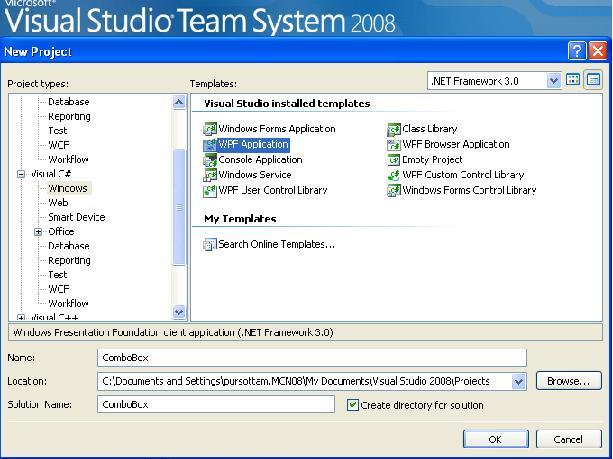
Figure 1: Open new wpf application
Now drag two ComboBox from toolBox and drop within grid of the window (See figure 2).
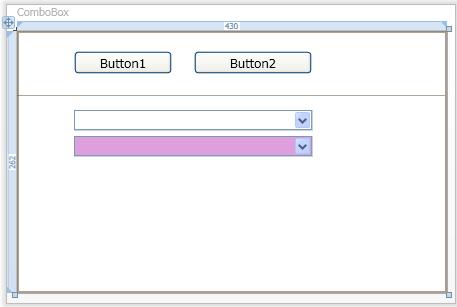
Figure 2:
Window.xaml:
<
Window x:Class="ComboBox.Window1" xmlns=http://schemas.microsoft.com/winfx/2006/xaml/presentation xmlns:x=http://schemas.microsoft.com/winfx/2006/xaml Title="ComboBox" Height="300" Width="450" Loaded="Window_Loaded">
<Grid Width="430">
<Button Height="23" HorizontalAlignment="Left" Margin="57,20,0,0" Name="Button1" ToolTip="Click here to view ComboBox" FontSize="10pt" VerticalAlignment="Top" Width="98" Click="Button1_Click">Button1</Button>
<Button Height="23" Margin="177,20,135,0" Name="Button2" ToolTip="Click here to view Multiple Column in a ComboBox" FontSize="10pt" VerticalAlignment="Top" Click="Button2_Click">Button2</Button>
<!--Multiple column in combobox-->
<ComboBox Visibility="Hidden" Margin="57,79,135,0" Name="comboBox1" ItemsSource="{Binding}" VerticalAlignment="Top" Height="20">
<ComboBox.ItemTemplate>
<DataTemplate>
<StackPanel Orientation="Horizontal">
<TextBlock Text="{Binding CountryId}" Width="50" />
<TextBlock Text="{Binding Country}" Width="100" />
</StackPanel>
</DataTemplate>
</ComboBox.ItemTemplate>
</ComboBox>
<!--This is simple Combobox-->
<ComboBox Visibility="Hidden" Margin="57,105,135,0" Name="comboBox2" ItemsSource="{Binding}" VerticalAlignment="Top" Height="20" Background="Plum">
<ComboBox.ItemTemplate>
<DataTemplate>
<StackPanel Orientation="Horizontal">
<TextBlock Text="{Binding Country}" Width="100" />
</StackPanel>
</DataTemplate>
</ComboBox.ItemTemplate>
</ComboBox>
<Separator Height="4" Margin="0,62,0,0" Name="separator1" VerticalAlignment="Top" />
</Grid>
</Window>
Now add the following namespace to establish the connection from the SQL server.
using
System.Data;
using System.Data.SqlClient;
Window.xaml.cs:
using
System;
using System.Collections.Generic;
using System.Text;
using System.Windows;
using System.Windows.Controls;
using System.Windows.Data;
using System.Windows.Documents;
using System.Windows.Input;
using System.Windows.Media;
using System.Windows.Media.Imaging;
using System.Windows.Navigation;
using System.Windows.Shapes;
using System.Data;
using System.Data.SqlClient;
namespace
ComboBox
{
public partial class Window1 : Window
{
public Window1()
{
InitializeComponent();
}
private void Window_Loaded(object sender, RoutedEventArgs e)
{
DataSet ds = new DataSet();
SqlConnection con = new SqlConnection("Data source=.;initial catalog=Puru;uid=sa;password=;");
SqlCommand cmd = new SqlCommand("select CountryId,Country from Country", con);
SqlDataAdapter sqlDa = new SqlDataAdapter();
sqlDa.SelectCommand = cmd;
sqlDa.Fill(ds);
comboBox1.DataContext = ds.Tables[0].DefaultView;
comboBox2.DataContext = ds.Tables[0].DefaultView;
}
private void Button1_Click(object sender, RoutedEventArgs e)
{
comboBox2.Visibility = System.Windows.Visibility.Visible;
comboBox1.Visibility = System.Windows.Visibility.Hidden;
}
private void Button2_Click(object sender, RoutedEventArgs e)
{
comboBox1.Visibility = System.Windows.Visibility.Visible;
comboBox2.Visibility = System.Windows.Visibility.Hidden;
}
}
}
Now debug the application: The Following output will occur.
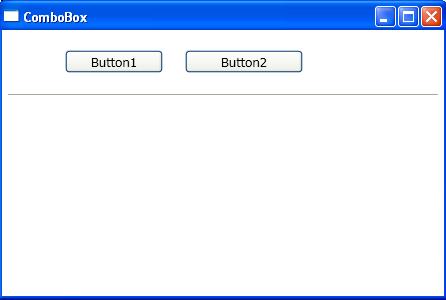
Figure 3:
Click on button1 like this
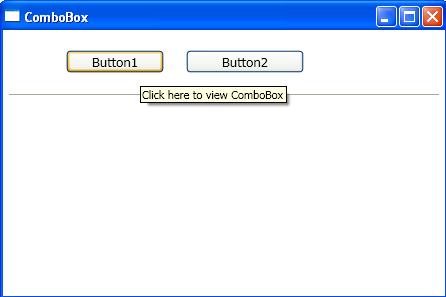
Figure 4:
The Following output will occur.
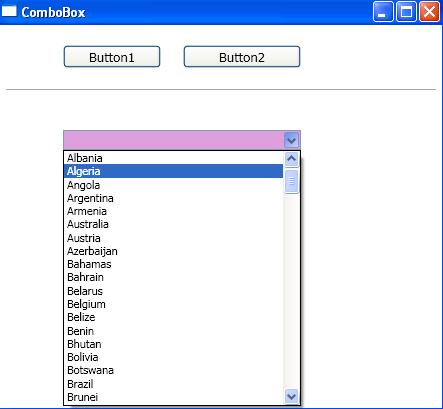
Figure 5: data in combobox.
When you Click on button2, Then the Following output will occur.
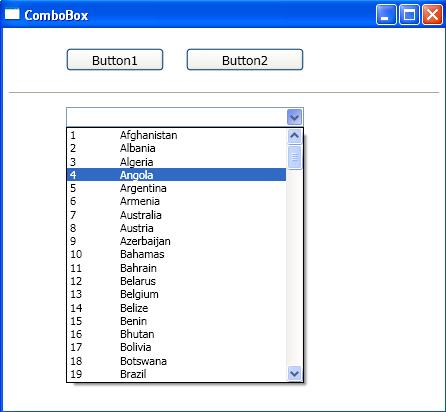
Figure 6: Multiple columns in a combobox.