
The AutoCompleteBox control enables you to populate a list of items in your text box such that when you type in the first or first few characters of an item, you will be able to see a list. For example, consider that you have a text box on the user interface and want to display a set of names starting from N for the user to choose from. But this set of names would not be visible initially. It appears only when the user types N in the text box. This functionality can be achieved through the AutoCompleteBox control in Silverlight 3. The easiest way of populating the list is by creating it in the code-behind file. This would be a hard-coded approach though and every time you want to change the list, you will need to edit your code. A more flexible (and sometimes complex) approach would be to get the list populated from a database, an XML file or a Web service.
For the sake of this article, however, we shall see a simple example wherein we create the list in the code-behind file.
Create a Silverlight 3 application and replace the Grid tag with the Canvas tag. Drag and drop the AutoCompleteBox from the Toolbox into your XAML code (between the Grid tags). Also add a TextBlock.
Configure the properties of the three controls as shown below.
<UserControl xmlns:input="clr-namespace:System.Windows.Controls;assembly=System.Windows.Controls.Input" x:Class="AutoCompleteDemo.MainPage"
xmlns="http://schemas.microsoft.com/winfx/2006/xaml/presentation"
xmlns:x="http://schemas.microsoft.com/winfx/2006/xaml"
xmlns:d="http://schemas.microsoft.com/expression/blend/2008" xmlns:mc="http://schemas.openxmlformats.org/markup-compatibility/2006"
mc:Ignorable="d" d:DesignWidth="640" d:DesignHeight="480">
<Canvas x:Name="LayoutRoot" Width="640" Height="480">
<TextBlock Text="Please Enter a Name" Canvas.Left="100" Canvas.Top="20"></TextBlock>
<input:AutoCompleteBox x:Name="Names" Background="Transparent" Canvas.Left="100" Canvas.Top="40" Height="20" Width="100"></input:AutoCompleteBox>
</Canvas>
</UserControl>
Then open the MainPage.xaml.cs (code-behind) file and add the code as shown below:
public MainPage()
{
InitializeComponent();
List<string> names = new List<string>();
names.Add("Nimish");
names.Add("Nitin");
names.Add("Nilesh");
names.Add("Nilkanth");
names.Add("Nitesh");
Names.ItemsSource = names;
}
This creates a collection and assigns it as a data source to the AutoCompleteBox.
When you build and execute your solution and type N in the AutoCompleteBox, you would see a list of suggestions beginning with N for the names. 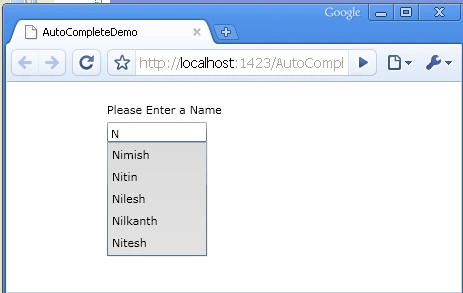
Figure 1: Output of the application
Conclusion: This article explored how to use AutoCompleteBox in Silverlight 3.

AutoCompleteBox in Silverlight 3
Join the conversation! Your thoughts help the community grow.
Sign in to leave a comment
It is the same account you read, post and publish with — and you will come straight back to this page.
sharavathiPosted Jun 14, 2010, 5:46 AM
hi, its nice article.. We tried this and able to get it..We would like to add hyperlink as additional metadata..meaning..some keyword and hyperlink for that keywork... we are able to display in autocompletebox, we want to make it as clickable.. when we select any keyword..we should be able to click the hyperlink..can u suggest how to get it? thanks, xxx
Raj KumarPosted Sep 3, 2009, 8:50 AM
good article keep going.