

Note: This article only shows you how to design a page in silverlight application.
The basic design of the form is as shown below:
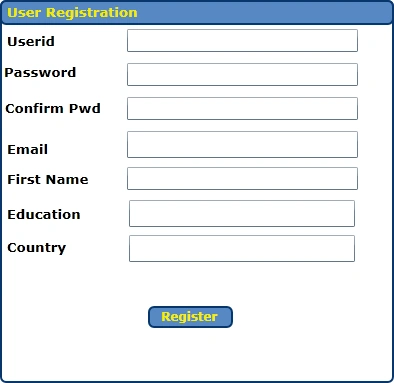
Here is the xaml code for the page:
<Grid x:Name="LayoutRoot" Background="White" DataContext="{Binding Source={StaticResource AutoData}}">
<Grid>
<Grid.ColumnDefinitions>
<ColumnDefinition Width="0.172*"/>
<ColumnDefinition Width="0.682*"/>
<ColumnDefinition Width="0.145*"/>
</Grid.ColumnDefinitions>
<Grid.RowDefinitions>
<RowDefinition Height="0.087*"/>
<RowDefinition Height="0.83*"/>
<RowDefinition Height="0.083*"/>
</Grid.RowDefinitions>
<Grid Grid.Column="1" Grid.Row="1">
<Grid.RowDefinitions>
<RowDefinition Height="0.147*"/>
<RowDefinition Height="0.08*"/>
<RowDefinition Height="0.08*"/>
<RowDefinition Height="0.08*"/>
<RowDefinition Height="0.08*"/>
<RowDefinition Height="0.08*"/>
<RowDefinition Height="0.08*"/>
<RowDefinition Height="0.08*"/>
<RowDefinition Height="0.08*"/>
<RowDefinition Height="0.08*"/>
<RowDefinition Height="0.08*"/>
</Grid.RowDefinitions>
<Grid.ColumnDefinitions>
<ColumnDefinition Width="0.31*"/>
<ColumnDefinition Width="0.69*"/>
</Grid.ColumnDefinitions>
<Border Margin="8,8,8,-11" BorderBrush="#FF08366C" BorderThickness="2" CornerRadius="5" Grid.ColumnSpan="2"
Grid.RowSpan="10"/>
<dataInput:Label x:Name="emaillabel" Margin="0,9,-180,-6" Template="{StaticResource LabelControlTemplate2}" HorizontalAlignment="Right" Width="220" Grid.Column="1" Grid.Row="2" Grid.RowSpan="3"/>
<TextBox x:Name="email" Margin="8,5,44,3" TextWrapping="Wrap" GotFocus="email_gotfocus" LostFocus="email_lostfocus" Grid.Column="1" Grid.Row="3"/>
<TextBlock Height="17" Margin="15,0,31,6" VerticalAlignment="Bottom" FontFamily="Verdana" FontSize="13.333" FontWeight="Bold" Text="Userid" TextWrapping="Wrap"/>
<TextBlock FontFamily="Verdana" FontSize="13.333" FontWeight="Bold" Text="Password" TextWrapping="Wrap" Margin="12,8,34,10" Grid.Row="1"/>
<TextBlock Margin="13,9,7,9" FontFamily="Verdana" FontSize="13.333" FontWeight="Bold" Text="Confirm Pwd" TextWrapping="Wrap" Grid.Row="2"/>
<TextBlock Margin="15,15,31,3" FontFamily="Verdana" FontSize="13.333" FontWeight="Bold" Text="Email" TextWrapping="Wrap" Grid.Row="3"/>
<TextBlock Margin="15,10,18,8" FontFamily="Verdana" FontSize="13.333" FontWeight="Bold" Text="First Name" TextWrapping="Wrap" Grid.Row="4"/>
<TextBlock Margin="15,10,31,8" FontFamily="Verdana" FontSize="13.333" FontWeight="Bold" Text="Education" TextWrapping="Wrap" Grid.Row="5"/>
<Rectangle Fill="#FF5688C3" Stroke="#FF08366C" StrokeThickness="2" RadiusX="5" RadiusY="5" Margin="8,8,8,31" Grid.ColumnSpan="2"/>
<TextBlock Margin="15,12,-59,0" FontFamily="Verdana" FontSize="13.333" FontWeight="Bold" Text="User Registration" TextWrapping="Wrap" Height="17" VerticalAlignment="Top" Foreground="#FFF6EB06"/>
<TextBlock Margin="15,8,31,10" FontFamily="Verdana" FontSize="13.333" FontWeight="Bold" Text="Country" TextWrapping="Wrap" Grid.Row="6"/>
<TextBox x:Name="userid" Margin="8,0,44,4" TextWrapping="Wrap" GotFocus="useid_gotfocus" LostFocus="userid_lostfocus" Grid.Column="1" Height="23" VerticalAlignment="Bottom"/>
<TextBox x:Name="pwd" Margin="8,7,44,5" TextWrapping="Wrap" GotFocus="pwd_gotfocus" LostFocus="pwd_lostfocus" Grid.Column="1" Grid.Row="1"/>
<TextBox x:Name="confirmpwd" Margin="8,6,44,6" TextWrapping="Wrap" GotFocus="confirmpwd_gotfocus" LostFocus="confirmpwd_lostfocus" Grid.Column="1" Grid.Row="2"/>
<TextBox x:Name="firstname" Margin="8,6,44,6" TextWrapping="Wrap" GotFocus="fname_gotfocus" LostFocus="fname_lostfocus" Grid.Column="1" Grid.Row="4"/>
<input:AutoCompleteBox x:Name="ed" Margin="10,4,47,4" Grid.Column="1" Grid.Row="5" IsDropDownOpen="True" DataContext="{Binding Source={StaticResource eddata}}" ItemsSource="{Binding edcoll}" ItemTemplate="{StaticResource edcollItemTemplate}"/>
<input:AutoCompleteBox x:Name="country" Margin="10,4,47,4"
Grid.Column="1" Grid.Row="6" IsDropDownOpen="True"
ItemTemplate="{StaticResource SampleItemTemplate}" ItemsSource="{Binding Sample}" IsTextCompletionEnabled="True"/>
<Button HorizontalAlignment="Left" Margin="29,5,0,8" Width="85" Content="Button" Grid.Column="1" Grid.Row="8" Template="{StaticResource ButtonControlTemplate1}"/>
<dataInput:Label x:Name="useridlabel" Margin="0,0,-180,-3" Template="{StaticResource LabelControlTemplate3}" HorizontalAlignment="Right" Width="220" Grid.Column="1" Grid.RowSpan="2" Visibility="Collapsed"/>
<dataInput:Label x:Name="pwdlabel" Margin="0,32,-180,0" Template="{StaticResource LabelControlTemplate4}" HorizontalAlignment="Right" Width="220" Grid.Column="1" Grid.RowSpan="3" Visibility="Collapsed"/>
<dataInput:Label x:Name="confirmpwdlabel" Margin="0,0,-180,3" Template="{StaticResource LabelControlTemplate5}" HorizontalAlignment="Right" Width="220" Grid.Column="1" Grid.Row="1" Grid.RowSpan="3" Visibility="Collapsed"/>
<dataInput:Label x:Name="fnamelabel" Margin="0,3,-180,0" Template="{StaticResource LabelControlTemplate6}" HorizontalAlignment="Right" Width="220" Grid.Column="1" Grid.Row="3" Grid.RowSpan="3" Visibility="Collapsed"/>
</Grid>
</Grid>
</Grid>
The template for emaillabel is as follows:
<ControlTemplate x:Key="LabelControlTemplate2" TargetType="dataInput:Label">
<Grid>
<VisualStateManager.VisualStateGroups>
<VisualStateGroup x:Name="ValidationStates">
<VisualState x:Name="Valid"/>
<VisualState x:Name="Invalid"/>
</VisualStateGroup>
<VisualStateGroup x:Name="CommonStates">
<VisualState x:Name="Disabled"/>
<VisualState x:Name="Normal"/>
</VisualStateGroup>
<VisualStateGroup x:Name="RequiredStates">
<VisualState x:Name="Required"/>
<VisualState x:Name="NotRequired"/>
</VisualStateGroup>
</VisualStateManager.VisualStateGroups>
<Path Fill="#FFF3F46A" Stretch="Fill" Stroke="Black" StrokeThickness="2" Margin="4,8,8,40" UseLayoutRounding="False" Data="M34,1 L173,1 C176.86569,1.0000038 180,4.134027 180,8 L180,78 C180,81.866089 176.86557,85 173,85 L34,85 C30.134211,85 27.00001,81.866158
27,78 L27,60.740738 L0,67 L27,32 L27,8 C27.00001,4.1339617 30.134083,1.0000038 34,1 z"/>
<TextBlock Margin="39,9,16,40" FontFamily="Verdana" FontSize="10.667" FontWeight="Bold" Foreground="#FFFA0606" TextWrapping="Wrap" Text="Must be a valid and unique Email address.Your password will be sent to this Email"/>
</Grid>
</ControlTemplate>
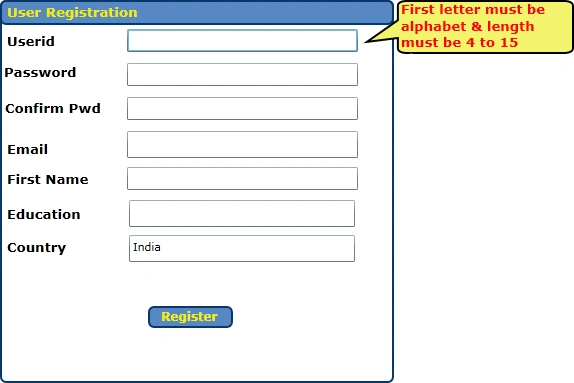
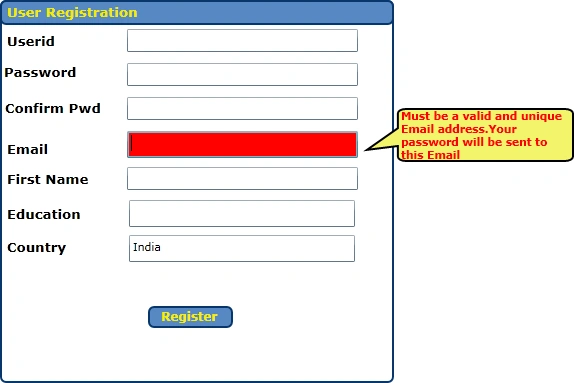
The output will be as follows for the above code:
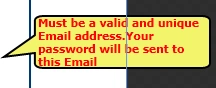
For every textbox focus the user will be able to see a separate tooltip explaining the desired input.
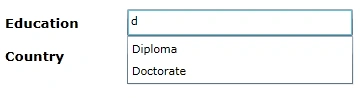
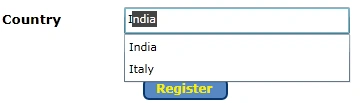
I have created two autocompletebox for Education and Country field. The complete working example is explained in my previous article.
Now the coding part.
For every textbox focus and lost focus we are showing and hiding the tooltip:
For ex:
private void email_gotfocus(object sender, System.Windows.RoutedEventArgs e)
{
SolidColorBrush b1 = new SolidColorBrush();
b1.Color = Colors.Red;
email.Background = b1;
emaillabel.Visibility = Visibility.Visible;
}
private void email_lostfocus(object sender, System.Windows.RoutedEventArgs e)
{
emaillabel.Visibility = Visibility.Collapsed;
SolidColorBrush b1 = new SolidColorBrush();
b1.Color = Colors.White;
email.Background = b1;
}
In the above code on focus the email textbox background is changing to red and when losing the focus it is back to white.
One thing more interesting is the use of width and height as auto. The benefit is when your browser size changes. This can be best demonstrated by the example. See the below images:
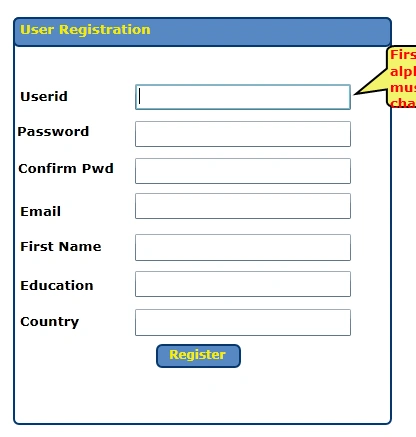
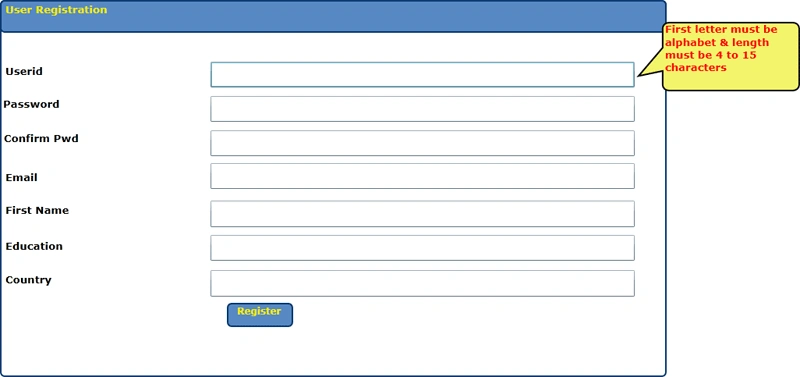
By removing the width and height of the user control, the control will the take the size according to the browser size.
Sample Screenshot:
Sample 1:
Sample 2:
Join the conversation! Your thoughts help the community grow.