

Introduction
Customization of Office 2007 applications like Word or Excel is very easy with Visual Studio 2008. Nowadays a day lot of real-time business requirement is accomplished by Office customization. Office ribbon provides rich UI and you can add your own custom tab on it very quickly.
This article describes a step-by-step method for creating a Custom Tab in Excel/Word 2007 at UI Ribbon. The user doesn't need to write a single line of code to achieve the functionality described in this article. All code is automatically generated by Visual Studio 2008 Project Template.
Step-by-step description starting from here.
Step 1. Create a new Excel 2007 Add-in project.
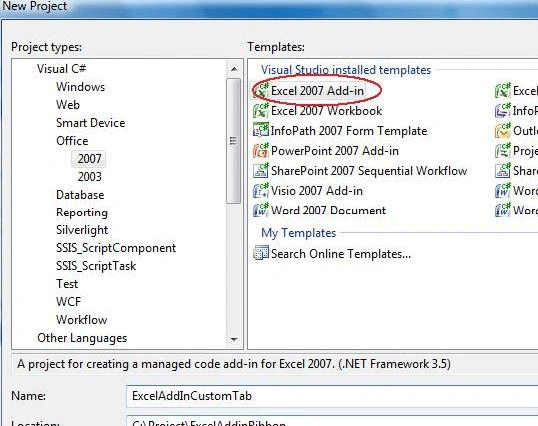
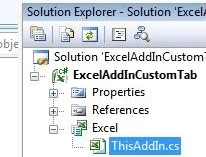
In the solution explorer, you can see the following image.
This AddIn.cs contains the required method for designer Support.
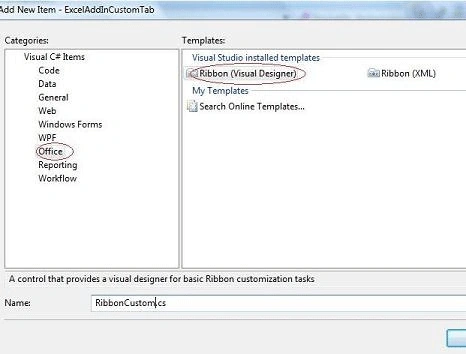
Step 2. In this step, you can add a new ribbon visual Designer to the project.
Right-click on the Project file->Add -> Select New Item in the Office category -> select Ribbon (Visual Designer).
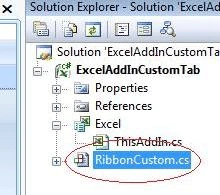
In the solution explorer, you can see the RibbonCustom.cs file and also its designer view.
Step 3. In the designer view of RibbonCustom.cs, from the box, add a new Tab into the bottom panel of the Ribbon.
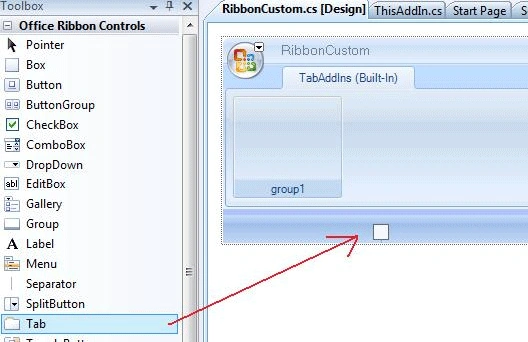
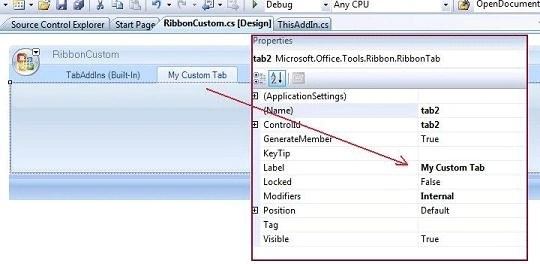
Step 4. Now, you can see the new tab. From the Properties of the new Tab, you can set your own name and label.
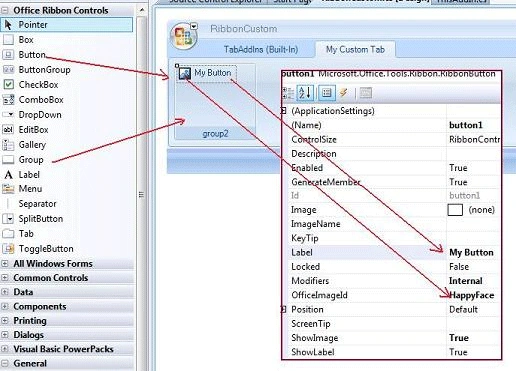
Step 5. Add your own control to the tab from Tools. Remember that for adding any control first need to add "Group". All controls (like buttons, labels, Gallery, etc) are the child of Group control.
Step 6. Easy Press the F5 button it will build and run one Excel with your custom tab on the ribbon.
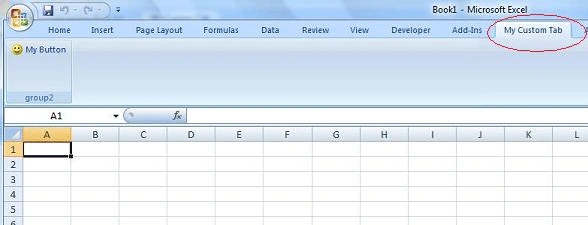
Cool Right? Please Try it.
How do I publish the setup of this project?
From the Visual Studio toolbar, Click on the Build item, select the Publish ExcelAddinCustom Tab, and follow the wizard. It will create the setup.exe in the selected folder.
Create Custom Tab for Word 2007
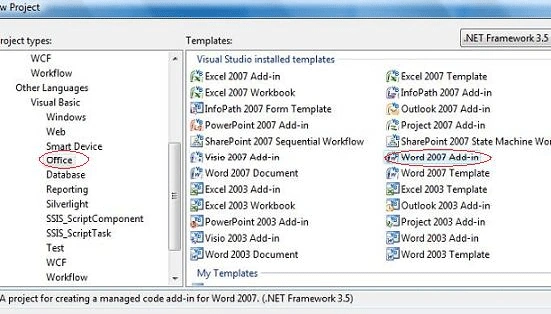
Create New Project Select the Word 2007 Add-in template from the office category and follow the same steps as described for the Excel Add-in.
How to disable the Add-in?
- Open Excel file
- Click on the Top Left Round Button (Microsoft Office Button)
- Click on the Excel Option Button available at the bottom.
- From Excel Options Dialog, Select Add-In Tab
- Select COM Add-ins From the Manage Combo box, and Click the Go Button.
- Uncheck unwanted Add-ins From the COM Add-Ins list
You also get a piece of good information for enabling/disabling office add-in from Here
http://office.microsoft.com/en-us/help/HA100341271033.aspx
How do you permanently remove the Add-in?
Go to Control Panel -> Programs and Features -> Uninstall the setup.
Naveen MishraPosted May 16, 2012, 6:32 AM
Very Good Contents We can create Add ins using VBA code also but for .net developer this is very easy steps Naveen Mishra MS Excel VBA Developer & Trainer for Corporate Training you can contact on 91-9871115570
Remesh CPPosted Sep 23, 2010, 9:57 AM
Hi, We have created custom ribbon mentioned in the sample. we are able to see the custom ribbon, in the development machine. Also please let me know how we can deploy the same ribbon dll in end user machine. We tried to create a setup file and install in other machine (Office 2007 installed). But when opening Word 2007, the custom ribbon is not displaying. Please help us to resolve this. Thanks Remesh
divyaPosted May 24, 2010, 6:55 AM
Can you please explain me, how to create a custom ribbon in word, which has brief features of printing a document. It would be helpful if you provide step by step information or sample project.
aravindPosted Mar 18, 2010, 7:54 AM
hai:: I want create a custom task pane that users can hide or display by clicking a toggle button on the Ribbon. You should always create a user interface (UI) element, such as a button, that users can click to display or hide your custom task pane, because Microsoft Office applications do not provide a default way for users to show or hide custom task panes.<?xml:namespace prefix = o ns = "urn:schemas-microsoft-com:office:office" /><o:p></o:p> Software Used:<o:p></o:p> .net 2.0 and c#,Vsto<o:p></o:p> <o:p> </o:p> Can u give the Steps For that<o:p></o:p>