

Hi this is my PROJECT series which I posted on this site. My previously posted projects are in .NET 2.0 and web based too. Previously my posted projects are.
1. Social Networking web application example
2. MyCollegeMyFriend - An Open Source Project developed using ASP.NET 2.0
3. Building a Friends Networking Website
4. On-line Address Book in ASP.NET 2.0
So now I am going to post a project on School Management system which I developed in .NET 3.5 (WPF). It's a window based project.
In this project an authorized person can Add, Delete, Update and view students and teachers records. I did all edit, delete, create, and read in this project. You can find database file in DATA folder inside application. My database file name is SMS (School Management System). To run this project just add this database and change connection string. I used here typed data set.
To run the application just add the database and change the connection string in App.config file like...
<?xml version="1.0" encoding="utf-8" ?>
<configuration>
<configSections>
</configSections>
<connectionStrings>
<add name="SchoolManagementSystem.Properties.Settings.SMSConnectionString"
connectionString="Data Source=Rahul\SQLSERVER2005;Initial Catalog=SMS;User ID=sa;Password=wintellect"
providerName="System.Data.SqlClient" />
</connectionStrings>
</configuration>
Now I am going to show the working of my application. When you run the application there is a login window, after login you will redirect to main window of application from where you can do all operation which are available in my application like from menu item you can add student, view all student, add new teacher and view all teacher like..
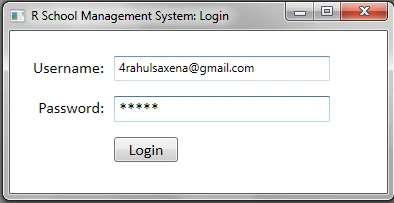
Image 1.
After Login the main window will open.
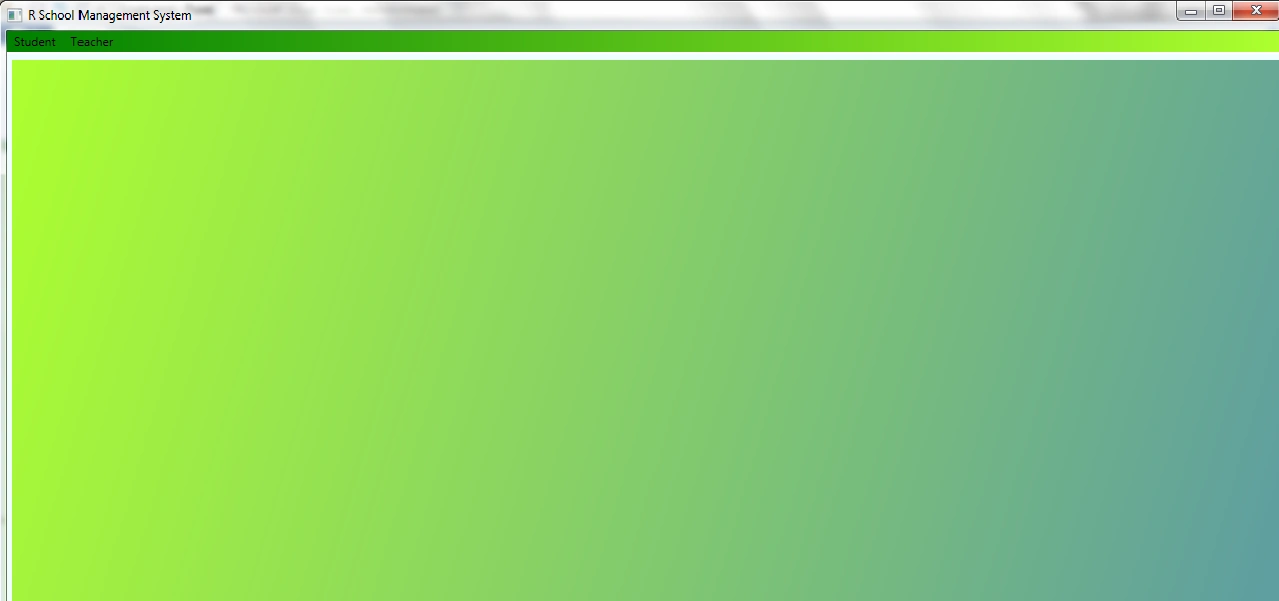
Image 2.
From the menu item you can select Student/ Teacher.
With Student menu you can add new student.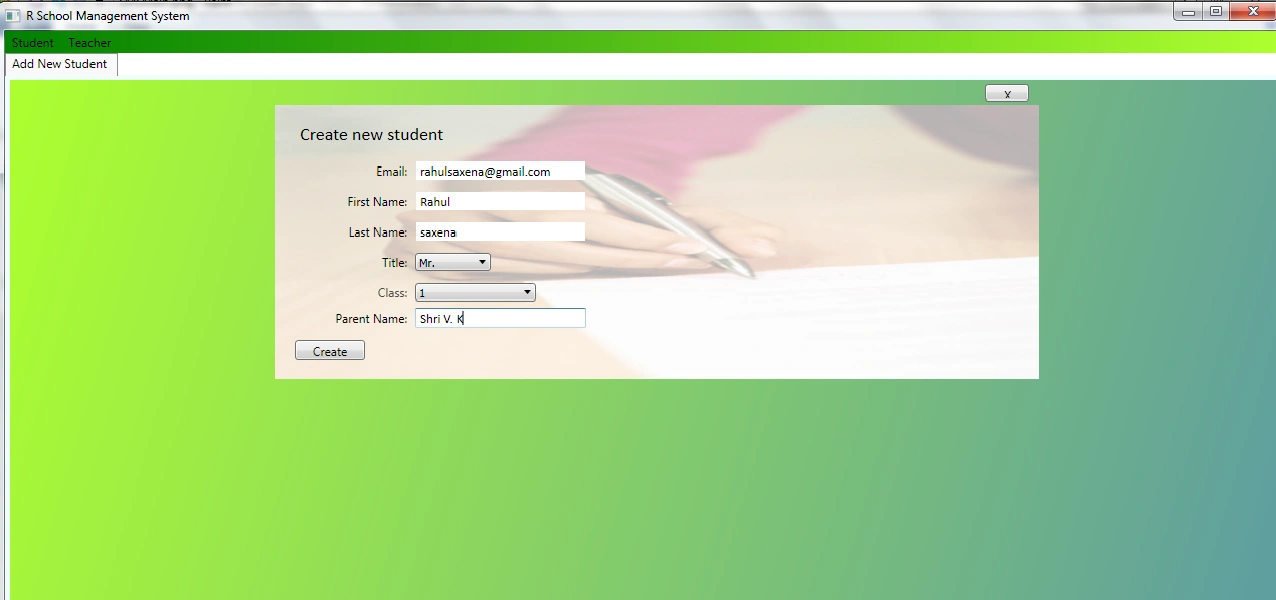
Image 3.
You can view all student.

Image 4.
Here by double clicking on any record you can delete or update the record.

Image 5.
If you select Teacher-> Add New Teacher

Image 6.
Teacher -> All Teacher. You can delete and update by double clicking on any record.
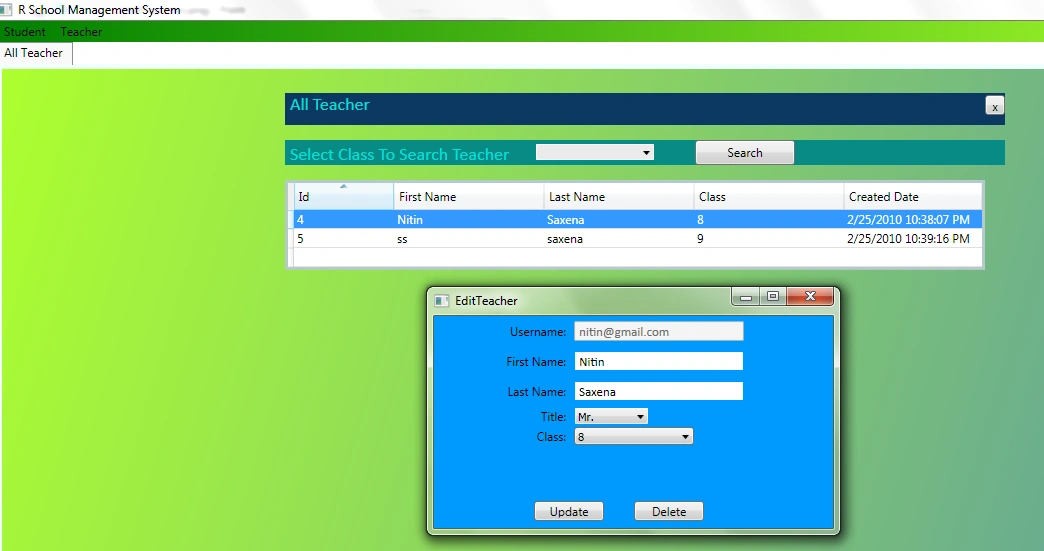
Image 7.
Ben KallePosted May 14, 2018, 4:00 PM
Unable to download the source code. Please advise.
Ben KallePosted May 14, 2018, 4:00 PM
Unable to download the source code. Please advise. !!!!
Scott DeCotaPosted Aug 9, 2017, 8:39 AM
Unable to download the source code. Please advise.
prabhu inbarajPosted Jun 21, 2017, 3:19 PM
Unable to download. can you update the source code again
Rick SmithPosted Jan 6, 2016, 6:04 PM
This looks like the best tutorial on the topic. Unfortunately, I'm unable to download the code. The site says it can't find the file. Please fix the upload or send it to [email protected]
Rahul Kumar SaxenaPosted Sep 17, 2015, 12:13 PM
I have uploaded Source Code.. will check
fadli kasonaPosted Sep 17, 2015, 4:17 AM
Unable to download please send it to [email protected]
shivaji shitolePosted Dec 16, 2014, 4:05 AM
Unable to download. Please upload files again
gnana bhaskarPosted Oct 10, 2014, 12:03 AM
unable to download, please send upload it again
neha thakurPosted Oct 8, 2014, 12:37 AM
unable to download please send it to [email protected]
Rele MonyakiPosted Sep 3, 2014, 10:33 AM
guys were you able to finally download the files?, cause I can't download them.
Muneer ucPosted Aug 22, 2014, 2:26 AM
Unable to download brother,
Артём БудниковPosted Aug 14, 2014, 12:57 AM
unable to download, can you send source code to [email protected]. Thank you.
Daniel CarrollPosted Aug 6, 2014, 4:30 PM
unable to download, can you please send source code to [email protected] you!!
siva kumarPosted Jul 24, 2014, 7:58 AM
unable to download code please send me source code at [email protected]
Dilip ChoudharyPosted Jul 6, 2014, 12:00 AM
unable to download code
Mritunjay KumarPosted Mar 28, 2014, 7:02 AM
Would you please send me this source code at [email protected] .... thanks in advance
Serdeeneil MerinPosted Nov 10, 2013, 11:15 PM
kindly send me a sample of this one sir... [email protected] thanks in advance
umer ubPosted Jun 9, 2013, 12:45 PM
unable to download code , if its possible then send it at [email protected] ......thanx in advance
Sanisto SanistoPosted Jun 5, 2013, 4:56 AM
unable to download source code
Priom BiswasPosted Apr 30, 2013, 2:04 PM
Unable to download
Hamid KhanPosted Apr 24, 2013, 8:20 AM
Unable to download
aditi ghadgePosted Apr 6, 2013, 3:44 PM
can you send me source code.its help full for me.in my project when i click on button its create multiple document but i want to create like mdi which display with in same form ,i dnt knw how solve it in wpf plz send me code so i can solve my problem [email protected]
vicky raiPosted Apr 3, 2013, 3:43 AM
Unable to download..
aditi ghadgePosted Apr 1, 2013, 10:02 AM
Can you send me this project for reference on [email protected]
Prasad MakkenaPosted Mar 8, 2013, 3:50 AM
when am downloading the file,error comes like this The page you are looking for might have been removed, had its name changed, or is temporarily unavailable.
ankit patelPosted Feb 14, 2013, 2:09 AM
unable to downloadyarrrrrrrrrrrrrrrrrrrrrr
Niravkumar VaghelaPosted Jan 25, 2013, 12:15 PM
where is code?
abhishek srivastavaeditedPosted Jan 8, 2013, 5:53 AMEdited Jan 8, 2013, 5:55 AM
where is code sample? unable to download one which you provided. better to just paste your code with your article in the place of providing whole project...
raju patilPosted Jan 1, 2013, 5:14 AM
Bulshit i am asking many times to unable to download this project thu.
raju patilPosted Jan 1, 2013, 5:14 AM
Bulshit i am asking many times to unable to download this project thu.
raju patilPosted Jan 1, 2013, 5:14 AM
Bulshit i am asking many times to unable to download this project thu.
raju patilPosted Jan 1, 2013, 5:14 AM
Bulshit i am asking many times to unable to download this project thu.
raju patilPosted Jan 1, 2013, 5:14 AM
Bulshit i am asking many times to unable to download this project thu.
satish babuPosted Dec 26, 2012, 5:00 AM
hello this is buddhu..im unable to download that code pls send it to my mail id pls.. [email protected]
raju patilPosted Dec 26, 2012, 1:08 AM
Please send these project to my emial id my dear friend [email protected]
shahbazPosted Dec 22, 2012, 12:17 PM
Unable to download the project :(
raju patilPosted Dec 19, 2012, 5:20 AM
hello i am requesting to you . Please send project to my email [email protected]
raju patilPosted Dec 14, 2012, 5:42 AM
Edit plz send me this project to my e-mail because i can't download [email protected]
raju patilPosted Dec 14, 2012, 12:53 AM
plz send me this project to my e-mail because i can't download [email protected]
raju patilPosted Dec 14, 2012, 12:53 AM
plz send me this project to my e-mail because i can't download [email protected]
raju patilPosted Dec 14, 2012, 12:53 AM
plz send me this project to my e-mail because i can't download [email protected]
krupesh shahPosted Oct 5, 2012, 2:30 AM
plz send me this project to my e-mail because i can't download it,reason is current link unavailable-> [email protected]
greg saganPosted Aug 20, 2012, 7:53 AM
Can you please upload this file, would be very useful for me to see it. Many thanks.
Navneet GargPosted Jul 18, 2012, 7:53 AM
download link is not working if possible pls send code to [email protected]
kamal mohanPosted Jun 19, 2012, 1:11 AM
Hi, I assume the download file is missing...
houtaa axmegPosted May 6, 2012, 11:33 AM
hi Rahul, please can u send me this project ([email protected]) , i really need this , thank you rahul
Diluka WittachchiPosted Mar 17, 2012, 3:26 PM
plz send me this project to my e-mail because i cannt download it,reason is current link unavailable->[email protected]
umeshPosted Jul 18, 2011, 3:43 AM
unable to download
umeshPosted Jul 18, 2011, 3:41 AM
I am not able to download sample code,can you plz provide me alternative link or fix it.
Rahul Kumar SaxenaPosted Feb 18, 2011, 5:06 AM
please send code of the school managing project to my mail ID([email protected]),i am student this code will help full to my practice please please please please
Malaravan SubramaniamPosted Nov 24, 2010, 5:58 AM
if u upload the sourcecode, i can evaluate it;
adrian salcu popPosted Nov 19, 2010, 2:27 AM
hi Rahul, please upload the project again, there is an error while try to download. Thank you for your kindness to help other learning! All my best wishes, Adi
Ashok KumarPosted Nov 13, 2010, 11:02 PM
Hi Rahul The given download link not working.Can u upload again
Le Bao TrungPosted Nov 13, 2010, 2:21 PM
Hi rahul, I can't download the source code of this article. "The server not found!" Please help me. Can you send it through my email? [email protected] Thank you very much. Happy coding and regards. Le Bao Trung
Sajjad AhmedPosted Oct 31, 2010, 9:10 AM
unable to download this source code
Sajjad AhmedPosted Oct 31, 2010, 8:49 AM
Dear Rahul, very helpfull for me and very good article...... thx for share knowledge.... sajjad ahmed Software Developer
Dhiraj KumarPosted Sep 20, 2010, 4:42 AM
Dear Rahul Myself Dhiraj Kumar Pandey and i am not able to download this project. Plz look into this matter as i am learning WPF and ths articles is very intresting........
Brian ChaneyPosted Aug 31, 2010, 3:42 PM
The Download is unavailable.
Naveen PurohitPosted Jul 31, 2010, 2:50 AM
there is no project available on this link...
Karel BenakPosted Jul 6, 2010, 1:06 PM
Hi Rahul, can you please upload your project again? Thank you Karel
deva nandhanPosted Jun 30, 2010, 2:01 PM
Hi rahul I m unable to download ur SMS Zip.can u pls upload again regards Deva
lovely lovelyPosted May 11, 2010, 4:50 AM
Hi Rahul, i would like to download this project. but the link is not working. Can you please upload the project again?? Thanks
snehal tandelPosted May 11, 2010, 12:39 AM
m unable to download the project ....
Rahul Kumar SaxenaPosted Mar 3, 2010, 2:18 AM
To Login-- UserId - [email protected] Pwd - rahul