

PrettyPhoto is a free JQuery project, I used to build this nice photo gallery.
This article is going to describe how to create Image Gallery, Image Paging and Image Listing using JQuery.
First of all, create a new ASP.NET website and provide your website name, browse saving location of website and click OK button.
This will create a website.
After that, add three folders named - javascripts, styles, and images.
Here I am explaining two methods to make an image gallery. The first method is direct display images using img HTML control.
First of all add js files in javascript folder and stylesheet in styles folder and images in images folder and call js file and css file on page like this.
Method 1. Using Img HTML Tag
The first way is this.
<link rel="stylesheet" type="text/css" href="styles/prettyPhoto.css" charset="utf-8" media="screen" />
<!-- Arquivos utilizados pelo jQuery lightBox plugin -->
<script type="text/javascript" src="javascripts/jquery-1.3.2.min.js" charset="utf-8"></script>
<script type="text/javascript" src="javascripts/jquery-1.4.4.min.js" charset="utf-8"></script>
<script type="text/javascript" src="javascripts/jquery.prettyPhoto.js" charset="utf-8"></script>
<div>
<a href="images/fullscreen/1.jpg" rel="prettyPhoto[pp_gal]" title="You can add caption to pictures.">
<img src="images/thumbnails/t_1.jpg" width="60" height="60" alt="Nice Sea" />
</a>
<a href="images/fullscreen/2.jpg" rel="prettyPhoto[pp_gal]">
<img src="images/thumbnails/t_2.jpg" width="60" height="60" alt="Evening Sunsine" />
</a>
<a href="images/fullscreen/3.jpg" rel="prettyPhoto[pp_gal]">
<img src="images/thumbnails/t_3.jpg" width="60" height="60" alt="Looks Horrible" />
</a>
<a href="images/fullscreen/4.jpg" rel="prettyPhoto[pp_gal]">
<img src="images/thumbnails/t_4.jpg" width="60" height="60" alt="Muntains" />
</a>
<a href="images/fullscreen/5.jpg" rel="prettyPhoto[pp_gal]">
<img src="images/thumbnails/t_5.jpg" width="60" height="60" alt="Snow Mountains" />
</a>
</div>
And write this script before closing of body tag.
<script type="text/javascript" charset="utf-8">
$(document).ready(function() {
$("a[rel^='prettyPhoto']").prettyPhoto();
});
</script>
Method 2. Using DataList Control
In this method, drag and drop a DataList data control to the page and bind like this.
<link rel="stylesheet" type="text/css" href="styles/prettyPhoto.css" charset="utf-8" media="screen" />
<!-- Arquivos utilizados pelo jQuery lightBox plugin -->
<script type="text/javascript" src="javascripts/jquery-1.3.2.min.js" charset="utf-8"></script>
<script type="text/javascript" src="javascripts/jquery-1.4.4.min.js" charset="utf-8"></script>
<script type="text/javascript" src="javascripts/jquery.prettyPhoto.js" charset="utf-8"></script>
<asp:DataList ID="galleryDataList" RepeatColumns="5" runat="server">
<ItemTemplate>
<a href='<%# Eval("Name","images/fullscreen/{0}")%>' rel="prettyPhoto[pp_gal]" title="You can add caption to pictures.">
<img src='<%# Eval("Name","images/fullscreen/{0}")%>' width="60" height="60" alt='<%# Eval("Name") %>' />
</a>
</ItemTemplate>
</asp:DataList>
</form>
<script type="text/javascript" charset="utf-8">
$(document).ready(function() {
$("a[rel^='prettyPhoto']").prettyPhoto();
});
</script>
Code behind looks like following.
using System.IO;
protected void Page_Load(object sender, EventArgs e)
{
if (!IsPostBack)
{
DirectoryInfo myImageDir = new DirectoryInfo(MapPath("~/images/fullscreen/"));
try
{
galleryDataList.DataSource = myImageDir.GetFiles();
galleryDataList.DataBind();
}
catch (System.IO.DirectoryNotFoundException)
{
Response.Write("<script language =Javascript> alert('Error!');</script>");
}
}
}
Build and Run
Now time to run the application to see the result. The output looks like Image 1.

Image 1.
When click on any image then result looks like Image 2 and so on.
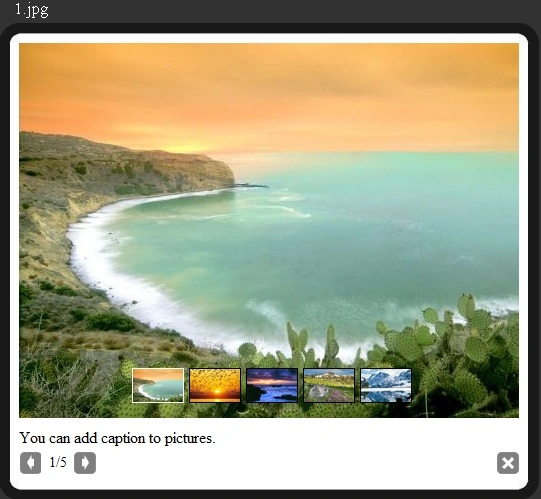
Image 2.
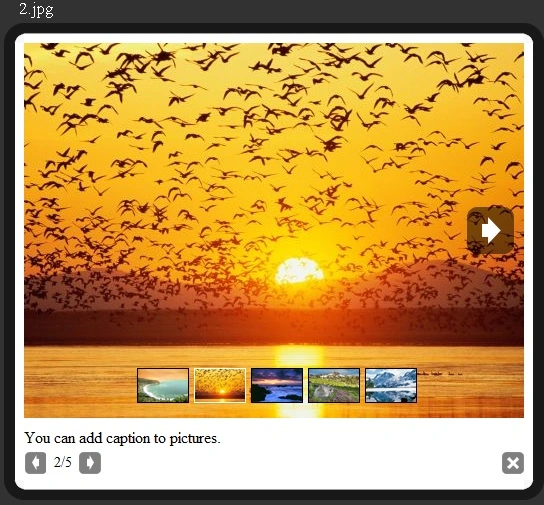
Image3.
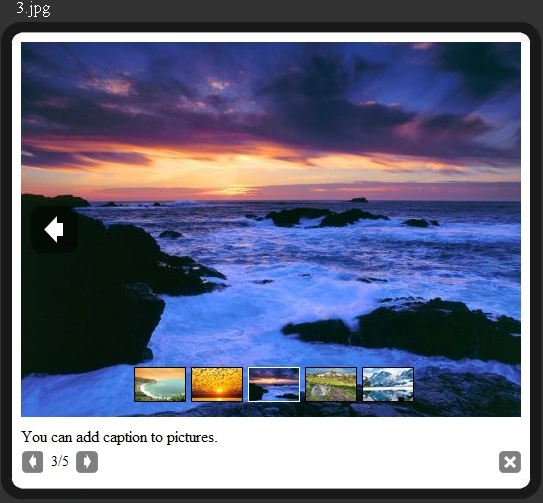
Image 4.
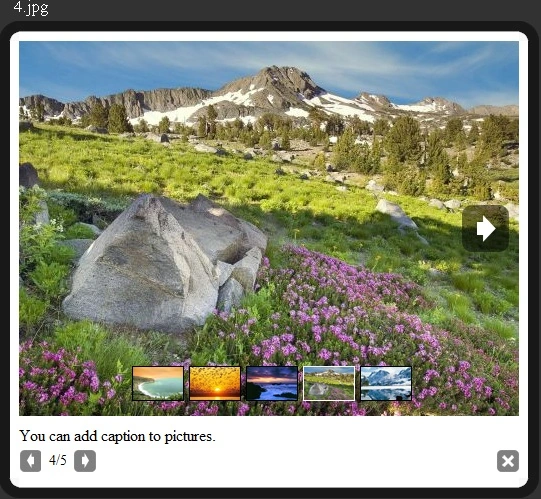
Image5.
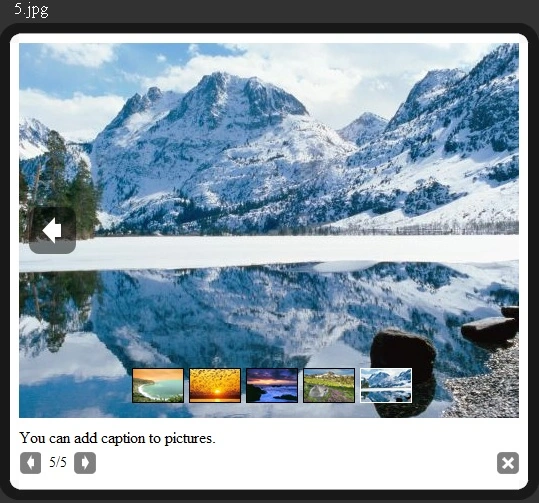
Image 6.
Now we are done here. Is't it a cool control. If you have any questions and comments feel free to post me.
John McCulloughPosted May 7, 2017, 11:49 AM
Hi. I was wondering if Raj or anyone else could tell me how you can add individual captions to each photo instead of the generalised title one. Any help would be greatly appreciated
Omar ArevaloPosted Jul 20, 2016, 6:29 AM
Thk you!!!
amit kumarPosted Jun 1, 2016, 5:24 AM
great job boss
Abhishek SrivastavaPosted Apr 28, 2016, 10:45 AM
Its not working while using master page.
Gowtham RajamanickamPosted Apr 12, 2016, 2:12 AM
Good One, Thanks for sharing
Pankaj YadavPosted Nov 19, 2015, 8:50 AM
Great example.....
altaf seliyaPosted Sep 28, 2015, 8:21 AM
how i use it in nested datalist in asp.net
ibrahim harunaPosted Aug 27, 2015, 2:44 PM
your coding is working perfectly. nice post.
ROHAN PANDEYPosted Mar 8, 2015, 8:58 AM
Project should dynamic we can add dynamic picture
Puveneswaran ThanarajanPosted Feb 24, 2015, 6:07 AM
Thank you.. works fine..
Vithal WadjePosted Dec 17, 2014, 1:00 PM
great
Par NycePosted Dec 17, 2014, 7:12 AM
Very cute..
Chris ThompsonPosted Apr 22, 2014, 8:23 AM
I am sorry I should have looked closer.. It works great and have found out how to answer all my questions.. Great job. So I do have a question, is there a way to open a different folder when the main image is clicked on. So that I can have a sub set of images in their own folder that relate or are associated to the main image displayed. Sorry to be a pest ha ha..
Chris ThompsonPosted Apr 22, 2014, 8:18 AM
This is great and so easy to implement. Thankyou for your hard work which makes our work better. I have one question that I hope you can answer for me Can I nominate the number of images that are displayed in a row or make the images create a second row if there are more then 5 images
Vinay SinghPosted Aug 14, 2013, 12:52 PM
I want a delete button which deleted selected image from database and also from physical location and also a edit button which can change the image name...
Raj KumarPosted Apr 19, 2013, 12:34 AM
Yes it's absolutely free
Bhausaheb ShelareditedPosted Apr 18, 2013, 8:09 AMEdited Apr 18, 2013, 8:10 AM
This is very nice. But this jquery free or not.
Bhausaheb ShelareditedPosted Apr 18, 2013, 8:09 AMEdited Apr 18, 2013, 8:10 AM
Nice
Eduardo AlexanderPosted Apr 17, 2013, 10:42 AM
Thanks
Former memberPosted Mar 29, 2013, 7:39 AM
thanks.... for such a nice gallery.. have a look of this also http://www.dotnetpools.com/Article/ArticleDetiail/?articleId=186&title=Dynamic-jQuery-Photo-Gallery-In-Asp.Net-Using-C#
Former memberPosted Mar 29, 2013, 7:39 AM
Hi this is really nice gallery... i have found one more please check http://www.dotnetpools.com/Article/ArticleDetiail/?articleId=297&title=Dynamic-jQuery-Image-Gallery-With-Text-Description-In-Asp.Net-Using-C#
sonal kumarPosted Feb 17, 2013, 12:17 PM
thanks.
Muhammad MoiezPosted Dec 7, 2012, 12:14 PM
this so amazing bro... thanks
jaynesh diyoraPosted Nov 3, 2012, 3:10 PM
Hello Frnds I just try this jquery gallary but in my gallary there is not close button and previous and next button can you please help me how to add this in my gballary thanks a lot !!
Prince AbrahamPosted Oct 21, 2012, 10:09 AM
Nice gallery .. Thank you...
jatin patelPosted Sep 29, 2012, 4:27 AM
thanks a lot sir.... its very important for me.
jatin patelPosted Sep 29, 2012, 4:27 AM
thanks a lot sir.... its very important for me.
ashkan hafeziPosted Sep 3, 2012, 6:28 PM
very god... thank you...
Saber ShaikhPosted Jul 30, 2012, 1:41 AM
thank you Nice look of gallery
koe ngePosted Jul 23, 2012, 5:42 AM
Hi, may i know how to change the caption according to the image while using datalist?
chandrika soniPosted Jul 1, 2012, 10:55 AM
sir it develop error in this code <script type="text/javascript" charset="utf-8"> $(document).ready(function() { $("a[rel^='prettyPhoto']").prettyPhoto(); }); </script> please solve how i detect it
jamil khanPosted Jun 24, 2012, 2:34 PM
Thats nice
moataz falakyPosted Jun 18, 2012, 9:44 AM
and if i want to move the part of the 5 small images showed at the bottom of the big image to the white space under the images beside the arrows , what should i do ?
moataz falakyPosted Jun 18, 2012, 9:41 AM
can i show the images without clicking on the image , to be more accurate i have website and i want the galary to show when page load immediately
santosh kumarPosted Jun 4, 2012, 11:04 AM
Hi. Your code is amazing. I want to develop photo slideshow like facebook. I would like to add comments section next to each photo. I also want to give name to each photo. Kindly help me. Thanks Santosh
dilip sharmaPosted May 21, 2012, 10:36 AM
nice
Mahesh ChandPosted Apr 29, 2012, 10:07 PM
Sample is attached in this article.
Nuwan RathnayakePosted Aug 13, 2011, 9:14 AM
Please give more project sample.All the best.
Hatake KakashiPosted Jun 2, 2011, 10:38 AM
When I add some pictures to the fullscreen folder, run the app and click on the picture I get an "invalid argument" exception. and it opens jquery-1.4.4.min.js and highlights "a.elem.style[a.prop]=(a.prop==="width"||a.prop==="height"?Math.max(0,a.now):a.now)+a.unit".. I know it has something to do with the picure because other pictures I test it with do work... very strange
Gaurav MehtaPosted Jan 17, 2011, 5:18 AM
Hi Raj, I tried running the above code but when I click on any of the picture(in any approach).It just does not work and Explorer prompts for closing itself(Invalid Operation). I did not make any changes to the code as such. Thanks and Regards, Gaurav Mehta
Rauf AbidPosted Jan 7, 2011, 6:39 AM
What a jquery u have written...... amazing.