

This article will demonstrates how to show data in wpf datagrid using dataset data template. In visual studio 2010 datagrid works fine just as drag and drop from toolbox but in visual studio 2008 you need install wpf toolkit and add refrence to wpf toolkit assembly in your application.
Make a new WPF application. First of all add a DataSet data template.
Figure1.

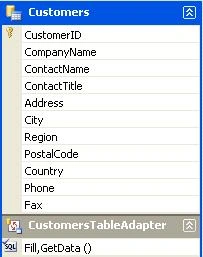
Drag and drop database tables using server explorer.
Figure2.
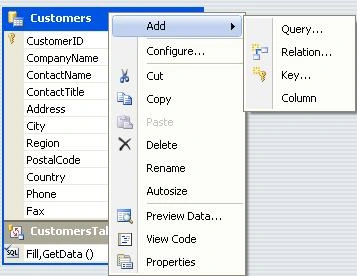
You can customise dataset also like write new query, make relation preview Data.
Figure3.
Now time to work in window.xaml first of all you need to add namespace of wpf tollkit.
xmlns:grid=http://schemas.microsoft.com/wpf/2008/toolkit
if you want see all all data use datagrid like this
<grid:DataGrid ItemsSource="{Binding}" />
And if you want show selected columns data then
<grid:DataGrid x:Name="MyDataGrid" VerticalAlignment="Top" x:Uid="MyDataGrid" AutoGenerateColumns="False" ItemsSource="{Binding}"
AlternationCount="2" SelectionMode="Single" Height="400" Margin="0,12,0,0">
<grid:DataGrid.Columns>
<grid:DataGridTextColumn Binding="{Binding Path=CustomerID}"
Header="Customer ID" Width="auto" />
<grid:DataGridTextColumn Binding="{Binding Path=CompanyName}"
Header="Company" Width="auto" />
<grid:DataGridTextColumn Binding="{Binding Path=ContactName}"
Header="Name" Width="auto" />
<grid:DataGridTextColumn Binding="{Binding Path=City}"
Header="City" Width="auto" />
<grid:DataGridTextColumn Binding="{Binding Path=Country}"
Header="Country" Width="auto" />
</grid:DataGrid.Columns>
</grid:DataGrid>
.CS code
CustomerDataSet custometDataSet = new CustomerDataSet();
CustomerDataSetTableAdapters.CustomersTableAdapter customersTableAdapter = new CustomerDataSetTableAdapters.CustomersTableAdapter();
private void Window_Loaded(object sender, RoutedEventArgs e)
{
FillCustomers();
}
private void FillCustomers()
{
customersTableAdapter.Fill(custometDataSet.Customers);
this.DataContext = custometDataSet.Customers.DefaultView;
}
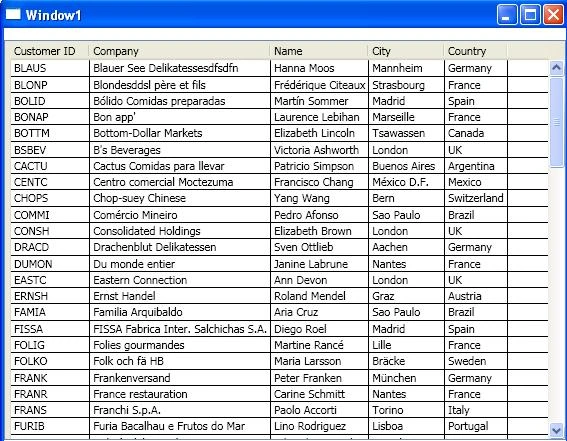
Now build your application.
Figure4.
Azeem NawazPosted Jun 10, 2012, 6:30 AM
thanks a lot. You explained this concepts in very simple way...