

Introduction
Data binding is a mechanism in WPF Applications, which provides a simple and easy way for Windows Runtime apps to display and interact with the data.
Data binding is of two types- One-Way Data binding and Two-Way Data binding.
One-Way Data binding
In One-Way binding, the data is bound from its source (that is the object that holds the data) to its target (that is the object, which displays the data).
- Let’s take a simple example to understand One-Way Data binding in detail. First of all, create a new WPF project with the name WPFDataBinding.
- The XAML code given below creates two labels, two textboxes, one button and initializes them with some properties.
- <Window x:Class="WPFDataBinding.MainWindow" xmlns="http://schemas.microsoft.com/winfx/2006/xaml/presentation" xmlns:x="http://schemas.microsoft.com/winfx/2006/xaml" xmlns:d="http://schemas.microsoft.com/expression/blend/2008" xmlns:mc="http://schemas.openxmlformats.org/markup-compatibility/2006" xmlns:local="clr-namespace:WPFDataBinding" mc:Ignorable="d" Title="MainWindow" Height="350" Width="604">
- <Grid>
- <Grid.RowDefinitions>
- <RowDefinition Height="Auto" />
- <RowDefinition Height="Auto" />
- <RowDefinition Height="*" /> </Grid.RowDefinitions>
- <Grid.ColumnDefinitions>
- <ColumnDefinition Width="Auto" />
- <ColumnDefinition Width="200" /> </Grid.ColumnDefinitions>
- <Label Name="nameLabel" Margin="2">_Name:</Label>
- <TextBox Name="nameText" Grid.Column="1" Margin="2" Text="{Binding Name, Mode=OneWay}" />
- <Label Name="ageLabel" Margin="2" Grid.Row="1">_Age:</Label>
- <TextBox Name="ageText" Grid.Column="1" Grid.Row="1" Margin="2" Text="{Binding Age, Mode=OneWay}" />
- <StackPanel Grid.Row="2" Grid.ColumnSpan="2">
- <Button Content="_Show..." Click="Button_Click" /> </StackPanel>
- </Grid>
- </Window>
- The text properties of both the textboxes binds to Name and Age, which are class variables of Person class, which is shown below.
- In Person class, we have just two variables Name and Age and its object is initialized in MainWindow class.
- In XAML code, we are binding to a property Name and Age, but we have not selected what object that property belongs to.
- The easier way is to assign an object to DataContext whose properties; we are binding in C# code given below in MainWindowconstructor.
- using System.Windows;
- namespace WPFDataBinding {
- public partial class MainWindow: Window {
- Person person = new Person {
- Name = "Salman", Age = 26
- };
- public MainWindow() {
- InitializeComponent();
- this.DataContext = person;
- }
- private void Button_Click(object sender, RoutedEventArgs e) {
- string message = person.Name + " is " + person.Age;
- MessageBox.Show(message);
- }
- }
- public class Person {
- private string nameValue;
- public string Name {
- get {
- return nameValue;
- }
- set {
- nameValue = value;
- }
- }
- private double ageValue;
- public double Age {
- get {
- return ageValue;
- }
- set {
- if (value != ageValue) {
- ageValue = value;
- }
- }
- }
- }
- }
- Let's run this Application and you can see immediately in our MainWindow, which we have successfully bound to the Name and Age of Person object.
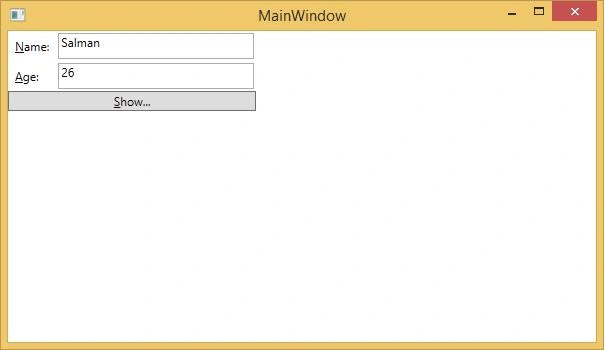
When you click Show button, it will display the name and age on the message box.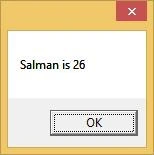
Let’s change the Name and Age in the dialog box.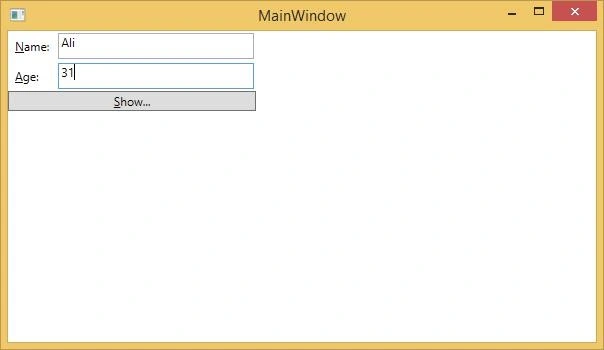
If you click Show button now, it will again display the same message.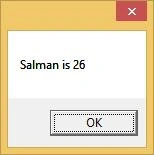
This is because Data binding mode is set to One-Way in XAML code. To show the updated data, you will need to understand Two-Way data binding.
Two-Way Data binding
In Two-Way binding, the user can modify the data through the user interface and have the data updated in the source. If the source changes while the user is looking at the View, you want the View to be updated.
Let’s take the same example but here, we will change the binding mode from One Way to Two Way in XAML code.
- <Window x:Class="WPFDataBinding.MainWindow" xmlns="http://schemas.microsoft.com/winfx/2006/xaml/presentation" xmlns:x="http://schemas.microsoft.com/winfx/2006/xaml" xmlns:d="http://schemas.microsoft.com/expression/blend/2008" xmlns:mc="http://schemas.openxmlformats.org/markup-compatibility/2006" xmlns:local="clr-namespace:WPFDataBinding" mc:Ignorable="d" Title="MainWindow" Height="350" Width="604">
- <Grid>
- <Grid.RowDefinitions>
- <RowDefinition Height="Auto" />
- <RowDefinition Height="Auto" />
- <RowDefinition Height="*" /> </Grid.RowDefinitions>
- <Grid.ColumnDefinitions>
- <ColumnDefinition Width="Auto" />
- <ColumnDefinition Width="200" /> </Grid.ColumnDefinitions>
- <Label Name="nameLabel" Margin="2">_Name:</Label>
- <TextBox Name="nameText" Grid.Column="1" Margin="2" Text="{Binding Name, Mode=TwoWay}" />
- <Label Name="ageLabel" Margin="2" Grid.Row="1">_Age:</Label>
- <TextBox Name="ageText" Grid.Column="1" Grid.Row="1" Margin="2" Text="{Binding Age, Mode=TwoWay}" />
- <StackPanel Grid.Row="2" Grid.ColumnSpan="2">
- <Button Content="_Show..." Click="Button_Click" /> </StackPanel>
- </Grid>
- </Window>
Let's run this Application again.
It will produce the same output.
Let’s change the Name and Age values, as given below.
If you click Show button now, it will display the updated message.
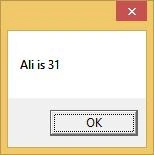
We recommend that you execute the code given above with both the cases for a better understanding of the concept.
Join the conversation! Your thoughts help the community grow.