

Stored Procedure
A stored procedure is a batch of Transact-SQL statements (like select, insert and update) compiled into a single execution that can be re-used. If you find yourself using the same query over and over again, it would make sense to put them into a stored procedure. Every time you write a query it is parsed in the database. If you have written a stored procedure for it, it will be compiled once and can be executed multiple times.
There are two steps involved in executing a stored procedure from your program. First, you set the command object property CommandText as the stored procedure name; second, you set the CommandType property as CommandType.StoredProcedure.
Step 1
Now we Create a table in a database named logintab and it has the three columns Login, Password and Id.
The Database table looks like the Figure 1 shown below.
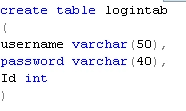
Figure 1
Step 2
Now we create a stored procedure in the database named storlog. The stored procedure looks like Figure 2.
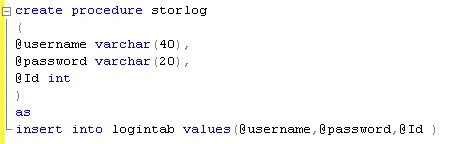
Figure 2
Step 3: Calling stored procedure
Taking three TextBoxes, one Button and a Label control on the form, the form looks like this.
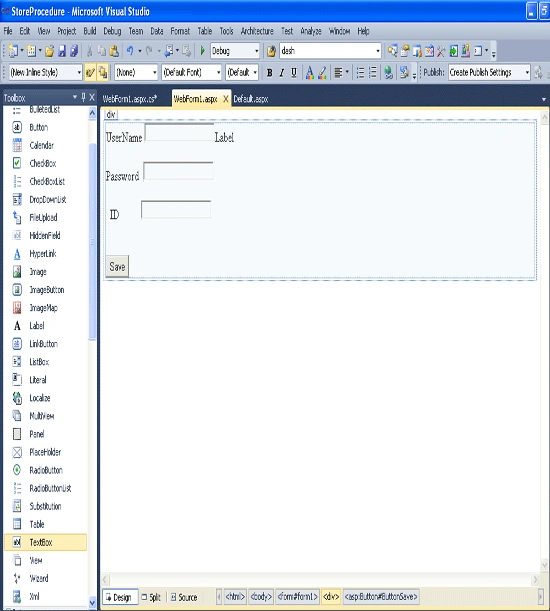
Figure 3
Now double-click on the Save button control and add the following code.
using System;
using System.Collections.Generic;
using System.Linq;
using System.Web;
using System.Web.UI;
using System.Web.UI.WebControls;
using System.Data.SqlClient;
using System.Data;
namespace StoreProcedure
{
public partial class WebForm1 : System.Web.UI.Page
{
protected void Page_Load(object sender, EventArgs e)
{
}
protected void ButtonSave_Click(object sender, EventArgs e)
{
string str = "Data Source=.;uid=sa;pwd=Password$2;database=master";
SqlConnection con = new SqlConnection(str);
con.Open();
SqlCommand com = new SqlCommand("storlog", con);
com.Parameters.Add("@username", SqlDbType.VarChar).Value = TextBoxUsername .Text;
com.Parameters.Add("@Password", SqlDbType.VarChar).Value = TextBoxPassword.Text;
com.Parameters.Add("@Id", SqlDbType.Int).Value = TextBoxId.Text ;
com.CommandType = CommandType.StoredProcedure;
com.ExecuteNonQuery();
Label1 .Text= "record has been saved";
con.Close();
}
}
}
The above code defines the connection with the database and command object property CommandText as the stored procedure name; second, you set the CommandType property as CommandType.StoredProcedure.
Step 4
Now run the application and enter the username, password and Id in the textboxes.
The form looks like this.
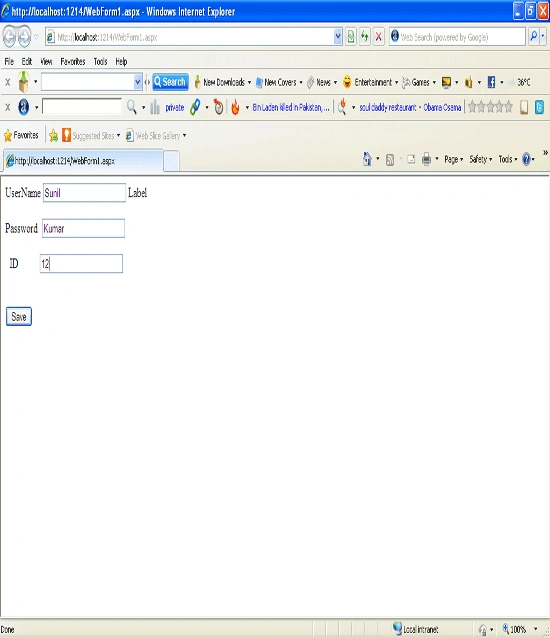
Figure 4
Step 5
Now click on the save Button. All record has been saved in the database.
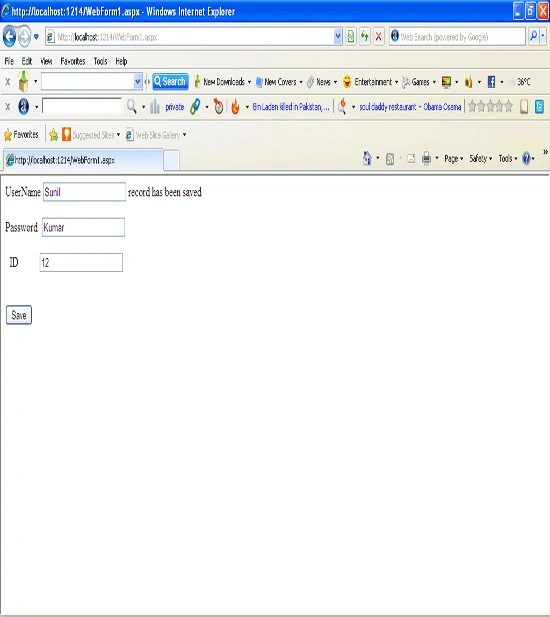
Figure 5
Step 6
Now open the database and test it.
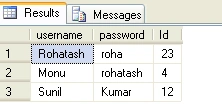
Figure 6
Surabhi BansalPosted May 4, 2011, 4:45 PM
To add the data in database this code really works..Please help me if u can send me the code for delete and update also continuation with this add code.